Save up to 60% on yearly plans and enjoy our biggest offer of the year. Limited time only. 🍂
See pricing

Microsoft Forms question types: Complete guide & examples
Summarize with
In the world of data collection, a survey is only as strong as its weakest question. Survey question types are the specific formats, ranging from multiple-choice to open-ended text, used to gather information from respondents.
Whether it’s a simple "Yes/No" or a complex ranking grid, the format you choose determines the quality of your data.
For marketers, HR teams, and researchers, picking the wrong type can lead to "survey fatigue" or biased results. This guide ensures you select the right tool for the job, turning raw feedback into clear, actionable strategy.
TL;DR
The format of your questions determines your data quality. For marketers and HR teams, the goal is simple: minimize friction to maximize insights.
- Quantitative Data: Use Multiple Choice, Likert Scales, and NPS for stats you can graph.
- Qualitative Data: Use Open-Ended text boxes to uncover the "why," but keep them optional.
- Advanced Needs: Use Ranking for priorities, and Matrix grids for grouping (but avoid these on mobile).
Why the format changes everything
If you’ve ever abandoned a survey halfway through, it probably wasn't because you ran out of time; it’s because the questions felt like a chore. For marketers and HR pros, the format isn't just a container for your query; it’s the user experience.
The wrong question type creates three major roadblocks:
- Friction & Fatigue: Asking for a 500-word essay on a mobile device kills your completion rates. Conversely, a simple "Multiple Choice" button keeps the momentum alive.
- Dirty data: Use a "Yes/No" when you should have used a Likert Scale, and you lose the nuance. You’ll know if they’re unhappy, but not how much, rendering the data shallow and hard to act on.
- Analysis paralysis: If you ask 1,000 customers an open-ended question, you've just handed your team a 40-hour reading assignment. Choosing structured formats allows for instant visualization and faster decision-making.
Think of your question types as the "UX of feedback." A well-chosen format respects the respondent's time while giving you clean, spreadsheet-ready data. This isn't just about definitions; it’s about engineering a survey that people actually want to finish.
The essential survey question types (with examples)
Not all data is created equal. Here is a breakdown of the most effective question types to help you build a high-converting survey.
1. Multiple choice (single select)
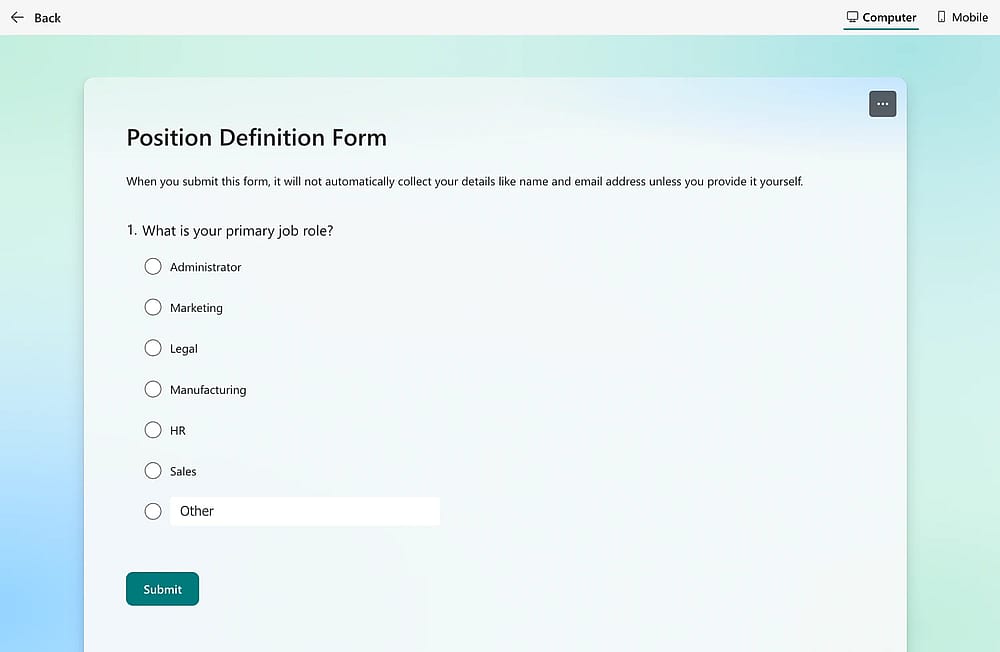
A single selection question example on MS Forms
Multiple choice questions are bread and butter of surveys. Respondents choose one option from a pre-determined list.
- When to use it: When there is a clear, mutually exclusive set of categories (e.g., "What is your primary job role?").
- Example: "Which of our features do you use most often?"
Pro tip: Always include an "Other (please specify)" or "None of the above" option to prevent respondents from being forced into a lie.
2. Checkboxes (multi-select)
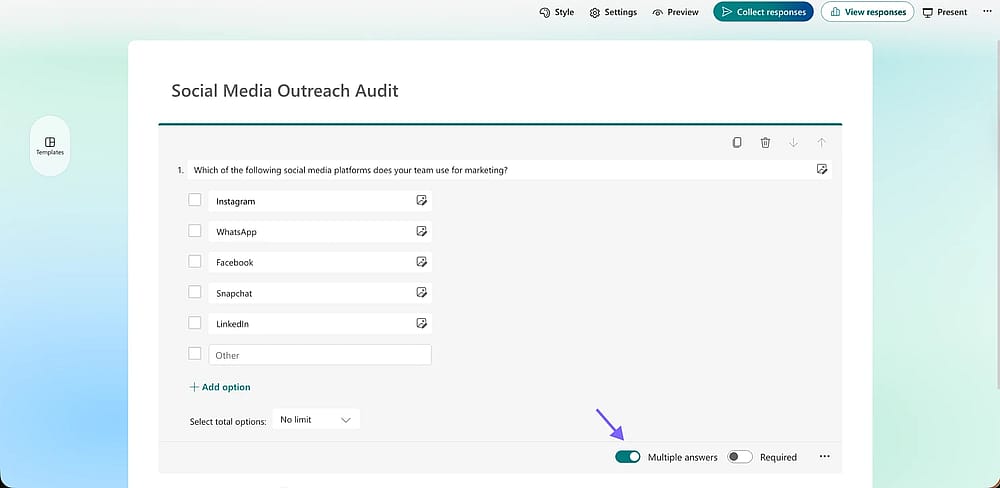
A multiple choice question example on MS Forms
Similar to multiple choice, but allows users to pick every option that applies to them.
- When to use it: To understand the full scope of a user’s experience or preferences.
- Example: "Which of the following social media platforms does your team use for marketing?"
Common mistake: Failing to set a "limit" (e.g., "Select up to 3"). Without limits, users may check everything, diluting your most important data points.
3. Likert Scale
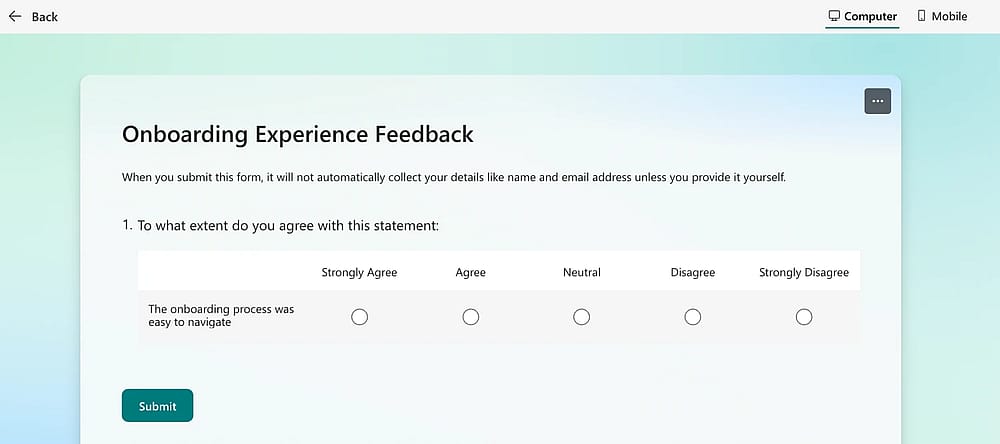
A Likert Scale question example on MS Forms
The classic Likert Scale questions ranging from "Strongly Disagree" to "Strongly Agree."
- When to use it: To measure attitudes, sentiments, or the intensity of an opinion.
- Example: "To what extent do you agree with this statement: 'The onboarding process was easy to navigate'?"
Pro tip: Use an odd-numbered scale (like 5 or 7) if you want to allow for a neutral midpoint. Use an even-numbered scale (4 or 6) to "force" a choice.
4. Net Promoter Score® (NPS)
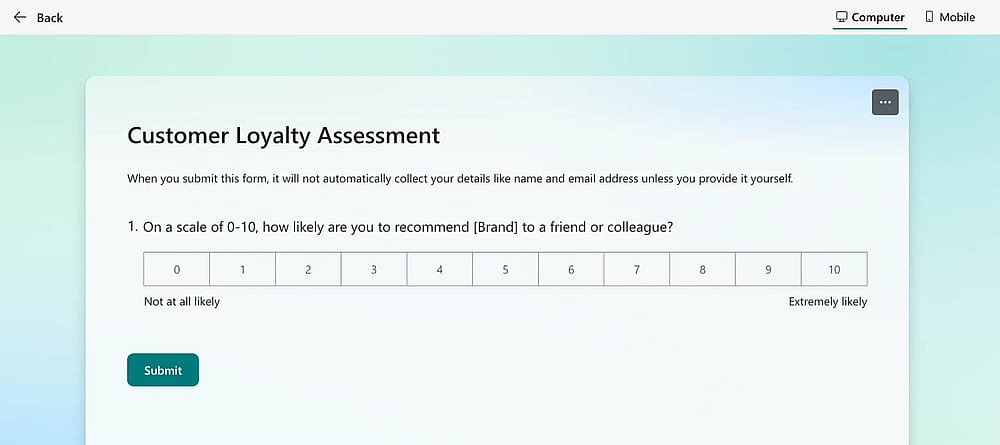
An NPS question example on MS Forms
NPS questions are gold-standard metric for customer loyalty based on a 0–10 scale.
- When to use it: To track long-term brand health and identify "Promoters" vs. "Detractors."
- Example: "On a scale of 0-10, how likely are you to recommend [Brand] to a friend or colleague?"
Common mistake: Asking this too early. Don't ask for a recommendation before the customer has actually used the product.
5. Rating scales (stars/hearts/emojis)
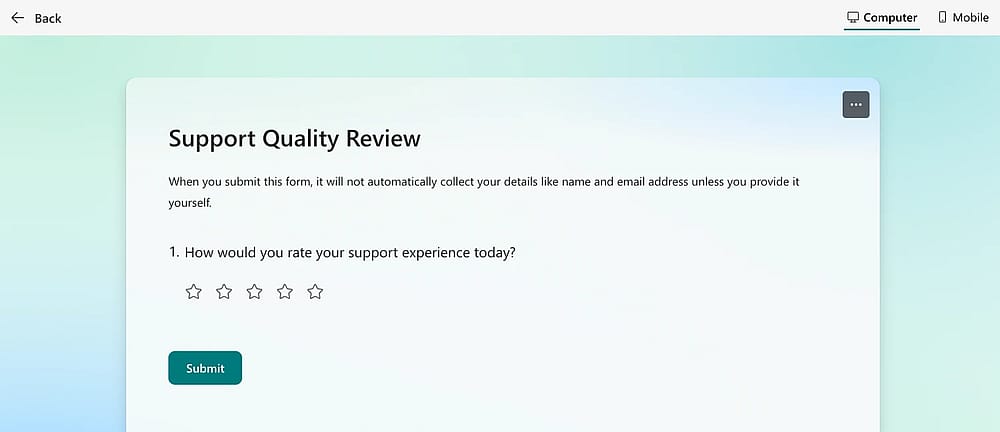
A rating scale question example on MS Forms
A visual, highly intuitive version of a numerical scale.
- When to use it: For quick pulse-checks on mobile devices where typing is a chore.
- Example: "How would you rate your support experience today? [⭐ ⭐ ⭐ ⭐ ⭐]"
Pro tip: Be consistent. If 5 stars is "Great" in one question, don't switch to a 10-point scale in the next.
6. Ranking questions
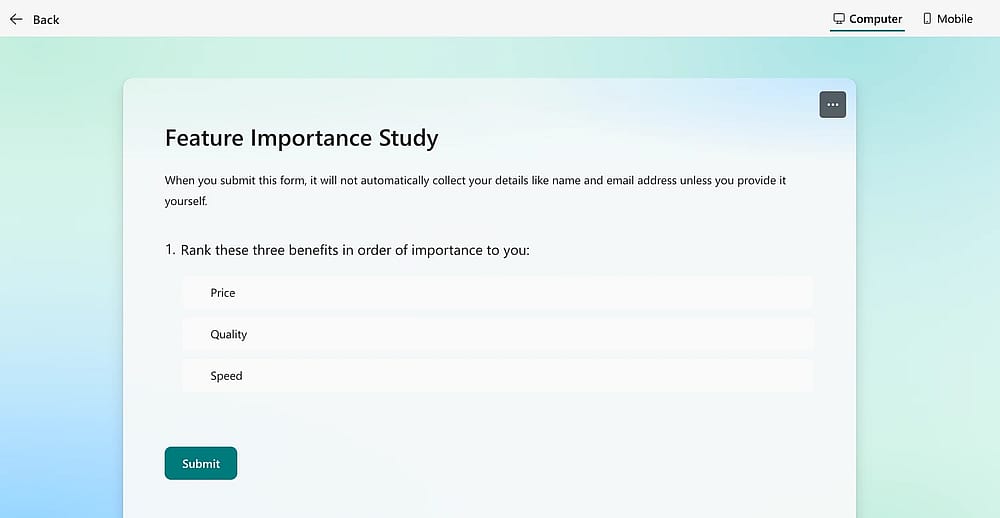
A ranking question example on MS Forms
Thanks to the ranking questions, respondents drag and drop items to put them in order of preference or importance.
- When to use it: When you need to understand trade-offs (e.g., "We can only build one feature - which is the priority?").
- Example: "Rank these three benefits in order of importance to you: 1. Price, 2. Quality, 3. Speed."
Common mistake: Including more than 5–6 items. Ranking is mentally taxing and leads to high drop-off rates.
7. Matrix questions
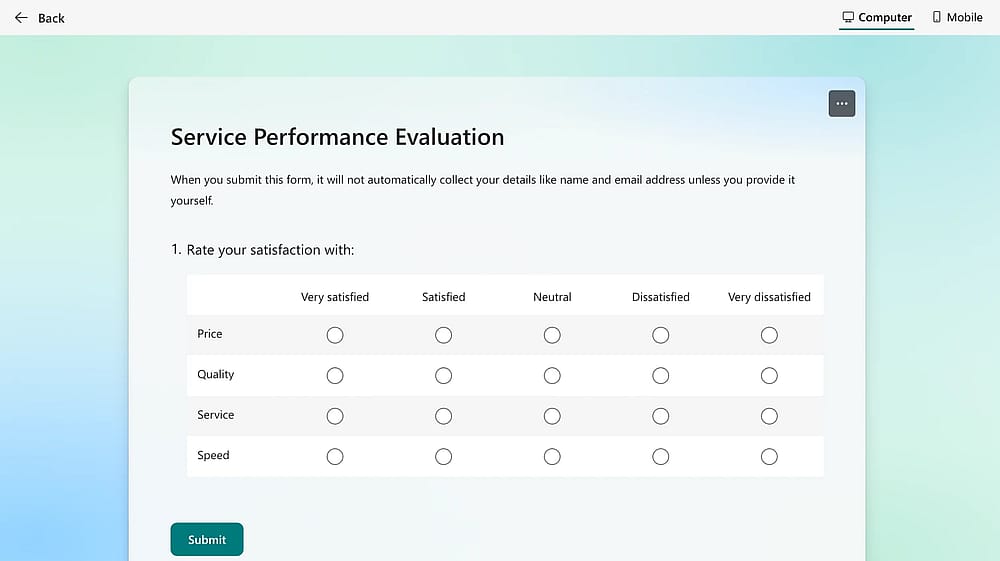
A matrix question example on MS Forms
A series of Likert-style questions bundled into a single grid.
- When to use it: To ask several questions about the same topic (e.g., "Rate your satisfaction with: Price, Quality, Service, Speed").
- Example: A table where rows are "Attributes" and columns are "Satisfaction Levels."
Common mistake: "Matrix Overload." These look terrible on mobile. If your matrix is more than 4x4, break it into individual questions.
8. Demographic questions
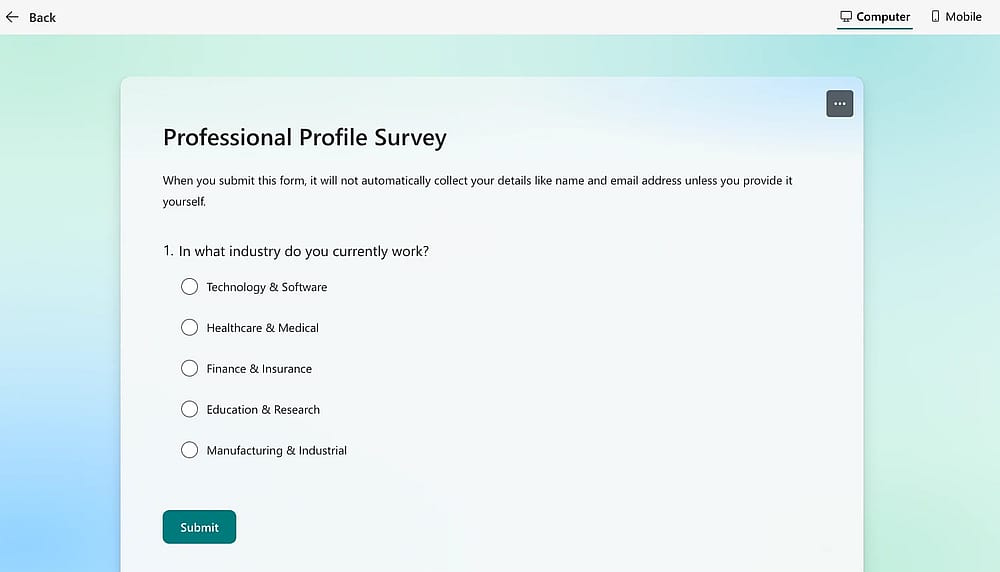
A demographic question example on MS Forms
Fixed-option questions about age, gender, income, or location.
- When to use it: To segment your data (e.g., "Do Gen Z users feel differently than Boomers?").
- Example: "In what industry do you currently work?"
Common mistake: Asking these at the start. Put them at the end of the survey so you don't bore the user before they get to the "meat" of your questions.
9. Image choice questions
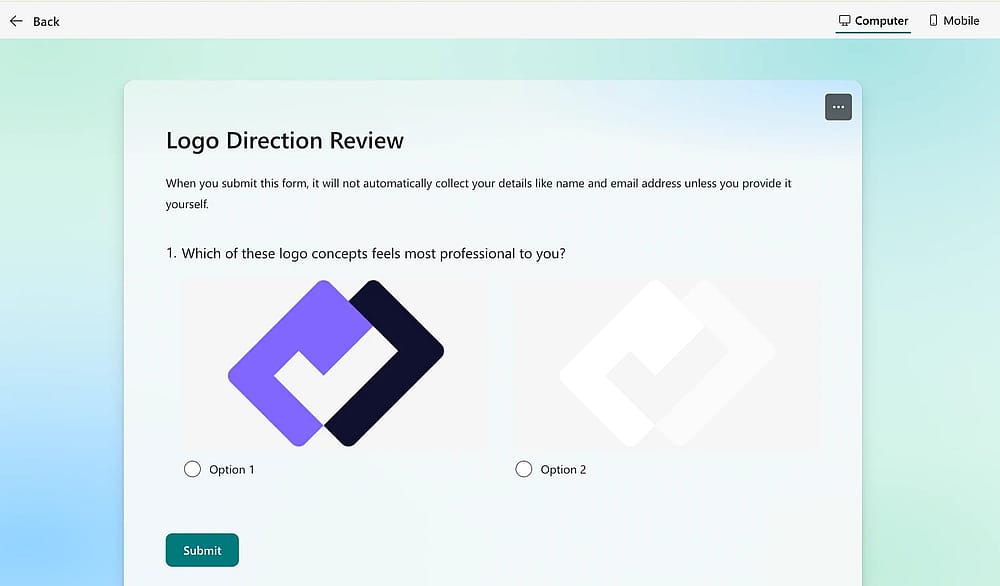
An image selection question example on MS Forms
Using images as the answers instead of text.
- When to use it: For brand aesthetic testing, product design, or to make a survey feel less like "work."
- Example: "Which of these logo concepts feels most professional to you? [Image A] [Image B] [Image C]"
Pro tip: Excellent for small business owners testing new packaging or visual ad copy.
Here is the final section of your guide. This part is designed to capture specific "how-to" search traffic while reinforcing your authority by offering better alternatives to standard tools.
Use this question type: | If you want to: |
|---|---|
Multiple Choice | Get a single, clear-cut answer. |
Checkboxes | Let users select multiple relevant options. |
Likert Scale | Measure the intensity of an opinion. |
Ranking | Understand priorities or trade-offs. |
NPS (0–10) | Benchmark long-term brand loyalty. |
Drop Down List | Provide many options without cluttering. |
Uploaded File | Collect documentation or visual proof. |
Matrix Grid | Ask multiple ratings on the same scale. |
How to change question type in Microsoft Forms
We’ve all been there: you’ve meticulously typed out a complex question in Microsoft Forms, only to realize it should have been a Ranking list instead of a simple Choice field.
Here is the reality of how to handle types of questions in Microsoft Forms:
- The hard truth: Unlike more flexible builders, Microsoft Forms does not have a "convert" button. Once a question type is set, it’s locked in.
- The 30-Second Fix: 1. Copy your question text and any specific options/labels. 2. Delete the incorrect question block by clicking the trash can icon. 3. Add New and select the correct format (e.g., Ranking, Likert, or Rating). 4. Paste your content back in.
Efficiency hack: Before you hit "Add New," always double-check if your question requires a specific data type. If you need to collect an uploaded file or a drop down list, selecting the right category before you type will save you from the "delete-and-restart" cycle common in Office 365.
forms.app: A flexible alternative for modern teams
Understanding question types is one thing; having a tool that lets you deploy them without a headache is another. While enterprise tools like Dynamics 365 Customer Voice are powerful, they often come with steep learning curves and "enterprise lock-in" that can slow down smaller, more agile teams.
forms.app is designed to bridge that gap, offering the depth of professional research tools with the simplicity of a drag-and-drop builder.
How to use any question type with forms.app
Creating a high-converting survey shouldn't feel like programming. In forms.app, adding any of the types we discussed is a two-click process:
- Open the builder: Click the "Fields" tab in your form.
- Add a field: Choose one from the Form Fields. You’ll see a clean menu with everything from Star Ratings to Selection Matrix and Picture selection.
- Customize instantly: forms.app lets you toggle "Multi-select," or "Required," options directly from the field’s sidebar.
Why choose forms.app over enterprise solutions?
If you’ve considered Microsoft Dynamics Customer Voice but felt overwhelmed by the "Dynamics 365" ecosystem, forms.app offers several distinct advantages:
- No enterprise lock-in: You don't need a massive CRM subscription to get professional results. forms.app is a standalone powerhouse that integrates with your existing tools via Zapier or Slack.
- A truly useful free plan: Start collecting data immediately. While enterprise tools often gate their best question types behind paywalls, forms.app keeps the entry barrier low for small business owners and startups.
- Superior mobile UX: Many Microsoft-based surveys struggle on smaller screens, especially Matrix questions. forms.app uses a mobile-first design approach, ensuring your "Rating Scales" look and work perfectly on a smartphone.
- Total customization: You can change themes, add CSS, and even use "Animated Backgrounds" to make your survey feel like a branded experience rather than a boring government form.
Conclusion
Choosing the right question types ensures your data is clean, actionable, and easy to analyze. Whether you are using a simple drop down list for demographics or requiring an uploaded file for a job application, matching the format to your goal is the key to professional results.
If you are tired of the rigid templates in Office 365 and want a faster way to create a form that actually converts, it’s time for an upgrade. Try building your first survey for free on forms.app and experience the flexibility of a modern survey builder today.
Frequently asked questions (FAQs)
There are several standard types of questions in Microsoft Forms, including Choice (for multiple choice and checkboxes), Text (short and long answer), Rating, Date, Ranking, Likert, and Net Promoter Score (NPS). Understanding these helps you choose the right format for your data needs.
While both measure sentiment, a Likert scale specifically measures the level of agreement or disagreement with a statement (e.g., "Strongly Disagree" to "Strongly Agree"). A rating scale is more general and often uses numerical values (1–10) or visual indicators (stars/emojis) to quantify satisfaction.
For most surveys, it is best to stick to 2 or 3 different question types. Mixing too many Microsoft Forms types of questions (e.g., jumping from a matrix to a ranking to an image choice) increases the "cognitive load" on the respondent, which can lead to higher drop-off rates.
Contributors
Researched & written by
forms.app, your free form builder
- Unlimited responses
- Unlimited questions
- Unlimited team members