Save up to 60% on yearly plans and enjoy our biggest offer of the year. Limited time only. 🍂
See pricing

How to add ranking questions in Microsoft Forms: Step-by-step
Summarize with
Understanding what your audience likes is helpful, but knowing what they prioritize is a game-changer. Standard multiple-choice polls often fail to capture the nuance of preference, which is where ranking in Microsoft Forms becomes essential.
In this guide, we will walk through how to create a ranking question in Microsoft Forms to help you gather more actionable data. We'll also cover the current technical limitations of Microsoft Forms ranking and introduce a more flexible alternative for those who need advanced customization beyond the basic Likert or Choice scales.
TL;DR: Adding Ranking Questions
1. Go to forms.office.com and click + Add New.
2. Click the dropdown arrow and choose Ranking.
3. Enter the items you want prioritized.
4. Click the three dots (...) and select Shuffle options.
5. Preview to test the drag-and-drop on mobile and desktop.
What is a ranking question?
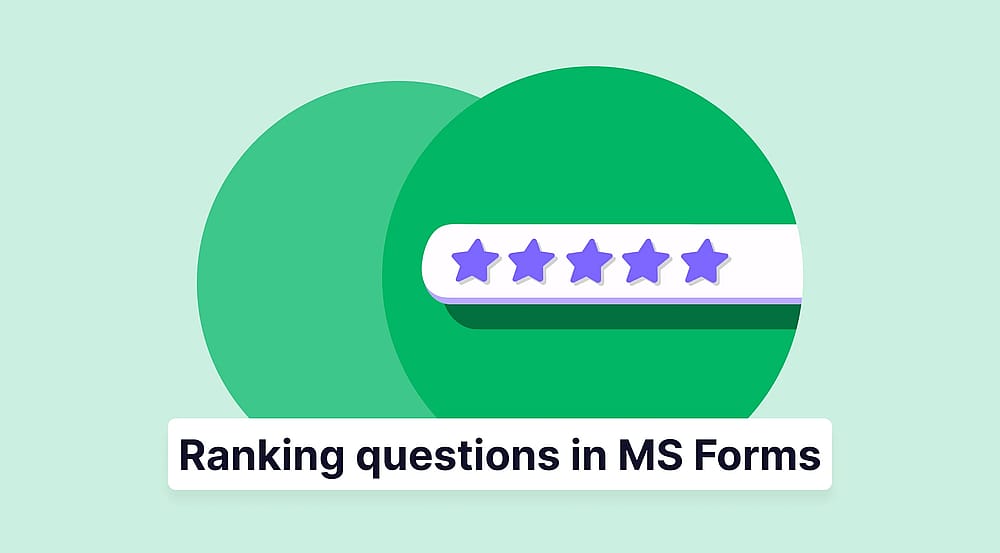
A Microsoft Forms ranking question allows respondents to drag and drop a list of items into their preferred order. Unlike a standard multiple-choice question, where a user might pick one favorite, or a Likert scale where they might "Strongly Agree" with every single option, ranking forces a choice.
The core difference lies in the trade-off:
- Multiple choice: Identifies a single preference.
- Rating/Likert scale: Measures sentiment for items in isolation (which often leads to "straight-lining" where everything is rated a 5/5).
- Ranking: Requires the respondent to evaluate items against one another, providing a clear hierarchy of importance.
By forcing respondents to differentiate between "important" and "most important," your Microsoft Forms ranking results become significantly more actionable. You aren't just seeing what people like; you’re seeing exactly what they value most when resources or options are limited.
How to create a ranking question in Microsoft Forms
Setting up a ranking system is straightforward once you know where to find the option. Follow these steps to learn how to create a ranking question in Microsoft Forms and start gathering prioritized data.
1. Log in to Microsoft Forms
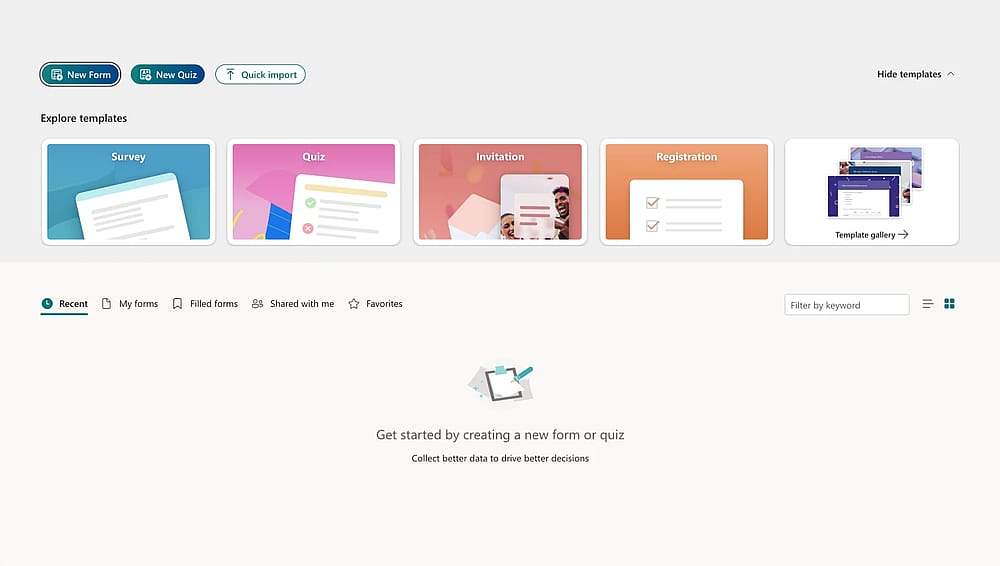
Open your MS Forms account
Navigate to forms.office.com and sign in with your Microsoft 365 account. Ensure you are on the "My Forms" dashboard to begin a new project.
💡 Expert tip: Keep your list to 3-6 items. I’ve found that when I add more than six, respondents start to get frustrated and just scramble the middle items to finish quickly.
2. Create a new form
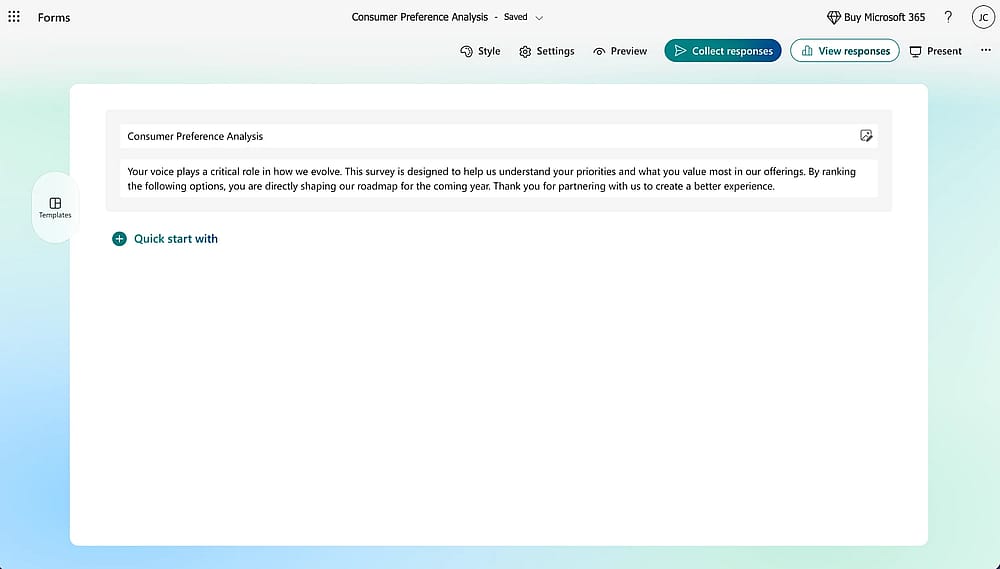
Title your form
Click the + New Form button. Give your form a title and a brief description so your respondents understand the context of the choices they are about to make.
3. Select the ranking question type
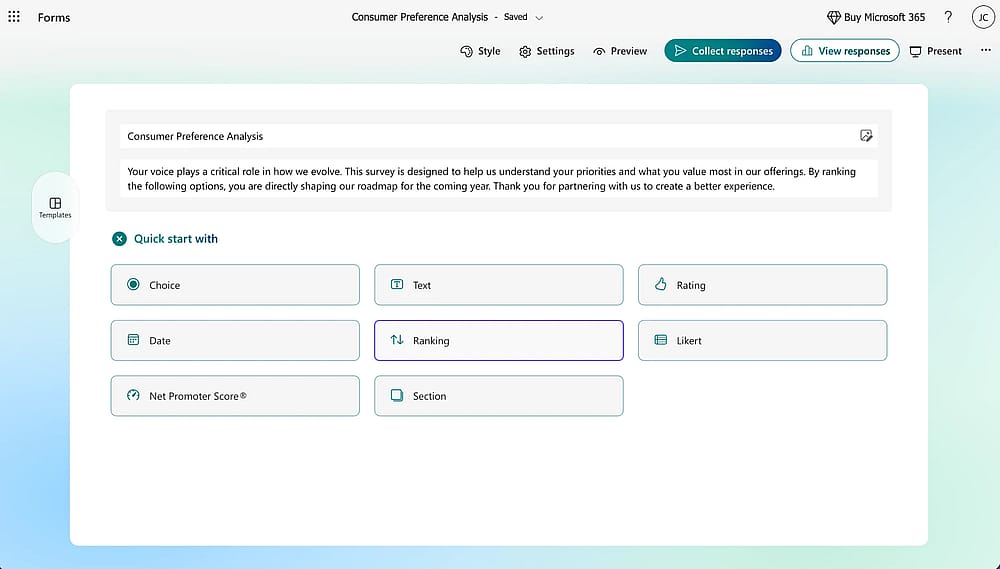
Add a ranking question
Click the Quick start with button. You will see common options like Choice, Text, and Rating. Directly select Ranking.
4. Add your question and options
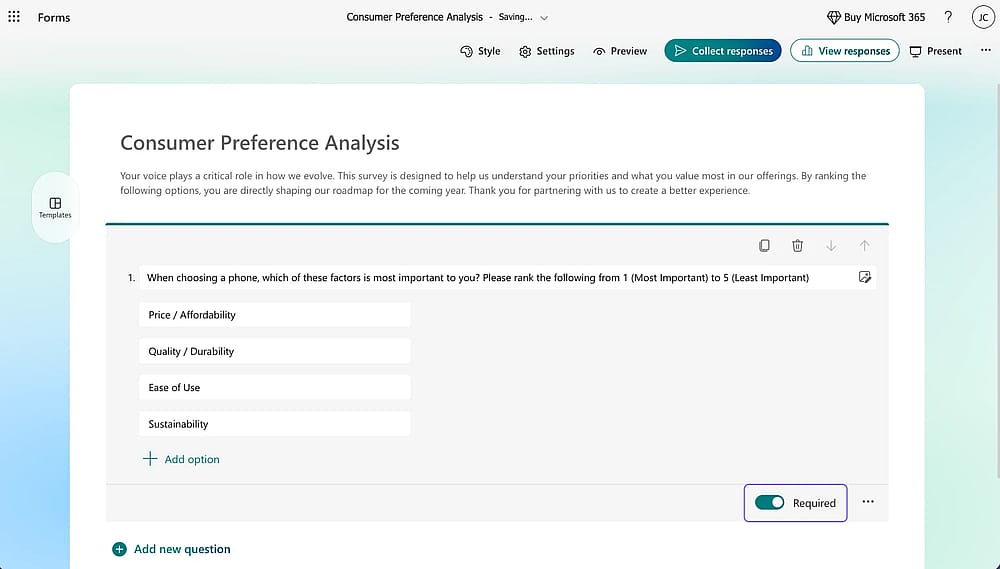
Type your own ranking question
Type your main prompt in the question field (e.g., "Please rank these features in order of importance"). Enter your items in the individual option slots. You can add more options by clicking Add Option or remove them by clicking the trash icon. You can also toggle the "Required" switch to ensure respondents don't skip the prioritization.
💡 Expert tip: Click the three dots (...) and select Shuffle options. This prevents "order bias," where respondents subconsciously favor the items listed first.
5. Preview and Collect responses
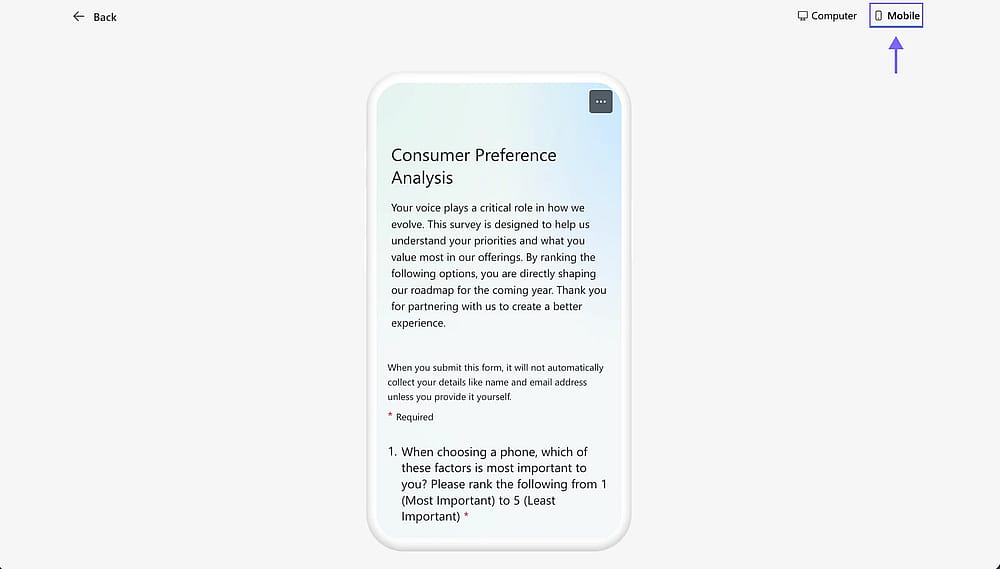
Test your ranking question
Before sending it out, click Preview at the top of the screen. Test the "drag-and-drop" or "arrow" interface to ensure the user experience is smooth. Once satisfied, click Collect responses to share your form via link, email, or QR code.
💡 Expert tip: Check the Mobile view specifically. In my experience, if your options are too long, they wrap awkwardly and make the "drag" handle harder to grab on a smartphone.
Limitations of Microsoft Forms
While Microsoft Forms is a reliable tool, it has specific constraints that might limit power users. Once your needs move beyond basic data collection, you may run into a few technical "walls."
- Limited branching: Microsoft Forms only supports "linear branching," meaning you can't use "AND/OR" logic or multiple conditions to determine which question comes next.
- Design & Branding: Customization is minimal. You are restricted to basic themes and fonts, which can be a hurdle if you need the form to match a specific brand identity.
- Ecosystem restrictions: A Microsoft 365 account is typically required for creators, and collaboration is strictly limited to users within the Microsoft ecosystem.
- Basic data visualization: While you can see a summary in the "Responses" tab,the native charts are fairly simple. For advanced analysis or custom heatmaps, you’ll need to export your Microsoft Forms ranking results to Excel for manual processing.
Why forms.app is a better alternative for ranking surveys?
While Microsoft Forms is a solid entry-level tool, I’ve found that many users quickly outgrow its rigid structure, especially when they need deeper insights or a more professional look. This is where forms.app shines as a more flexible, user-friendly alternative.
Flexibility without the "ecosystem" lock-in
The biggest advantage is accessibility. Unlike Microsoft, which often requires a 365 account for full functionality, forms.app is open to everyone. You can create, share, and collaborate on forms without forcing your team or respondents into a specific software ecosystem. Plus, it offers a generous free tier to get you started immediately.
Advanced logic and Design
If you’ve ever felt frustrated by the lack of "if/then" rules in Microsoft, you’ll love the conditional logic here. The advanced logic keeps your surveys short and highly relevant.
Instead of being stuck with basic themes, you can fully customize colors, fonts, and branding to make your survey look like a natural extension of your business.
Built-in analytics
Forget exporting to Excel just to see a decent chart. forms.app provides real-time, high-quality visual analytics. You get a clear breakdown of your Microsoft Forms ranked choice equivalent data instantly, allowing you to make decisions the second the responses hit your inbox.
Feature | Microsoft Forms | forms.app |
|---|---|---|
Ranking question type | ||
No MS Account needed | ||
Custom branding | Limited | |
Conditional logic on rankings | ||
Built-in analytics | Basic |
How to add a ranking question in forms.app
Directly mirroring the ease of Microsoft, here is how you do it in forms.app:
1. Open your form and click the (+) Add Field button.
2. Select "Ranking" from the list of question types.
3. Enter your options and customize the design in the "Design" tab.
4. Share: Hit the "Share" button to get your link, QR code, or embed code.
Final words
In summary, ranking in Microsoft Forms is a solid, reliable solution for basic prioritization needs, especially if you are already deeply embedded in the Microsoft 365 ecosystem. However, if you need full branding control or a platform that doesn't require a specific login, it can feel a bit restrictive.
If you’re looking for more flexibility and deeper insights from your Microsoft Forms ranked choice data, forms.app is an excellent alternative. It bridges the gap between simple polls and professional data analysis.
Frequently asked questions (FAQs)
In the Responses tab, you can click "View results" to see individual submissions. If you need a full breakdown of every respondent's specific order in one view, your best bet is to click "Open in Excel" to export the raw data.
Yes, Microsoft Forms allows a maximum of 10 options per ranking question. If you have a longer list, you’ll need to split it into two questions or use a different tool like forms.app, which offers more flexibility for long lists
Yes. Respondents can either drag and drop the items into place or use the up and down arrows that appear next to each option. It’s very mobile-friendly, though we recommend keeping your text options short so they don't take up too much vertical space on a phone screen.
Contributors
Researched & written by
forms.app, your free form builder
- Unlimited responses
- Unlimited questions
- Unlimited team members