Save up to 60% on yearly plans and enjoy our biggest offer of the year. Limited time only. 🍂
See pricing

Typeform Matrix question: Guide, tips & better alternative

Summarize with
Most surveys don’t fail because of bad questions. They fail because people never finish them.
Long forms with too many fields push respondents to drop off before submitting, and the more you repeat the same format as an individual question over and over, the faster that happens. Choosing the right question types from the start makes the difference between a form that gets completed and one that gets abandoned.
That's where matrix questions come in. Instead of stacking separate question groups for every topic you want to cover, a matrix lets respondents evaluate multiple items at once using the same shared scale. In this article, we'll break down exactly what a matrix question is, how to set one up step by step in Typeform, and why many users eventually look for a more flexible alternative to get the most out of this question type.
TL;DR: How to add a Matrix question in Typeform
1. Open your form and click +Add content
2. Select Matrix from the Typeform question types menu
3. Add your Rows and Columns
4. Adjust the field settings
What is a Matrix question, and why use it?
A matrix question is a form question type that groups multiple related items into a single grid, where each row is evaluated using the same set of column choices.
The matrix question type lets respondents answer several questions at once instead of filling out a form, one slow single question at a time.
Unlike standard multiple-choice or rating question types, a matrix can combine many separate fields into a single clean table.
💡 Editor’s suggestion: For anyone mapping a customer journey or evaluating a product or service across multiple dimensions, it's one of the most efficient question settings available.
Which form types benefit most from matrix questions?
- Customer satisfaction surveys: Instead of asking “How do you rate our product?”, “How do you rate our support?” “How do you rate our pricing?” As separate questions, you can group them into a single matrix and collect the same data on one screen.
- Employee feedback forms: Instead of stretching your form with repeated Likert-scale questions, use a matrix to evaluate multiple workplace factors (management, workload, communication) at once in a shorter form, with higher completion.
- Course or event evaluation: Rather than asking attendees to rate content, instructor, and organization in separate steps, combine them into one structured view so they finish the evaluation faster.
- Market research forms: Instead of repeating the same multiple-choice format for every brand attribute, use a matrix to compare features side by side, cleaner for users and easier to analyze.
How to use matrix questions in Typeform
Typeform offers a solid range of question types: from simple text fields and picture choices to more advanced formats like the matrix. Setting up a Matrix question is straightforward, but a few settings are easy to miss if you're doing it for the first time. Here's how to get it done in three steps.
1. Open your form and add a new question
Log in to Typeform and open the form you want to edit. Click +Add content to open the question menu, then scroll through the available Typeform types of questions and select Matrix.
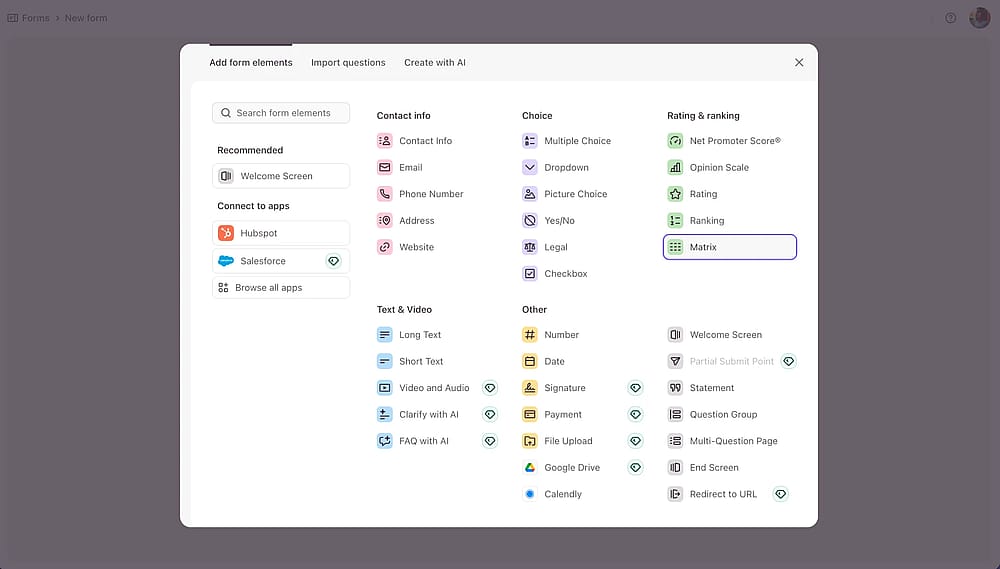
Open the question menu and select ‘Matrix’
2. Build your rows and columns
Click directly into each row and column header to start typing. Rows are the items you want respondents to evaluate; columns are the shared answer scale. Hit X next to any row or column to delete it.
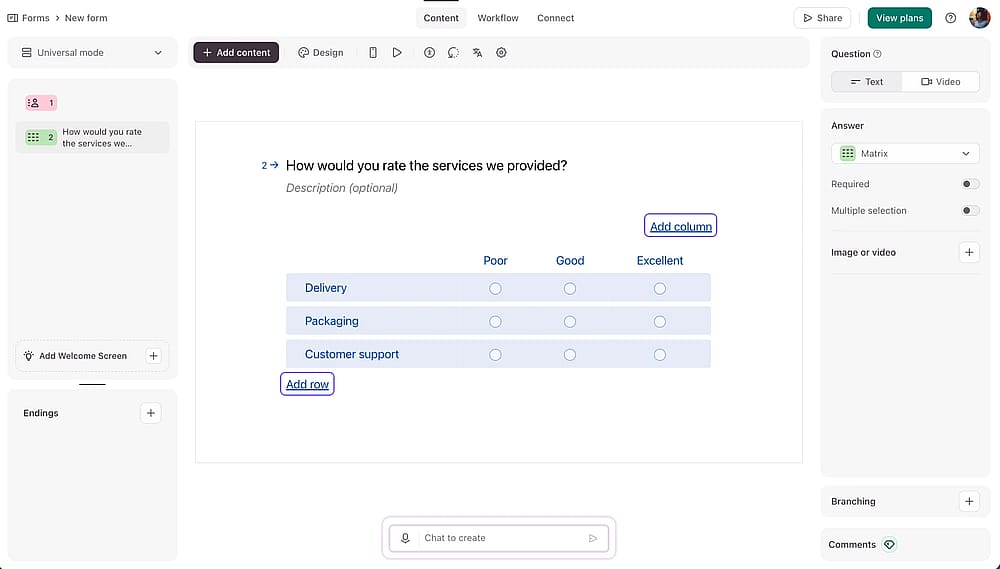
Add your rows and columns to build your matrix question
💡 Expert tip: Keep matrices under 7 rows to avoid drop-off and low-quality (straight-lined) answers.
3. Configure your question settings and publish
Head to the question settings panel on the right. Toggle Required on if the question must be answered, and enable Multiple selection if you want respondents to pick more than one answer per row. Once you're happy, preview the form and hit Publish.
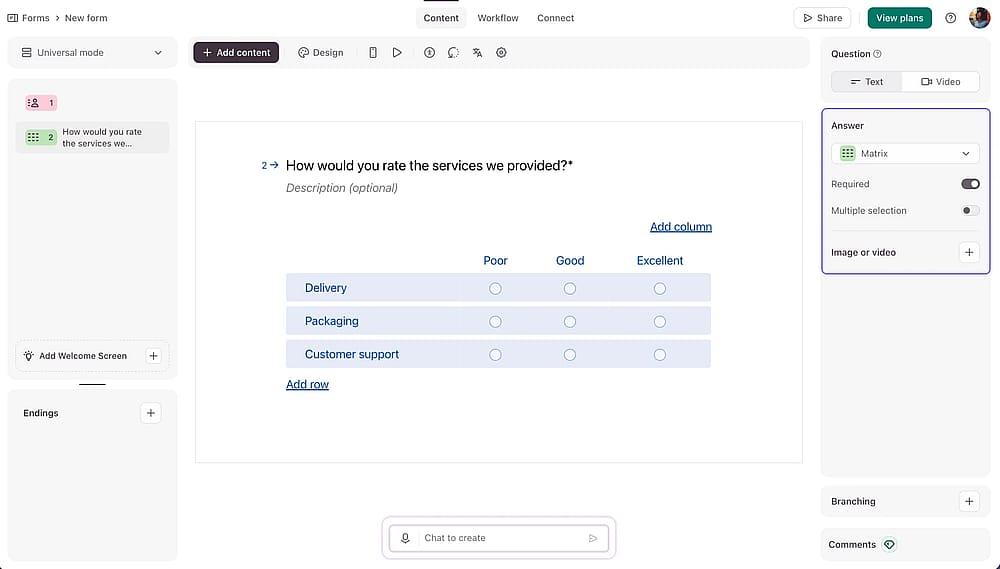
Adjust question settings and publish your form
How to create matrix questions in forms.app
After we checked how to set up the matrix in Typeform, forms.app is a capable alternative worth trying. It covers all the standard questions you'd expect, including many selection fields, rating scales, and a fully flexible Selection Matrix, with a more generous free plan on top. Here's how to set one up:
1. Start your form
Log in to your forms.app account and either open an existing form or start a new one from scratch. You can also use one of the ready-made templates or let the AI form builder generate the structure for you.

Start your form by selecting a template or creating from scratch
2. Add a Selection Matrix
From the question panel on the left, click Selection Matrix. It will drop straight into your form. Add your rows and columns, mark the question as required if needed, and use the Rewrite with AI feature to sharpen your question wording in seconds.
In the field settings, you can make the question Required and also upload an image or a video to collect feedback about it
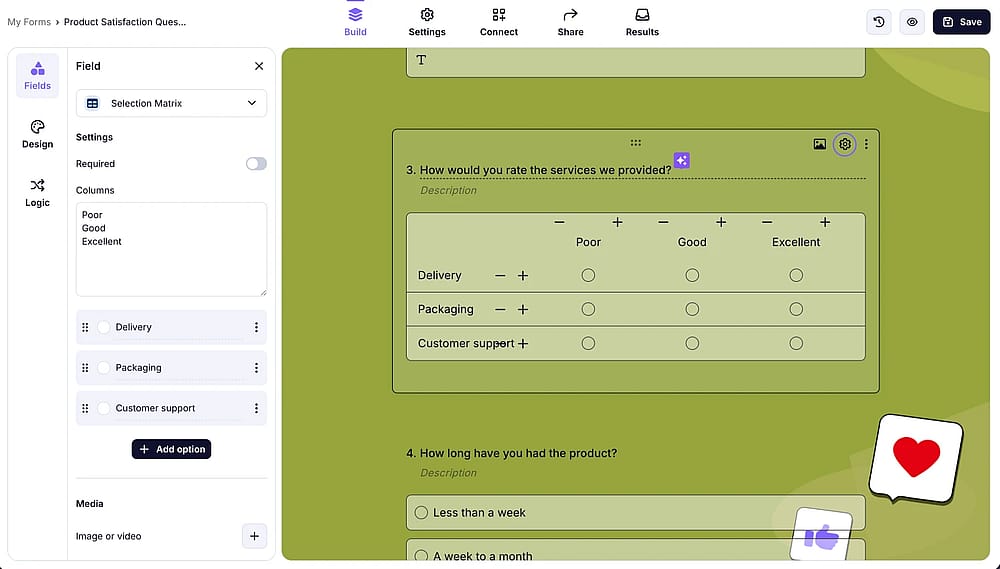
Add the ‘Selection matrix’ field and adjust its settings as needed
💡 Expert tip: If you are running a post-purchase survey, use a matrix with rows like "Delivery / Packaging / Customer support" and a shared "Excellent to Poor" scale instead of repeating the same question three times. Same data, half the space.
3. Preview and Share your form
Hit Share to distribute your form via a direct link, embed it on your website, or post it to social media. forms.app automatically adapts the matrix layout for mobile screens: no manual preview or workaround needed.
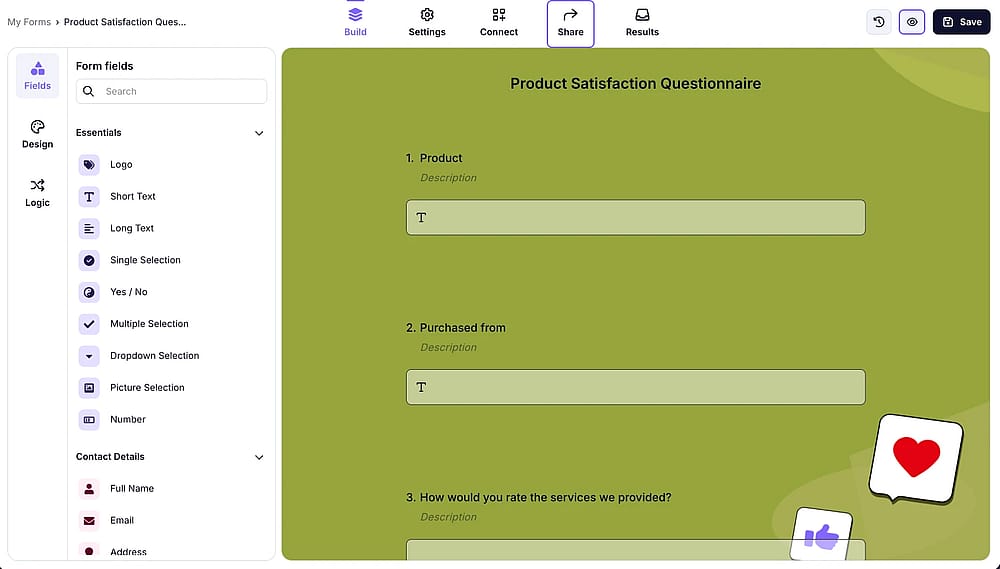
Preview your form and publish it by using different sharing options
💡Over half of forms are completed on mobile. Before publishing, you can always switch to the mobile or tablet preview to make sure your row and column labels aren't getting cut off on smaller screens.
Conclusion
Matrix questions are one of those small design choices that make a big difference: fewer fields, cleaner data, and respondents who actually reach the submit button.
Typeform makes it easy to get a matrix question up and running in just a few steps. But the real impact comes from how you use it. Keep your matrix concise, structure it clearly, and avoid overwhelming respondents with too many rows.
If you're already using Typeform, try rebuilding one of your existing forms with a matrix question and compare the completion rates. And if you’re looking for more flexibility, whether that’s richer question settings, media support, or a more generous free plan, forms.app is a strong alternative worth testing.
In the end, it’s not about adding more questions. It’s about designing smarter ones, and matrix questions are one of the simplest ways to do that.
Frequently asked questions (FAQs)
Most survey best practices recommend keeping it between 3 and 7 rows. Any more than that and respondents tend to straight-line their answers, selecting the same column for every row just to finish quickly, which quietly ruins your data quality.
A Likert scale is actually a type of matrix question. The difference is that a Likert scale specifically measures attitudes or agreement (Strongly Agree → Strongly Disagree), while a matrix question is a broader format that can use any shared column scale, including ratings, frequency, importance, or satisfaction levels.
Contributors
Researched & written by
forms.app, your free form builder
- Unlimited responses
- Unlimited questions
- Unlimited team members