Save up to 60% on yearly plans and enjoy our biggest offer of the year. Limited time only. 🍂
See pricing

How to set up a custom domain in Typeform
Summarize with
First impressions matter.
When your forms and surveys mirror your brand’s identity, you build the immediate trust necessary to boost response rates. Using a custom domain replaces generic links with a professional, branded URL, ensuring every touchpoint reinforces your company’s authority and keeps your data collection looking seamless.
At this point, you can use a custom domain to strengthen your brand awareness. In this article, we will explain how you can use a custom domain in your Typeform account. You'll also learn what a Typeform custom domain is, how to navigate the right domain settings, and we'll introduce a better alternative for creating custom forms with this feature.
TL;DR list for setting up a Typeform custom domain
1. Create CNAME: Point your subdomain (e.g., forms.yoursite.com) to customdomain.typeform.com.
2. Add in Typeform: Go to Admin Settings → Change URL → Enter your custom domain.
3. Verify & share: Wait for DNS to propagate, then use your new branded links.
What is a custom domain & why does it matter for your forms?
When you publish a form through any tool, it typically gets a generic, platform-branded URL by default. A custom domain replaces that with a URL you own and control, something like ‘forms.yourcompany.com’ instead of ‘yourname.typeform.com’. This applies whether you're using Typeform or any other form builder.
Beyond appearances, this matters because branded URLs build trust with respondents, lead to higher completion rates, and keep your audience inside your brand experience from start to finish. Whether you're running a customer survey, an event RSVP, or a lead generation form, the Typeform domain or form URL your audience sees is often the first impression, and it counts.
Why to use?
Consistency: Keeps the user inside your “brand's world.”
Trust: Authenticates the form as official and safe.
Conversion: Reduces drop-offs caused by URL suspicion.
Clarity: Replaces messy code with readable, “human” links.
Authority: Aggregates all web traffic under your own domain.
How to connect a custom domain to Typeform
To set up a custom domain in Typeform, you must be on an Enterprise or Growth Custom plan.
This allows you to replace the default Typeform link with a branded domain (if your plan supports custom domains).
1. Configure your DNS settings
First, create a CNAME record for a subdomain (for example, forms.yoursite.com) and point it to customdomain.typeform.com. Set your desired subdomain as the "Host" and point it to the "Destination" customdomain.typeform.com. Once saved, you must wait for the domain connect process to activate, which can take up to 24 hours to propagate across the internet.
2. Access the admin dashboard
Next, log in to your Typeform account and click on your organization avatar in the top-left corner to access the Admin Settings page. From the sidebar, select the Change URL option. This is where you will manage how your brand appears in your form links.
3. Connect the new URL
On the following screen, choose the Custom domain option, enter your full branded subdomain (e.g., forms.yoursite.com), and confirm the change.. Note that this change applies to all forms in your account simultaneously.
Enter your full branded URL into the field provided and select "Got it - change my URL" to finalize the link.
4. Verify and update links
Once you add a custom domain successfully, your new branded link will automatically appear in the Share panel for every form.
💡 While your old Typeform links will still function, they may display a brief redirect notice to respondents, so it is best practice to update any active embeds with your new custom URL.
Looking for a simpler alternative? Try forms.app
If Typeform's Enterprise pricing feels like too big a commitment just to unlock custom domains and forms.app offers the same feature on its Premium plan, with a straightforward setup process. Here's how to add a custom domain to your forms.app account in 4 steps:
1. Set up your DNS settings
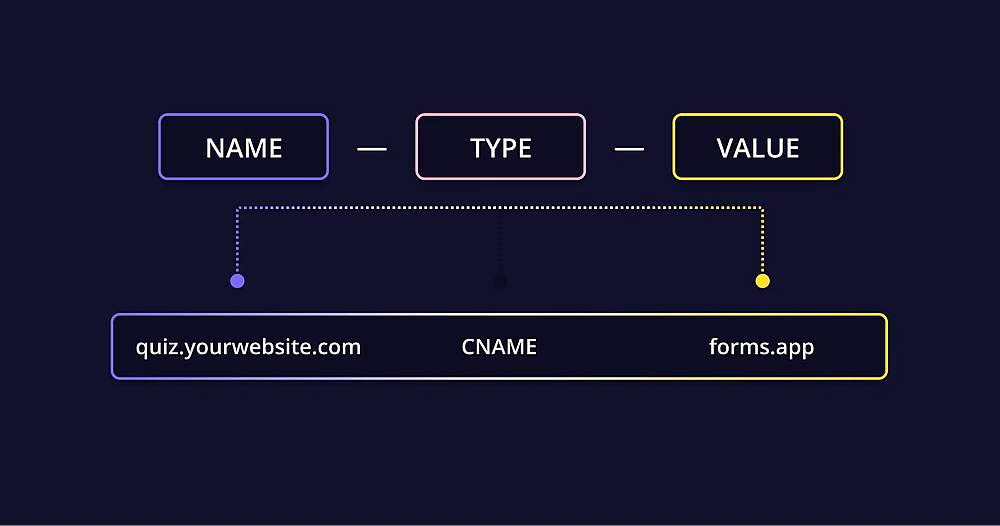
An example of how your ready DNS record must look
Get your domain name through your domain registrar and create a subdomain, for example, quiz.yourwebsite.com.
Then head to your DNS settings and add a new CNAME record that points to forms.app.
💡 DNS changes typically go live within 30 minutes to 2 hours, but can take up to 48 hours depending on your provider.
2. Access the forms.app settings
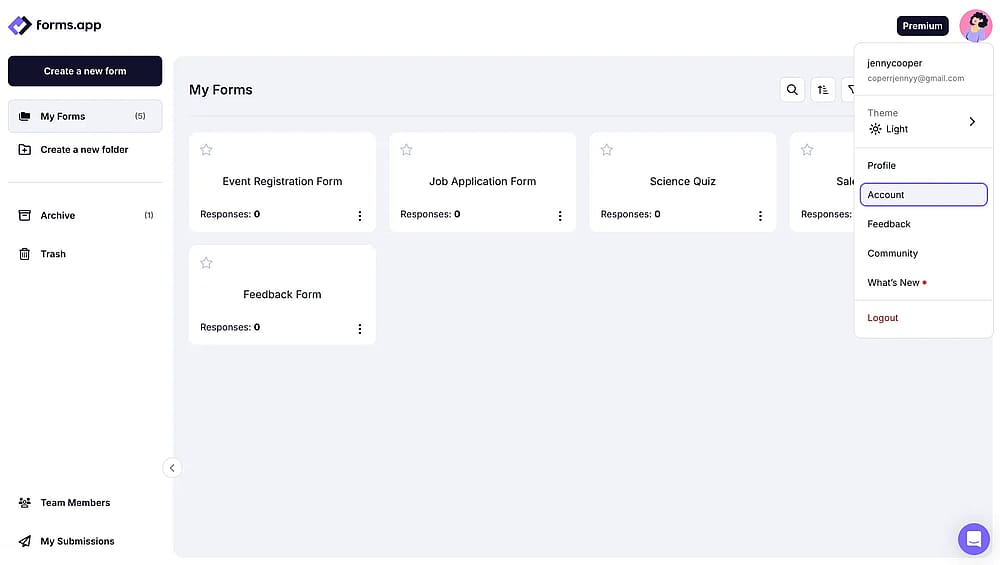
Access the “Account” tab from your Dashboard
Log in to your forms.app account and navigate to the settings page. Click on your profile picture in the top right corner and select Account.
3. Create a custom domain
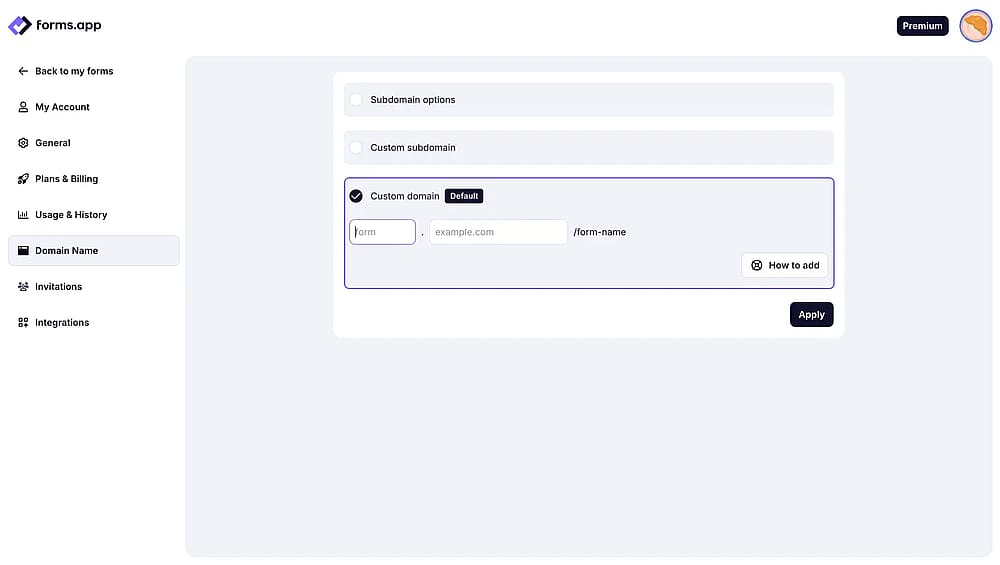
Enter your domain details under "Domain name" and press the “Apply” button below
From the left-hand menu, click Domain Name to open the domain settings, then select the Custom Domain tab. This is where you create a custom domain connection for your entire account.
Enter your full domain name in the field provided and click Apply to save. Once verified, all your form URLs will follow this format: “quiz.yourwebsite.com/formname123”
💡 forms.app currently supports one custom domain and one custom subdomain per account.
4. Add your TXT record
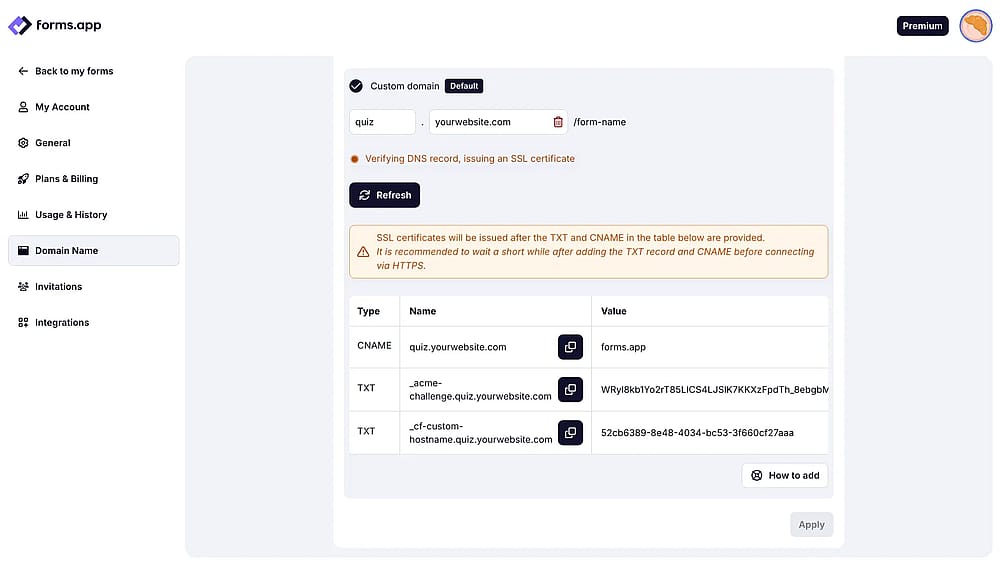
An example of the TXT value that should be added after adding CNAME to your domain
You also need to add a TXT record to verify your domain ownership. Head to the custom domain settings section inside your forms.app account to find the exact TXT value. The process is identical to adding the CNAME; simply select TXT as the record type in your DNS panel and paste in the value shown.
Start sharing forms with your own domain
Setting up a custom domain for your forms is one of the simplest ways to make a strong first impression. In this article, we walked you through what a Typeform custom domain is, why branded URLs matter for trust and response rates, and the exact steps to connect your own domain through Typeform's from configuring your DNS settings to verifying your new link across all forms.
With a straightforward setup and the same core branding benefits, forms.app gives you everything you need to present professional, on-brand forms to your audience at a fraction of the cost.
Frequently asked questions (FAQs)
No, you cannot use a custom domain with Typeform on a free plan.
To use a custom domain, you need to be on either a Growth (with custom domain add-on) or an Enterprise plan, which starts from 266 USD/mo.
A custom domain is your main web address (e.g., yourbrand.com) that you get from a domain registrar. Using a custom domain for your form means hosting it directly on that primary address or a dedicated domain you own. It requires setup via a domain registrar and a DNS record.
A custom subdomain, however, is a part of a domain that works within the form builder you are using. For example, yourbrand.forms.app is a subdomain provided and managed inside the platform. With the subdomain setting, you can create and customize this subdomain without needing to configure external DNS settings.
Contributors
Researched & written by
forms.app, your free form builder
- Unlimited responses
- Unlimited questions
- Unlimited team members