Save up to 60% on yearly plans and enjoy our biggest offer of the year. Limited time only. 🍂
See pricing

How to change the text size in Typeform (step-by-step)
Summarize with
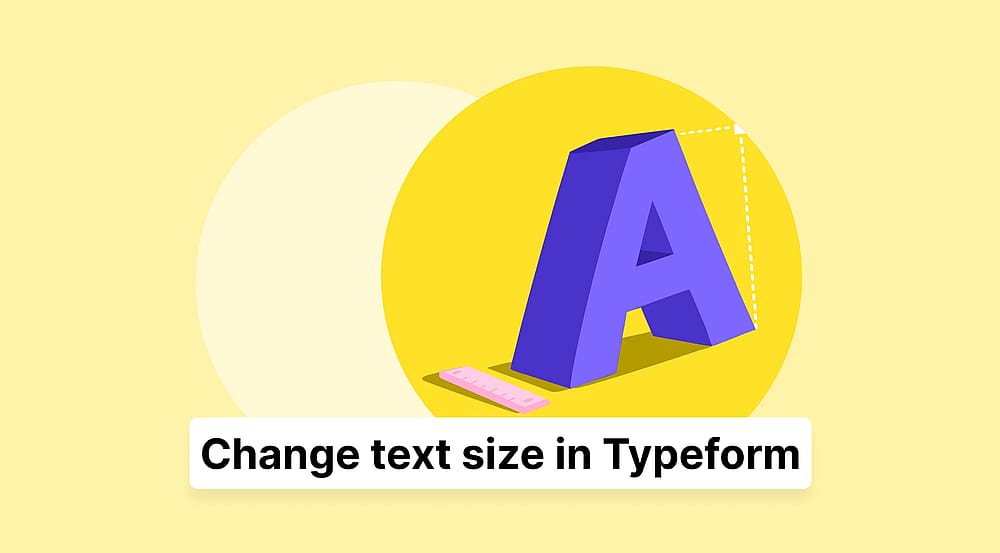
Text size is one of the smallest design decisions you can make in a form, and one of the most impactful. The wrong size pushes readers away; the right one keeps them engaged long enough to hit Submit. If you're building forms in Typeform, knowing how to control your Typeform font size can directly affect how professional your form looks.
However, it's worth knowing upfront that Typeform lets you choose from three size options that apply globally across your entire form.
In this article, we'll walk you through exactly how to change font size in Typeform, why text size matters more than most people think, and how to get it right in practice. We'll also introduce a solid alternative for anyone who needs more flexibility than Typeform's custom font settings currently offer.
TL;DR
1. Go to Design
2. Open My Themes
3. Click Edit
4. Choose Sm / Md / Lg
Why text size matters and how to get it right
In form building, readability and accessibility are paramount. Text smaller than the 16px UX standard creates friction that lowers completion rates, especially on mobile. Beyond legibility, brand consistency relies on a disciplined font hierarchy. Mismatched sizes feel accidental and unprofessional, whereas a clean structure signals authority and builds trust.
To get sizing right and keep your forms user-friendly, check these practical tips:
- Limit your scale: Use only one or two font sizes, and avoid overly decorative or hard-to-read custom fonts.
- Mobile-first testing: Always preview on smaller screens, as desktop sizes can feel cramped or tiny on a phone.
- Avoid all caps: Use bolding for emphasis instead; all-caps text reduces reading speed and can feel overwhelming.
💡 According to vision science and accessibility research, getting your typography right can boost reading accuracy by up to 20% and cut eye strain by nearly a third, making font choices far more than just a design preference.
How to change text size in Typeform
Once you’ve created your form, survey, or quiz in Typeform, you can easily adjust the font size to improve readability and better match your brand style. Just follow the steps below.
1. Open the Design tab
Once your questions and answers are set, click Design in the top navigation bar to access your form's visual settings.
2. Find and edit your theme
From the My Themes or Gallery section, hover over the theme you want to use. Click the three dots on the right side of the theme card and select Edit.
3. Adjust the font size
Inside the theme editor, navigate to the Font section. Here you can customize your font, buttons, and background. To change the text size, simply select Sm, Md, or Lg depending on how large you want your text to appear.
💡 Typeform's font size options are global, no per-element control, no custom CSS, and no way to resize question numbers.
How to change the size of the text in forms.app
If you're looking for an alternative solution for creating forms and surveys, forms.app is a great Typeform alternative.
You aren't just limited to changing the text size; you can select a unique font from many options. Whether you want to choose from a vast list of font families or apply your own Custom CSS for total creative freedom, forms.app gives you the tools to make your forms stand out. You can change the font, text size, and design practically by following these steps:
1. Access the Design menu
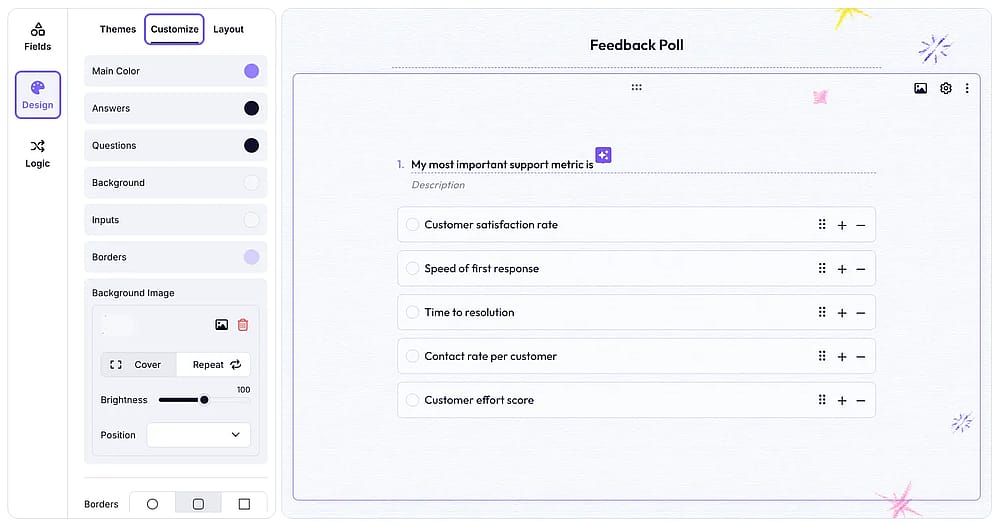
Open the ‘Design’ tab and find the ‘Customize’ button
Once your questions are set, click on the Design tab on the left side menu and select Customize.
2. Choose your typography
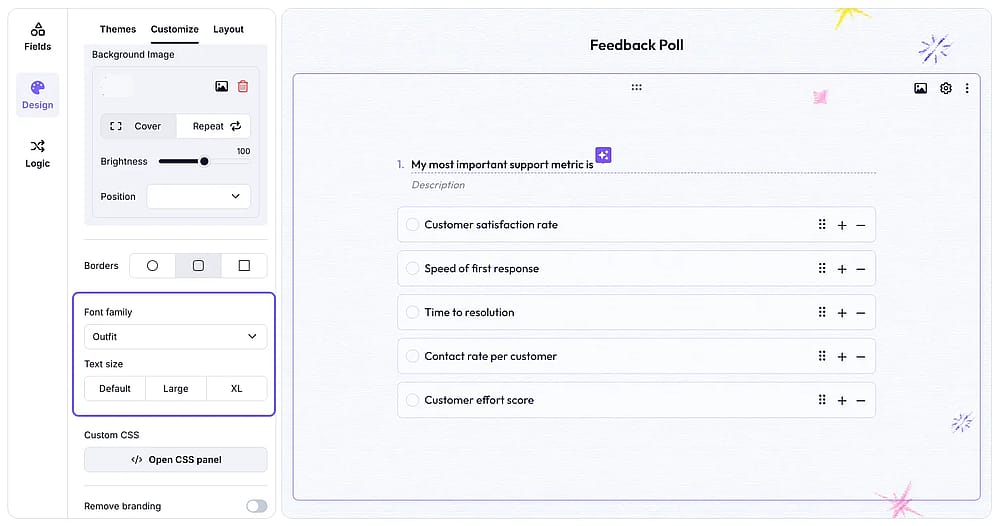
Check the ‘Font family’ dropdown and the ‘Text size’ options below
Use the Font family dropdown to browse through many professional font options and choose the text size from the options below. From this window, you can also adjust text, elements, and background colors, or upload a custom brand image.
3. Explore Custom CSS
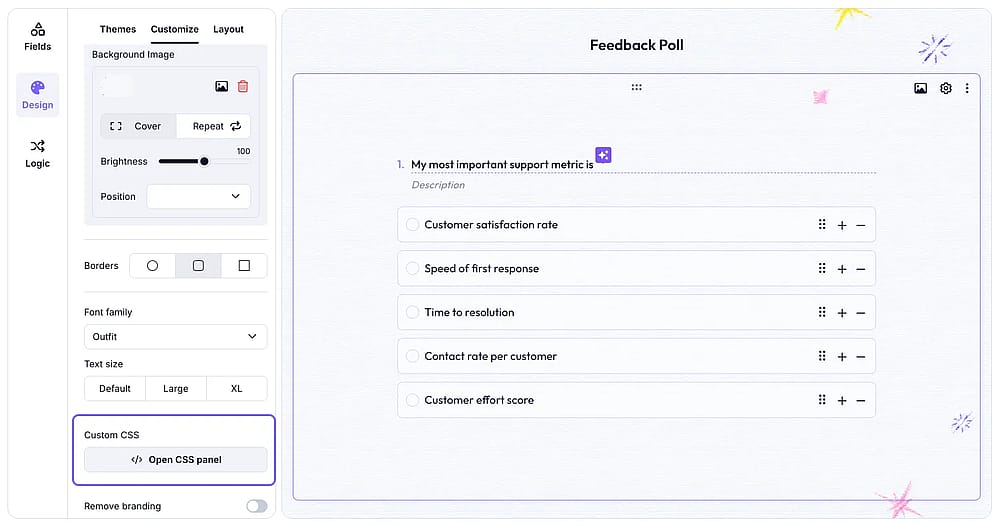
Explore the Custom CSS feature by accessing the area
If you need advanced layout adjustments, use the Custom CSS section. This gives you the freedom to fine-tune every detail of your form’s appearance beyond the standard presets.
💡 Please note that the Custom CSS feature is only available for users on the Pro plan and above.
Conclusion
Font size is a small detail that carries real weight in form design. It shapes how readable your form feels, how trustworthy your brand appears, and ultimately how many people follow through and submit. Getting it right is worth the effort, regardless of which tool you use.
In Typeform, that means choosing between three global presets, which cover most basic use cases. If your needs go beyond that, forms.app offers more typography options and customization layers to work with. Either way, the goal is the same: a form that's easy to read, easy to complete, and reflects your brand with intention.
Frequently asked questions (FAQs)
No. In Typeform, changing font size allows global changes, Small, Medium, or Large, applied to the entire form at once.
Yes. Hard-to-read text is one of the most common reasons people abandon forms midway. A clean, well-sized font reduces cognitive load and keeps respondents focused on answering rather than struggling to read.
Contributors
Researched & written by
forms.app, your free form builder
- Unlimited responses
- Unlimited questions
- Unlimited team members