Save up to 60% on yearly plans and enjoy our biggest offer of the year. Limited time only. 🍂
See pricing

Typeform regex validation: How it works and a better alternative

Summarize with
If you've ever needed to enforce a phone number format, validate an email address structure, or ensure a custom ID follows a specific sequence of characters, you already understand why regex validation matters in forms. Regular expressions, or regex, let you define a search pattern that an input string must match before it's accepted. The result is cleaner data, fewer errors, and less manual cleanup after submissions come in.
Regex patterns ensure your data is perfectly formatted for easy processing. This guide explains how to set up a regex form using Typeform and provides practical examples to get you started. While Typeform is powerful, it has certain limitations. To help you master validation, our regex tutorial for beginners will walk through the setup and show you a tutorial using an alternative tool.
TL;DR
- Custom regex validation is exclusive to Typeform Enterprise plans via the Answer validation setting.
- If you are not an Enterprise user, there is no built-in regex field. Your only workaround is splitting data into multiple fields and using Logic Jumps to block invalid entries.
What is regex validation in forms?
Regex, short for regular expressions, is a sequence of characters that defines a search pattern.
When applied to a form field, it acts as a gatekeeper: the field only accepts input that matches the pattern you define. Think of it as a smarter required field. Instead of simply making an answer mandatory, regex lets you enforce how that answer is formatted.
A few core concepts worth knowing:
- Character class: [A-Fa-f0-9] matches any hexadecimal digit; [a-z] matches any lowercase letter
- Capturing group: (pattern) isolates part of the input, like an area code within a phone number
- Case insensitive: the i flag makes your pattern match both upper and lowercase without listing each separately
💡 A hexadecimal digit is any character from the set 0–9 and A–F (or a–f). The hexadecimal system is base-16, meaning it uses 16 symbols instead of the usual 10. You'll most commonly see it in color codes (like #FF5733), unique IDs, and encoding systems.
How to use the regex text field in Typeform?
To use regex in Typeform, you first need to confirm you are on an Enterprise plan, as custom validation is not available on lower tiers.
If you have the right plan, follow these steps to ensure every regex match is accurate:
1. Create a Short Text or Long Text field in your form.
2. In the right-hand question settings panel, toggle the Answer validation switch on.
3. Paste your specific pattern (e.g., using \w to match a word character or adding escapes for special characters).
💡 Since standard plans lack a built-in regex field, you can manually validate data by splitting inputs into multiple fields. Use Logic Jumps to check if the answer "contains" specific characters or matches a fixed length.
Is there a better alternative?
If you need pattern-based validation without an Enterprise plan, forms.app is a practical free Typeform alternative. Its Masked text field lets you enforce exactly how respondents enter their answers, restricting input to letters, numbers, or a combination.
Here is how to set it up:
1. Log in to your forms.app account (or create one for free). Click Create a new form and start from scratch, pick a template, or use the Generate with AI feature.

Create your first form
2. In the Fields section, find Masked Text and add it to your form. Open the field settings tab on the right to set it as required or optional.
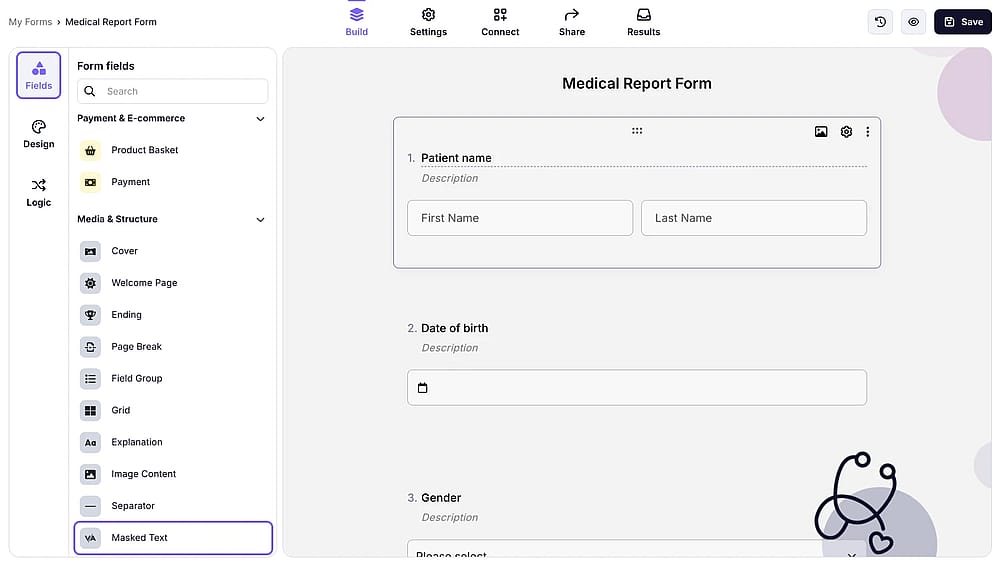
Choose ‘Masked text’ feature from the Fields
3. Add a Default answer for unanswered submissions and a placeholder to show respondents an example of the expected format.
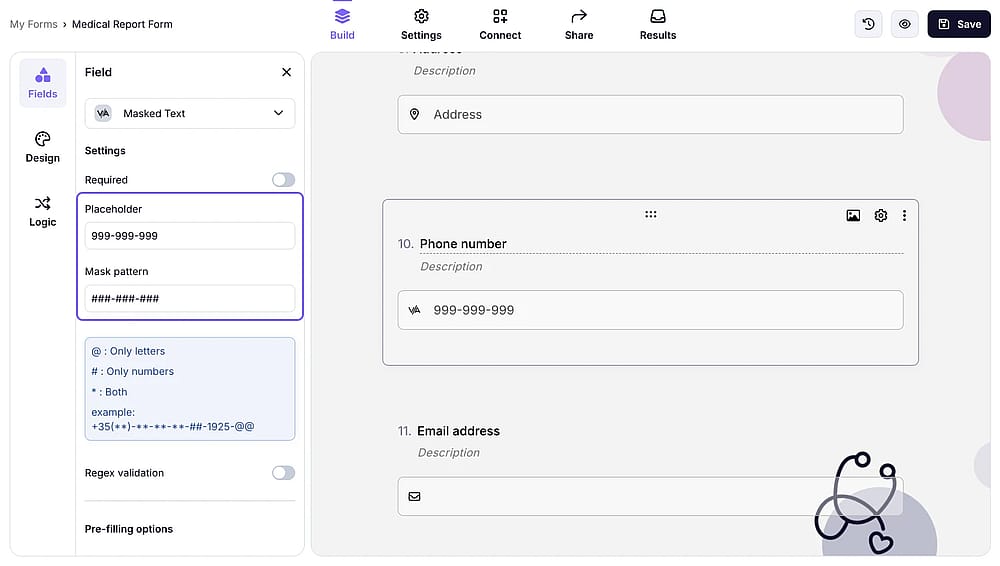
Add your Default answer
4. Build your pattern using the symbols.
💡 Symbol matches:
1 - number
a - letter
A - letter, forced to upper case when entered
* - alphanumeric
# - alphanumeric, forced to upper case when entered
+ - any character
To use the “A” in a regular form, please add “\” before the letter.
5. For more advanced rules, such as matching a specific sequence of characters or validating against a custom regex pattern, toggle on Regex validation from the same field settings panel.
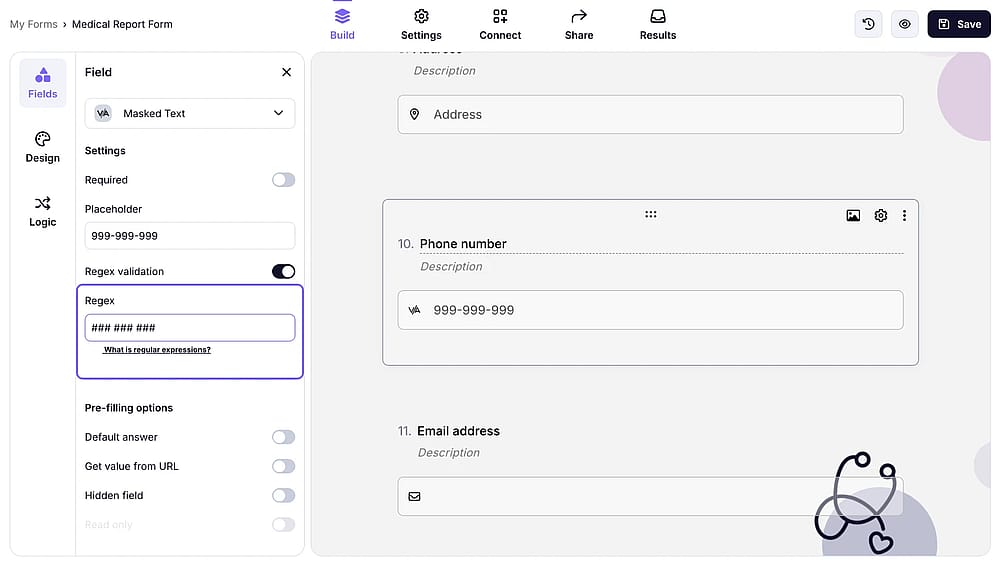
Customize the regex validation
In short
To wrap it up, while Typeform restricts regex validation to its Enterprise plan, forms.app makes similar functionality easily accessible with its masked text field even on the free plan. This makes forms.app a more flexible and cost-effective choice for anyone who needs input validation without upgrading to a premium tier.
Frequently asked questions (FAQs)
Regex validation can only be applied to Short Text and Long Text question types. It cannot be used on multiple-choice, dropdowns, or date fields.
Validating a string means checking if it follows a specific pattern. You define a rule to see if the input matches a single character or a sequence as intended. This is used in most programming languages to ensure data like emails or IDs are formatted correctly before processing.
A required field simply checks that something was entered. Regex validation checks that what was entered matches a specific pattern. A required email field accepts "abc123" as a valid answer. A regex-validated email field does not.
Contributors
Researched & written by
forms.app, your free form builder
- Unlimited responses
- Unlimited questions
- Unlimited team members