Save up to 60% on yearly plans and enjoy our biggest offer of the year. Limited time only. 🍂
See pricing

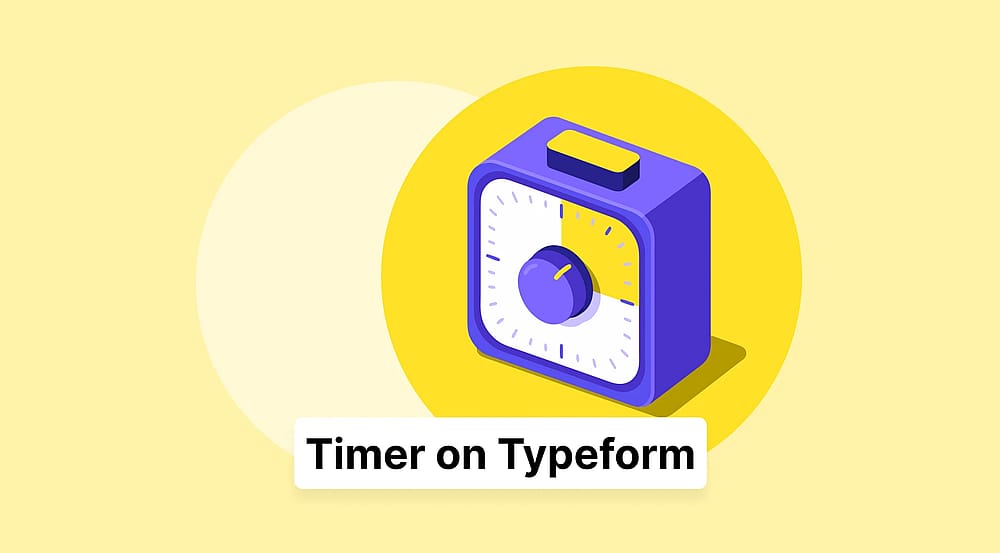
How to set a timer in Typeform
Summarize with
Time is the invisible element that transforms static quiz questions into a captivating, high-focus experience. That instinctive reaction is exactly what a well-placed timer does for your participants, creating a "flow state" that encourages instinctive answers and keeps things fair for everyone.
Whether you're a teacher watching students finally put their phones down, or a marketer seeing engagement climb on a viral personality test, a countdown adds a layer of urgency that keeps users hooked from the first question to the last.
Many creators seek a Typeform countdown timer to bring this dynamic energy to their sleek designs. In this guide, we'll explore how to make a timed quiz effectively, comparing native settings with specialized free timed quiz maker options. If you're looking for a free quiz maker with a timer that offers a simple, "one-click" setup, we'll show you how to go from idea to live timed quiz in seconds.
TL;DR: Can you add a timer to Typeform?
No, currently, Typeform does not have a native timer feature to limit the time a respondent spends on a quiz or form.
Why add a timer?
Integrating a timer does more than just track seconds; it changes how participants interact with your answer options and improves the quality of the data you collect. Here is how a timer enhances your free online quiz:
- Boosts engagement & focus
A countdown keeps quiz takers locked into the task. When people know they are on the clock, they are less likely to abandon the form, leading to more completed questions sets.
💡 Ideal use case: Marketing and brand awareness quizzes benefit the most here, where holding attention until the final results screen is the whole goal.
- Protects the integrity of correct answers
By choosing to set a time limit, you ensure that correct answers reflect genuine knowledge rather than a quick Google search, which is vital for any online quiz maker.
💡 Participants rely on recall rather than research, making the results a far more honest measure of what they actually know.
- Gamification & scoring
Timers allow you to reward speed. You can turn a standard list of question types into a competitive experience. You can even add images to your questions to make the fast-paced challenge more visual and exciting.
- Clean data & lead gen
A timer helps you identify serious participants. By requiring email addresses, you ensure you are collecting a database of focused leads who are genuinely interested in their final quiz results.
💡 Quiz duration tip: A 7-minute limit strikes the right balance, it filters out passive users without being so demanding that genuinely interested leads drop off.
How to add a timer in Typeform quiz?
If you are looking for a native timer feature that limits how long users have to answer, you may find the process a bit tricky. Currently, Typeform does not have a native timer feature. Advanced users can sometimes build custom solutions using the external coding.
💡 You can toggle on the "Time to Complete" setting in your Welcome Screen to show an automatically generated estimate of how long the form will take to finish.
How to add a timer using forms.app
If you're creating timed quizzes, assessments, or forms with multiple-choice questions, adding a timer can help track completion time or enforce time limits. With detailed reporting on how respondents interact with timed questions, you can gain valuable insights into their performance.
💡 Practical tip: A hiring team running a skills assessment can set a time limit, say, 15 minutes for the entire form, to simulate real work pressure and filter for candidates who perform well under deadlines. Once submissions are in, the response data makes it easy to compare results across all applicants at a glance.
Here's how to set up a timer in forms.app:
1. Add the Timer field
Log in to your forms.app account and open your quiz. Navigate to the Build section and look for the Date and Time section. Select the Timer option to add a timer field to your form.
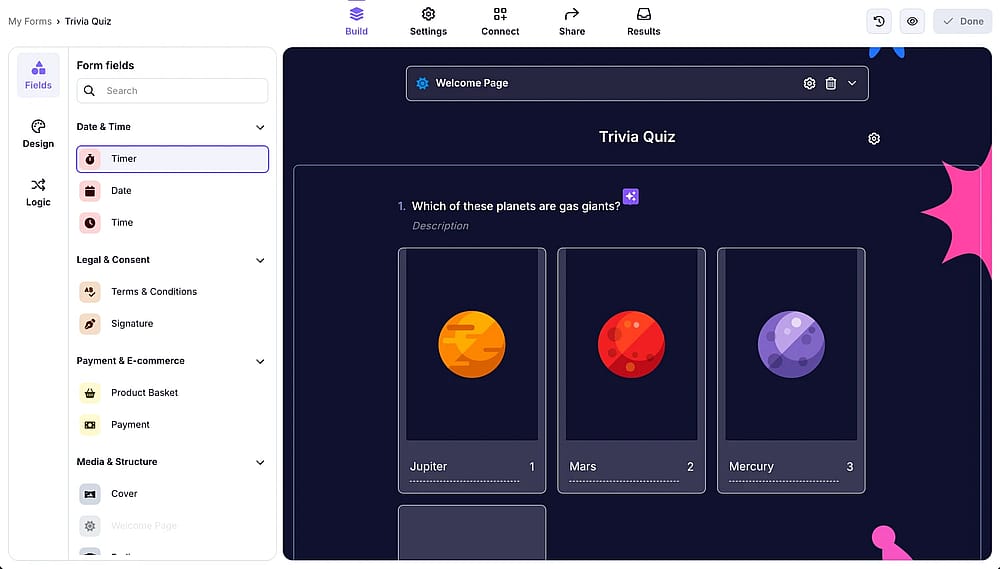
Click the ‘Timer’ field from the field menu on the left
2. Configure Timer settings
Once you've added the timer, click on it to open the Settings menu (or use the gear icon). You can customize the timer's behavior, including display messages, timeout text options, and button text to match your form's requirements.
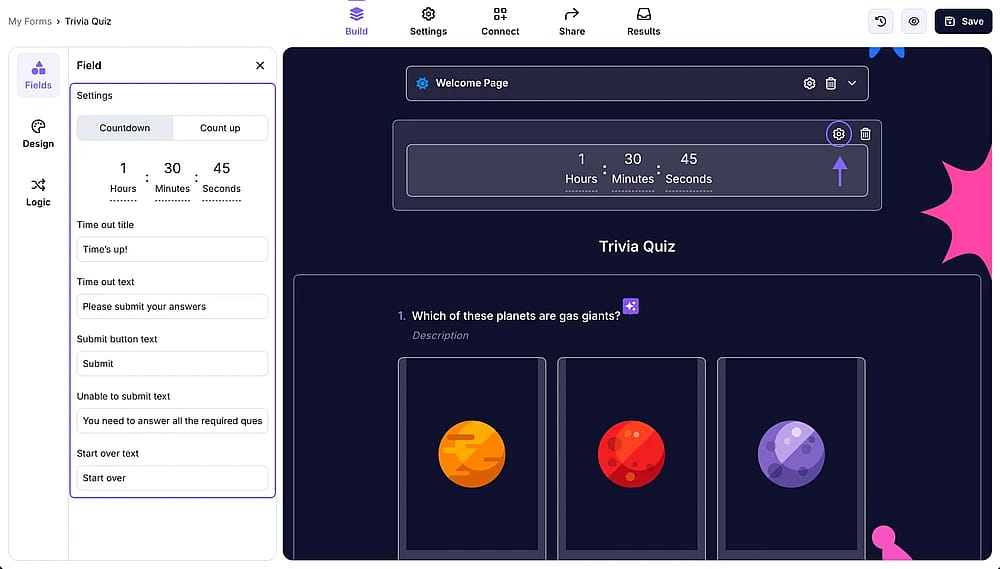
Access the field settings by pressing the ‘Gear’ icon on the field
💡 In forms.app, the Timer field supports both countdown and count-up modes, giving you flexibility depending on your use case.
3. Test and share
Preview your form to ensure the timer behaves as expected. Once you're satisfied with the settings, share them with your audience and monitor responses.
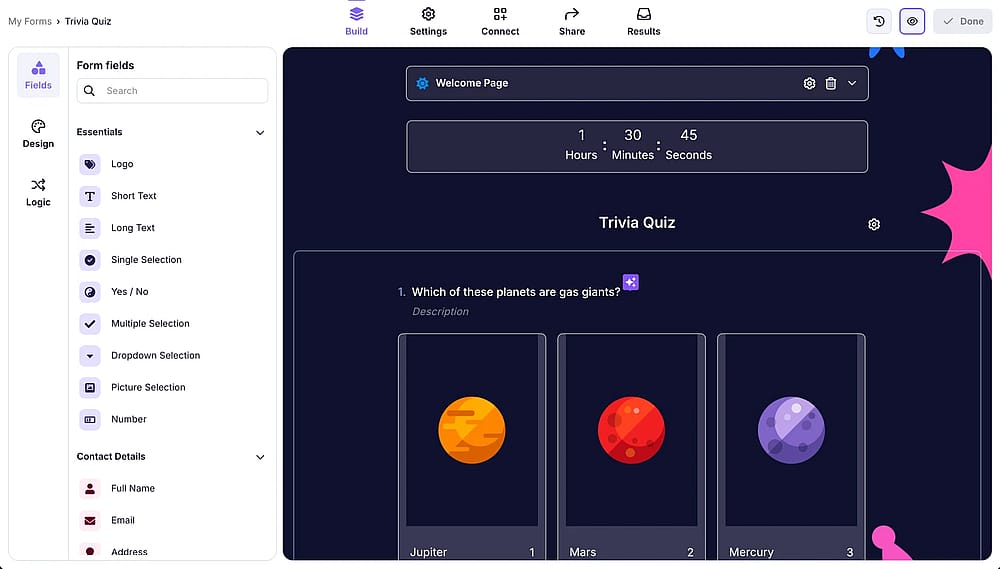
Preview your form by clicking the ‘Eye’ icon in the upper right corner
⏰ Timing is everything
Adding a timer is one of the simplest upgrades you can make when creating a quiz that feels professional and performs well. A countdown enforces time limits, automates submissions, and gives every participant a fair, standardized experience, all of which leads to sharper data and higher completion rates. Once you add that ticking clock, your question sets go from a passive survey to an engaging, high-focus assessment.
Frequently asked questions (FAQs)
The countdown starts at a set duration and counts down to zero. Use when you want to limit how much time respondents have to complete the quiz (best for timed entrance exams, speed challenges).
While a timer works in both, it is particularly effective in Step view, where you show one question per page. This layout keeps quiz takers focused on a single task at a time, preventing them from feeling overwhelmed by the countdown while scrolling through a long list. It creates a cleaner, more professional "exam-style" atmosphere.
Contributors
Researched & written by
forms.app, your free form builder
- Unlimited responses
- Unlimited questions
- Unlimited team members