Save up to 60% on yearly plans and enjoy our biggest offer of the year. Limited time only. 🍂
See pricing

How to create a quiz on Typeform: A full step-by-step guide
Summarize with
Online businesses are turning to quizzes to engage audiences in ways static content simply can't, and the numbers back it up. Interactive content like quizzes generates twice the engagement of passive formats, and a well-built product recommendation quiz or personality quiz can turn casual visitors into loyal customers. Quiz takers stick around longer, share more, and convert better because they get something personal in return.
In this guide, you'll learn how to use the Typeform quiz maker step by step, from picking the right question type to setting up conditional logic and sharing your finished quiz. This guide focuses on how to build a quiz in Typeform step by step, including question setup, scoring, and logic.
TL; DR: How to Create a Quiz on Typeform
1. Pick a quiz template or start from scratch
2. Add your questions from the content panel
3. Set up scoring in the Workflow tab
4. Add conditional logic to personalize paths
5. Once saved, click Share to publish your form
How to use quizzes and when
An online quiz is a set of relevant questions delivered through a web-based tool that collects responses and returns a score, a result, or a personalized experience. Unlike a static survey, a good quiz gives something back to quiz takers, which is exactly why they work so well for engagement and lead capture.
Quizzes work across almost every industry, but the strongest results come when they're matched to the right moment. Here are real use cases worth borrowing:
💳 E-commerce brands use product recommendation quizzes to replace the in-store experience online. Instead of overwhelming visitors with a full catalog, a short quiz asks relevant questions about preferences and serves up the perfect product at the end.
💻 SaaS and service businesses use lead generation quizzes to qualify prospects before a sales call. Rather than a generic contact form, they build a quiz with a few smart question types and use conditional logic.
📒 Coaches and course creators use personality quizzes to grow their email list on social media. Creating a personality quiz like "What kind of learner are you?" gives people a reason to engage and share, while the lead capture screen at the end converts that attention into subscribers.
🤳Media and content brands use trivia and knowledge quizzes to drive traffic and time-on-page. Shareable quiz results bring readers back and keep them clicking, and most start from quiz templates to speed up production.
📚 Educators and tutors build a quiz for every module to reinforce learning. A quick multiple-choice question set at the end of a lesson tells both the teacher and the student exactly where the gaps are.
5 tips for quiz creators
Before you build a quiz, a few smart decisions upfront will save you a lot of rework later. Based on what consistently works across lead generation, education, and e-commerce quiz builds, here's what makes the difference:
1. Start with a goal, not a question.
Know what action you want quiz takers to take at the end before you open the content panel, that shapes everything.
2. Choose question types intentionally.
Picture choice for visual products; multiple-choice question for clear decisions. Mix them to maintain momentum.
3. Use conditional logic.
It turns a flat list of questions into a genuinely personalized experience, and in most cases, that shift alone can meaningfully improve completion rates.
💡 Expert tip: Always test every conditional logic path yourself before sharing with quiz takers.
4. Treat quiz templates as scaffolding.
A great starting point, but always swap in your own brand voice and relevant questions before you click save.
5. Keep it under 7 questions.
In many cases, every extra question is a potential drop-off point. Longer formats can work for highly motivated audiences, but shorter is a safer default.
How to create a quiz on Typeform
Whether you're building a personality quiz, a scored knowledge test, or a product recommendation quiz, Typeform quiz examples across the web all follow the same core setup. Here's how to do it:
1. Sign up and pick your starting point
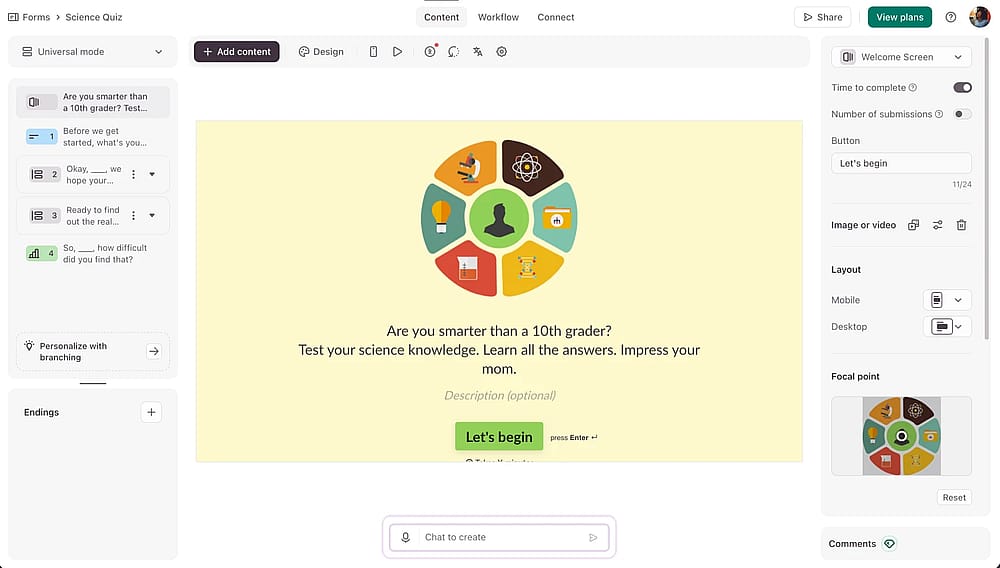
Once logged in, select a template or create a new form from scratch
Access your Typeform account. Once inside, click +Create form and choose a quiz template or start from scratch. Templates are a fast way to see real Typeform quiz examples before customizing your own.
2. Add your questions
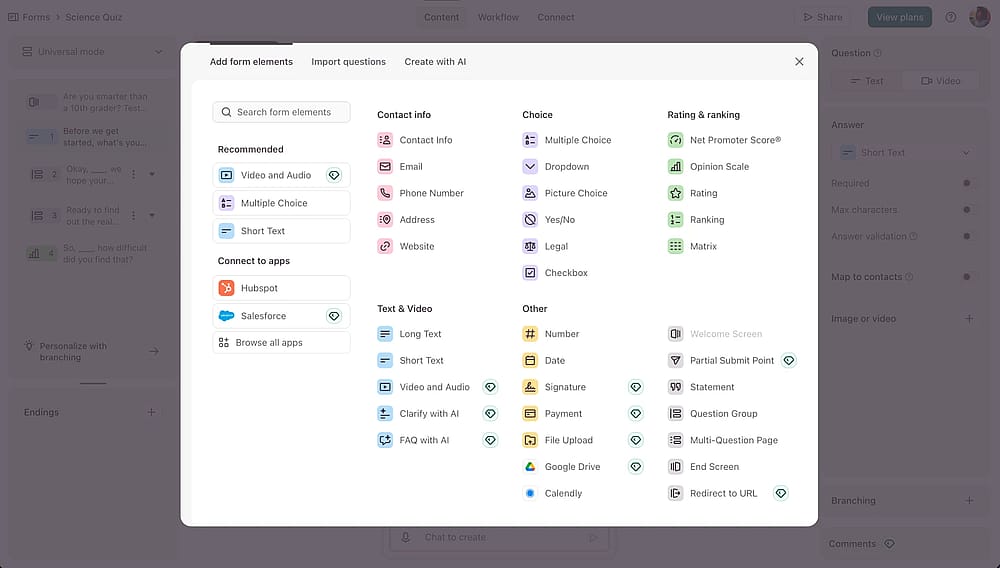
Click the ‘+Add content’ button to start editing your questions
Open the Content panel and start adding questions. Mark key questions as required, and add images or videos to keep quiz takers engaged.
💡 Expert tip: Visual elements like images and videos aren't just decorative; they add context to questions and keep quiz takers focused long enough to reach the final result screen.
3. Set up scoring
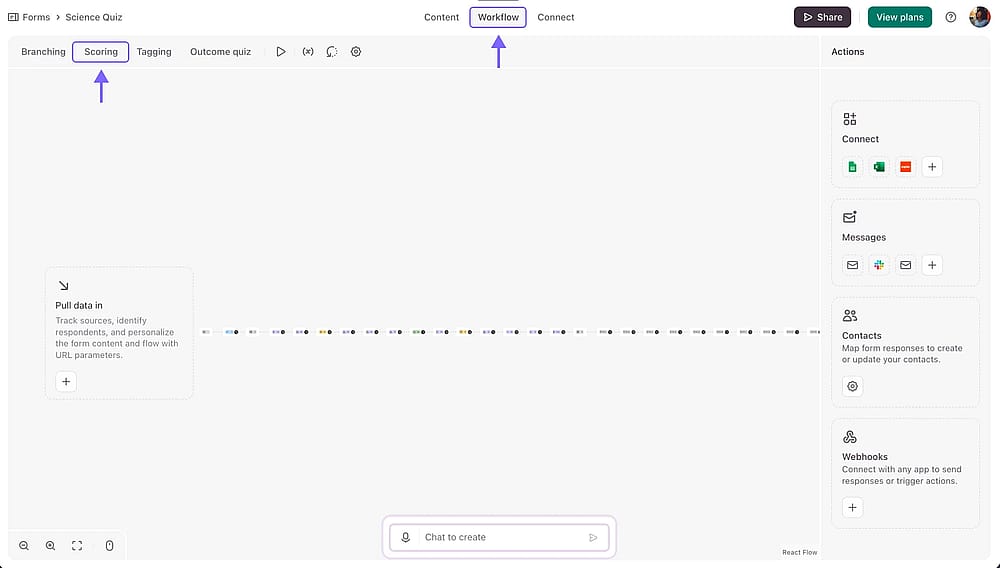
Access the ‘Scoring’ section from the ‘Workflow’ tab to set up the scores
Head to the Workflow tab and click Scoring. Assign point values to correct or weighted answers.
4. Add branching logic
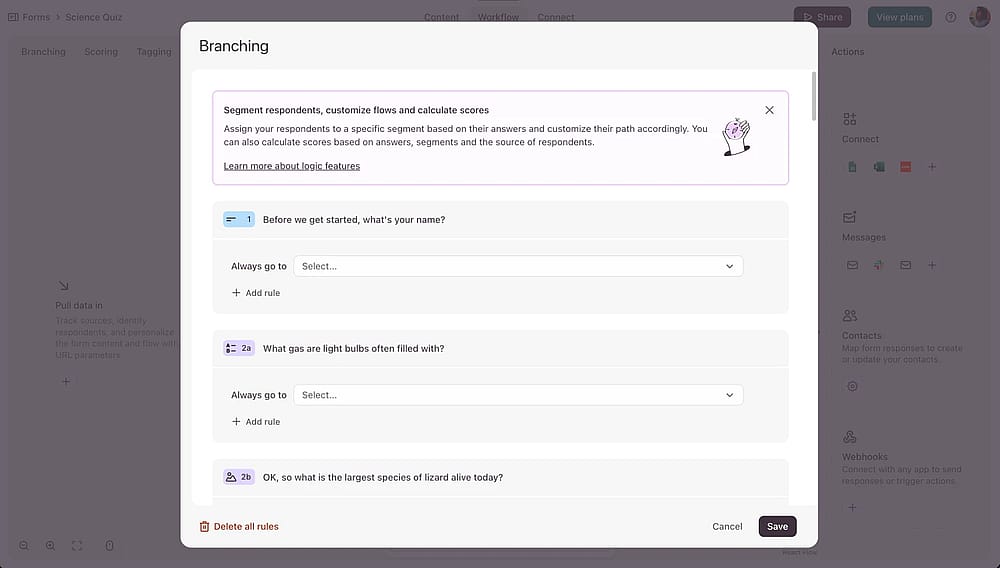
Access the ‘Branching’ section from the ‘Workflow’ tab to add conditional rules
Go to the Branching section and set up branching rules. Click on the question where you want to manage the rules and add a condition.
💡Conditional logic lets you route quiz takers down different paths based on their answers, the key ingredient in any good personality quiz in Typeform or lead generation build.
5. Save and share your quiz
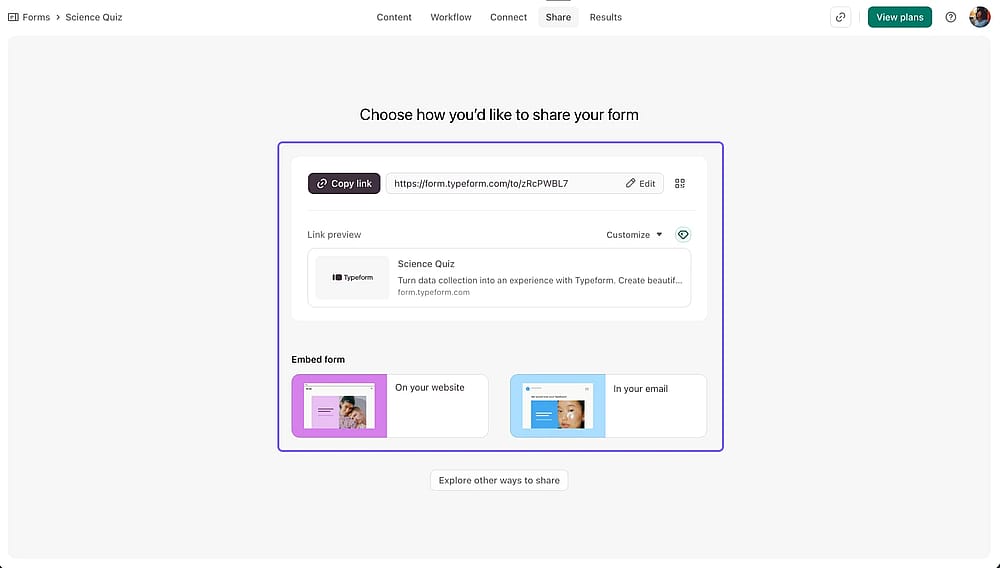
Once finished, check out the ‘Share’ section
Once done, head to the Share tab. Copy your quiz link, embed it on your site, or push it directly to social media. You can also grab a QR code for publishing.
Explore an alternative tool
If you're exploring your options before committing to a tool, forms.app is worth a look. It covers the full quiz-building workflow, templates, question types, scoring, and conditional logic, and works well for everything from a quick personality quiz to a more involved product recommendation quiz. Here's how to build one:
1. Log in and create your form
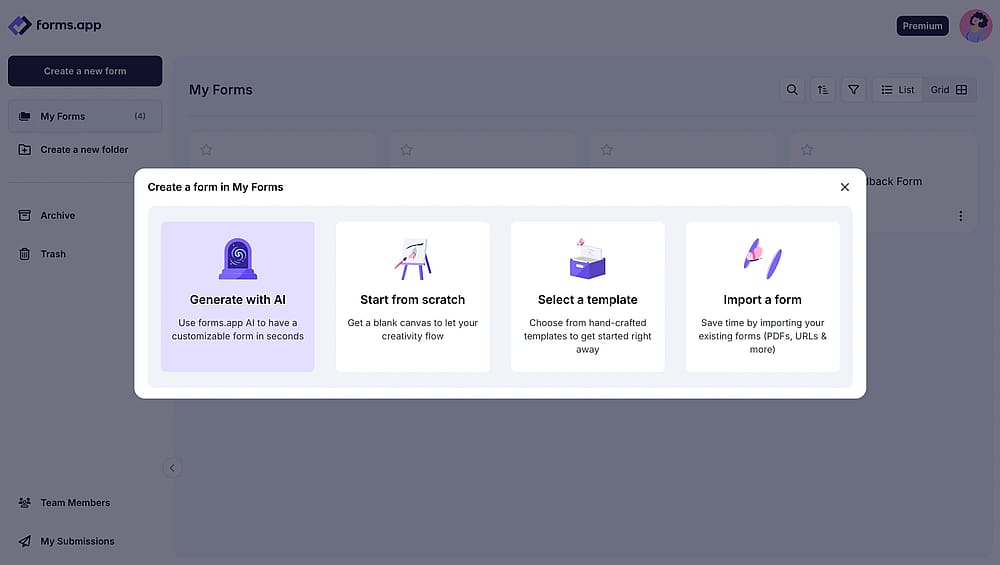
Once logged in to your account, press the ‘Create a new form’ button and check the options
Sign in to your forms.app account or create one for free. You'll get instant access to many free quiz templates, or you can generate a quiz from scratch using the built-in AI quiz maker.
💡 Expert tip: A psychology quiz is one of the most shareable formats you can build. Start from forms.app's ready-made Psychology Quiz Template to skip the setup entirely.
2. Set your questions and answers
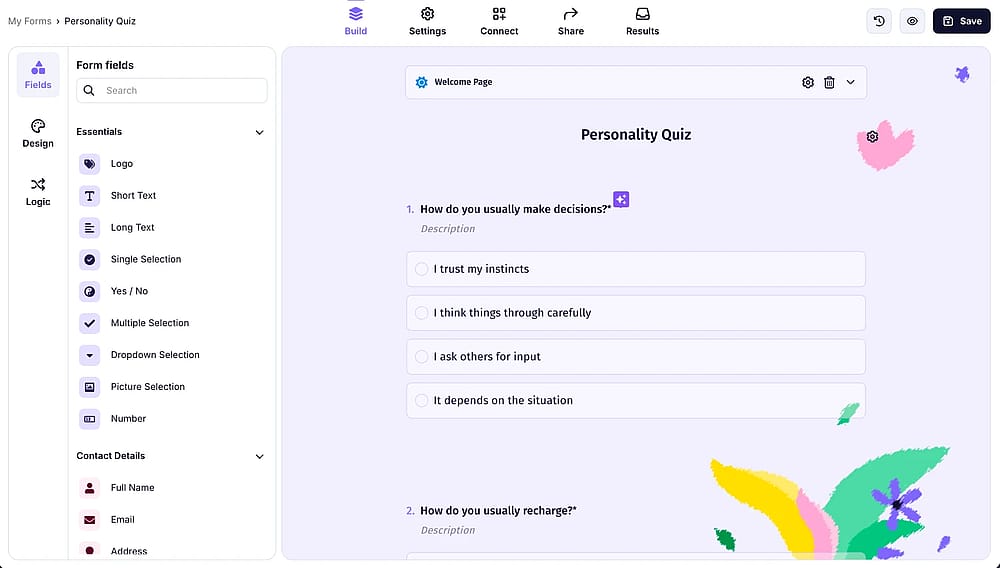
Set up your form fields when you are in the ‘Build’ section
In the Field menu, drag and drop your chosen question types into place. Use the AI rewrite feature to sharpen your questions, particularly useful when building lead generation or personality quiz flows.
3. Set up scoring with the Calculator
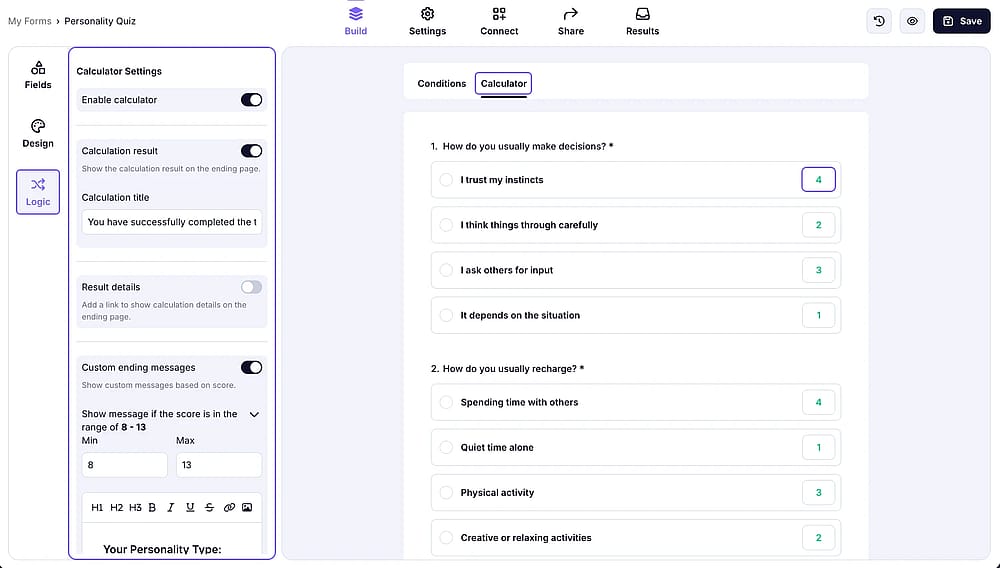
Open the ‘Calculator’ tab from the ‘Logic’ section to adjust the scores
Click Logic on the left sidebar and select Calculator. Assign point values to answers and define score-based outcomes, along with custom ending messages. You can also set up result details such as text and titles, and further enhance the custom ending message however you like.
4. Apply conditional logic
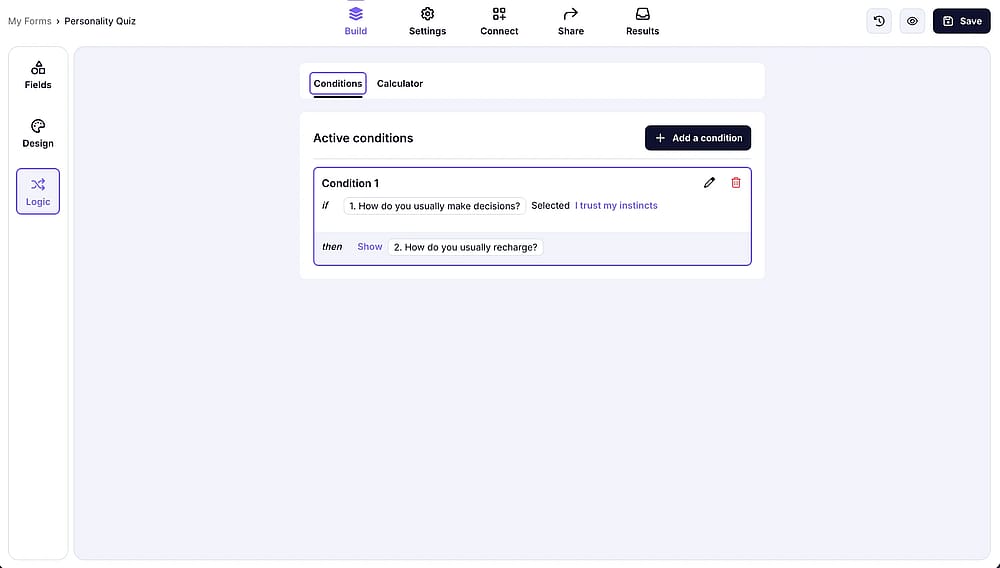
Check the ‘Conditions’ tab to add the conditional rules
Set conditional rules to create a personalized experience based on quiz-taker responses by opening the Conditions tab from the Logic section. The logic feature in forms.app is straightforward and requires no paid upgrade.
5. Save and publish your form
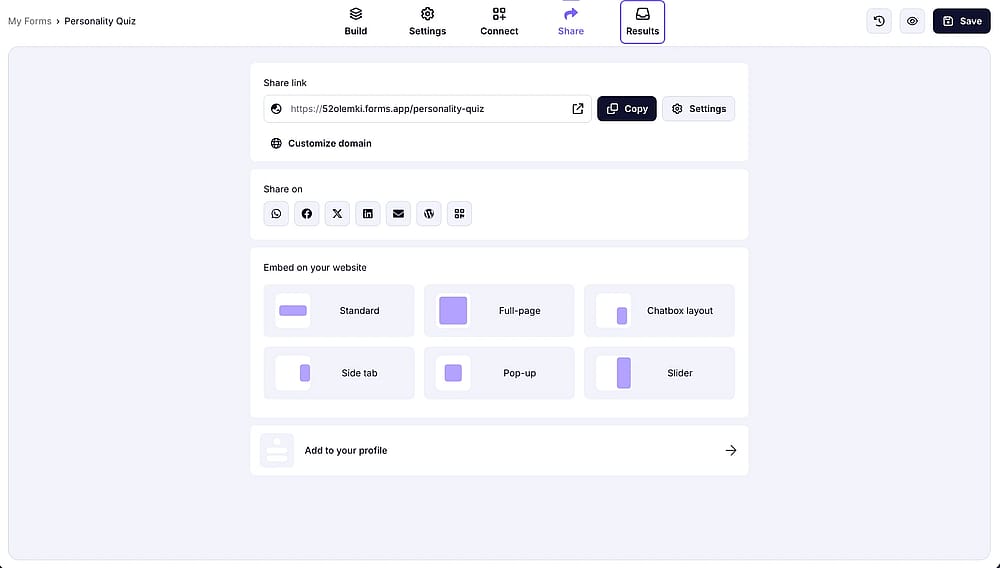
Go to the ‘Share’ section to explore the sharing options
Click Save, then Share to copy your quiz link. You can embed it on your website, share it on social media, or send it directly to your audience, ready in minutes.
💡 Expert tip: If you’re creating a quiz, forms.app offers a dedicated Timer field. You can set up both countdown and count-up timers to make your quiz more engaging and time-controlled.
In short
Quizzes have earned their place as one of the most versatile tools in a business's content strategy, not because they're trendy, but because they work. They engage, they convert, and they give quiz takers something worth sharing.
In this guide, you walked through how to create a quiz on Typeform from start to finish, from choosing a template and adding question types to setting up scoring, branching logic, and sharing your finished quiz. You also saw how forms.app covers the same ground with a few extra perks for free users.
Frequently asked questions (FAQs)
No, currently, Typeform does not have a built-in native timer feature for individual questions or the quiz as a whole.
If you need a countdown timer for a knowledge test or a timed assessment, you would typically use a third-party integration or consider an alternative like forms.app, which offers a native Timer field.
Yes, every Typeform quiz is designed with a one-question-at-a-time interface, which is inherently mobile-responsive. This ensures that your quiz looks and functions perfectly, whether your audience is on a desktop, tablet, or smartphone.
Yes, the Typeform product recommendation quiz is one of the most effective ways to drive sales. By asking customers about their preferences, you can use conditional logic to filter through your catalog and present the single best product for their needs on the final screen.
Contributors
Researched & written by
forms.app, your free form builder
- Unlimited responses
- Unlimited questions
- Unlimited team members