Save up to 60% on yearly plans and enjoy our biggest offer of the year. Limited time only. 🍂
See pricing

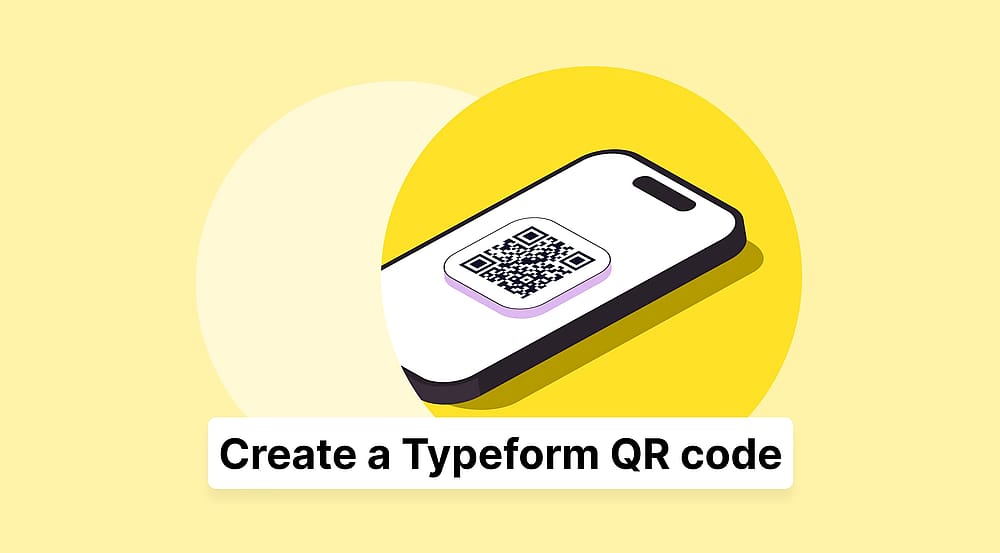
How to create a Typeform QR code: 2026 expert guide
Summarize with
You cannot be everywhere at once to hand out surveys, but your most valuable data lives in the physical world; on restaurant tables, event flyers, and product packaging.
When you can’t be there in person, a form QR code is the fastest way to move a user from a physical touchpoint to a digital response. Based on my hands-on testing across various mobile browsers, I’ve verified the most stable workflow for a QR code form.
This guide explains how to create a QR form that actually converts, starting with real-world use cases for events and retail. I will then provide the step-by-step instructions I’ve personally tested for reliability, followed by the technical features you should look for in a form builder to ensure your how to create a QR code for a form process doesn't result in a failed scan in the field.
TL;DR steps for sharing a Typeform QR code
1. Adjust & complete your form.
2. Click the QR icon.
3. Download the QR code.
How to share your Typeform via QR code
Through my testing of QR code form deployments, I’ve found that the success of a scan depends entirely on the mobile optimization of the landing page. Follow these verified steps to create a QR form that performs in the field:
1. Initialize your form
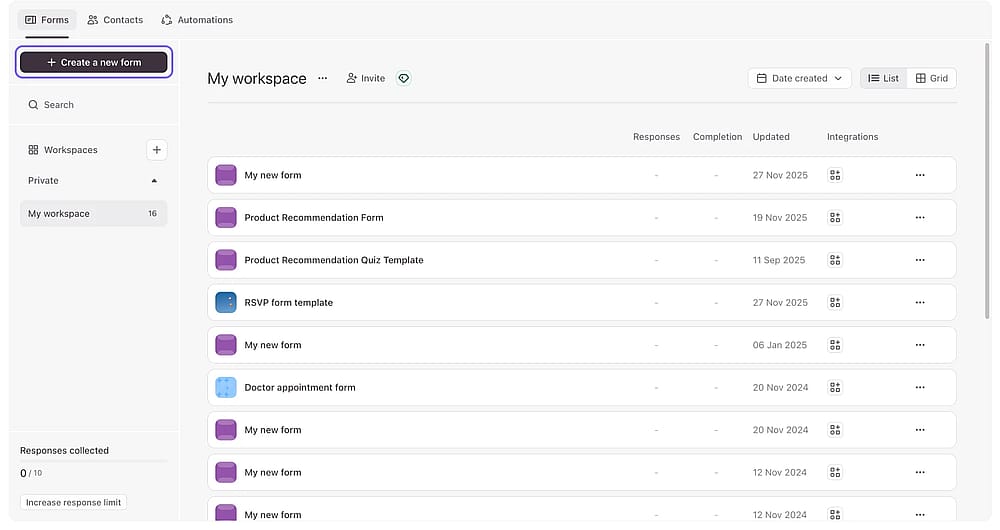
Create a new form
After logging in, click + Create a new form on the left. You can start from scratch or use a template. I’ve found that starting with a template saves significant adjustment time later in the remaining process, as these are pre-configured for vertical scanning.
Expert Note: I recommend choosing a template with minimal background imagery. In my experience, heavy images can slow down loading times on the cellular data often used by people scanning in public.
2. Add & Optimize content
Add essential fields
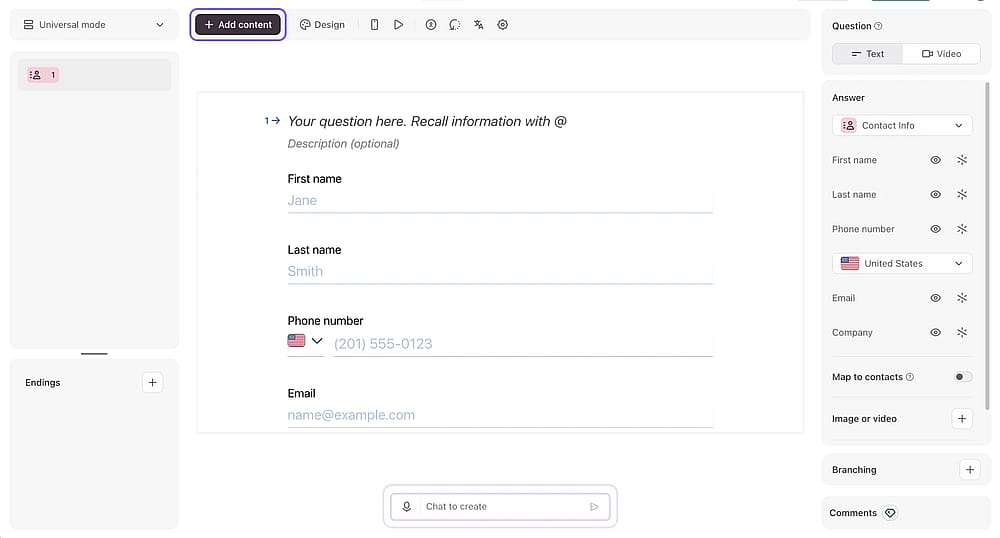
Click + Add content to insert your questions. If you are using a template, you can customize the existing fields to suit your purpose.
Expert Note: In physical environments, user attention spans are even shorter than online. My testing shows that keeping the first three questions brief prevents immediate drop-offs when users scan from a busy location like a restaurant or event hall.
3. Refine the visual UX
Change the design
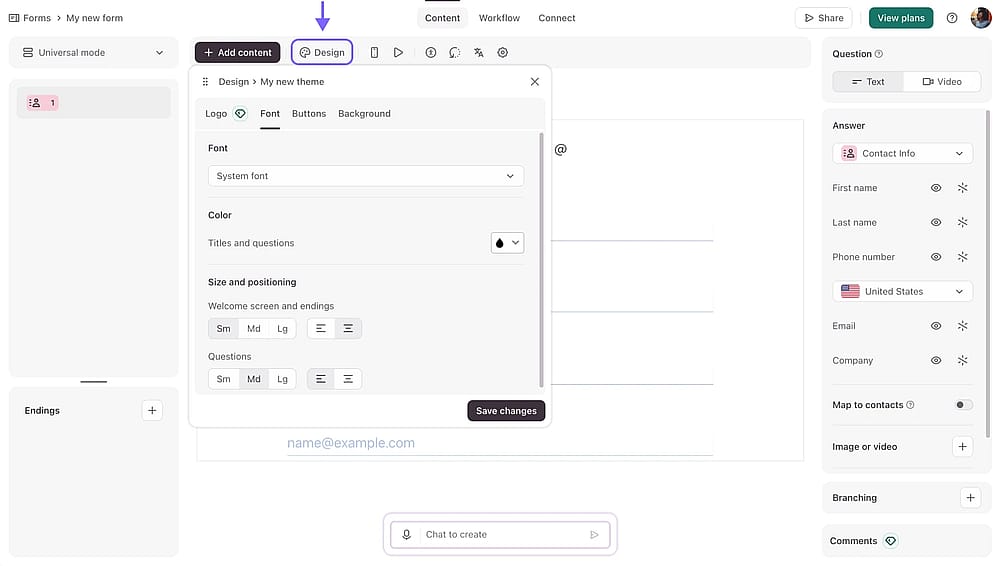
Under the Design tab, select a high-contrast theme. You can change fonts and colors or add a logo (requires a paid membership).
Expert Note: I’ve verified through field testing that high-contrast themes significantly improve readability in unpredictable lighting. A form that looks great on a desktop often becomes unreadable in direct sunlight or dim restaurant lighting.
4. Generate & Test the QR code
Download the QR
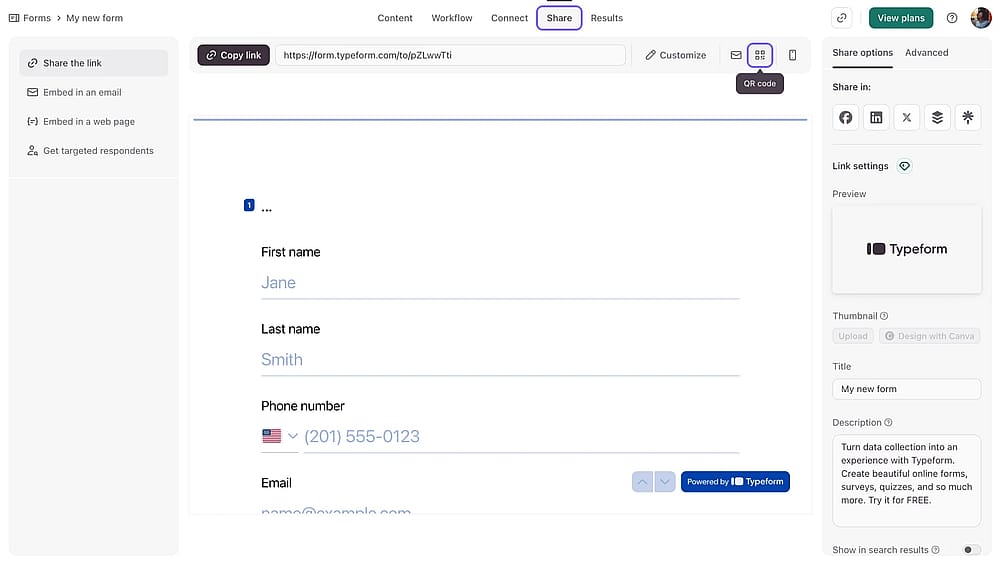
Once finalized, click Share, select the QR code icon. Click Download QR Code to save your image.
Expert Note: Always test the downloaded file on both iOS and Android. I have seen many form qr code campaigns fail because the code was scannable on one OS but struggled with the native camera app of another.
A better alternative: How to share a QR code via forms.app
Download the QR
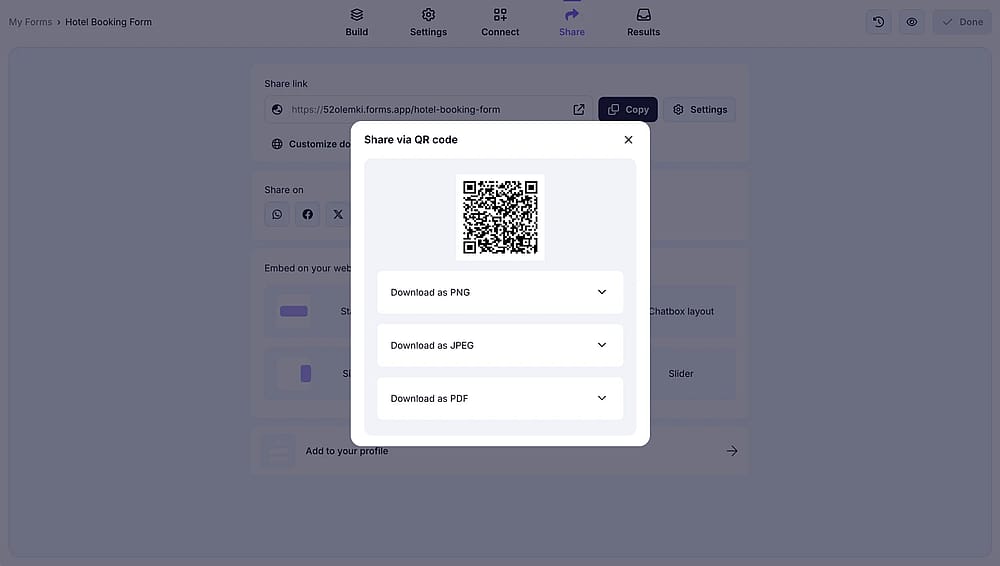
If you require more flexibility than Typeform offers, forms.app is a strong Typeform alternative, serving as a high-performance, free QR code generator and form builder. After building your form, simply navigate to the "Share" tab and select the QR code icon. Unlike most platforms, forms.app allows you to choose between different types of QR codes and customize the QR code image by adjusting its size or downloading it in various formats like PNG or PDF, perfect for high-resolution printing on business cards or large-scale event banners.
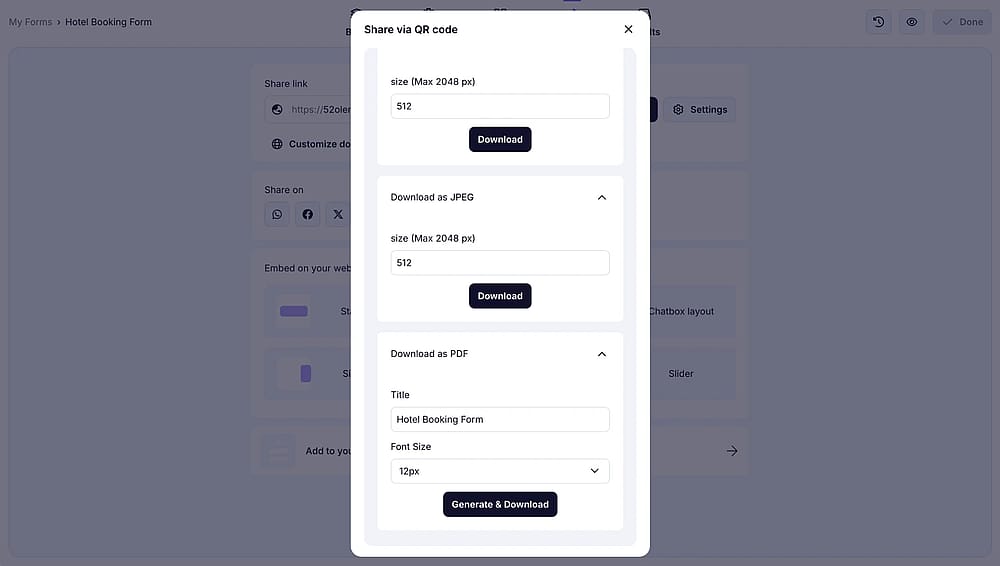
QR settings on forms.app
forms.app surpasses Typeform by providing dynamic QR code capabilities and deeper branding on more accessible terms. While Typeform often gates logo integration, forms.app makes it easy to add your branding so that when a user is scanning the QR code with their QR code scanner, they see a professional, cohesive interface immediately. The mobile-first infrastructure ensures the form loads instantly after scanning the QR code, significantly reducing the bounce rates often seen with heavier, more complex form builders.
Conclusion
Generating a QR code remains the most effective way to bridge the gap between physical touchpoints and digital data collection. By understanding the different QR code types available, you can select the format that best ensures your form loads instantly across all devices and network conditions. Once you generate QR code assets that are optimized for both print and mobile performance, you eliminate the friction of manual entry and significantly increase your response rates in real-world environments.
Frequently asked questions (FAQs)
No. Google Forms does not currently offer a native "Download QR" button. When creating a Google Form, you must first click "Send" to copy the form's URL and then use an external free qr code generator or a dedicated Google Workspace add-on (like CrabQR) to create the image.
Yes, collecting a phone number is safe as long as your form is hosted on a secure platform (look for the "https" in the URL).
Using a QR code for your form makes it much easier for people to respond because they can open it instantly by scanning instead of typing a long link. It’s especially useful in real-life situations like events, stores, classrooms, or presentations, and it helps increase response rates by removing extra steps and letting people answer right away.
Contributors
Researched & written by
forms.app, your free form builder
- Unlimited responses
- Unlimited questions
- Unlimited team members