Save up to 60% on yearly plans and enjoy our biggest offer of the year. Limited time only. 🍂
See pricing

How to prefill a Microsoft Form (definition + step by step)
Summarize with
Efficiency and speed are two of the values that let a small business scale into a much bigger one, and the bigger the business gets, the more that need for efficiency grows. One of the simplest ways to save time on repetitive data collection is by prefilling forms instead of asking every participant to type the same information from scratch.
In this article, we'll cover the pre filled form meaning, how to prefill fields in Microsoft Forms in three steps, and a simpler alternative for a more straightforward data collection process with forms.app.
Pre-filled form meaning
Prefilling a form means automatically filling in one or more answers on behalf of the participant before they start completing it, rather than leaving every field blank.
The main reason to do this is to save time, but it's also a way to create a more personalized experience. If you already know something about a participant (their name, department, previous order, or the session they attended), prefilling lets you skip asking them to re-enter it.
Common scenarios where this comes in handy:
- Using one form for multiple audiences: Sending a slightly different pre-filled version of the same form to different groups (e.g., one link per event session).
- Automated email campaigns: Pulling recipient details from a mailing list so they arrive automatically filled into the form the recipient receives.
- Returning customers or employees: Auto-filling known details like name, email, or department based on who the link was sent to.
The biggest time-saver isn't on short forms; it's on longer ones. A 5-field contact form barely benefits from prefill, but a 15-field intake or event feedback form sees a real increase in form completion rates once the repetitive fields are already filled in and people only have to deal with what's new.
How to prefill fields in Microsoft Forms in 3 steps
Microsoft Forms can be a solid choice if you want something accessible with a straightforward setup; it's a good fit for first-time form creators. Here's how to use its Pre-Fill Responses feature.
1. Create your form and add your questions
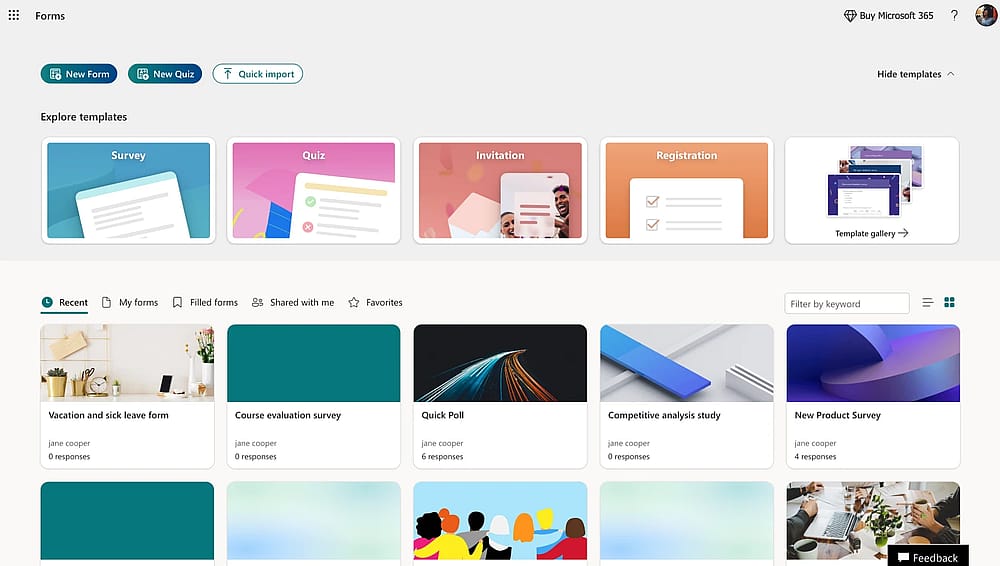
Create your Microsoft form
Start by building the form you want to prefill, choose a blank form or a template, and add the questions you need. You can technically begin prefilling right away, but it's easier to finish building the form first and prefill it once everything's in place.
2. Open the additional options menu & Select Get Pre-filled URL
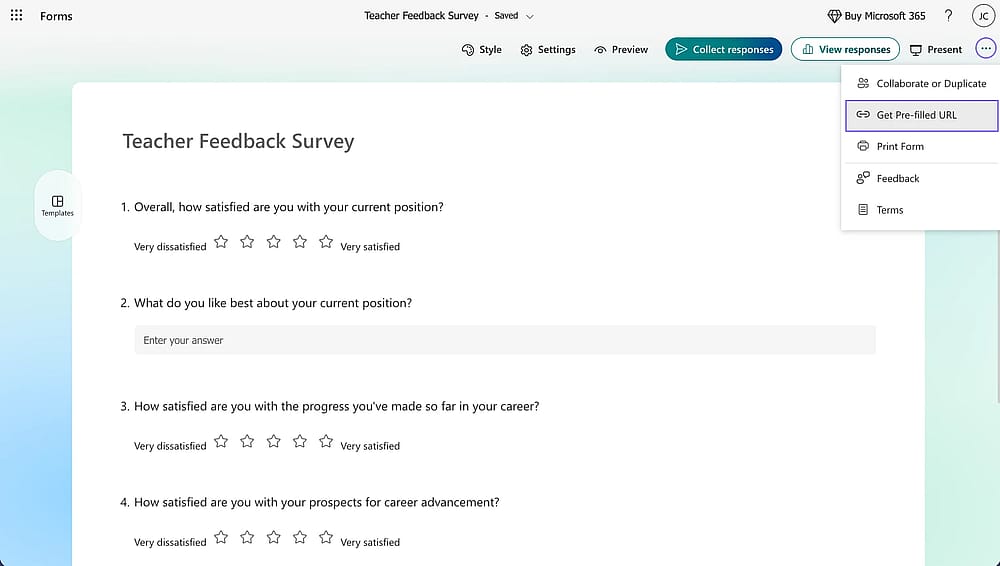
Click the more button
Once your form is built, click the three horizontal dots in the upper right corner of the builder. Select Get Pre-filled URL. On the page that opens, toggle Enable pre-filled answers at the top.
3. Fill in the answers and share the link
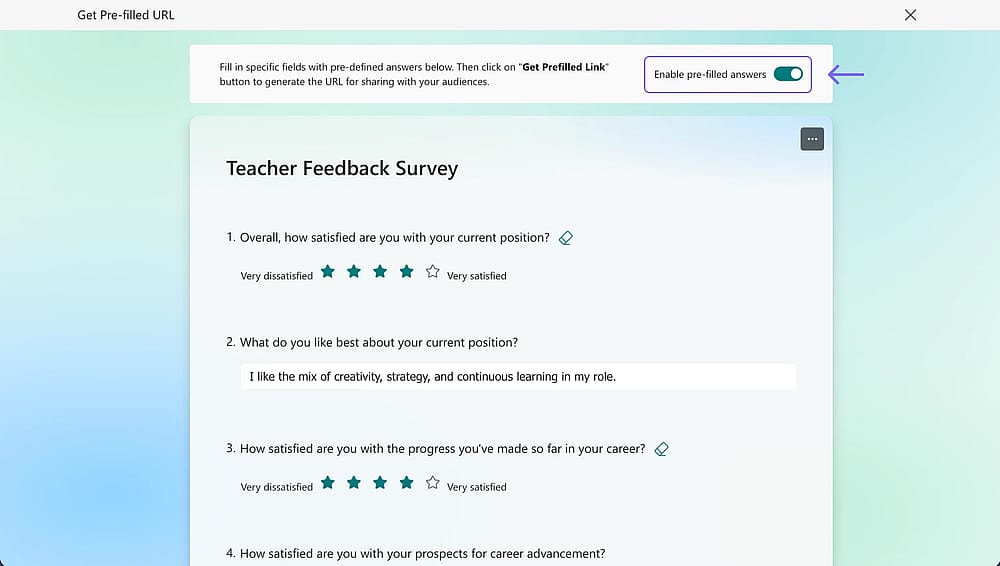
Toggle the prefill button
Enter the answers you want pre-set, then click Get Prefilled Link at the bottom to copy the unique URL.
If you're sending this form to different groups of participants who each need different pre-filled answers, you'll need to repeat this step and generate a separate link for each group. When a participant opens their link, they'll see the form with those answers already filled in, and they can still edit them unless the field is locked.
Bonus tip
Sending the same form to a large list of people? You don't have to generate every pre-filled link by hand. A spreadsheet formula like Excel's CONCATENATE can build all your pre-filled links at once by merging each row of your data into the URL, handy if you're working from a list of hundreds of recipients instead of just a handful.
Limitations of prefilling in Microsoft Forms
Microsoft Forms' prefill feature is straightforward, but it has real limits worth knowing before you rely on it:
- No hidden fields. You can't hide a prefilled field from the participant. It stays visible even if you don't want them to see or think about it.
- No read-only option. Every prefilled field remains editable, so there's no way to lock an answer in place.
- Link-based only. There's no native way to connect Microsoft Forms directly to a CRM or database; external data has to be merged into links manually rather than pulled in automatically.
A simpler way to prefill forms: forms.app
If you're looking for a workflow with fewer manual steps than building links field by field, forms.app is one option that supports prefilling directly at the field level. Here's roughly how it works:
1. Create your form and add your questions: The same as with any form builder.
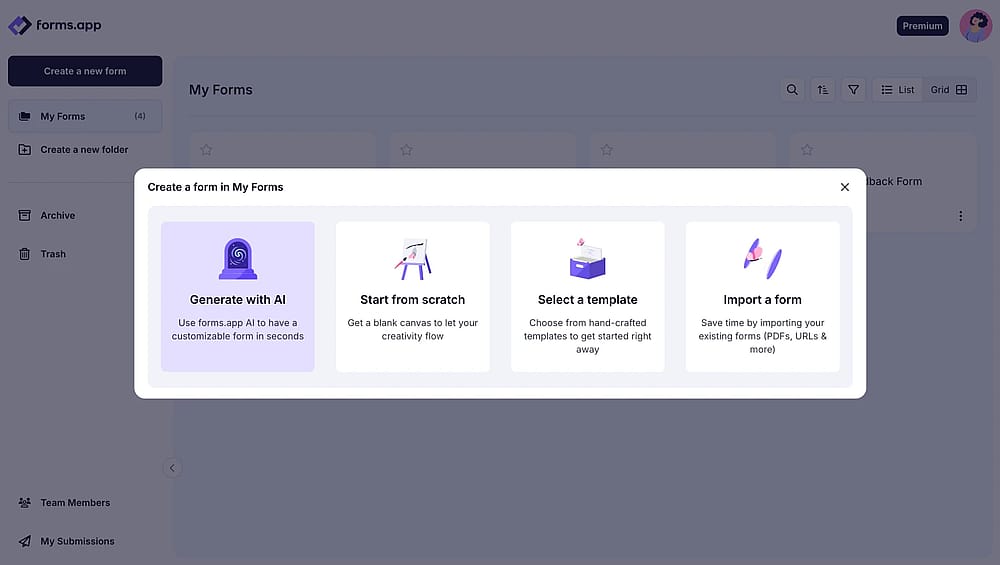
Create your form
2. Open that field's settings and enable Get value from URL: Lets the field pull its value directly from a URL parameter.
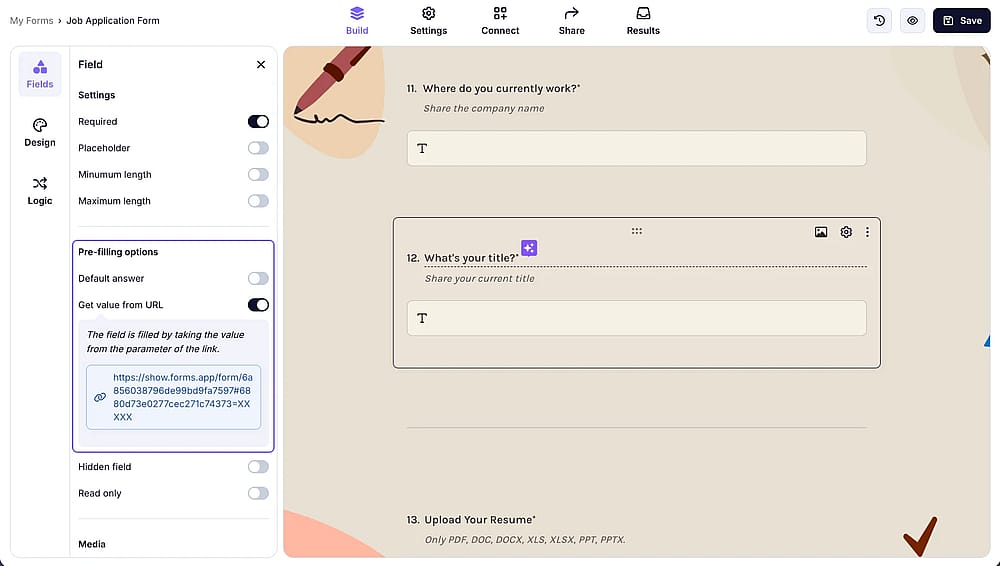
Create your form
3. Adjust additional settings if needed: For example, marking the field Read only so respondents can't change it, or Hidden if you don't want it shown at all.
That last part addresses the two limitations Microsoft Forms has around hidden and read-only fields, which is worth knowing if those matter for your use case.
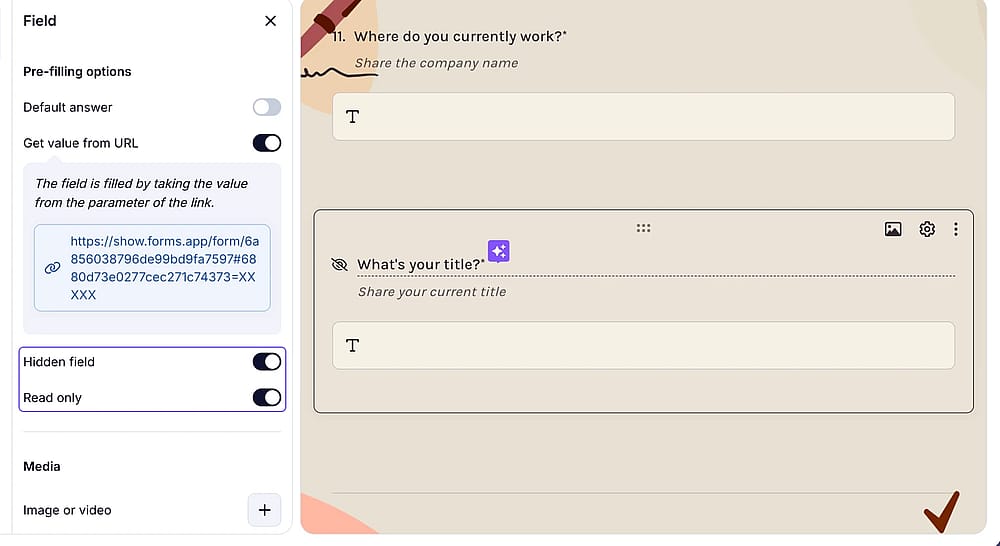
Customize the settings
Frequently asked questions
You can technically prefill form fields with a phone number or email addresses, but since Microsoft Forms carries that data in the form url itself, it's not the safest method for sensitive information. Links can end up in browser history or shared logs, so it's best to stick to lower-risk fields (like a name or session topic) rather than anything private.
Microsoft Forms has automatic save for the form creator while building a form, but that's different from saving a respondent's progress. Once someone opens a prefilled link and starts form filling, their form data isn't stored unless they complete the form submission. Closing the tab partway through means their answers, including any edits to the pre-filled values, are lost.
No. Any changes a participant makes to their form fields during form filling only apply to their own response; they don't affect the original form url or the pre-filled links generated for anyone else.
In Microsoft Forms, no. Every prefilled field remains editable, so there's no way to lock a field before form submission. If you need to prevent changes to specific form data (like a phone number or email address field), that's one of the gaps a tool with read-only field options can cover.
Contributors
Researched & written by
forms.app, your free form builder
- Unlimited responses
- Unlimited questions
- Unlimited team members
Related articles