Save up to 60% on yearly plans and enjoy our biggest offer of the year. Limited time only. 🍂
See pricing

How to create a petition on Microsoft Forms (+ a better option)
Summarize with
Online petitions have become one of the most powerful ways to gather signatures, reach decision-makers, and push for real change, all without leaving your desk. From contacting an elected official to spreading awareness on social media, a well-crafted petition form can turn individual voices into collective action.
Since most people already know how to use Microsoft Forms to create a survey, it feels like a natural starting point for building one. In this article, walk through how to create a petition form step by step, and explore a more capable alternative for when Microsoft Forms' limitations get in the way.
TL;DR: How to create a petition with Microsoft Forms:
1. Start from scratch or pick a template
2. Add & edit your questions
3. Use a checkbox field as a signature workaround
4. Customize visuals
5. Adjust settings and preview your form
6. Share your online form
Microsoft Forms does not have a built-in signature collection feature. Getting people to sign is the whole point of any sample petition form, and without it, you'll need to rely on workarounds like checkbox fields or external e-signature tools.
What is a petition form?
A petition form is a document that collects signatures and contact details from people who support a shared cause.
It typically includes a short statement explaining the issue, fields for supporters to fill in, and a clear call to action, whether that's passing a new law, reversing a decision, or getting an elected official to take notice. Once enough signatures are gathered, the goal is simple: deliver the petition to whoever has the power to act on it.
💡 Practical tip: A strong example petition form always leads with the "why", a short, compelling statement that makes people want to sign before they even scroll down.
How to create a petition on Microsoft Forms
While Microsoft Forms doesn't let you gather signatures natively, you can still use it to start a petition with a few workarounds. The process is straightforward; think of it as building a survey with some extra fields for contact information.
1. Start from scratch or use a template
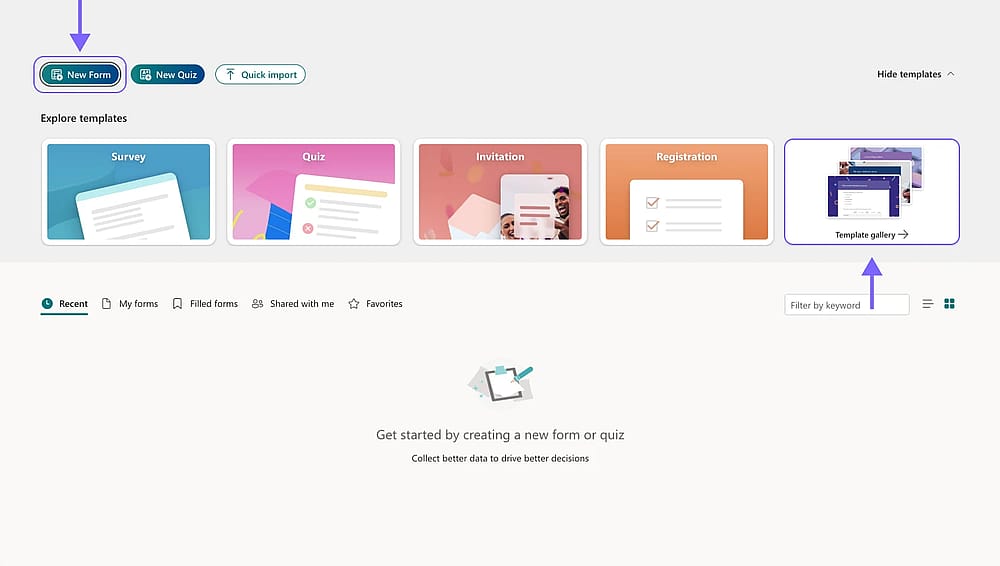
Create a blank form or check the template library
Open Microsoft Forms and choose a blank form or pick a template to get started. Microsoft Forms templates give you a ready-made structure you can adapt to your cause.
2. Add and edit your questions
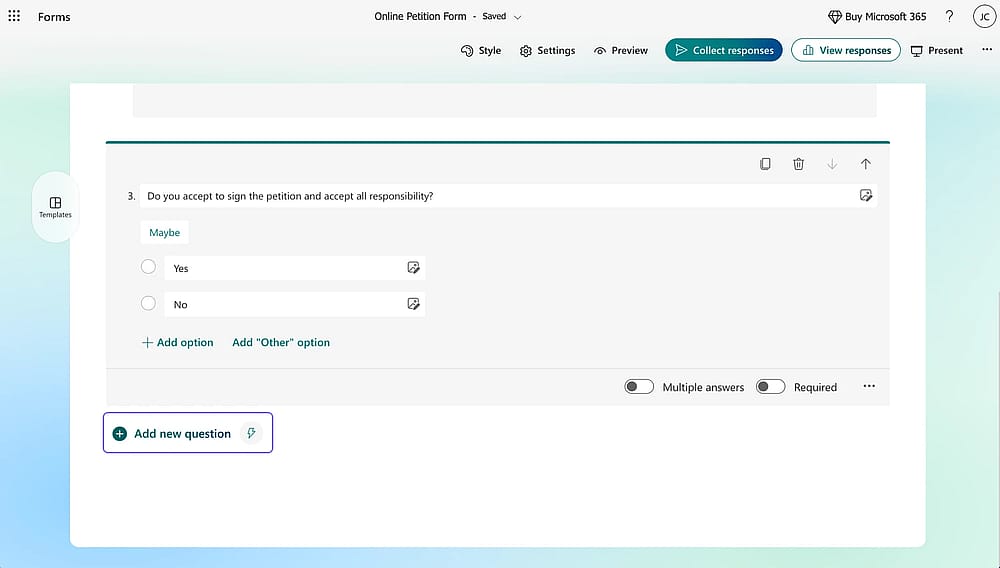
Add your form fields by clicking ‘Add new question’
Click "Add new question" to build out your form. Include fields for name, email address, and optionally address or phone number if you need verifiable contact information for a formal submission.
3. Add a checkbox field as a signature workaround
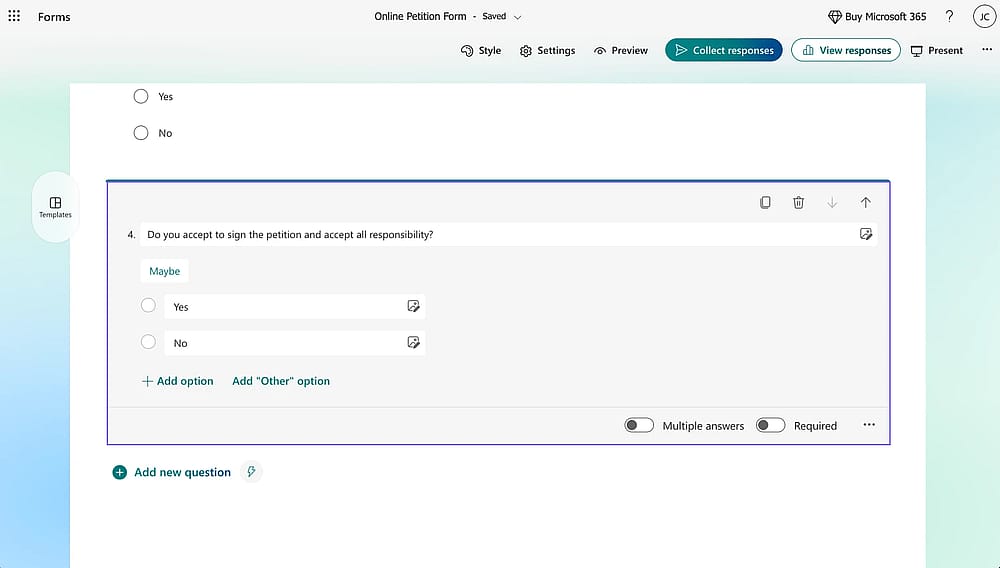
Include a choice question that will work as a confirmation
Since there's no signature field, add a checkbox that reads something like: "Do you accept to sign the petition and accept all responsibility?" This acts as a confirmation in place of a real signature.
4. Customize the visuals
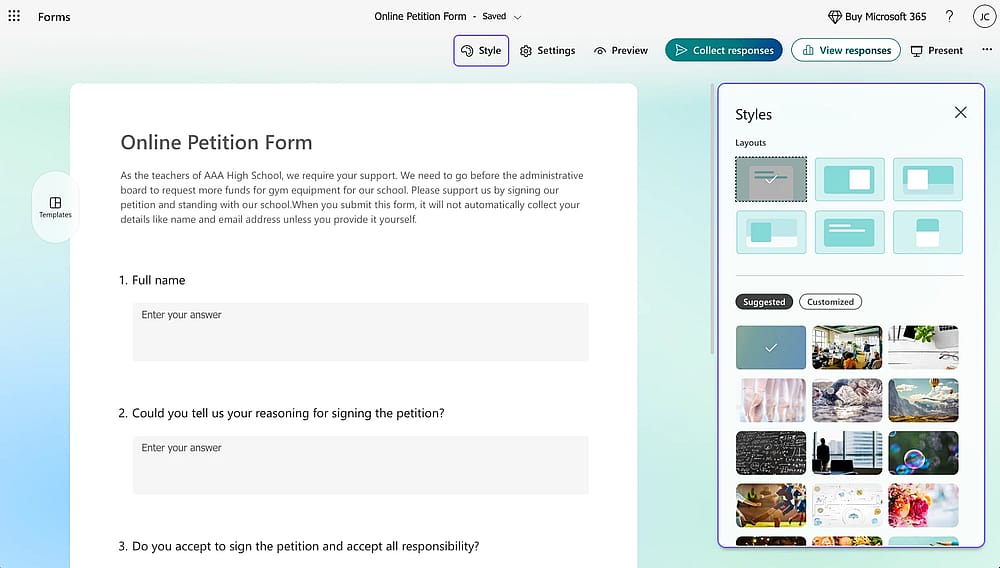
Customize your form by accessing the ‘Style’ tab
Click the palette icon in the top right to adjust colors, layout, and background images.
5. Adjust settings and preview
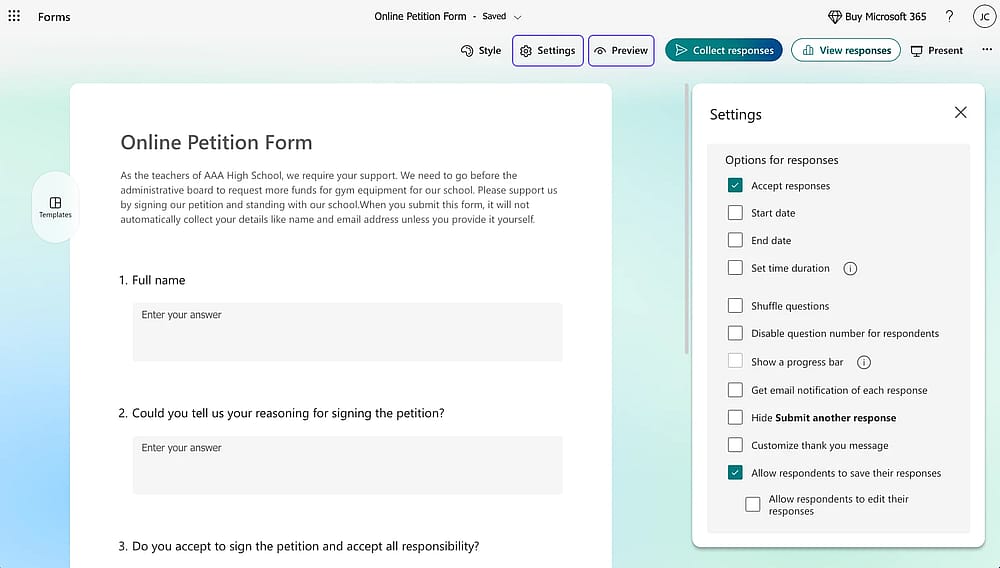
Check the ‘Settings’ section and then preview your form
Use the gear icon to set start and end dates, customize the thank you message, and control who can respond. Preview the form before sharing to catch any issues.
6. Share your form
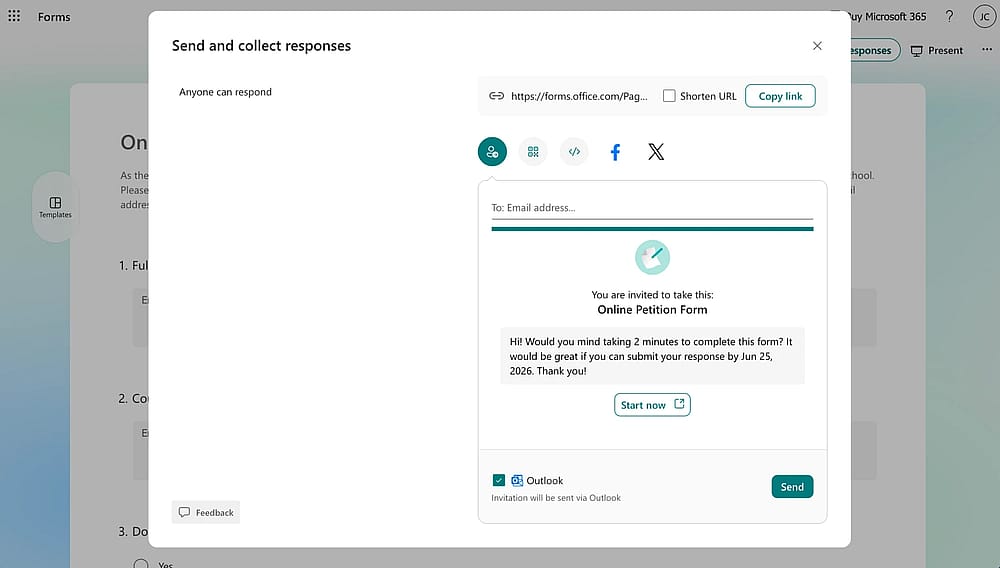
Once you are ready, click ‘Collect responses’ to explore sharing options
Head to Collect Responses to get your shareable link, generate a QR code, or create a social media shortcut. Once responses come in, check the Responses tab to view your data in charts.
What to include in a petition form (+ use cases)
A good petition form doesn't need to be long; it just needs the right fields. Here's what to include to make it easy for supporters to fill in and credible enough for decision-makers to take seriously:
Full name: The most basic piece of contact information.
Email address: Lets you keep supporters updated on the cause's progress and confirm their participation.
💡Employees petition management for a remote work policy. Name and email address are enough, no need for personal contact details.
Address & phone number: Not always necessary, but useful when a petition includes a formal submission to an elected official or a government body; it shows signatures are from real, verifiable people.
Cause statement: A short description of what the petition is about and what you're asking for. Keep it clear and to the point.
Signature or confirmation field: The most important part. Without it, it's just a form.
An activist wants to reach a decision-maker fast. They keep the form short, just name and email, and drive traffic through Instagram and X for maximum reach.
Terms & conditions: Lets signers know how their contact information will be used.
forms.app as a better alternative
If you need more flexibility than Microsoft Forms offers, forms.app is a solid alternative. It's a fully-featured form builder built for exactly this kind of use case, drag and drop field placement, deeper customization, and everything you need to get people signing the petition without workarounds.
Signature field
Unlike Microsoft Forms, forms.app includes a dedicated Signature field you can add to any petition form template for free. Supporters can sign directly within the form, no third-party tools, no extra steps.
Terms & Conditions field
Every solid petition form example should include a Terms & Conditions field, and forms.app gives you a flexible way to handle it.
💡 Practical tip: You can display your terms in two ways: As a pop-up inside the form, supporters read and accept without leaving the page, or redirect to an external page.
Logo & Cover fields
Add your organization's logo and a cover image to build trust and make your petition feel official. A recognizable visual identity encourages more people to feel confident about signing the petition.
Integrations with third-party apps
forms.app connects with a wide range of external tools via its integrations library, making it easy to manage your petition data beyond the form itself.
💡 Use Case: Connect your petition form to HubSpot to automatically add every supporter as a contact. This way, you can follow up with signers, keep them updated on the cause's progress, and build a long-term supporter base.
AI form generation
forms.app's AI form builder can generate a ready-to-use petition form in seconds from a single sentence. It's a fast way to start a petition with a working form template without building from scratch.
Large template library
forms.app also offers a petition form template you can customize and launch immediately. Whether you need a petition form example for a community cause or a more formal request to an elected official, there's a form template ready to go.
Conclusion
Online petition forms have changed the way people advocate for causes; what once required clipboards and door-to-door campaigning can now reach thousands with a single shared link. Whether you're contacting an elected official, rallying your community, or pushing a decision-maker to act, a well-structured petition form makes it easy for people to show their support.
Frequently asked questions (FAQs)
No, Microsoft Forms doesn't have a built-in signature field. The most common workaround is to add a checkbox field for supporters to confirm their agreement.
Yes, Microsoft Forms is free for anyone with a Microsoft account. However, some advanced features require a Microsoft 365 subscription.
At minimum: full name, email address, a cause statement, and a signature or confirmation field. For formal submissions, adding the address and phone number adds credibility.
Contributors
Researched & written by
forms.app, your free form builder
- Unlimited responses
- Unlimited questions
- Unlimited team members