Save up to 60% on yearly plans and enjoy our biggest offer of the year. Limited time only. 🍂
See pricing

How to add a logo to Microsoft Forms: A complete branding guide
Summarize with
First impressions are everything, especially when you’re asking for data. An unbranded survey can feel cold or even suspicious, often leading users to drop off before they hit "Submit." Including a logo in your forms can increase brand recognition and recall by up to 50% compared to text-only versions.
If you want to look professional and boost your completion rates, learning how to add a logo to Microsoft Forms is the quickest win available. While the platform is straightforward, getting your branding to look "just right" in the header area requires a few specific steps to avoid blurry or cropped images.
In this 3-minute guide, we’ll cover:
- The 4-step process to add a logo to Microsoft Forms.
- Technical specs for file sizes and formats.
- Troubleshooting for alignment and cropping issues.
- Advanced tools for branding beyond the header.
TL;DR
1. Open your form.
2. Click directly the form title.
3. Click the image icon to insert logo.
4. Choose “Upload”
Can you add a logo to Microsoft Forms?
Yes, you can add a logo, but only within the form header/title area. While this is a great way to signal brand authority, keep in mind that Microsoft Forms does not currently support full custom theming. This means you cannot use custom brand fonts, apply hex-coded colors to specific buttons, or place your logo in the footer or on the final "Thank You" page.
What you need before you start
To ensure a smooth setup, gather these essentials first:
- Microsoft 365 account: While basic forms are free, branding features are most reliable on Business or Education tiers.
- Logo file: Use a PNG or JPEG (PNG with a transparent background is best to avoid white "boxes" around your logo).
- Ideal dimensions: Aim for a wide aspect ratio (e.g., 512 × 128px). While Microsoft resizes images, keeping your logo under 5MB ensures it loads instantly for respondents.
- Form access: You must have Owner or Collaborator permissions for the specific form you want to brand.
How to add a logo to Microsoft Forms: A step-by-step guide
Adding branding is more than just a visual upgrade; it builds trust with your audience. Follow these steps to correctly add a logo to Microsoft Forms and ensure it looks professional across all devices.
Step 1: Access Microsoft Forms
Open your MS Forms account
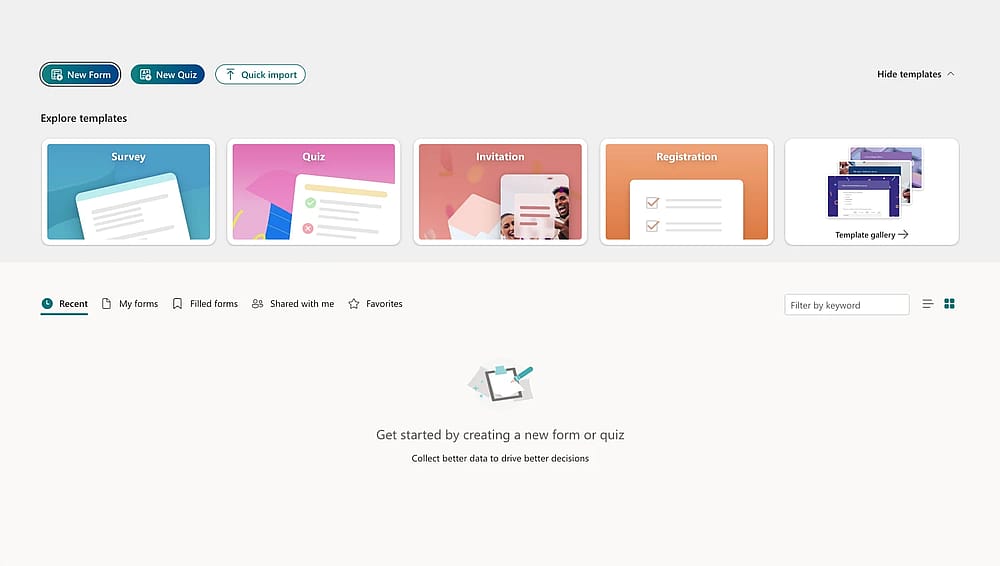
Log in to your Microsoft 365 dashboard and select the Forms app. If it’s not on your sidebar, click the "App Launcher" (the nine-dot square) in the top-left corner. Starting here ensures you are working within your professional environment where branding features are fully unlocked.
Step 2: Open your target form
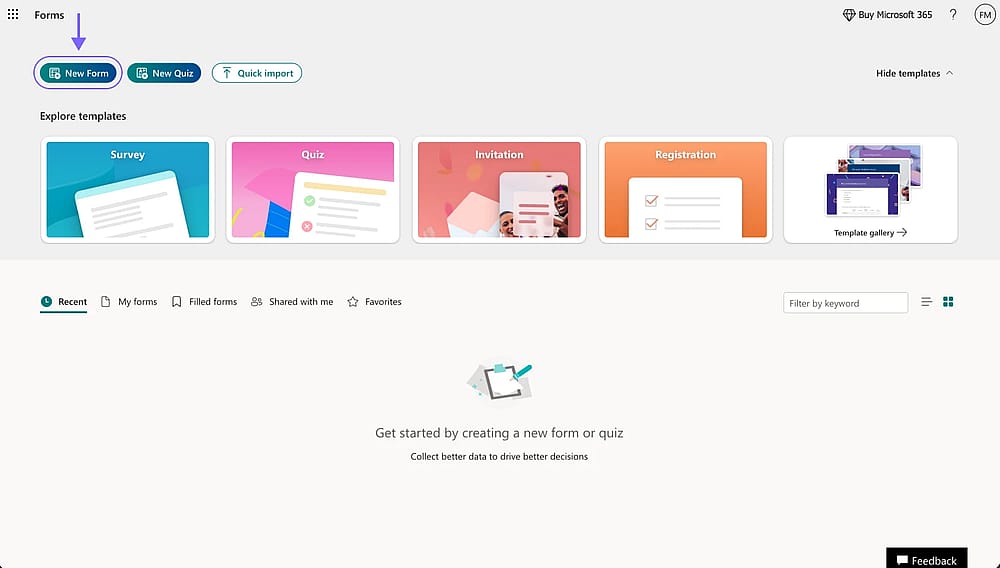
Choose the form you want to add a logo
Select the form you wish to edit from your "Recent" list, or click "New Form" to start from scratch. Branding is form-specific, so you will need to repeat this process for each individual survey or quiz you create.
Step 3: Activate the header area
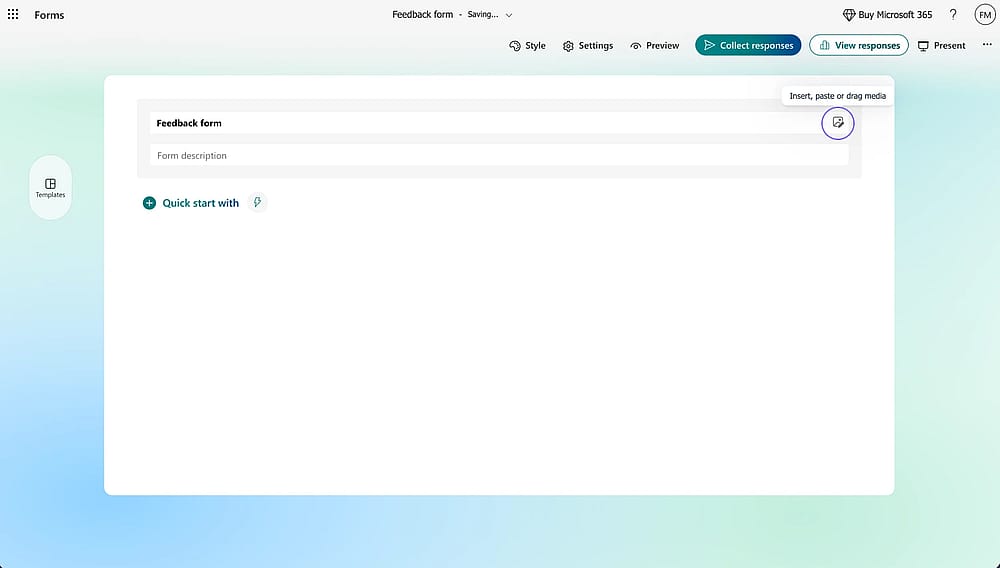
Click icon to add logo
Click directly on the Form Title (e.g., "Untitled Form"). This opens the editing mode for the header. You’ll notice a small Image Icon (Insert Image) appear on the far right of the title text box.
Step 4: Insert your image
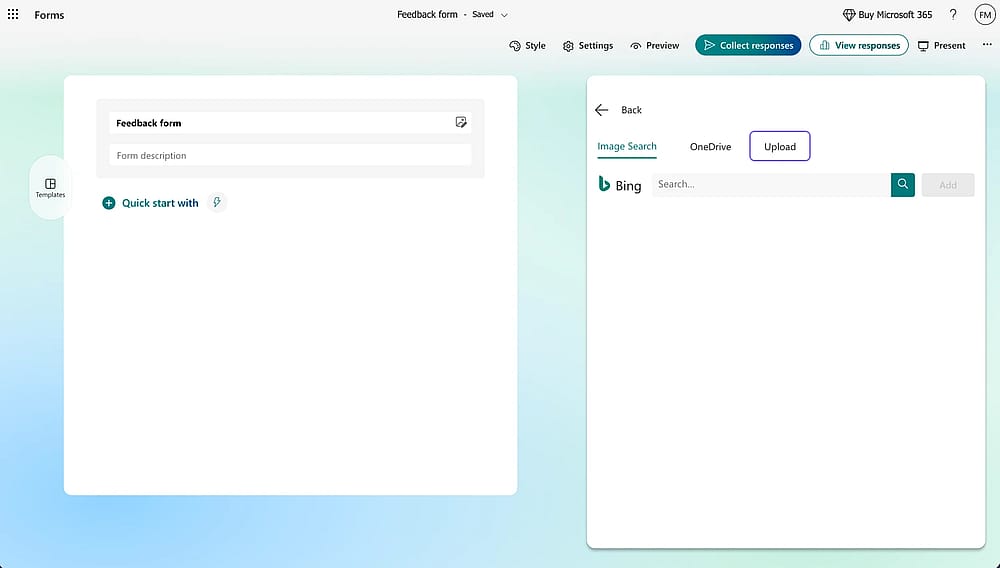
Insert your logo
Click that Image Icon. A sidebar will slide out offering three options: Image Search, OneDrive, or Upload. Click Upload to select the logo file from your local computer. This ensures you are using your official, high-resolution brand assets rather than a web-scraped version.
Step 5: Adjust & Scale
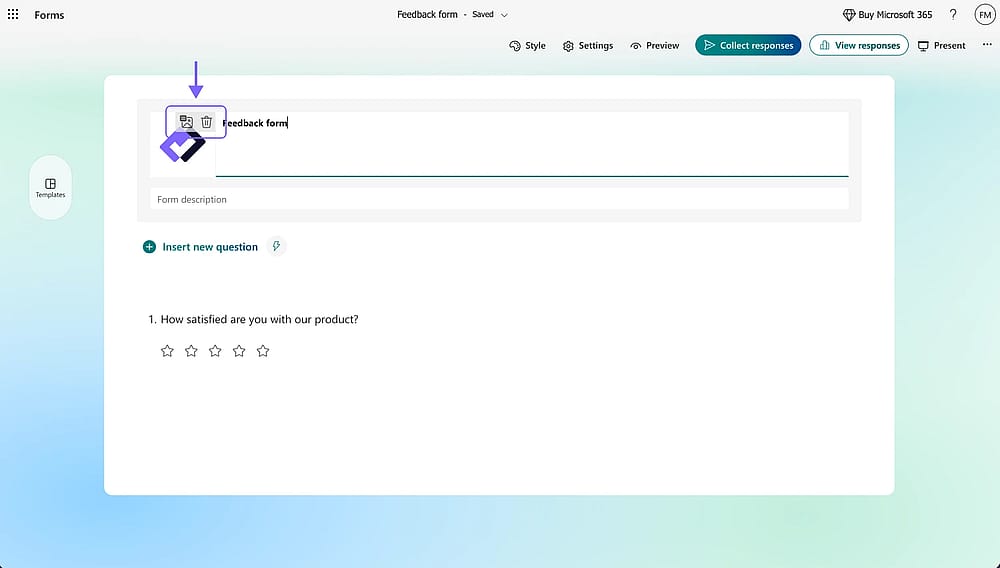
Add an alt text for your logo if needed
Once the logo appears, hover over it. You will see a small Trash Can icon to delete it. Also, you can click the other icon to add an alt text for your logo.
Expert tip: If your logo looks too small, try cropping the "white space" out of your original image file before uploading.
Step 6: Preview desktop & Mobile views
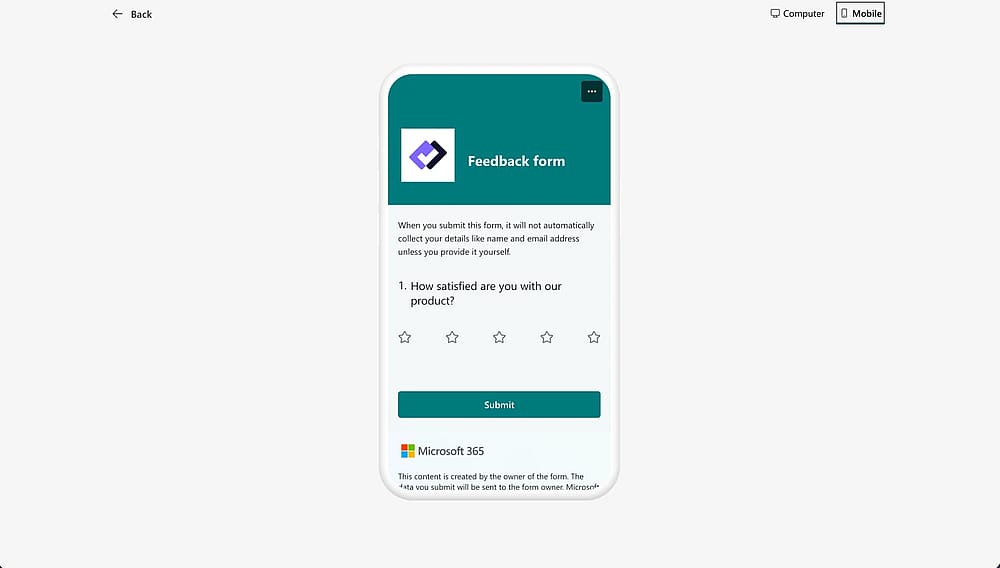
Preview the logo
This is the most critical step. Click the Preview button in the top navigation bar. Switch between Computer and Mobile views. Because Microsoft Forms is responsive, a logo that looks perfect on a laptop might feel cramped on a smartphone screen.
Step 7: Finalize & Share
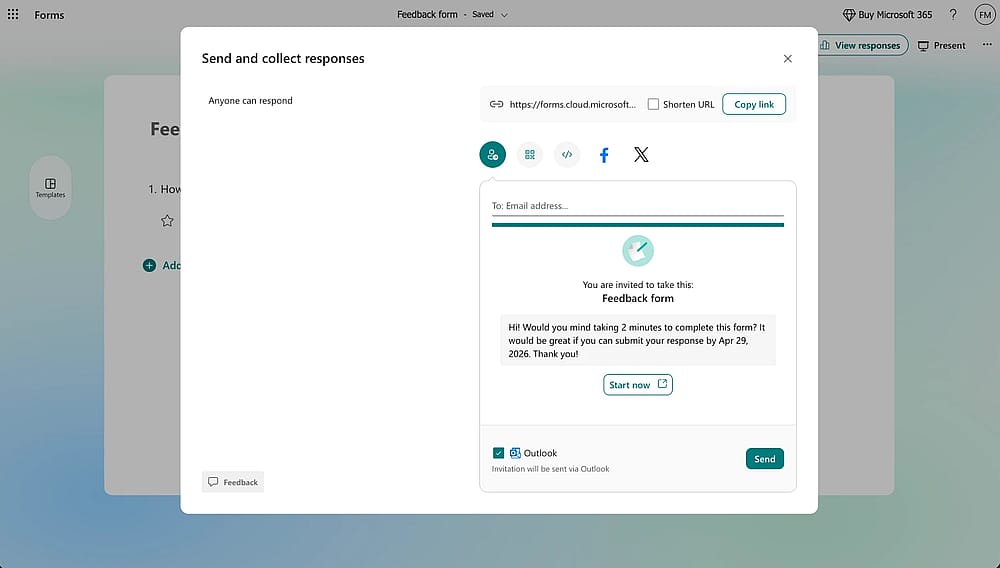
Share your form
Microsoft Forms saves automatically. Once you are satisfied with the look, click Collect Responses to get your link. Your logo will now appear at the top of the form for every respondent.
Expert tip: Your logo will only appear in the main header next to the title. It will not automatically repeat in section headers, individual question areas, or the "Thank You" confirmation screen.
Troubleshooting: Common logo issues in Microsoft Forms
Even with a simple process, technical hiccups can happen. If your branding isn't appearing as expected, here are the most common fixes:
- "I can't see the image icon": The icon is context-sensitive. Ensure you have clicked directly into the Title/Header text box first; the "Insert Image" icon will only appear once that area is active for editing.
- "My logo looks blurry": Microsoft Forms applies compression to large files. For the sharpest look, upload a high-resolution file (at least 300px wide) but keep the file size under 1MB to prevent aggressive downscaling.
- "The logo is cut off on mobile": This is a common pain point. Forms uses a responsive container that often crops square or tall logos on narrow screens. To fix this, use a landscape (wider) logo and add "padding" (extra white space) around the edges of your image file before uploading.
- "The logo doesn't show in Preview": This is usually a browser cache issue. Try refreshing the page, opening the form in an Incognito/InPrivate window, or checking your OneDrive/SharePoint permissions if the logo was pulled from a cloud folder.
- "I don't have the option to insert an image": If the icon is missing entirely, your organization’s IT Admin may have restricted the "Insert Image" feature via Microsoft 365 global settings.
Want more branding control? Try forms.app
Microsoft Forms is an excellent, reliable tool for internal office polls or quick feedback loops within the Microsoft ecosystem. However, if you are building client-facing surveys, marketing lead magnets, or event registrations, you might find its branding "glass ceiling" a bit frustrating.
When your brand identity requires more than just a logo in the header, forms.app offers the flexibility that Microsoft Forms lacks. While Microsoft limits you to preset themes and specific logo placement, forms.app allows you to:
- Design without limits: Change every color (including buttons and inputs) using hex codes and choose from the entire Google Fonts library.
- Total logo control: Place your branding exactly where it makes sense, whether that's on a custom Welcome page, in the footer, or on a personalized Ending page that appears after submission.
- Professional polish: Upload animated backgrounds, customize form layouts (Step view vs. List view), and even use Custom CSS for granular design control.
Conclusion
Learning how to add a logo to Microsoft Forms is a vital first step in making your surveys look professional and trustworthy. While the process is quick, the platform’s branding remains locked to the header area. For teams requiring total brand consistency, including custom fonts, hex colors, and branded thank-you screens, a dedicated tool like forms.app provides the creative freedom Microsoft lacks.
Ready to level up your data collection? Explore our other guides on form optimization or try building your first fully branded form today.
Frequently asked questions (FAQs)
A PNG file with a transparent background is the gold standard. This prevents an awkward white box from appearing around your logo when you use a colored or image-based background theme.
No, Microsoft Forms does not currently support custom logos on the "Thank You" or confirmation screen. You can customize the text message respondents see, but branding is restricted to the initial header.
The logo appears exclusively in the title and header section at the top of your form. It is positioned either to the left or right of your form’s title, depending on the theme layout you choose.
Contributors
Researched & written by
forms.app, your free form builder
- Unlimited responses
- Unlimited questions
- Unlimited team members