Save up to 60% on yearly plans and enjoy our biggest offer of the year. Limited time only. 🍂
See pricing

30 Microsoft Forms tips to automate your work in 2026
Summarize with
Microsoft Forms is deceptively simple, but most users leave 80% of its power on the table.
After building hundreds of forms for everything from internal audits to lead generation, I’ve learned exactly where the platform shines and where it falls short. In 2026, “good enough” data collection isn't enough; you need workflows that actually save you time.
I’ve spent the last year stress-testing every update in the Microsoft 365 ecosystem. In this guide, I’m sharing my personal library of 30 pro tips, from advanced branching logic to Power Automate integrations that I use to build professional, high-conversion forms. We’ll also look at when Microsoft Forms hits its limit and how a dedicated tool like forms.app can fill those gaps with more advanced styling and logic options.
TL;DR Microsoft Forms power user cheat sheet
# | Pro Tip Title |
1 | Find a suitable template for your goal |
2 | Add images to questions |
3 | Choosing a fitting theme |
4 | Add your logo |
5 | Make sure to use the right question types |
6 | Research and analyze similar forms |
7 | Avoid distracting or misleading questions |
8 | Use your form as a marketing tool |
9 | Control access via sharing settings |
10 | Use the Present feature for meetings |
11 | Run multiple tests on your form |
12 | Use a structured question order |
13 | Make your form as accessible as possible |
14 | Try to add request fields for feedback |
15 | Customize the text |
16 | Front-load identification data |
17 | Look for trends to make your form relevant |
18 | Give explanations for complicated questions |
19 | Use witty sentencing to engage the participant |
20 | Use a "Hook" title |
21 | Use a good header that explains the form's purpose |
22 | Experiment with branching logic |
23 | Set question validation for better data quality |
24 | Set email notifications |
25 | Pre-fill your form |
26 | Set a start and end date for surveys and quizzes |
27 | Group similar questions into sections |
28 | Embed your form on websites |
29 | Store your form for future projects |
30 | Use the Responses tab |
30 handy tips for your next Microsoft Form
These field-tested Microsoft Forms tips and tricks cover everything from logic jumps to automation, ensuring your next form is professional, efficient, and high-converting. Here are Microsoft Form design tips for form settings:
1. Find a suitable template for your goal
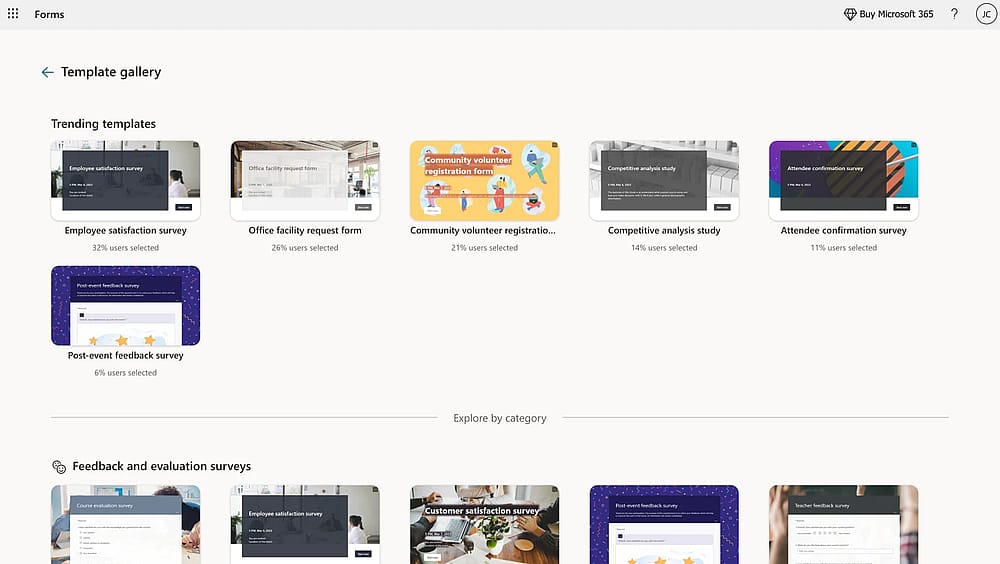
Choose a proper template
Don’t reinvent the wheel. Start with a verified Microsoft Forms template to ensure your question logic and flow are structurally sound from day one. It’s the fastest way to see how experts structure data collection.
💡 Editor’s experience: I always start with the “Employee Engagement” template when I need a base for complex branching. It’s easier to delete 10 questions than to build 5 logic jumps from scratch.
2. Add images to questions
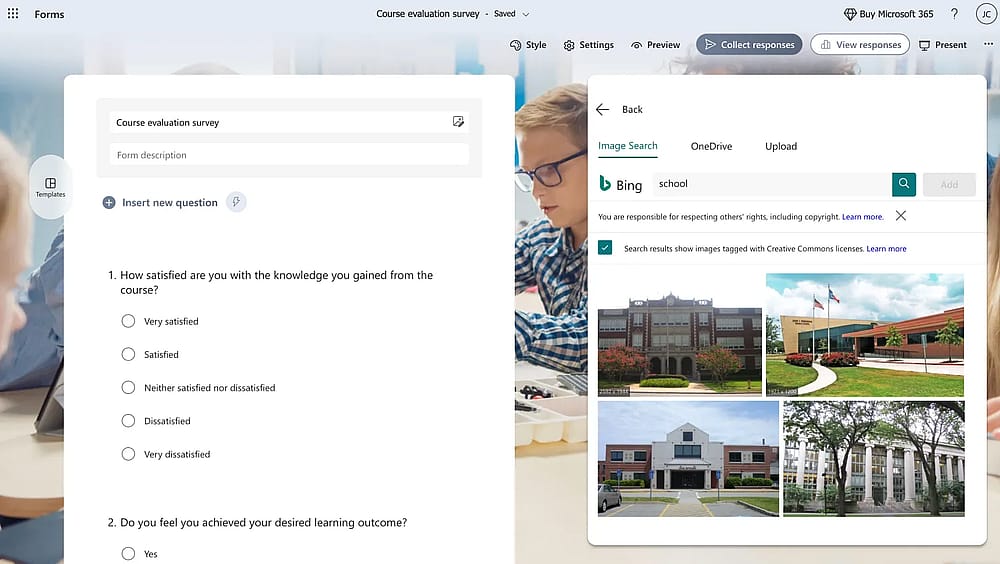
Add relevant images to the question
Visuals aren't just for aesthetics; they reduce cognitive load. Adding images to questions helps participants process information faster, which directly reduces survey fatigue and abandonment rates.
3. Choose a fitting theme
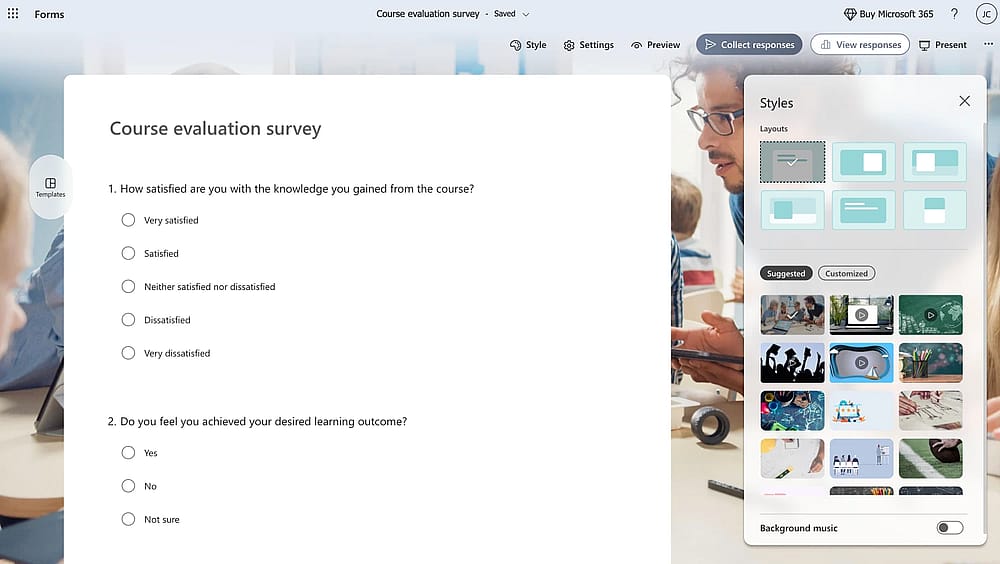
Customize the theme
Your theme should mirror your goal. A playful "Galaxy" theme is fine for a team lunch poll, but for a high-stakes client survey, use a minimalist, high-contrast theme to maintain professional authority.
4. Add your logo
While creating the form, add your own logo header to transform a generic form into an official document. In my experience, this is the easiest way to build trust, especially when you are asking for sensitive information, such as contact details or business insights.
5. Make sure to use the right question types
Use Likert scales for nuanced sentiment and Rating scales for quick satisfaction checks. If you need clean data for a report, don't use a “Text” box; an “Option” menu can prevent human error.
💡 Expert tip: Avoid using “Ranking” for lists longer than 6 items. I’ve found that mobile users often drop off if they have to drag and drop too many elements.
6. Research and analyze similar forms
Before you start creating your questions, look at how industry leaders phrase their surveys. This ensures your form feels familiar and intuitive to your target audience.
7. Avoid distracting or misleading questions
High-quality data requires neutral wording. Never ask, “How fast and helpful was our support?” If the support was fast but unhelpful, the user cannot answer accurately. Split them to prevent double-barreled questions or misleading expressions.
8. Use your form as a marketing tool
The Thank You page is prime real estate. Insert links to your social media or a specific landing page to turn a survey respondent into a potential lead.
9. Control access via sharing settings
Always check if you’ve set the form to "Anyone can respond" versus "Only people in my organization." I’ve seen many launches fail because the link was locked behind a corporate login by mistake.
💡 Editor’s experience: If you are using the QR code for a physical event or a printed flyer, always test it from three feet away under low light. I recommend adding a high-contrast border to your QR code if you're embedding it into a busy slide deck; it ensures mobile cameras can "lock on" instantly from the back of the room.
10. Use the Present feature for meetings
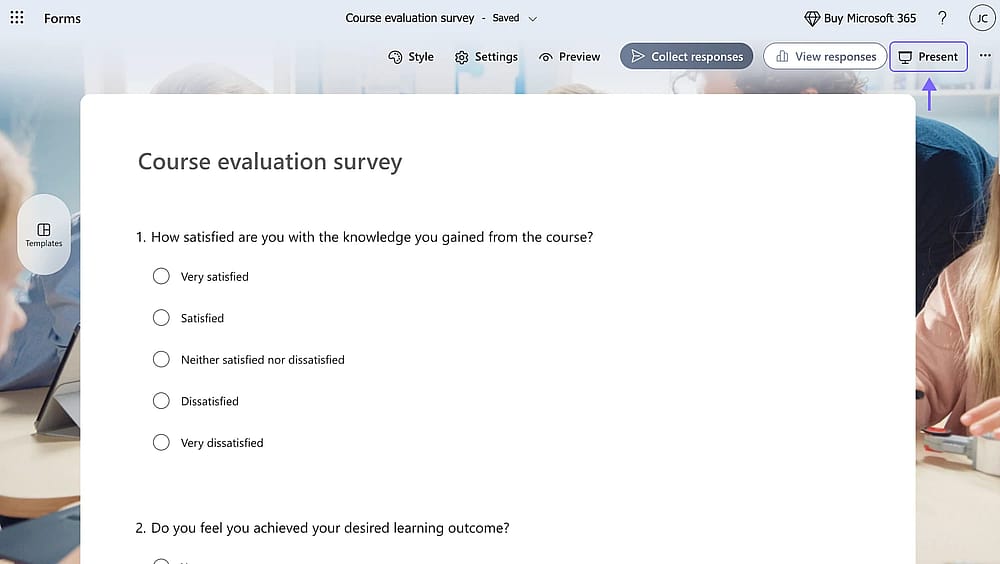
Click Present
Use the Present feature during live meetings to show data visualizations as they happen. It’s an incredibly powerful way to drive engagement during workshops or town halls.
11. Run multiple tests on your form
Never go live without a pilot run. Send the form to three colleagues first; they will always find a typo or a logic loop that you missed while building it.
12. Use a structured question order
Start with easy, non-intrusive questions to build momentum. Save the complex, open-ended, or personal questions for the final third of the form once the user is committed.
13. Make your form as accessible as possible
Ensure your descriptions are clear for screen readers. In 2026, accessibility isn't just a nice-to-have; it’s a standard for professional authoritativeness.
14. Try to add request fields for feedback
Adding a Suggestions box at the end proves you value the participant's time. It’s a subtle but effective way to build long-term brand loyalty.
15. Customize the text
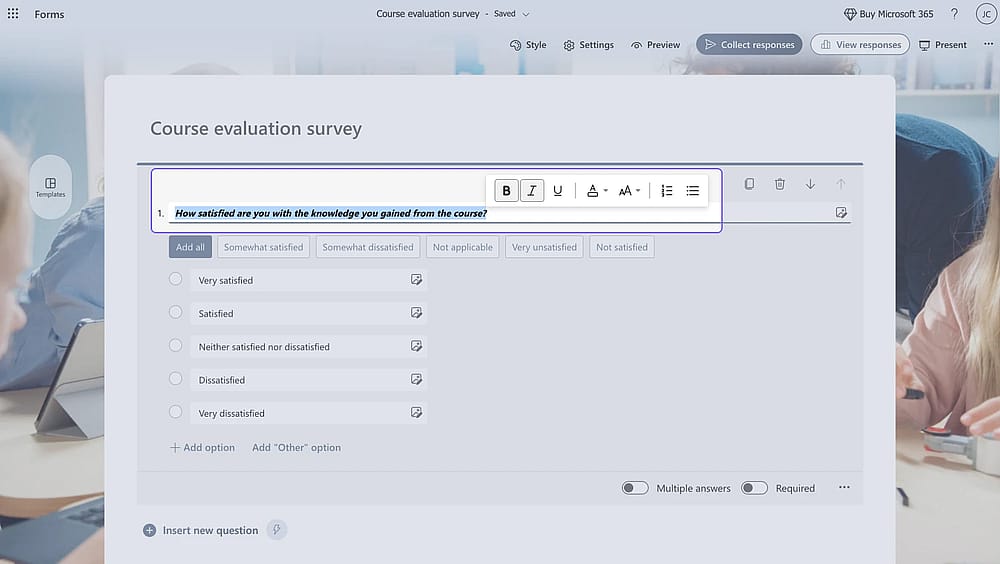
Customize the settings
Customize your Microsoft form by using Bold and Italic to highlight the most important part of a question. Clearer formatting leads to faster completion times and more accurate data.
16. Front-load identification data
If you aren't using an internal-only form, collect Names and Emails early. It ensures that even if someone abandons the form halfway through, you have a lead to follow up with.
17. Look for trends to make your form relevant
Align your form's hook with current industry trends. If a specific topic is viral in your niche, use that terminology to make your survey feel relevant and of the moment.
💡 Editor’s experience: Always use the "Preview" toggle. Most of my respondents use mobile; if the "witty" title looks like a wall of text on a phone, I edit it down immediately.
18. Give explanations for complicated questions
For legal or technical questions, use the Subtitle function. It allows you to provide necessary disclaimers without cluttering the main question text.
19. Use witty sentencing to engage the participant
If your brand allows it, use humor. A survey that feels like a conversation is far more likely to be finished than one that feels like a tax return.
20. The "Hook" title
Your title is your first impression. Instead of "Customer Survey," try "Help Us Shape the Future of [Product]." Make the participant feel like a stakeholder.
21. Use a good header that explains the form's purpose
Use the header section to explain exactly why you are collecting data and how long it will take. Transparency builds immediate trust.
22. Experiment with branching logic
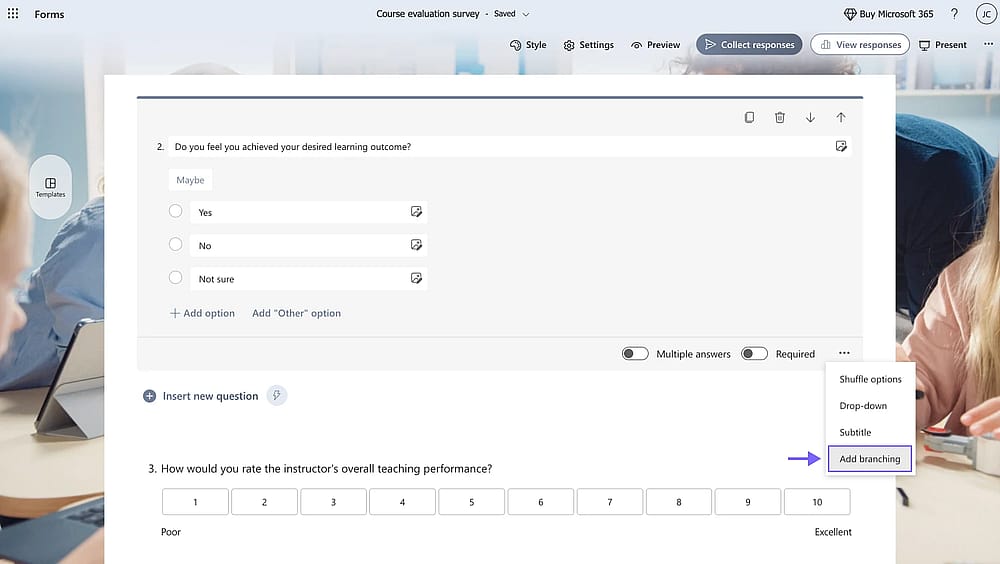
Add branching to your form
Branching is the secret sauce. I use it to hide irrelevant questions, ensuring a CEO doesn't see questions meant for an intern. It keeps the experience lean and relevant.
23. Set question validation for better data quality
Don't just ask for a number; set a "Number" restriction. This prevents users from typing "ten" when your Excel workflow needs "10."
24. Set email notifications
For high-priority leads, benefit from Microsoft Forms get email notification of each response. In 2026, speed to lead is everything; knowing the second a form is submitted gives you a competitive edge.
25. Pre-fill your form
If you already know the user's company or department, use a Pre-filled URL. The less the user has to type, the higher your conversion rate will be.
26. Set a start and end date for surveys and quizzes
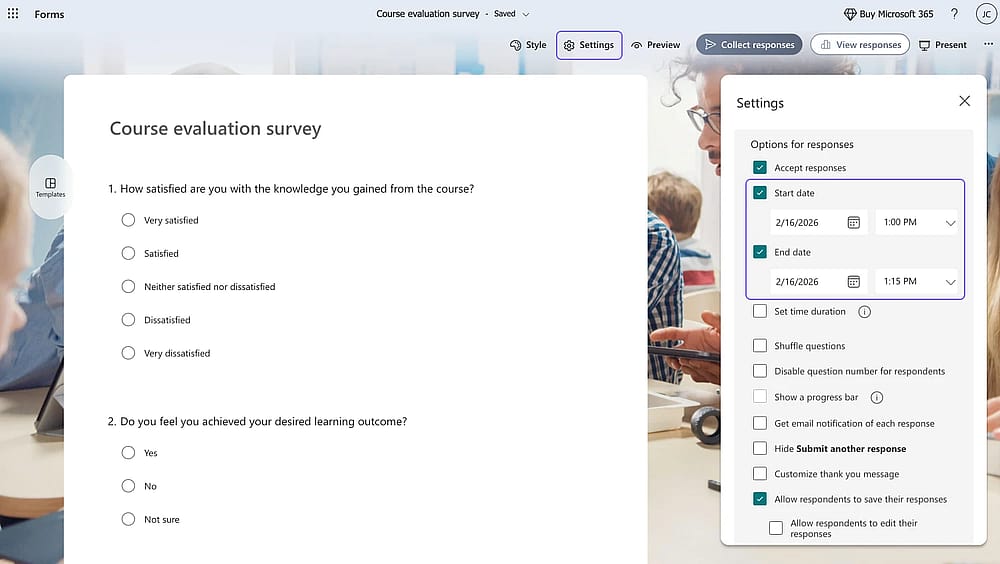
Set a start and end date
Setting a Start and End Date is perfect for limited-time offers or internal deadlines. It automates the "closed" state of your project so you don't have to manually toggle it.
27. Group similar questions into sections
If your form has more than 10 questions, use Sections. It breaks the form into digestible pages, making the task feel less daunting for the respondent.
28. Embed your form on websites
For always-on feedback, embed the form directly into your website. This keeps users within your ecosystem rather than sending them to an external link.
29. Store your form for future projects
Don't delete your best work. Copy your most successful forms into a "Master Templates" folder. This allows you to scale your operations without starting from zero every time.
30. Use the Responses tab
The Responses tab isn't just for viewing; it’s for presenting. Use the built-in Summary Link to share live, beautiful charts with stakeholders without ever opening PowerPoint.
Microsoft Forms limitations you should be aware of
While Microsoft Forms is a powerhouse for those already in the Microsoft 365 ecosystem, it does have specific boundaries. If your project requires high-level customization or commercial features, you might find forms.app offers more flexibility in the following areas:
1. Payment Collection
⬇️ MS Forms: Does not have built-in payment processing. You have to use workarounds or third-party automation tools like Power Automate to link to a payment gateway.
⬆️ forms.app: Features direct integrations with Stripe and PayPal, allowing you to sell products or collect fees directly within the form.
2. Advanced Question Types & Fields
⬇️ MS Forms: Offers basic fields like Choice, Text, Rating, and Likert. It lacks specialized fields for modern digital needs.
⬆️ forms.app: Provides 30+ question types, including digital signatures, interactive opinion scales, and a selection matrix that is more flexible than the standard Likert scale.
3. Design & Branding Control
⬇️ MS Forms: Highly restrictive design. While you can add a logo and background image, the layout remains fixed to the Microsoft "look."
⬆️ forms.app: Offers Custom CSS support, allowing for total control over the form's appearance. It also supports conversational (one-question-at-a-time) layouts, which often lead to higher completion rates.
4. Offline Capabilities
⬇️ MS Forms: It is strictly a web-based tool and requires an active internet connection to submit responses.
⬆️ forms.app: Supports offline data collection via its mobile app, which is a game-changer for field research or events with spotty Wi-Fi.
5. Publishing & Embedding
⬇️ MS Forms: Primarily shared via link or basic QR code. Embedding options are standard.
⬆️ forms.app: Allows for more creative publishing, such as pop-ups, slide-ins, or full-page landing pages on custom domains, giving the form a more professional, standalone feel.
Conclusion
Building a Microsoft Form is easy, but building a professional data pipeline requires intent. By implementing these 30 pro tips, you aren’t just creating a feedback form; you’re creating a gateway for your business to understand its audience. Whether you are using form select options to refine user choices or enabling file uploads for complex documentation, the goal remains the same: high-quality data with zero friction.
The real magic happens after the form submissions roll in. I always recommend syncing your results directly to an Excel spreadsheet via Power Automate. This allows you to move beyond simple viewing and into deep, automated analysis that can shift your business strategy in real-time.
Contributors
Researched & written by
forms.app, your free form builder
- Unlimited responses
- Unlimited questions
- Unlimited team members