Save up to 60% on yearly plans and enjoy our biggest offer of the year. Limited time only. 🍂
See pricing

Master text formatting & styles in Microsoft Forms
Summarize with
First impressions are everything.
In data collection, your typography speaks before your questions do, directly impacting trust and form completion rates. Whether you’re aiming for brand consistency or improved readability, knowing how to change font in Microsoft Forms s ensures your survey looks professional rather than generic.
While Microsoft Forms is a favorite for its simplicity, it has specific boundaries. This guide covers how to Microsoft Forms change font size and style using built-in tools to keep your forms polished. We’ll also highlight exactly what the platform can, and can’t, do, offering flexible alternatives for when you need design power that goes beyond the Microsoft basics.
TL;DR
Can you change the font type in MS Forms?
No, you can only change the size in 3 types. Also, it is possible to make the text bold, italic, and underlined.
Does Microsoft Forms let you change fonts?
The direct answer is no. Microsoft Forms does not allow you to change the specific font family or typeface (e.g., switching from Calibri to Times New Roman). To ensure high performance and accessibility across all devices, Microsoft uses a standardized system font that cannot be swapped for custom or branded files.
However, you still have significant control over your text's appearance. You can customize it by using three presets (Small, Medium, Large) and use the rich text toolbar to apply:
- Emphasis: Bold, italics, and underline.
- Color: A variety of font colors to highlight key instructions.
- Themes: Selecting a "Style" from the theme pane can subtly alter the layout and header appearance, though the font family remains locked.
How to change font in Microsoft Forms (step-by-step)
While you can’t swap the font family, you can still transform the look of your form to make it more engaging. Follow these steps to customize your Microsoft form.
1. Changing text formatting (Bold, Italic, Size, Color)
To emphasize specific words or make instructions clearer, use the built-in rich text editor.
1. Open your form or choose a Microsoft Forms template.
2. Click into any text field, such as a question title, subtitle, or description.
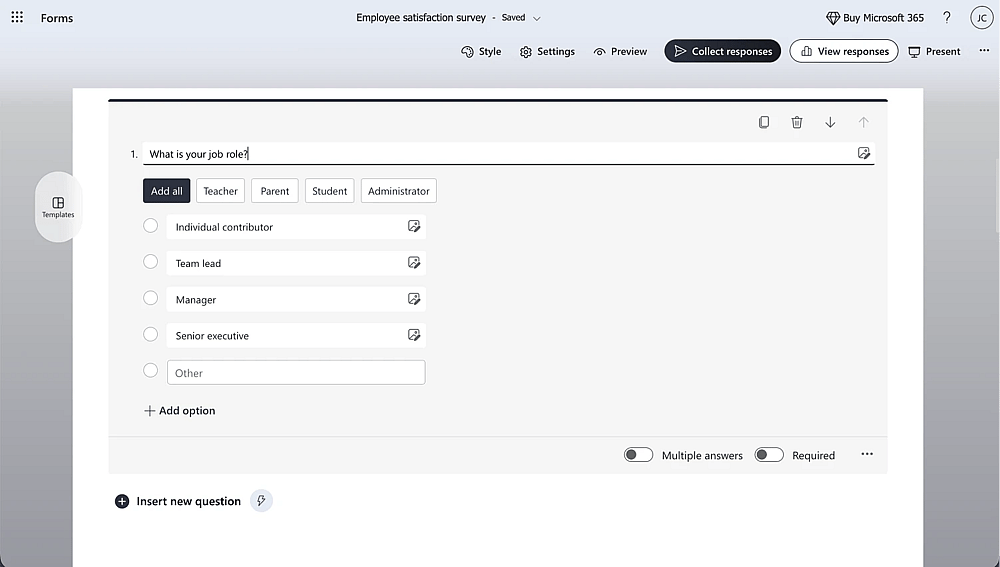
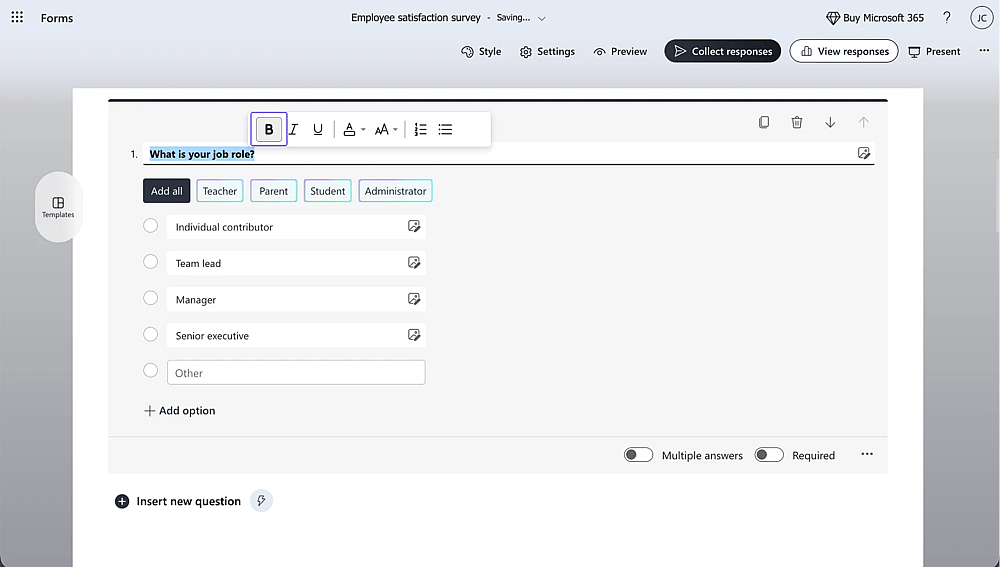
3. Highlight the text you want to modify. A floating formatting toolbar will appear.
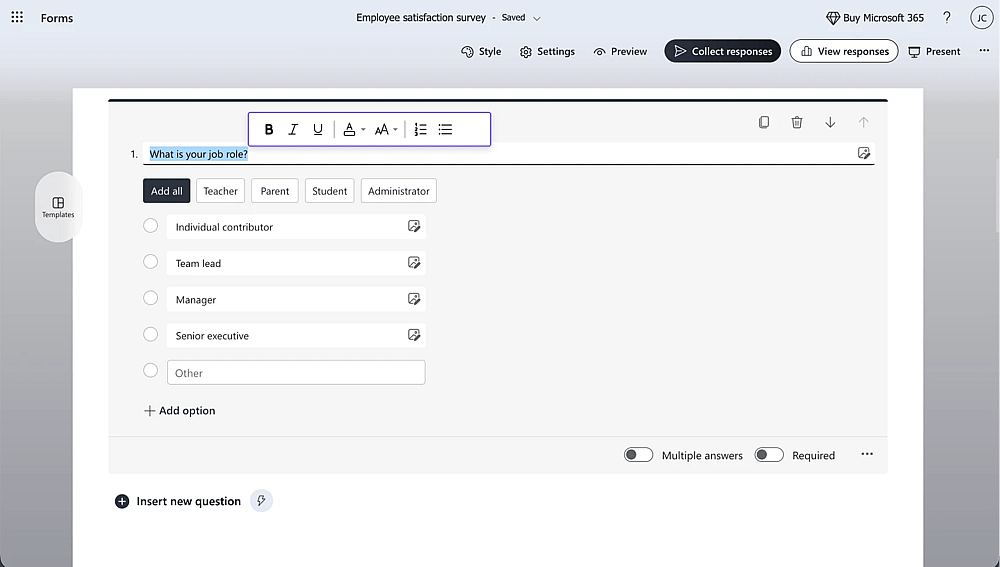
4. Apply your styles: Click the icons for Bold, Italics, or Underline.
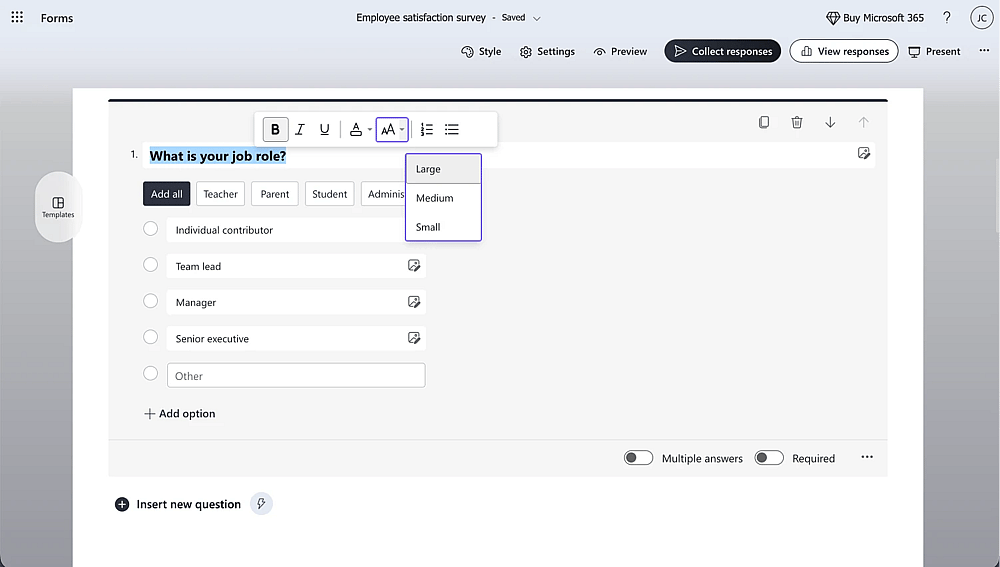
5. Adjust the scale: Use the font size icon to choose between Small, Medium, or Large.
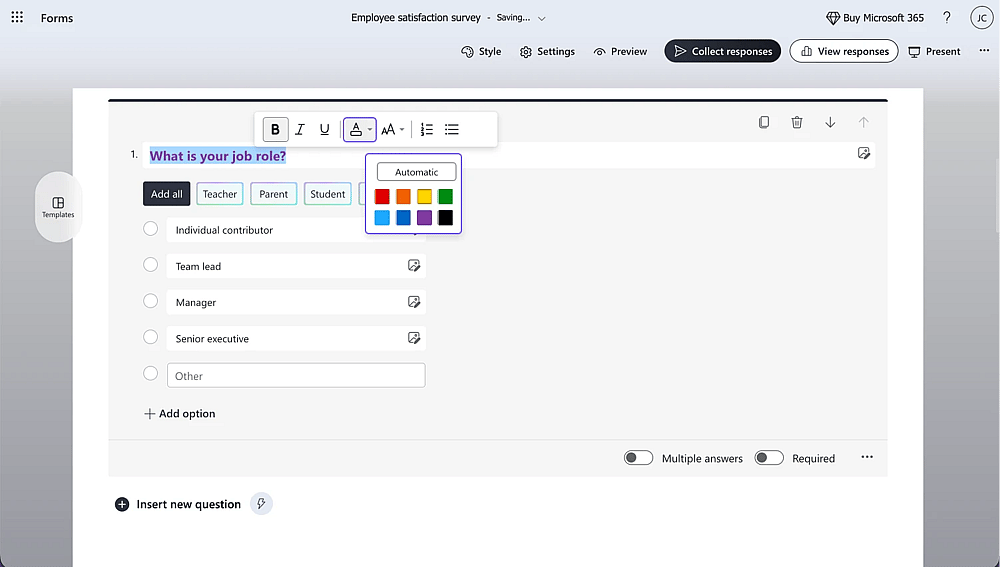
6. Pick a color: Select the font color icon to choose a hue that matches your brand.
2. Changing appearance via a theme
Themes control the global "vibe" of your form, including the header style and color palette.
1. Open your form and click the Style icon in the top-right corner.

2. Select a theme: Choose from Microsoft’s pre-built gallery. These often include subtle layout shifts and background animations.

3. Customize the background: To add a brand touch, click the edit icon within the Customized pane to upload your own background image or choose a specific hex color code.
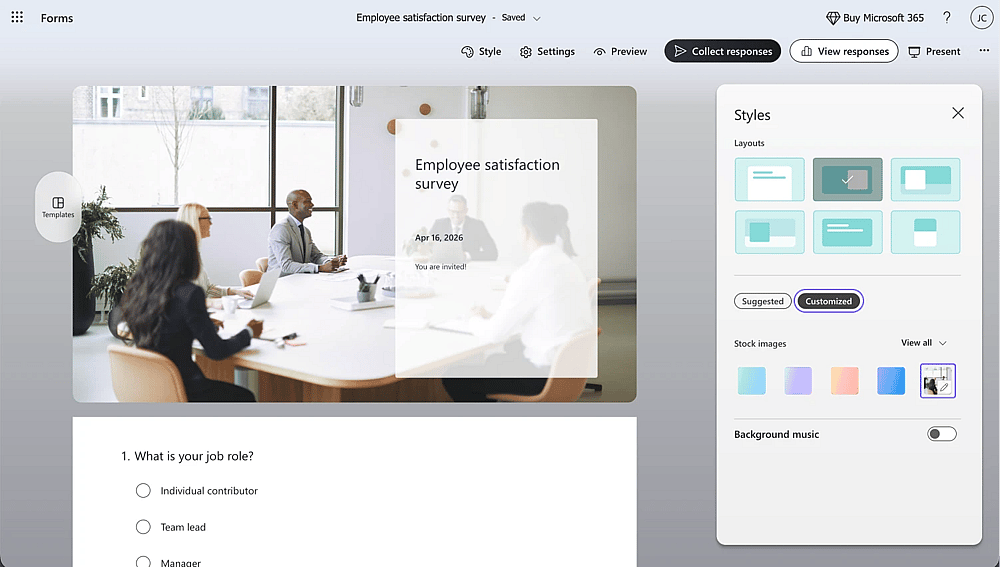
While themes change the color palette and background, the font family will remain the Microsoft standard.
What you cannot change in Microsoft Forms
Understanding the limitations of the platform is key to saving time. You cannot:
- Change the font family: There is no menu to switch to Roboto, Arial, or custom brand fonts.
- Integrate Google fonts: You cannot link external font libraries.
- Use CSS: Unlike more advanced web builders, Microsoft Forms does not allow custom code or CSS injections.
- Apply multi-font layouts: You cannot set one font for headers and another for body text.
If these limitations are a dealbreaker for your branding needs, you may need to look into advanced alternatives, like forms.app.
How to change fonts with forms.app
If Microsoft’s restrictions don't meet your branding needs, forms.app offers the creative freedom you require. It treats typography as a core design element, not an afterthought.
Why forms.app offers full font control
- Google fonts templates: Access a library of professional fonts like Montserrat and Roboto.
- Independent styling: Apply unique fonts to titles, questions, and buttons separately.
- Granular control: Adjust exact font weights, line heights, and letter spacing.
Changing fonts in forms.app
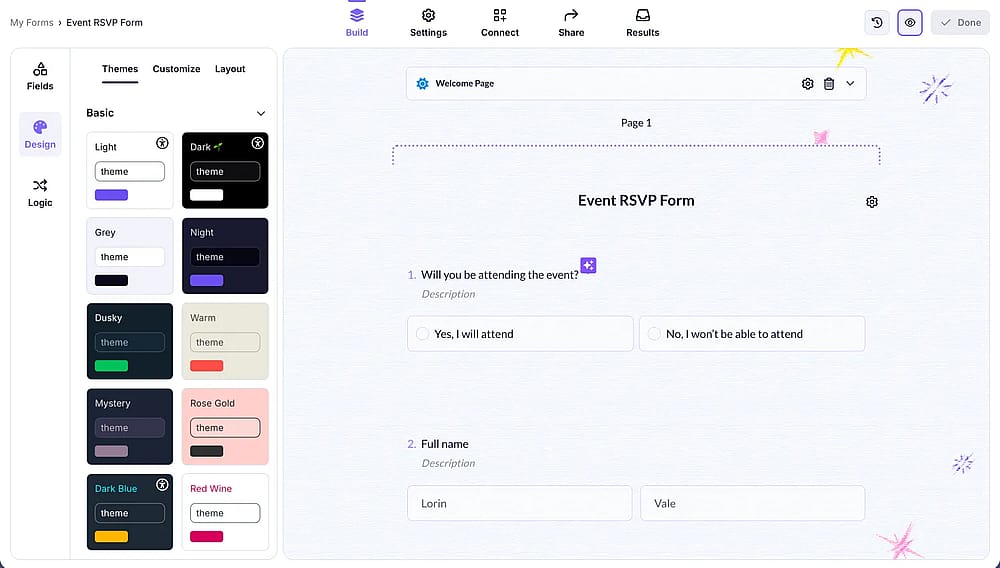
1. Open your form and navigate to the Design tab.
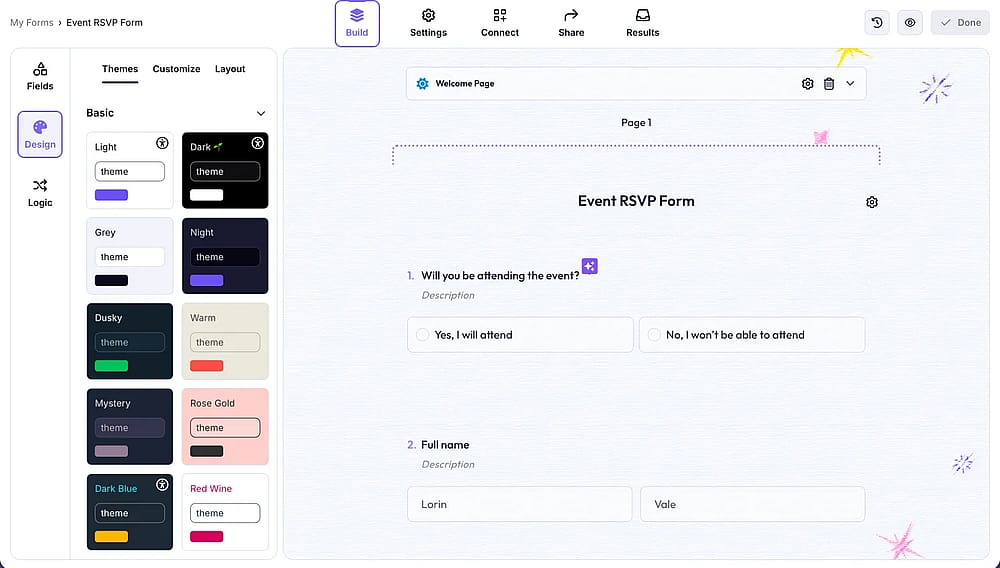
2. Go to customize and select the Font section.
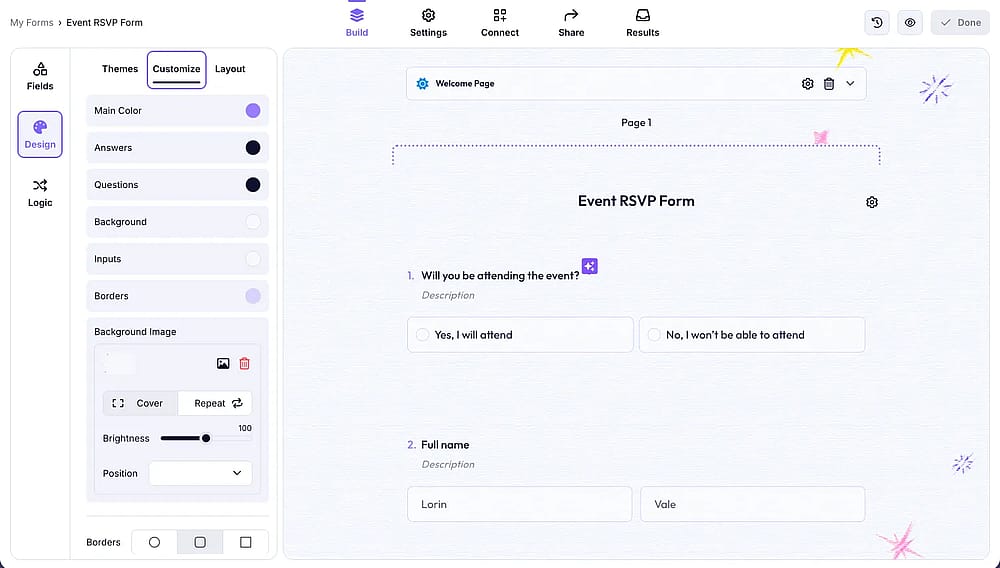
3. Choose a proper font type from the Font family.
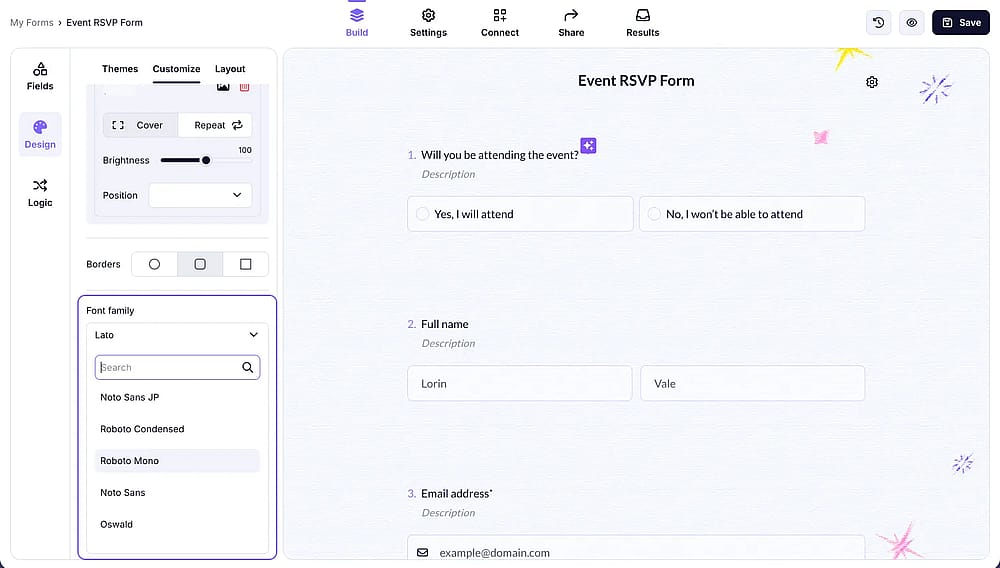
4. Refine the style by adjusting size, weight, and color.
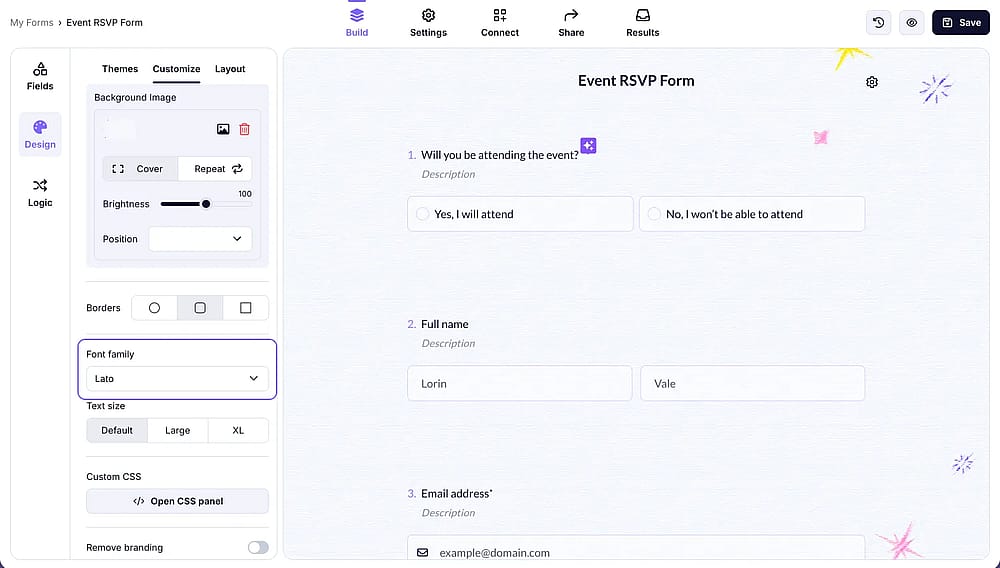
5. Preview & Publish to ensure your form looks perfect on all devices.
Microsoft Forms vs. forms.app: Customization comparison
Feature | Microsoft Forms | forms.app |
|---|---|---|
Change font family | ||
Google Fonts integration | ||
Per-element font control | ||
Font size & color | (Limited presets) | (Full control) |
Brand-consistent design | ||
Free plan available |
Final words
Customizing text in Microsoft Forms is effective for basic needs, though it remains restricted. You can easily change Microsoft Forms change font size, apply bold or italic emphasis, and adjust colors to improve readability, but you cannot change the underlying font family or import brand-specific typefaces.
- Internal utility: Microsoft Forms is a solid choice for quick data collection where a standard, functional appearance is sufficient.
- Design flexibility: If your project requires strict brand alignment or specific typography like Google Fonts, you will likely need to look toward more design-focused alternatives.
While Microsoft prioritizes a uniform, accessible experience across its ecosystem, tools like forms.app offer a different path for those who require deeper creative control over every stylistic detail.
Frequently asked questions (FAQs)
Yes. Unlike the font family, color can be applied to specific selections. Highlight the individual word, click the font color icon (the "A" with a color bar) in the floating menu, and select your preferred hue from the palette.
Selecting a new "Style" or theme in Microsoft Forms may change the layout, header decorations, or background colors, but it will not change the typeface of the questions or answers. The font family remains consistent across all available themes.
Microsoft Forms often strips advanced formatting when you paste text from Word or a website to prevent code errors. To fix this, paste your text as plain text (Ctrl+Shift+V) and then use the built-in Microsoft Forms toolbar to re-apply bold, italics, or colors.
Contributors
Researched & written by
forms.app, your free form builder
- Unlimited responses
- Unlimited questions
- Unlimited team members