Save up to 60% on yearly plans and enjoy our biggest offer of the year. Limited time only. 🍂
See pricing

Can you add CAPTCHA to Microsoft Forms?
Summarize with
Protecting online forms from automated interference is a fundamental necessity.
CAPTCHA (Completely Automated Public Turing test to tell Computers and Humans Apart) serves as a vital gatekeeper, ensuring data comes from real humans rather than automated scripts. By implementing these challenges, you defend your data integrity against a constant barrage of Microsoft Forms spam bots and malicious actors.
In this article, we will explore the security landscape of Microsoft’s ecosystem to see how you can secure your workflows. We’ll define exactly how these challenges work, examine the rising risks of credential harvesting, and introduce an alternative solution for those seeking advanced security and native customization.
TL;DR: Can you add CAPTCHA to Microsoft Forms directly?
No. Standard Microsoft Forms does not have a native "Add CAPTCHA" button or widget.
The Solution: While standard Microsoft Forms relies on "Smart Detection," advanced users of Dynamics 365 Customer Insights can use a reCAPTCHA tile.
What is CAPTCHA?
A CAPTCHA is a security challenge designed to distinguish between human users and automated bots. The acronym stands for "Completely Automated Public Turing Test to Tell Computers and Humans Apart."
When a user attempts to submit a form, CAPTCHA presents a test, such as solving a puzzle, identifying images, or clicking a checkbox, that humans can pass instantly but bots struggle to complete. In essence, CAPTCHA is your form's bouncer: it lets the real guests in and keeps the automated intruders out.
1. Traditional image-based CAPTCHA
Users identify objects in distorted images ("Select all traffic lights"). Simple but can be frustrating and has accessibility challenges.
2. Checkbox CAPTCHA (reCAPTCHA v2)
Users simply check an "I'm not a robot" box. Behind the scenes, Google analyzes behavior to confirm humanity. Fast and user-friendly.
3. Invisible CAPTCHA (reCAPTCHA v3)
No visible challenge, the system analyzes user behavior in real-time and silently approves or flags submissions. Best for user experience, but requires backend verification.
Editor’s note: AI becomes more advanced, traditional CAPTCHAs are becoming harder for humans but easier for machines. In fact, some threat actors use AI-powered scripts that can solve image-based challenges with higher accuracy than a person. This is why many financial services are moving toward invisible CAPTCHA and authentication MFA (Multi-Factor Authentication) to stay ahead of credential theft.
Why CAPTCHA matters for your forms
Leaving your forms unprotected invites threat actors to exploit your digital gateways. CAPTCHA acts as a critical filter against several high-stakes risks:
Spam bot submissions
Automated Microsoft Forms spam bots flood your system with junk data, potentially overwhelming your legitimate email delivery service and polluting your analytics in real time.
Credential harvesting
Attackers use unprotected forms to stage credential theft. By mimicking pages where access to this page requires authorization, they trick users into signing in, leading to full account takeover.
Phishing & AI TM attacks
Bots can submit malicious links or PDF attachments into your database. These are often used in AI TM phishing campaigns, targeting many users to bypass authentication MFA.
Targeted fraud
In sectors like financial services, attackers use domains that are likely attacker-controlled to trigger fake alerts, such as a "reminder employer opened a non-compliance case log," to manipulate staff into revealing sensitive data.
Implementing a CAPTCHA challenge is the most effective way to ensure your professional services remain secure and your data stays untainted by malicious automation.
How to add CAPTCHA to Microsoft Forms?
Microsoft Forms has no native Microsoft CAPTCHA feature; there's no "Add CAPTCHA" button in the settings. That said, you have a few workarounds.
The simplest is adding a manual validation question (like "What is 2 + 5?") with a number restriction; basic bots can't solve logic puzzles tailored to your form.
For higher-volume spam, Power Automate lets you set up a flow that automatically filters or deletes suspicious responses using third-party spam-detection connectors.
On the built-in side, Microsoft offers some lightweight protections worth enabling: restricting form access to people in your organization (which requires signing in or changing directories via Microsoft 365, something bots can't bypass), limiting one response per person, and syncing to Excel to spot suspicious timestamp clusters.
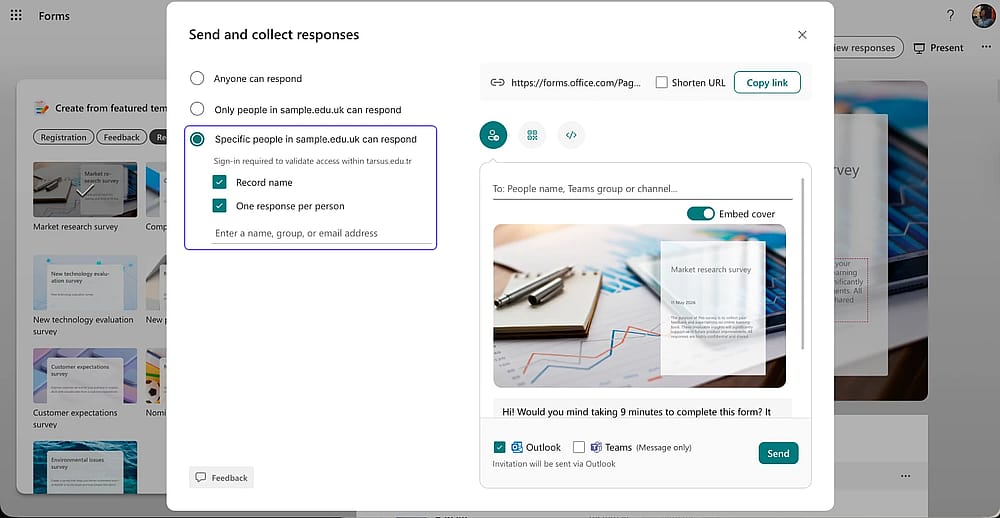
Customize share settings
None of these methods is a true CAPTCHA replacement. They reduce risk but don't eliminate it, especially for public-facing forms with no login requirement.
Editor’s note: Microsoft Dynamics 365 Customer Insights (an enterprise CRM product) recently added reCAPTCHA support, but this is a completely separate product from standard Microsoft Forms, so if you're using Microsoft Forms through Microsoft 365, this doesn't apply to you.
A better option: How to add CAPTCHA with forms.app
If you need real CAPTCHA protection without workarounds or automations, forms.app solves this in seconds.
When you want to make CAPTCHA visible, simply open your form, head to Settings, and toggle on Always show CAPTCHA under the General section. Once enabled, respondents will see a CAPTCHA challenge on the submission screen, ensuring only real humans get through. You can also layer on additional protections like disabling multiple submissions or adjusting privacy settings for even tighter security.
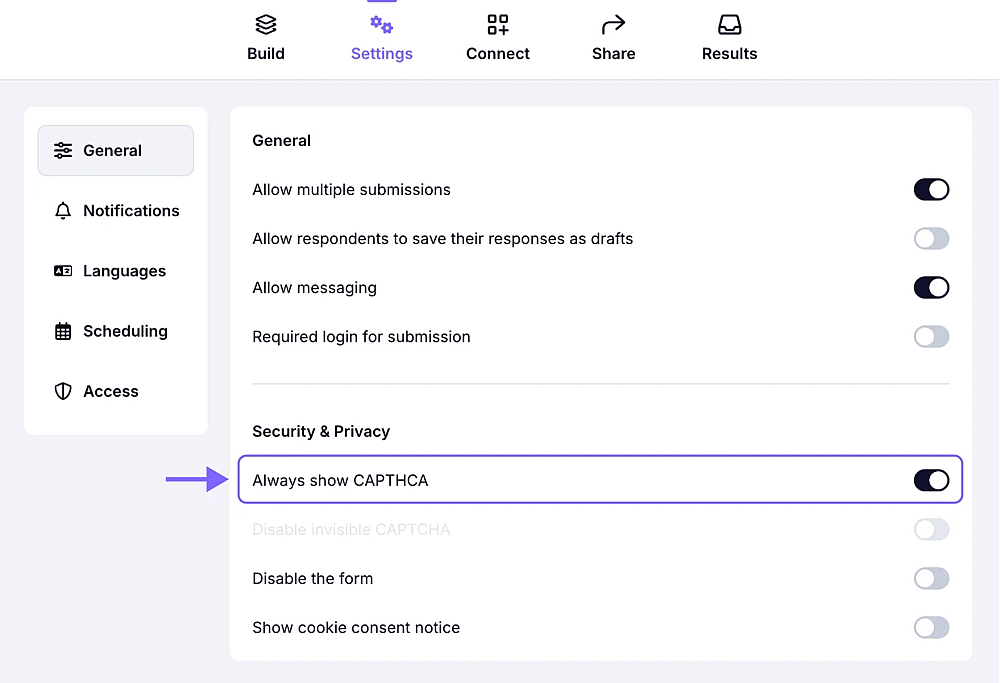
Access the ‘General’ settings of your form and enable the ‘Always show CAPTCHA’ toggle
💡If you'd prefer to remove even the invisible CAPTCHA, you can turn on the Disable invisible CAPTCHA toggle in the same General settings menu.
Pros & Cons of CAPTCHA
CAPTCHA is a vital defense, but it isn't a silver bullet. While it stops automated scripts, threat actors now use fake CAPTCHA pages to hide phishing emails from security scanners. By forcing a solution, they make deceptive subject lines appear legitimate, leading users directly into credential harvesting traps.
Pros | Cons |
|---|---|
Stops automated spam | Can frustrate users, potentially reducing conversion rates for professional services. |
Protects signing-in pages from rapid-fire password-guessing attacks | Image puzzles can be difficult for users with visual or hearing impairments |
Ensures leads come from real humans, not bot-driven credential theft scripts | Sophisticated AI TM phishing can use fake CAPTCHAs to mask malicious PDF attachments |
💡 Pro tip: To prevent users from abandoning your form, only use CAPTCHA challenges when absolutely necessary. If your form already requires signing in or authentication, you can safely disable public CAPTCHAs.
Conclusion
CAPTCHA remains one of the most effective first lines of defense against automated attacks, but it's not invincible. As threat actors grow more sophisticated, relying on CAPTCHA alone isn't enough. Pairing it with strong authentication, response restrictions, and a secure form builder is the modern standard for keeping your data clean and your users safe.
To summarize this article, Microsoft Forms lacks a native CAPTCHA feature, but you can reduce bot risk through workarounds and built-in access restrictions. For true, one-click CAPTCHA protection, forms.app is the more capable alternative, with invisible CAPTCHA on by default and a visible challenge just one toggle away. If form security matters to your workflow, the right tool makes all the difference.
Frequently asked questions (FAQs)
Microsoft relies on "Smart Detection" technology that works in the background to identify bot-like behavior without interrupting the user. However, this doesn't provide the same visual deterrent or granular control as a standard CAPTCHA challenge.
Visible CAPTCHA requires users to complete an active challenge, like clicking a checkbox or identifying images, before submitting. Invisible CAPTCHA runs silently in the background, analyzing behavior in real time without any user interaction.
Contributors
Researched & written by
forms.app, your free form builder
- Unlimited responses
- Unlimited questions
- Unlimited team members