Save up to 60% on yearly plans and enjoy our biggest offer of the year. Limited time only. 🍂
See pricing

How to add rating questions in Microsoft Forms (steps & more)
Summarize with
When it comes to collecting feedback through surveys and online forms, the way you ask a question matters as much as what you ask.
Rating questions are one of the most widely used question types in modern survey design, and for good reason. Research on survey methodology consistently shows that well-structured closed-ended question types, such as rating scales, produce lower item nonresponse and more reliable data than open-ended alternatives.
In this article, you'll learn everything about rating questions and how to use them effectively in Microsoft Forms, plus a smarter alternative if you need more flexibility.
TL;DR: How to add a rating question in Microsoft Forms
1. Open or create a form and click Insert new question
2. Click Rating from the list of Microsoft Forms question types
3. Type your question text
4. Set the number of Levels and choose a Symbol from the drop-down list
5. Toggle Required on if needed, then hit Share
What is a rating question?
A rating question is a question type that asks respondents to evaluate something, a product, experience, or service, on a defined rating scale. Instead of typing a long answer, participants simply pick a value that best reflects their opinion. This makes rating questions one of the fastest and most consistent ways to collect feedback.
💡 Rating questions collect quantitative data, meaning responses are immediately ready to chart, compare, and analyze, no manual coding needed. This also makes rating questions easier to benchmark over time.
Types of rating scales
Not all rating questions look the same. The format you choose shapes how respondents interpret and answer your question. Here are the most common types:
⭐ Star Rating
The most familiar format. Respondents select between 1 and 5 (or more) stars.
🔢 Numeric Scale
A simple numbered range, typically 1–5 or 1–10. Works well when you want precision or when your audience is less familiar with icon-based formats.
😊 Emoji / Smiley Face Scale
A visual, approachable format, great for quick pulse surveys or younger audiences.
📊 Likert Scale
A Likert scale is technically a type of rating scale focused on measuring agreement.
Rating vs. Ranking - don't mix these up! A rating question asks how good something is on a scale. A ranking question asks respondents to order multiple items by preference. They serve different purposes and should not be used interchangeably.
When to use
Rating questions fit naturally into many different contexts. Here are the most common use cases:
- Customer satisfaction - after a purchase, support interaction, or service experience
- Employee engagement - to check how motivated and supported staff feel on a regular basis
- Patient experience - following a medical appointment or treatment process
- Course assessment - at the end of a semester or training program to evaluate teaching quality
- Event feedback - after a conference, webinar, or workshop
- Voter/community feedback - to understand public sentiment toward policies or local initiatives
💡 Pro tip: Rating questions work best when you want to compare results over time or across groups. Because every respondent uses the same scale, the data stays consistent and easy to benchmark.
How to add rating questions in Microsoft Forms
Microsoft Forms makes it relatively straightforward to add a Microsoft Forms rating scale to any form or survey. Follow these steps to set one up from scratch:
1. Add a rating question
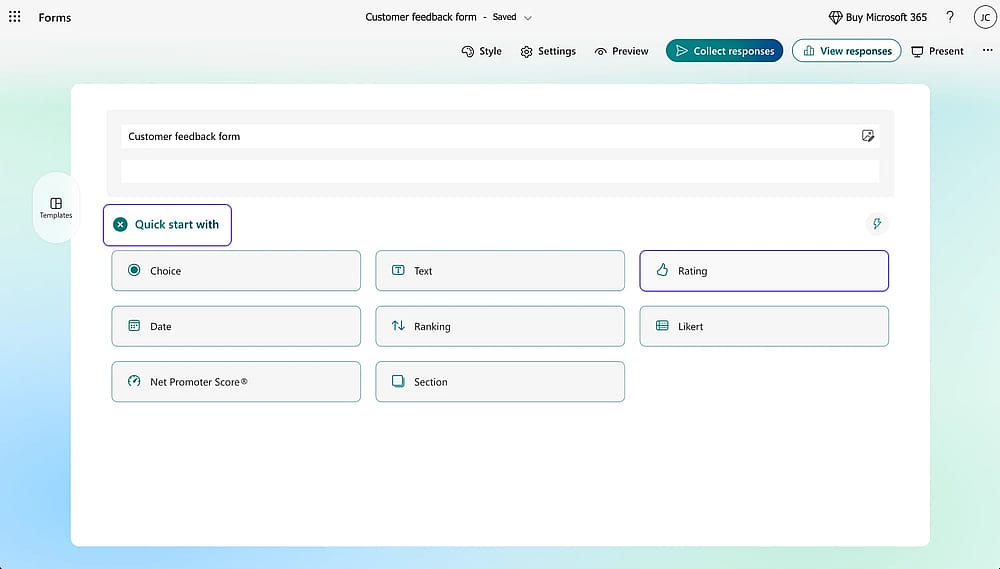
Click ‘+Quick start with’ and select the ‘Rating’ option
Once you have created a form, click + Quick start with and select Rating from the list of Microsoft Forms question types. A default 5-star scale will appear. Type your question text directly into the question field.
💡 If your organization uses Dynamics 365 Customer Voice, you can manage surveys and rating questions directly from that platform. It has enterprise features like customer journey triggers, sentiment analysis, and CRM integration.
2. Set levels and choose a symbol
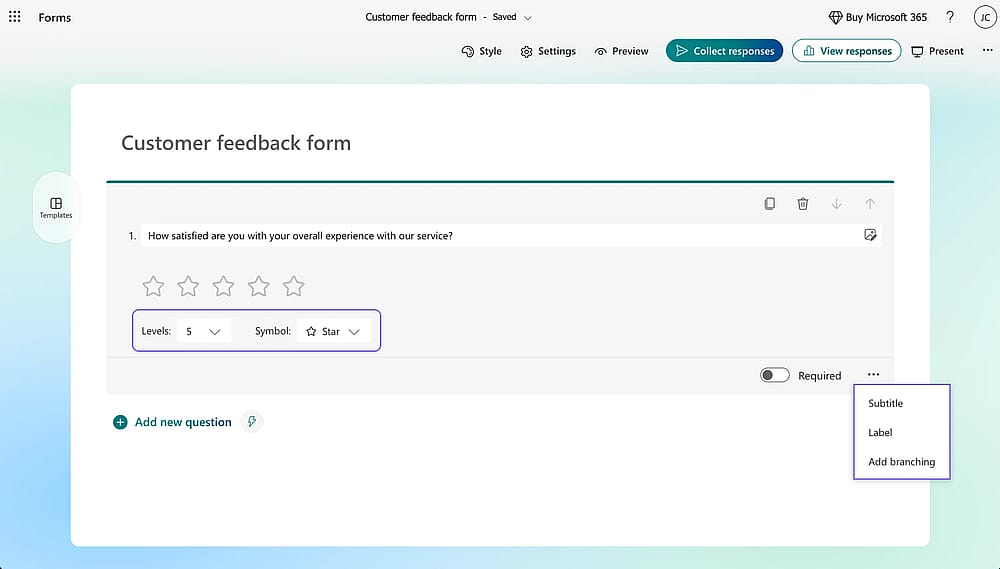
Set ‘Levels’ and choose a ‘Symbol’ for your question
Use the Levels drop-down list to set how many points your scale will have (between 2 and 10). Then use the Symbol drop-down list to pick your icon style.
You can also click the three-dot menu for optional extras like a subtitle or endpoint labels, for example, labeling the low end "Poor" and the high end "Excellent" to make the scale immediately clear to respondents.
3. Configure settings and appearance
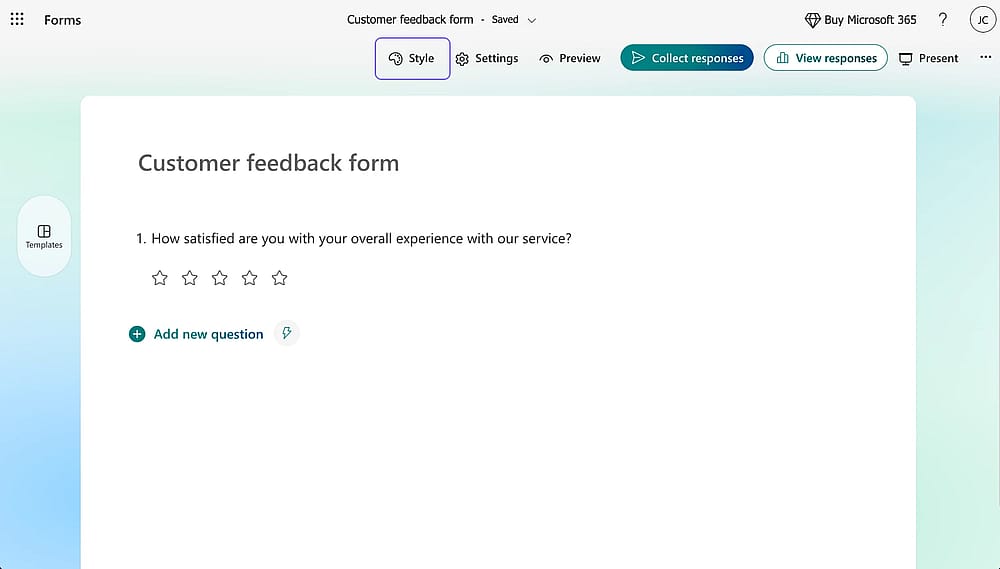
Check the ‘Style’ and the ‘Settings’ tabs to adjust your form
Click the gear icon in the upper right corner to control your form's behavior. From here, you can set a start and end date, shuffle the question order, and customize the thank-you message respondents see after submitting.
Press the palette icon to adjust your form's theme and colors.
4. Preview and share your form
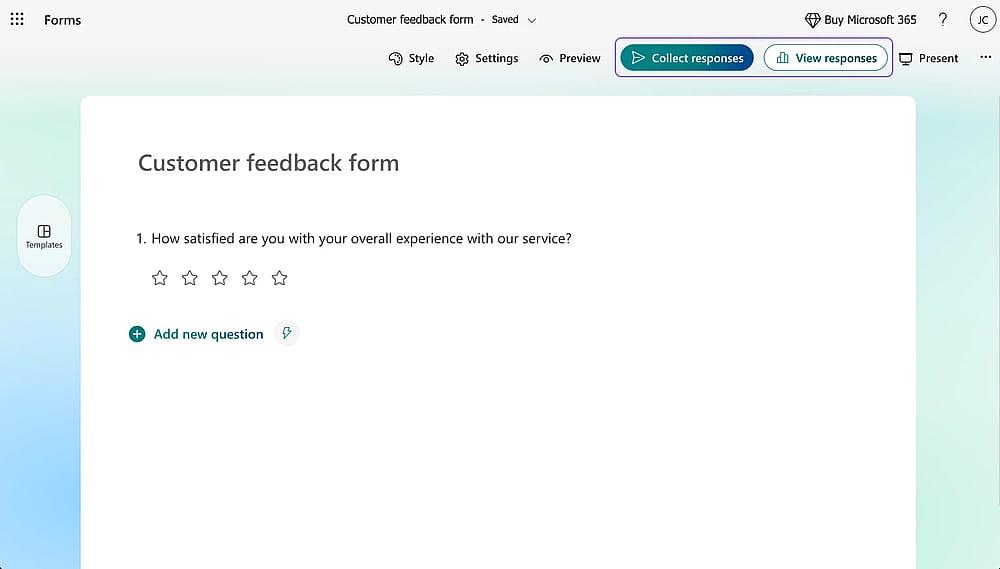
Preview your form and click ‘Collect responses’ to check sharing options
Before sharing, click the Preview button to see exactly how your form will appear to respondents.
Once you're happy with it, click Collect responses to access your sharing options, including a direct link, QR code, embed code for websites, or a direct email send.
Microsoft Forms rating scale: limitations to know
- Max 10 levels only
- No conditional logic based on rating response
- Limited symbol/style customization
- Microsoft Forms has no rating with comments
Explore a better alternative
Microsoft Forms covers the essentials, but as outlined in the limitations above, it leaves some gaps, particularly around customization, conditional logic, and per-question comment fields. If those gaps matter for your use case, forms.app is worth a look.
To add your rating question to forms.app, simply head to the Fields tab within the Build section and scroll down until you see the Star Rating field. You can also choose the Opinion Scale, Ranking, and Selection Matrix fields, each serving a different business need.
Star Rating field
The Star Rating field works like a standard rating question but with noticeably more flexibility. You can increase or decrease the number of rating options freely, and set a default answer for unanswered questions
You can also add custom labels to each star and upload an image or video to the question. You can also swap the star icon for something else entirely, such as a smiley face or a heart, depending on the tone of your form.
Opinion Scale field
The Opinion Scale is a numeric scale field where respondents choose a number to express their opinion on a given matter. You can adjust the range, set a default answer, add labels to the start, middle, and end of the scale to reduce ambiguity, and upload supporting media.
💡 Expert tip: Both the Star Rating and Opinion Scale fields are in forms.app lets you enable a built-in comment box, just toggle it on from the field settings. This way, respondents can explain the reason behind their score in the same question.
Conclusion
Rating questions are simple to answer, produce clean and consistent data, and work across a wide range of contexts, from customer satisfaction to course evaluations. When designed well, they are one of the most efficient feedback tools available.
In this article, we walked through what rating questions are, the different scale types, and how to add and customize them in Microsoft Forms. We also covered the platform's key limitations and how forms.app offers a more flexible alternative. Whichever tool you choose, rating questions are a solid foundation for any feedback strategy.
Frequently asked questions (FAQs)
A rating question typically uses a numeric or icon-based scale (like stars or numbers) to measure intensity, how much, how satisfied, or how likely.
A Likert scale uses labeled agreement statements like "Strongly Agree" to "Strongly Disagree" and is better suited for measuring attitudes or opinions. Both are closed-ended question types, but they serve different measurement goals.
For most use cases, 5 levels strike the best balance between granularity and simplicity. Use 10 levels when you need finer distinctions, such as in NPS-style surveys. Avoid going below 3 levels, as too few options reduce the usefulness of your data.
Contributors
Researched & written by
forms.app, your free form builder
- Unlimited responses
- Unlimited questions
- Unlimited team members