Save up to 60% on yearly plans and enjoy our biggest offer of the year. Limited time only. 🍂
See pricing

Mastering Microsoft Forms: A full guide for educators & expert tips
Summarize with
Whether you’re checking comprehension mid-lesson or collecting end-of-term feedback, online forms have become one of the most versatile tools in a modern educator’s toolkit.
Long gone are the days of manually grading stacks of paper quizzes or chasing down physical permission slips. Today, the ability to gather, analyze, and act on student data has fundamentally transformed how teachers approach formative assessment and classroom management.
In this guide, we’ll explore the broader landscape of how Microsoft Forms for education can streamline day-to-day tasks. We will take a deep dive for educatators how to use Microsoft Forms effectively, exploring practical ways to implement it for surveys and quizzes. Finally, we’ll look at a powerful alternative for those needing more advanced features.
Why online forms are essential for modern education
Most educators are familiar with digital forms, but their true value lies far beyond simply replacing paper. The shift from physical to digital assessment isn't just about "going green"; it’s about closing the feedback loop.
In a traditional paper-based classroom, a teacher might collect exit tickets on a Monday, grade them on Tuesday, and return them on Wednesday. By then, the "teachable moment" has often passed.
Digital forms solve the feedback gap in education through three pillars:
- Instantaneous data loops: With auto-grading and real-time response visualization, educators can pivot their lesson plans mid-class based on actual student comprehension rather than guesswork.
- Psychological safety: Tools like anonymous feedback surveys allow students to voice struggles or report bullying without the social pressure of raising a hand, leading to more honest and actionable data.
- Administrative recovery: By automating the collection of permission slips, event registrations, and peer reviews, teachers reclaim hours of administrative time, which can be reinvested in 1-on-1 student support.
The impact of formative assessment
The shift to digital forms is driven by the need to close the feedback gap. According to research by Valerie J. Shute, the timing of a response fundamentally changes its effectiveness.
Meta-analyses of computer-based instruction show that immediate feedback yields a large effect size of 0.80, whereas delayed feedback yields just 0.35. This data proves that correcting a student at the "teachable moment" more than doubles the instructional impact.
Versatility in the classroom
Whether it’s a quick pulse check or a formal evaluation, the use cases are virtually limitless:
👉 Exit tickets: Checking for understanding before the bell rings.
👉 Diagnostic quizzes: Identifying learning gaps at the start of a unit.
👉 Peer review: Allowing students to evaluate each other’s work objectively.
👉 Social-emotional checks: Gauging the well-being and "vibe" of the classroom.
8 strategic ways to transform your classroom with Microsoft Forms
Digital forms are no longer just for data collection; they are dynamic tools that enhance instruction and streamline communication. Below are the most effective ways to leverage them in an educational setting.
1. Formative assessments & Quizzes
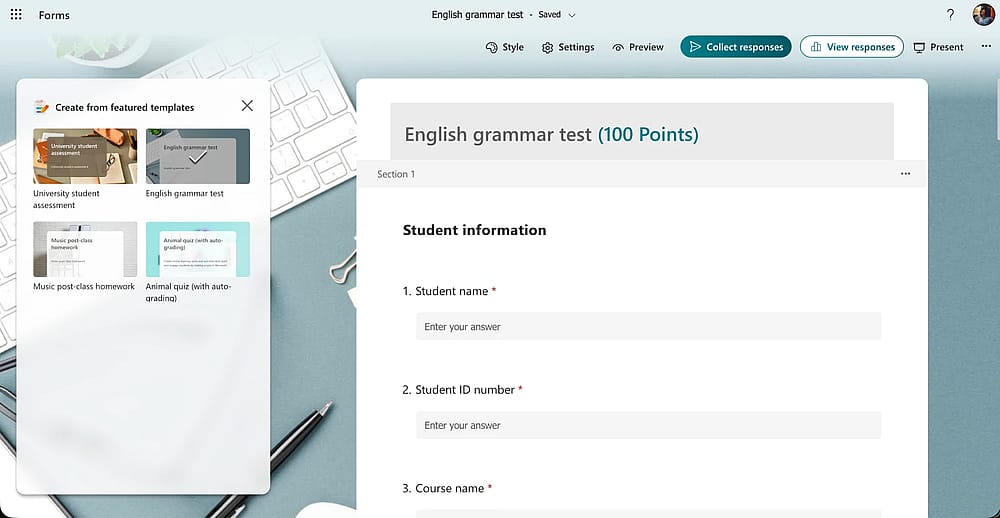
Choose a ready quiz and change the questions
Beyond high-stakes testing, use forms for "pulse checks" during a lesson. These quick, ungraded quizzes among the Microsoft Forms templates provide a snapshot of students' understanding in real time.
💡 Pro Tip: Use Branching (Conditional Logic) to create a "choose your own adventure" quiz. If a student gets a question wrong, the form can automatically direct them to a video or hint page for immediate remediation.
2. Exit tickets
The last five minutes of class are the most critical for retention. An "Exit Ticket" form asks students to summarize the day’s big idea or identify a "muddiest point" (what they found most confusing). This provides you with an organized spreadsheet of exactly what to address at the start of the next session.
Practical Example: Ask one question: "What is one thing you learned today, and what is one thing you’re still unsure about?"
3. Student surveys & Feedback
Empower students by treating them as stakeholders in their own learning. Use surveys to gauge learning preferences (e.g., "Do you prefer group projects or individual reports?") or to collect mid-term feedback on course pacing. This builds trust and allows for a more personalized educational experience.
Editor’s Experience: Keep these surveys anonymous to increase the honesty and quality of the feedback you receive.
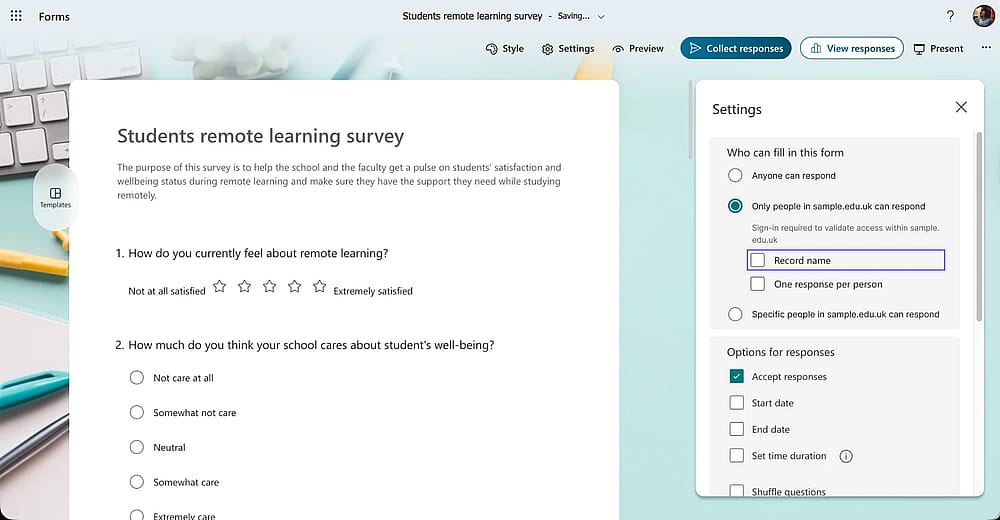
Do not record names to make students more comfortable
4. Parent communication & Consent forms
Eliminate the "lost in the backpack" phenomenon. Digital forms for field trip consent, parent-teacher conference sign-ups, and volunteer registrations are legally traceable and instantly organized. Parents can sign from their mobile devices, significantly increasing your response rate.
Practical Example: Use the File Upload feature to have parents submit digital copies of medical forms or ID directly through the consent form.
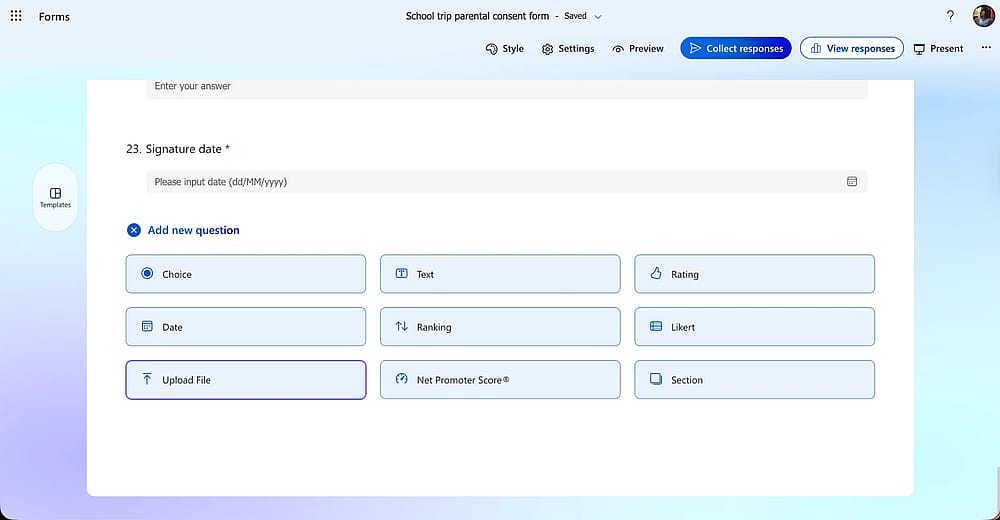
Use Upload File to collect medical forms or IDs
5. Peer review & Self-assessment
Metacognition, thinking about one’s own thinking, is a powerful driver of growth. Provide a structured form for students to evaluate their own work against a rubric or to provide constructive, anonymous feedback to their peers during presentations.
Pro Tip: Use Likert Scales (1-5 ratings) to help students quantify their confidence levels in specific skills before and after a project.
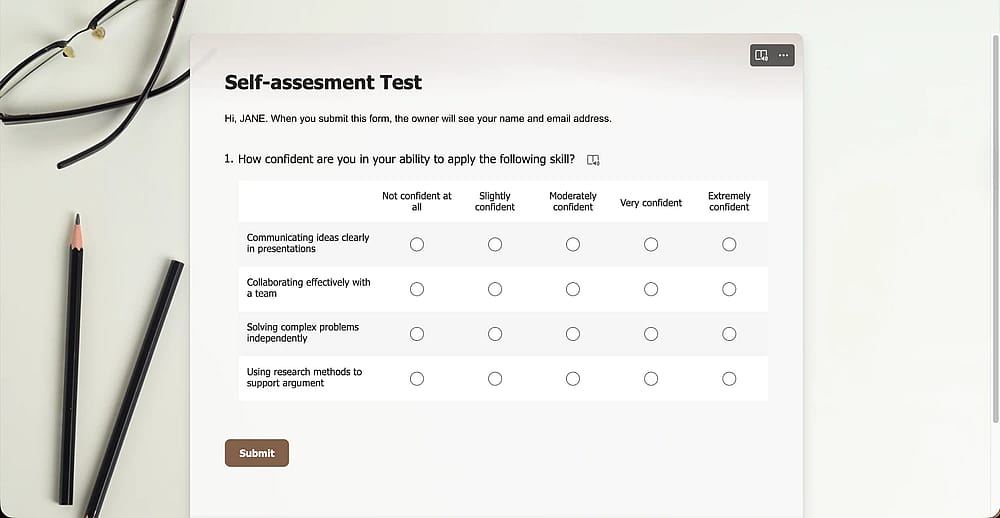
Use a Likert Scale to collect self or peer reviews
6. Interactive lessons & Live polling
Turn a passive lecture into an active experience. By embedding form links or QR codes into your slides, you can conduct live polling. Seeing the class's collective results appear on the screen in a word cloud or bar chart sparks immediate engagement and discussion.
Practical Example: "Before we start the chapter on the French Revolution, what is the first word that comes to mind when you hear the word 'Revolution'?"
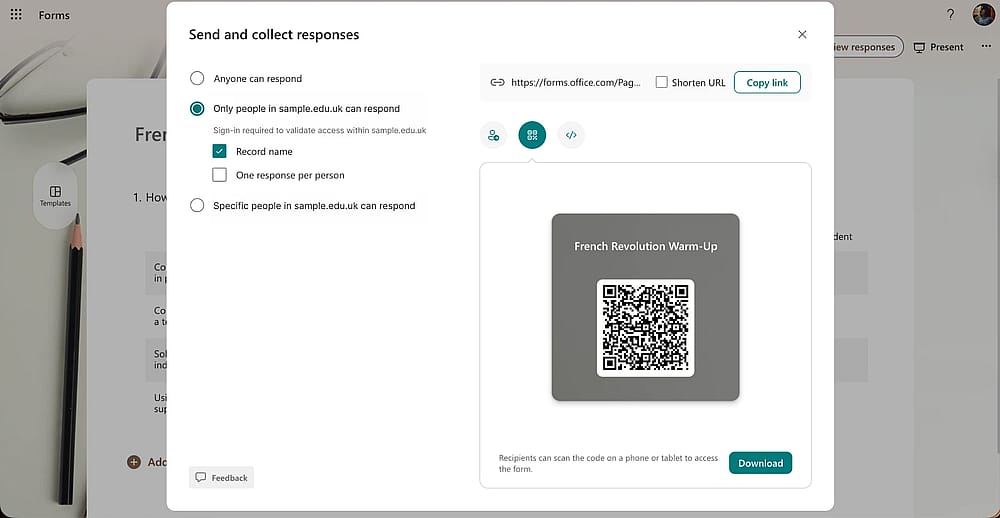
Share your quick form with a QR code
7. Registration & Club Enrollment
Streamline school-wide logistics by using forms for extracurricular sign-ups, library book requests, or student council voting. This replaces messy paper trails with a centralized dashboard for school administrators.
Pro Tip: Set a Start date and End date on your form to automatically "close" registration once a club or event reaches its maximum capacity.
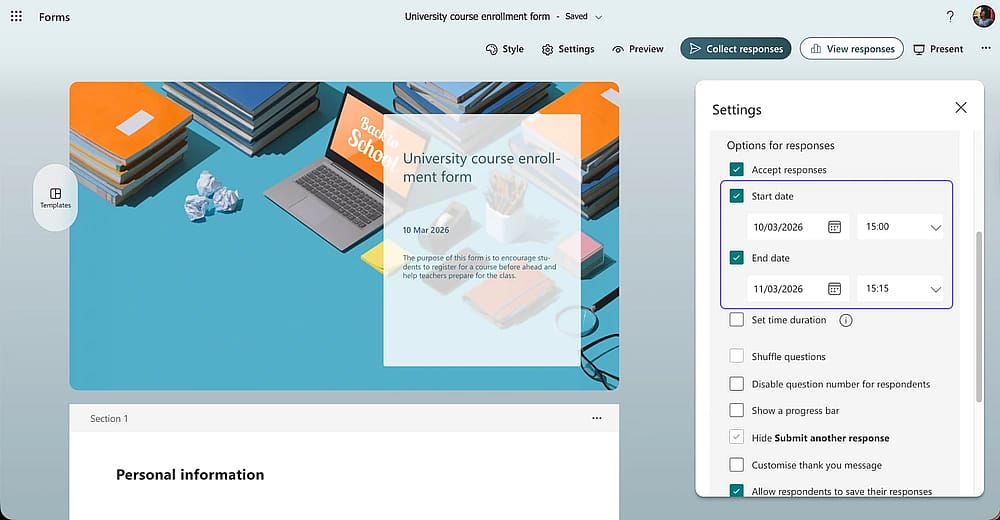
Set Start & End dates
8. Homework & Structured submissions
Instead of an overflowing email inbox, use a form as a dedicated submission portal. This allows you to enforce a specific structure: students must include their name, ID, and specific reflections along with their file upload.
Practical Example: Create a "Reading Log" form where students submit a 3-sentence summary of their nightly reading, allowing you to track consistency throughout the semester.
Where MS Forms shines
The primary appeal of Microsoft Forms is its seamless native integration. It functions as a natural extension of the tools teachers use daily, such as Microsoft Teams, OneNote, and Excel.
⬆️ Zero additional cost: For institutions with an Education license, the tool is essentially free and already approved by IT departments.
⬆️ Auto-grading & Branching: It handles basic "Knowledge of Correct Response" (KCR) well, allowing for instant grading and simple path-clearing based on student answers.
⬆️ Inclusive design: One of its standout features is the integration of Immersive Reader, which supports students with dyslexia or language barriers by reading questions aloud.
⬆️ Data portability: Responses can be exported to Excel with one click, making it easy for administrators to view summary information and modify instructions.
Where MS Forms falls short
While Microsoft Forms is excellent for a quick exit ticket, it often lacks the "means" (the ability for the student to use the feedback effectively) required for more sophisticated pedagogical tasks.
⬇️ Design rigidity: The customization options are notoriously limited. Educators looking to create a "branded" school experience or a highly engaging visual quiz will find the themes and layout options restrictive.
⬇️ The "Microsoft Wall": Sharing forms outside of a specific school organization can be a headache. IT admin restrictions often prevent parents or external partners from accessing forms unless they have a matching Microsoft account.
⬇️ Basic logic only: While it offers "branching," it lacks advanced logic (such as calculations, show/hide rules based on multiple variables, or personalized success pages) that dedicated form builders provide.
⬇️ Missing specialized fields: For schools managing more than just quizzes, the lack of payment integrations (for lab fees), scheduling fields (for parent-teacher conferences), or advanced file upload limits for external users is a significant hurdle.
⬇️ No standalone free tier: Unlike many modern SaaS tools, if you aren't part of the Microsoft ecosystem, the "free" version is heavily stripped of the professional features needed for robust data collection.
Comparison: Microsoft Forms vs. forms.app
Feature | Microsoft Forms | forms.app |
|---|---|---|
Best For | Basic internal school quizzes. | Professional design & complex logic. |
Design | Basic themes only. | Full CSS & layouts. |
Logic | Simple branching. | Calculations & multi-rules. |
Integrations | Primarily Microsoft ecosystem. | 500+ apps. |
Payments | (Stripe, PayPal). | |
Question Types | Standard only. | Signature, Scheduling, Calculator. |
Access | Often requires Microsoft ID. | Guest access; no login required. |
Pricing | Included in M365 Education. | Free-forever tier available. |
forms.app: The flexible choice for advanced needs
While Microsoft Forms is a reliable default, forms.app offers the "means", the specialized tools, needed for complex pedagogical and administrative tasks. It bypasses the "Microsoft Wall" by allowing students and parents to respond without any specific account or login, ensuring a frictionless experience.
Why educators switch:
- Advanced learning paths: Use multi-variable conditional logic to automatically redirect students to specific hints or instructional videos based on their unique error patterns.
- Beyond multiple choice: Access specialized fields like Digital Signatures for consent forms, Payment Collection for lab fees.
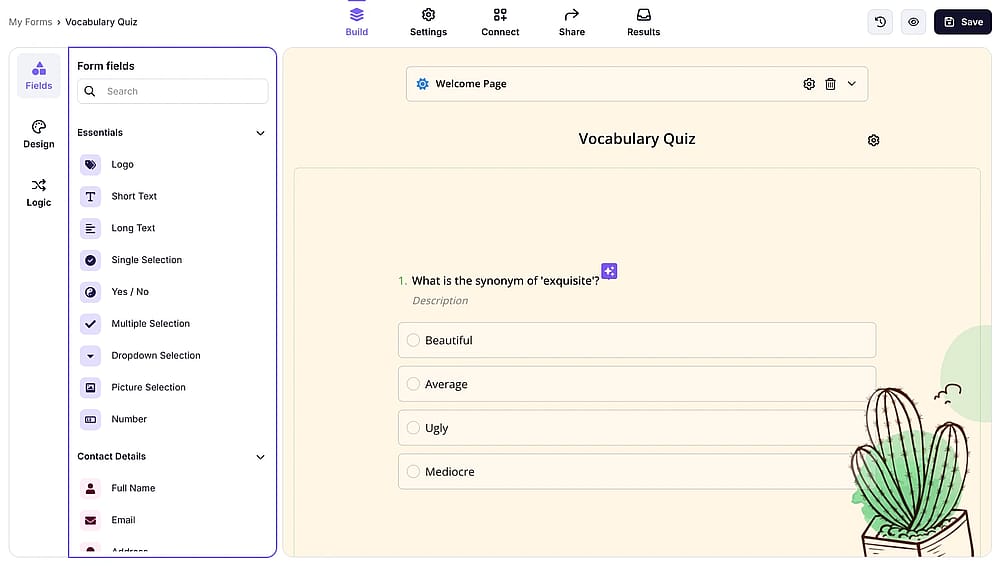
Use advanced features
- Calculators: Provide instant, weighted scoring and personalized feedback messages, closing the "feedback gap" immediately.
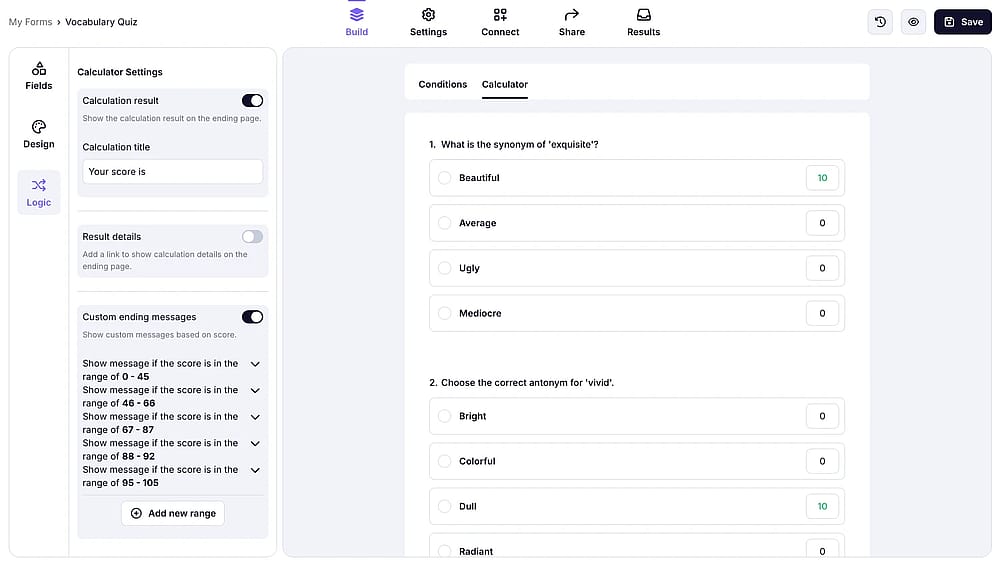
Use Calculator for quizzes
- Engagement-first design: Break away from rigid layouts with animated backgrounds and "Step View" (one question at a time) to keep learners mindful and focused.
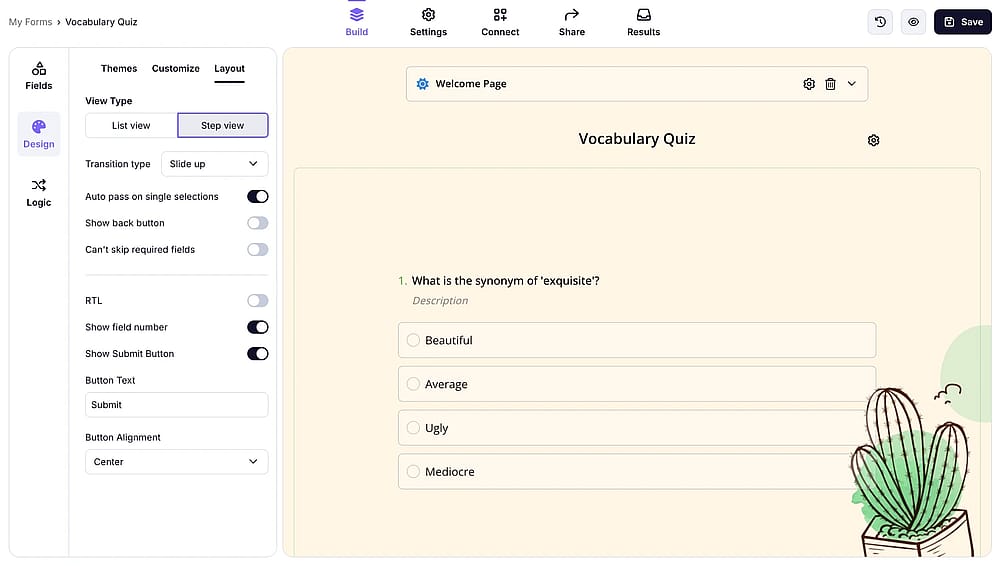
Use Step view to keep students focused
With a free-forever tier and a real-time response dashboard, forms.app allows teaching teams to collaborate and adapt their instruction to the particular needs of every learner.
Conclusion
Online forms have evolved from simple digital worksheets into one of the highest-impact, lowest-effort tools in a modern educator's arsenal. By bridging the feedback gap, these tools allow you to move beyond the limitations of Office 365 and traditional paper assessments. Whether you are conducting a mid-lesson pulse check or automating complex administrative tasks, the right form options can fundamentally change how your students engage with the curriculum.
You don't need a complex setup to get started. By choosing a pre-made form template, you can implement expert-backed strategies in minutes.
Start with a free template today and see how your students respond to a more interactive, personalized learning experience!
Frequently asked questions (FAQs)
Yes, online forms are an excellent way to centralize assignments. By using a File Upload field, students can submit documents, images, or videos directly to a structured database rather than cluttering your email inbox. This allows you to enforce a consistent submission format across all students.
Forms can be used as Pulse Checks or "Check-ins" to gauge your classroom's well-being. Because digital forms can be filled out privately or anonymously, they provide a safe space for students to share feelings or struggles they might not be comfortable voicing in front of their peers.
To maintain the integrity of an assessment, you should use a tool that controls "presearch availability". This ensures that students must attempt a solution on their own before any correct answers or elaborative feedback are revealed. Research shows that feedback is most effective when it follows an active attempt by the learner.
Contributors
Researched & written by
forms.app, your free form builder
- Unlimited responses
- Unlimited questions
- Unlimited team members