
Save up to 60% on yearly plans and enjoy our biggest offer of the year. Limited time only. 🍂
See pricing

Mastering Microsoft Forms for teacher feedback: A 2026 guide
Summarize with
Great teaching starts with better feedback.
Whether you’re trying to improve classroom engagement, understand student needs, or evaluate teaching methods, collecting consistent feedback can make a measurable difference. One of the easiest ways to do this is by using digital surveys, especially for schools already using Microsoft’s ecosystem.
In this guide, we’ll cover practical teacher feedback survey questions, best practices for increasing response rates, and how to get feedback from Microsoft Forms to turn responses into actionable insights for a better learning environment.
TL;DR
1. Open Microsoft Forms
2. Choose the “Teacher Feedback Survey” template
3. Edit the questions / add yours
4. Adjust the settings
5. Preview & Share
How to use a teacher feedback survey in Microsoft Forms
Microsoft Forms is platform that is beginner-friendly, so you can create, customize, and share a survey in just a few minutes, even if you’ve never built an online form before.
Here’s how to create an effective teacher feedback form step by step:
1. Start with a blank form or a template
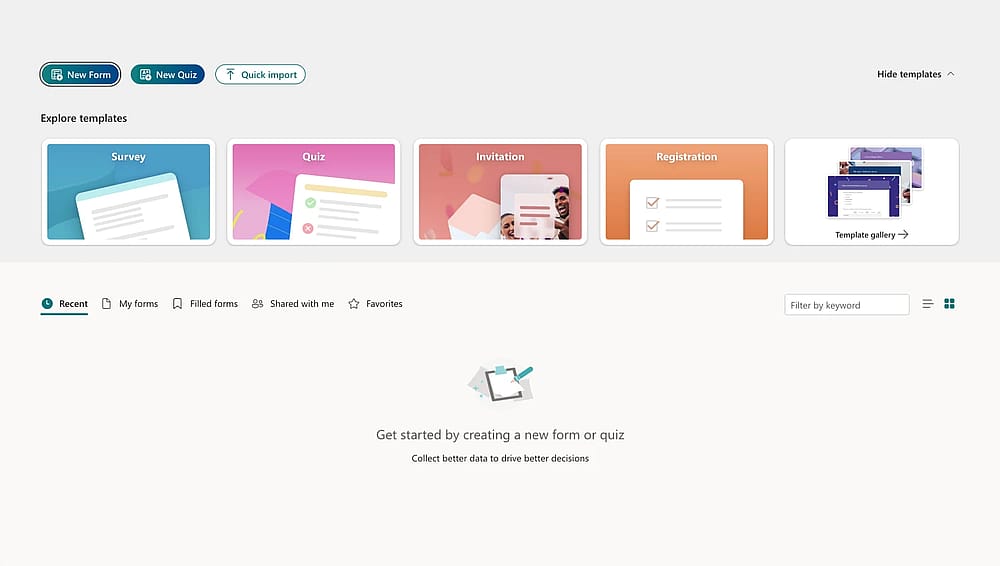
Open your Microsoft Forms account
First, open Microsoft Forms and decide whether you want to create your survey from scratch or use a Microsoft Forms template. If you already know which questions you want to ask, starting with a blank form gives you more flexibility. However, templates can save time and help you structure your survey more effectively.
Microsoft Forms also offers a teacher feedback survey template in its Template gallery, which can be useful if you need a quick starting point.
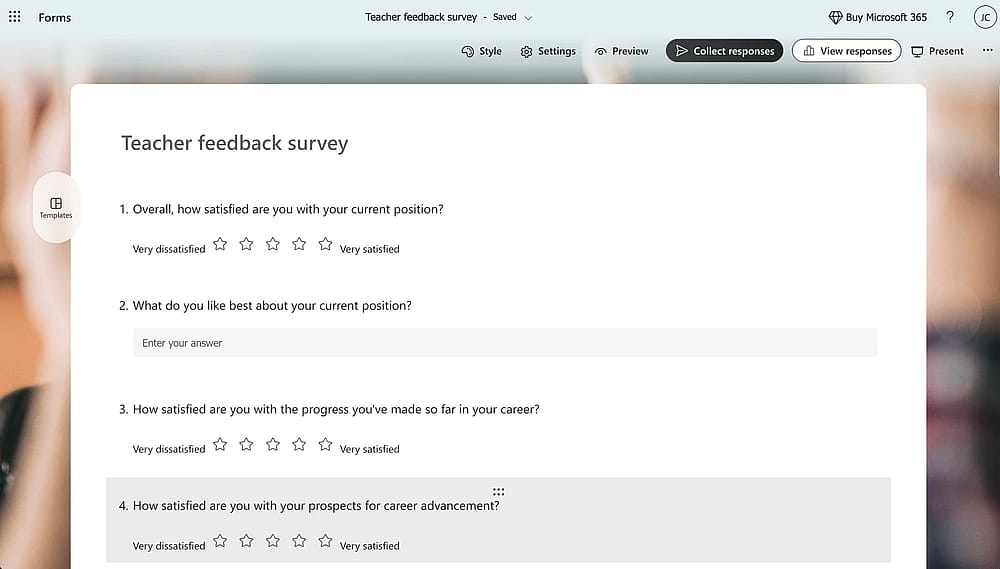
Use the ready template
💡 Pro tip: In our experience, shorter surveys usually lead to higher completion rates. Try limiting your survey to 10-15 focused questions instead of asking everything at once.
2. Add and organize your questions
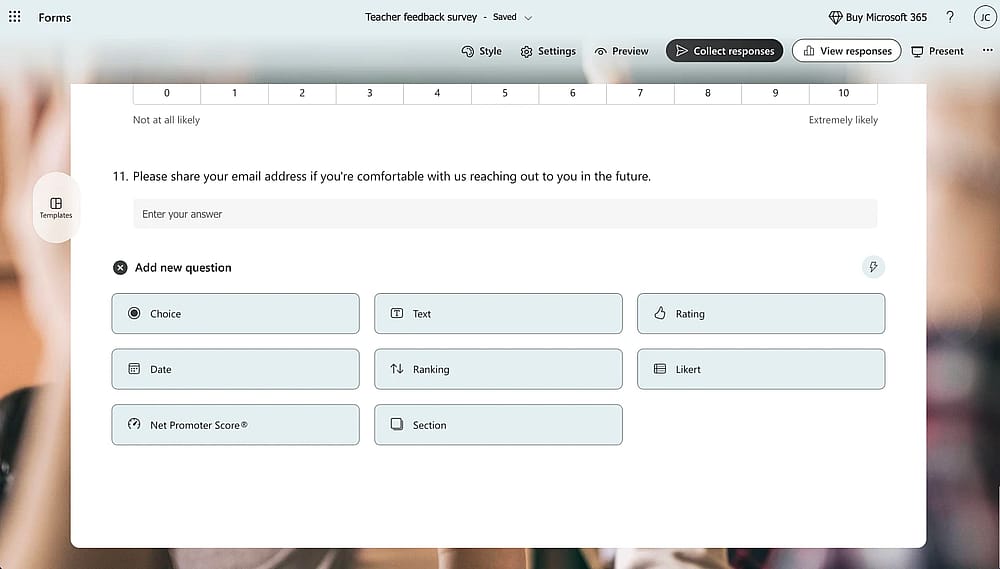
Add relevant questions to your survey
After choosing your base, you can begin adding questions to your survey. Microsoft Forms supports multiple question types, including:
- Multiple choice
- Rating scales
- Text responses
- Likert-style questions
To add a question, click Add new and select the question type you need. You can also edit existing questions anytime by clicking directly on them.
For teacher feedback surveys, it’s a good idea to combine quantitative and qualitative questions. For example, you can use rating questions to measure satisfaction levels and open-ended questions to collect more detailed feedback.
💡 Pro tip: Place easier rating questions at the beginning and leave open-ended questions near the end. This keeps students engaged and reduces survey abandonment.
3. Customize the design and branding
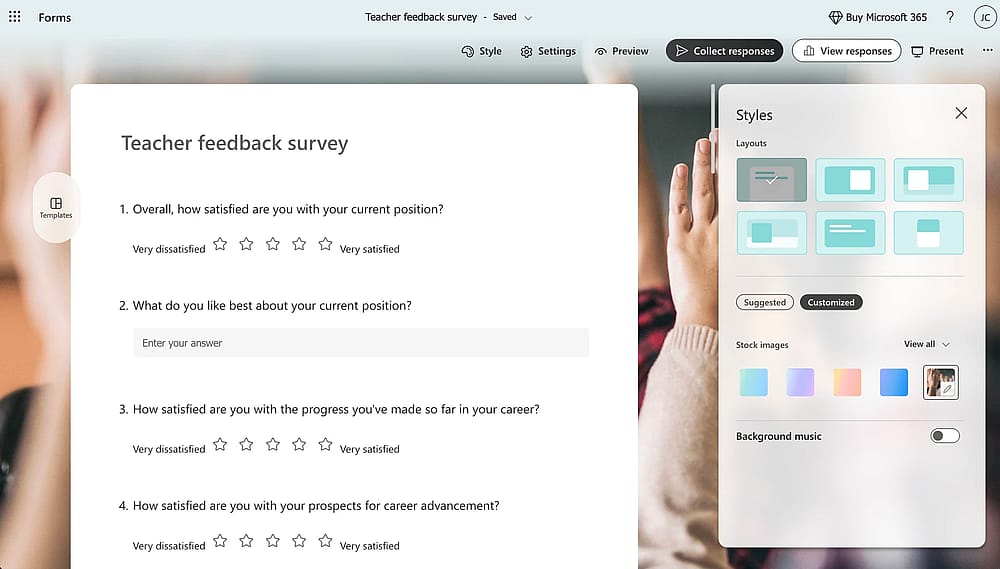
Add relevant questions to your survey
Once your questions are ready, you can style your Microsoft Form. Click the palette icon in the top-right corner to open the Style menu. From there, you can:
- Change the theme colors
- Select different layouts
- Add background images
- Match the form with your school branding
A clean and visually organized survey can make students more likely to complete the form carefully.
💡 Pro tip: Avoid overly busy backgrounds or strong colors. Simple designs are usually easier to read on mobile devices, where many students complete surveys.
4. Review your settings and preview the survey
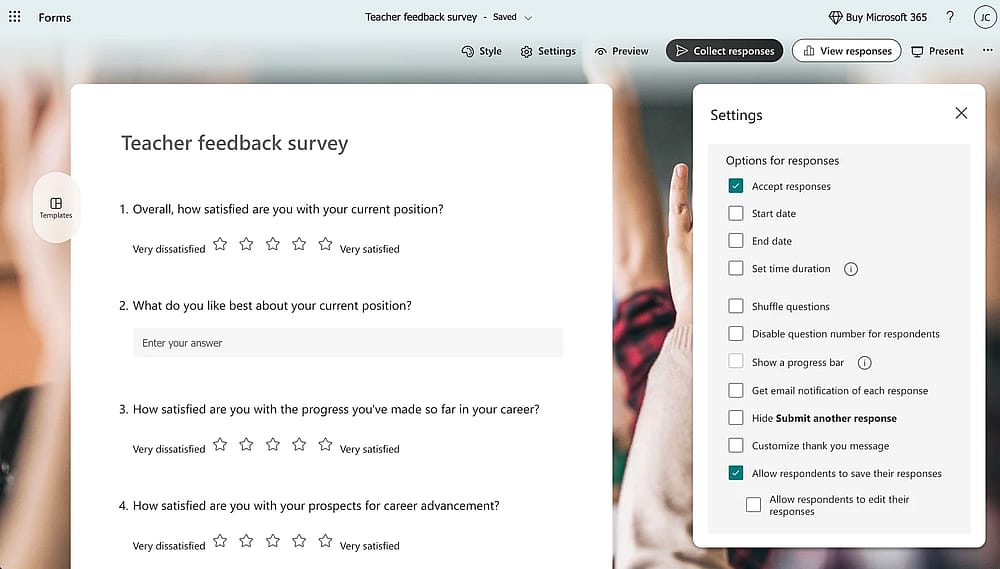
Adjust settings
Before sharing your form, review the settings by clicking the gear icon in the upper-right corner. This section controls how responses are collected and managed.
You can customize settings such as:
- Start and end dates
- Response notifications
- Anonymous responses
- Custom thank-you messages
If you’re collecting honest classroom feedback, anonymous responses often encourage students to answer more openly.
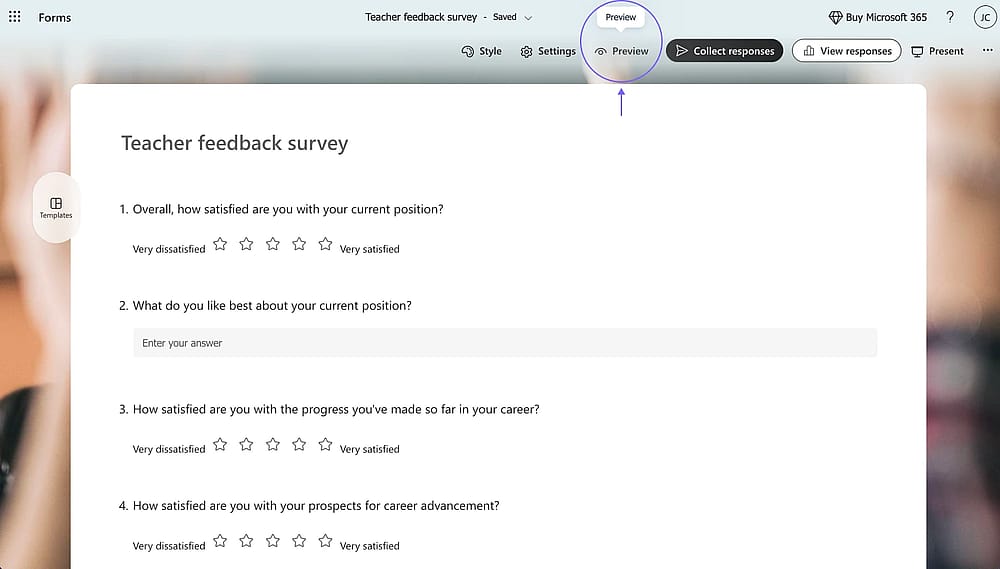
Preview your survey
After adjusting the settings, use the Preview feature to test the form on both desktop and mobile devices. This helps you catch formatting issues, unclear wording, or questions that may feel repetitive.
💡 Pro tip: Always test the survey yourself before sending it to students. Even small issues - like unclear answer options or mandatory questions - can affect response quality.
5. Share the survey and analyze responses
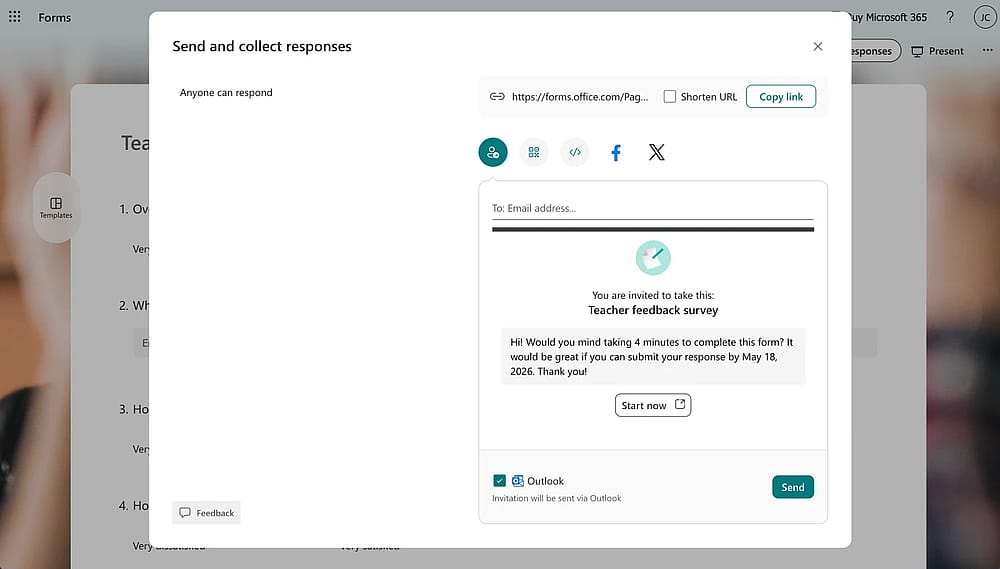
Share your survey
When your survey is ready, open the Collect responses section to generate a sharing link. Microsoft Forms also allows you to share surveys through:
- QR codes
- Email invitations
- Embedded links
- Microsoft Teams
After collecting responses, head to the Responses tab to review the results. Microsoft Forms automatically creates visual charts and summaries, making it easier to identify trends and recurring feedback patterns.
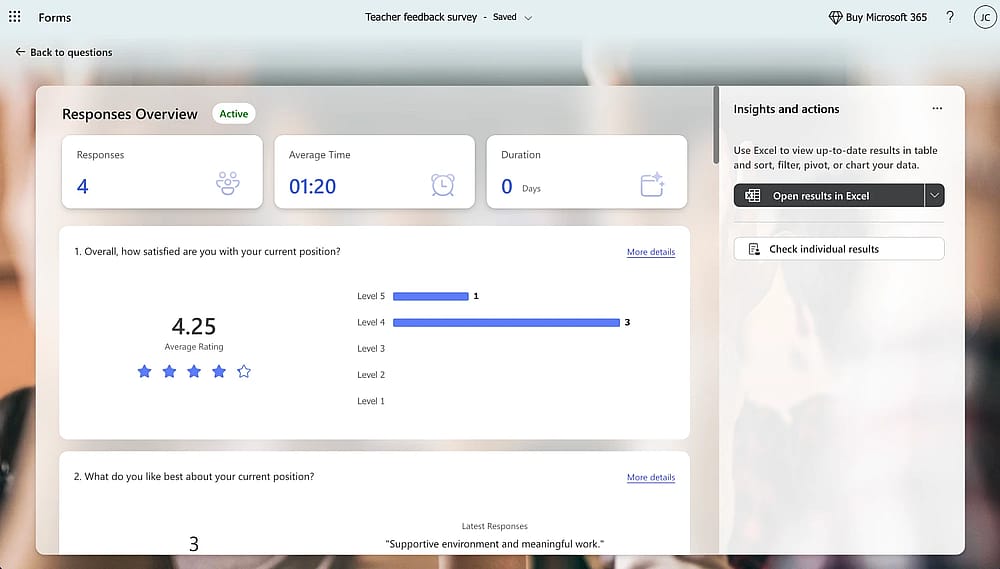
Check your responses
If you need deeper analysis or reporting, you can also export responses to Microsoft Excel for further evaluation.
💡 Pro tip: Don’t collect feedback only once per semester. Short, recurring surveys throughout the school year often provide more actionable insights and help teachers adjust faster.
A more flexible alternative for creating teacher feedback surveys
While Microsoft Forms is useful for simple surveys, some educators may need more flexibility when collecting classroom feedback regularly.
Platforms like forms.app offer additional customization and workflow features that Microsoft Forms currently lacks.
Here are a few differences educators often notice:
More customization options
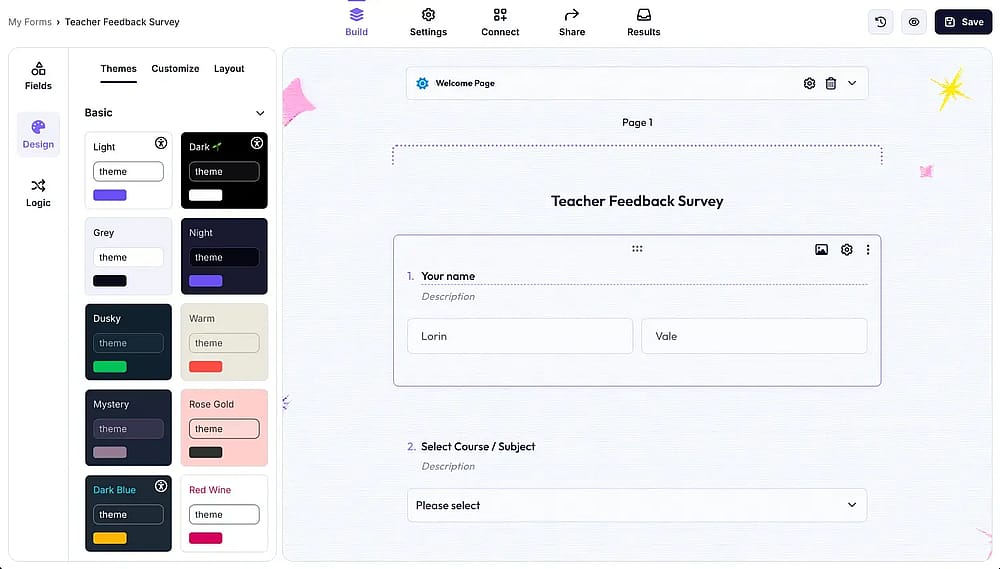
Change the design of survey
Microsoft Forms keeps designs fairly simple. With forms.app, you can customize:
- Multi-step layouts
- Fonts and colors
- Backgrounds and button styles
- Mobile-friendly form experiences
This can help create more engaging surveys for students.
💡 Pro tip: Simpler and cleaner designs usually improve survey completion rates on mobile devices.
More advanced conditional logic
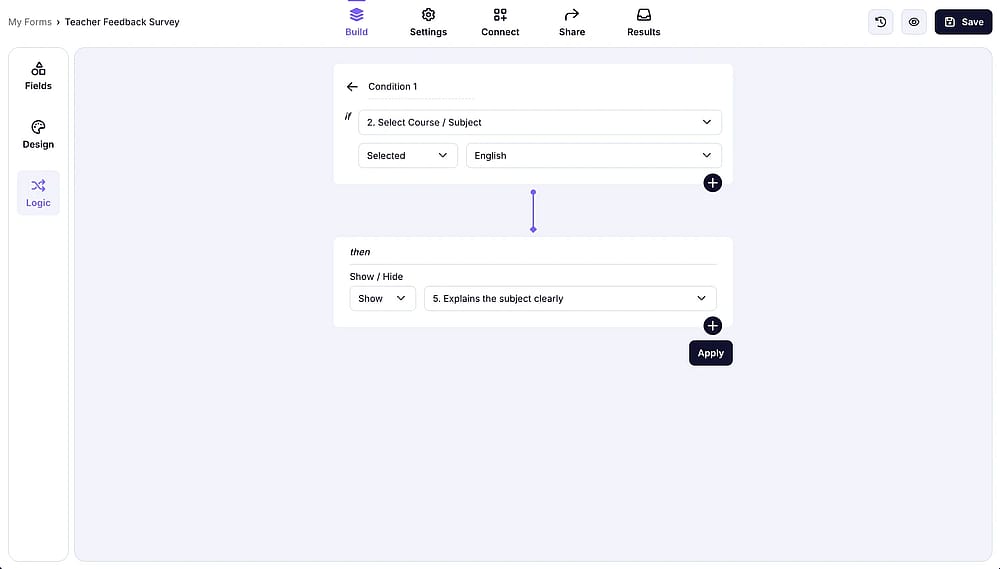
Add conditional logic to make your survey shorter
Teacher feedback surveys often need different follow-up questions depending on responses.
For example:
- Students who leave low ratings can see additional questions.
- Different classes can receive different question paths.
- Irrelevant questions can stay hidden.
While Microsoft Forms supports basic branching, forms.app allows more detailed conditional workflows.
Easier sharing and response management
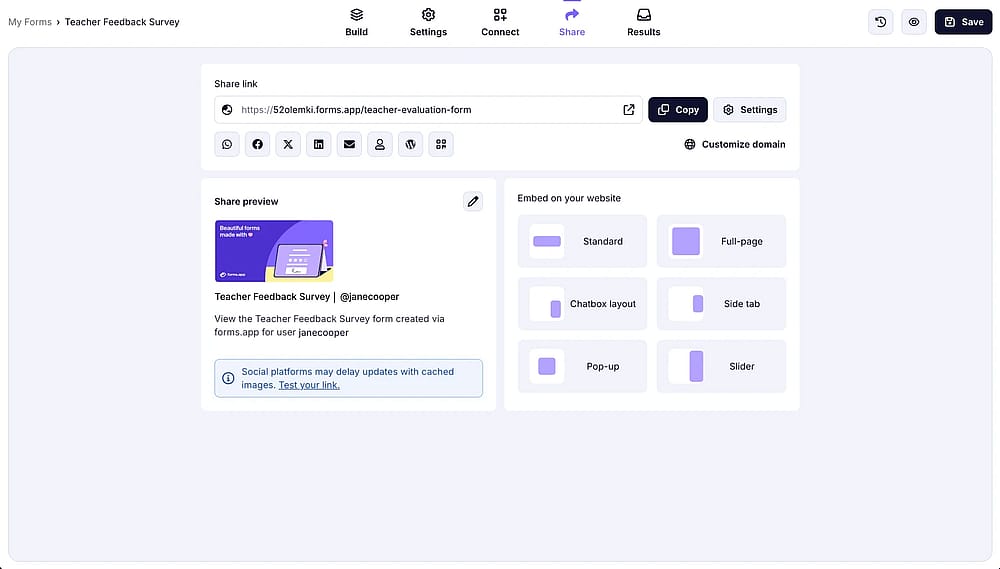
Share your feedback survey
Some educators also prefer having more sharing and response options, such as:
- Website embedding
- Pop-up forms
- Real-time notifications
- Advanced filtering and exports
These features can make it easier to manage feedback across multiple classes or semesters.
💡 Pro tip: Instead of collecting feedback only once a year, shorter surveys throughout the semester usually provide more actionable insights.
Based on our experience: Tips for creating a more effective teacher feedback survey
Whether you are creating a student teacher feedback survey or a simple Microsoft feedback form, the goal should always be collecting clear, honest, and actionable feedback. After reviewing many classroom surveys and student evaluations, we noticed that the most effective forms usually follow a few simple principles:
- Keep your survey short and focused instead of asking too many questions at once.
- Use simple and unbiased wording so students clearly understand each question.
- Combine rating questions with open-ended questions for deeper insights.
- Allow anonymous responses to encourage more honest feedback.
- Avoid collecting feedback only at the end of a specific course. Short surveys throughout the semester often provide better insights.
- Review recurring patterns in responses instead of focusing on one negative comment.
- Include feedback from students parents when evaluating communication and support outside the classroom.
- Treat feedback as a tool for professional growth rather than performance scoring alone.
💡 Pro tip: The best student teacher feedback survey examples focus on improving communication and learning experiences, not just collecting ratings.
Must-ask survey questions for teacher feedback forms
A strong student teacher feedback form starts with the right questions. Instead of randomly adding items, it helps to group your questions into a structured “master set” that can be reused across different classes, including a specific course, student evaluations, and even input from students parents when needed.
Here are core question types you can include:
- How clearly did the teacher explain the lesson content?
- How engaged did you feel during the class?
- What aspects of the course helped your learning the most?
- What should the teacher improve in future lessons?
- How comfortable did you feel asking questions in class?
- Would you recommend this course to other students? Why or why not?
- (For students parents) How effectively does the teacher communicate progress and expectations?
💡 Pro tip: A well-designed microsoft feedback form doesn’t need dozens of questions. It needs a consistent structure that can be reused and slightly adapted across different courses.
Conclusion
Teacher feedback surveys play an important role in building better learning experiences for both educators and students. Whether the goal is improving communication, evaluating a specific course, or understanding classroom engagement, collecting regular feedback helps schools make more informed decisions.
With online tools, creating and managing student surveys has become much easier and more accessible. From quick classroom check-ins to detailed semester evaluations, digital forms can help teachers gather valuable insights and identify opportunities for professional growth over time.
Most importantly, feedback should not be treated as criticism, but as part of an ongoing learning process. When students, students parents, and educators work together, surveys can become a valuable resource for creating a healthier and more effective learning environment; something every center for teaching aims to achieve.
Frequently asked questions (FAQs)
Student evaluations help teachers understand how students experience lessons, assignments, and classroom communication. Regular feedback can highlight both strengths and areas that may need improvement throughout the academic year.
Many schools conduct student evaluations once or twice per semester, but shorter and more frequent surveys often provide more useful and actionable feedback for teachers.
Teacher feedback surveys usually collect opinions from students parents or students, while peer reviews are completed by fellow educators. Peer reviews often focus more on teaching methods, lesson planning, and classroom management.
Yes. Feedback from students parents can provide additional insight into communication quality, student support, and overall classroom experience, especially in younger grade levels.
Contributors
Researched & written by
forms.app, your free form builder
- Unlimited responses
- Unlimited questions
- Unlimited team members


