
How to make a poll on Google Forms (Steps & Examples)
Summarize with
Creating a poll on Google Forms is a simple and solid way to gather votes on a specific topic. Need to make a quick group decision? Polls. Want the community vote on what’s next? Polls. Whether you're planning a team event, gathering customer preferences, or making workplace decisions, a well-crafted poll can give you the insights you need in minutes.
Google Forms is well-known for creating forms, but it also allows you to create an online poll. This article will cover how to create a Google Forms poll step-by-step, give you poll best practices, limitations you might face in Google Forms, and a better alternative to create polls online.
Does Google Forms have a polling feature?
The short answer: In a way, yes.
When you create a poll in Google Forms, you're essentially building a very short form. As this short form works just as fine for polling, you can say that Google Forms allows free poll creation.
However, Google Forms is not the only polling tool within Google Workspace. Instead, you have two options within the ecosystem:
- Google Meet polls: A feature within Google Meet that allows creating real-time polls during live meetings.
- Google Forms: A form tool that allows building standalone polls that can also be used asynchronously and can be shared through a link.
For most use cases, Google Forms is the go-to option. While it lacks specialized polling features like live results display or poll templates, it's free to use and easy to share with people during and outside meetings.
How to Create a Poll on Google Forms (step by step)
Creating a poll in Google Forms is straightforward once you know the steps. Follow this detailed tutorial to build your first poll on Google Forms.
- Open a Google Form
- Add a clear title and description
- Create your poll questions
- Add answer options
- Configure settings for anonymous responses
- Customize the appearance
- Share your poll
1. Open a Google Form
Go to docs.google.com/forms, and sign in to your Google account. You must pick a form template since no poll or survey templates exist. You can open one of the Google Forms templates or start with a blank form.
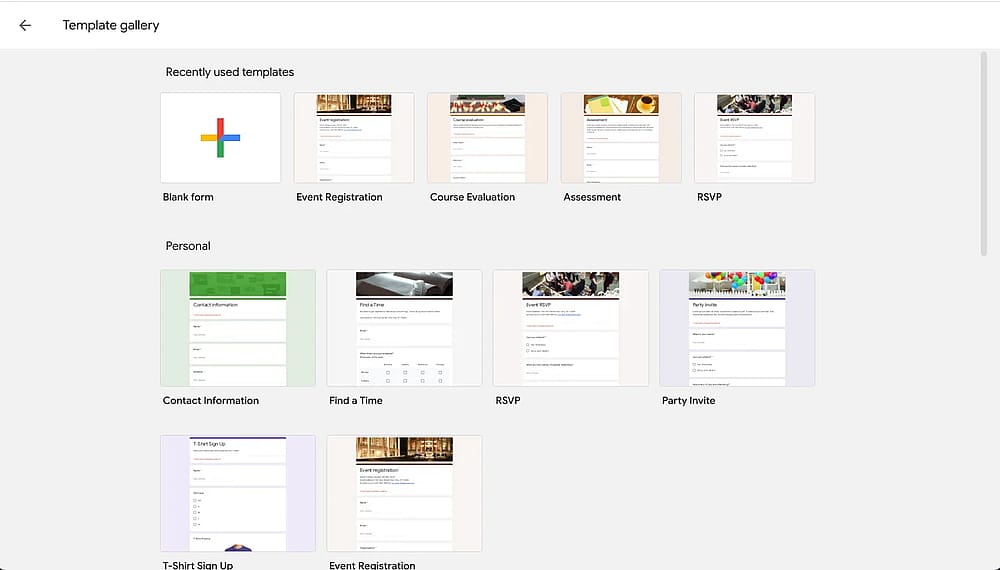
Choosing a form template on Google Forms
2. Add a clear title and description
Your poll's title should immediately communicate what you're asking about. This helps respondents understand the purpose and increases completion rates. The best practice is to be specific: "New Weekly Team Meeting Time" instead of just "poll".
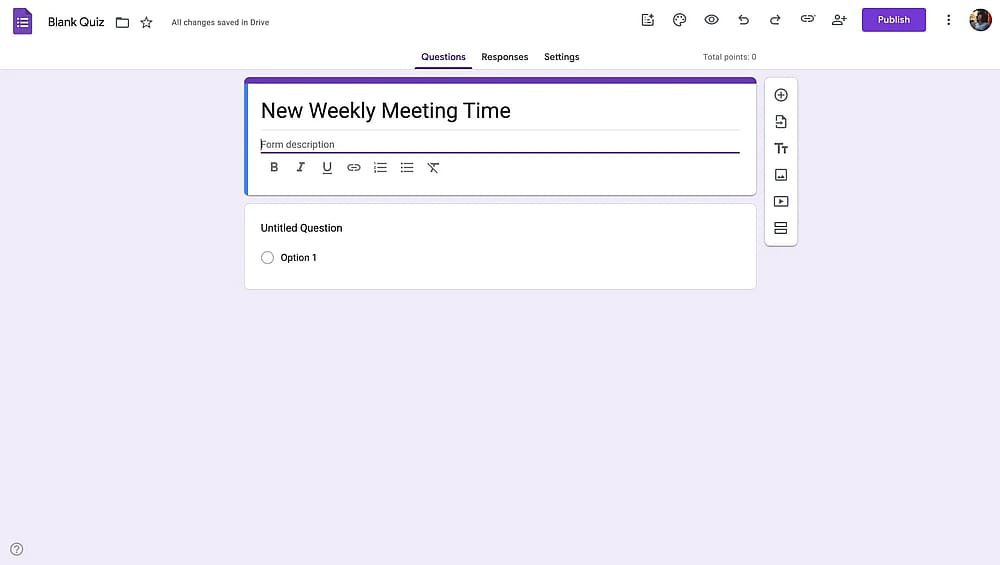
Adding a title and description for the poll
3. Create your poll questions
Click on the default "Untitled Question" field to add your first question. Now you know how to make a poll question on Google Forms. Keep your poll short and focused. Ideally, 1-3 questions for maximum completion rates. Stating the questions in clear language matters a lot for getting accurate feedback.
If you have a project, a plan, or a presentation to discuss, add images about it and make your poll related to the subject. Change the order of the questions as you want and choose the types, such as multiple-choice questions or open-ended ones.
When you want all questions answered, you can activate the required switch for your questions. Try to customize the outline of the poll with the limited features of Google Forms.
💡 Tips for unbiased questions for your Google Forms poll:
- Avoid loaded words (amazing, terrible, best, worst)
- Don't assume opinions ("How much do you like..." assumes they like it)
- Keep tone neutral and objective
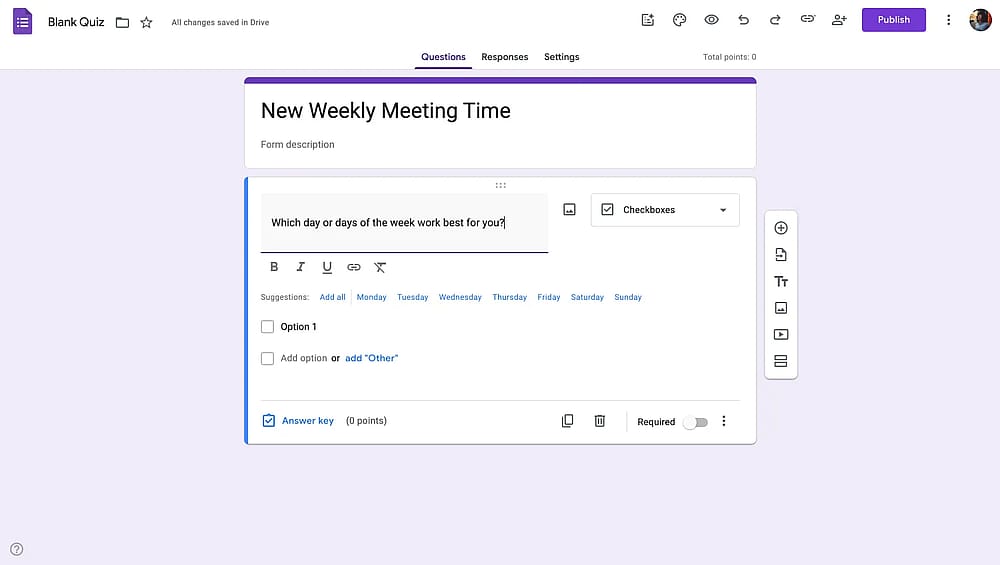
Adding poll questions
4. Add answer options
Add short, clear, and to-the-point answers so recipients don’t get confused or bored. To gather more individual feedback and data, ask open-ended questions or add ‘’other’’ in the questions’ options.
💡 Pro Tip
Unless the options are not up for debate, choose the “add other” option to let people speak their minds if pre-disposed options are not suited to them.
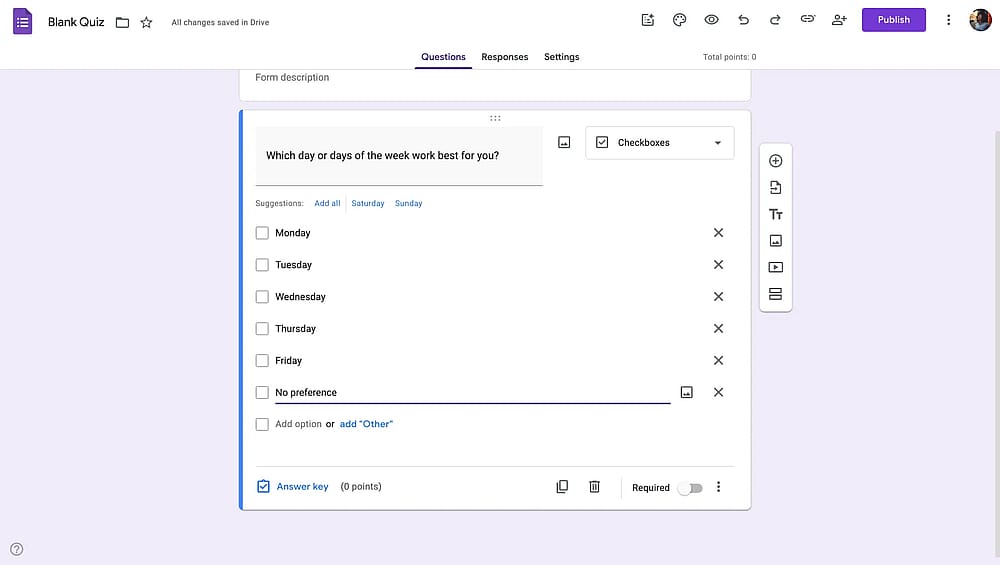
Adding answer options to the poll
5. Adjust your form settings
Click the Settings tab at the top of the form to configure important polling options. Under "settings" tab, you can:
- Toggle OFF collecting email addresses for anonymous polls, or toggle ON if you need to track who responded.
- Toggle ON Limit to 1 response to prevent duplicate votes. But remember this requires respondents to sign in to Google.
- Toggle ON Edit after submit to let people change their answers.
- Toggle ON View results summary to let respondents see results after submitting.
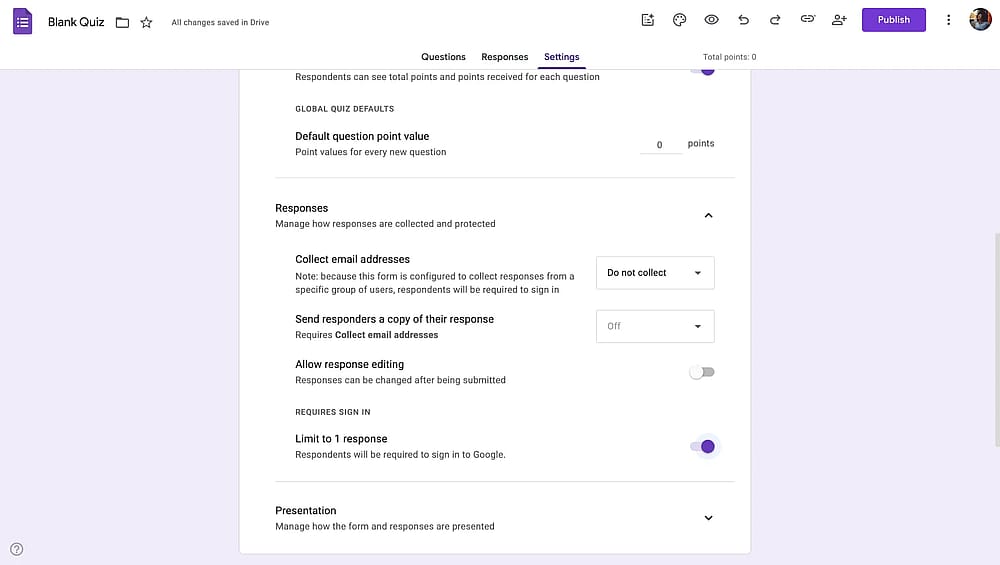
Adjusting the Google Form settings
6. Customize the appearance
Make your poll more visually appealing and on-brand by clicking the palette icon (🎨) at the top. Google Forms only offers basic customization; however, you can try to get the most out of it by changing the font in Google Forms, trying different colors, and adding a header image to your Google Form.
📖 Related read
Learn more about customizing your Google Form
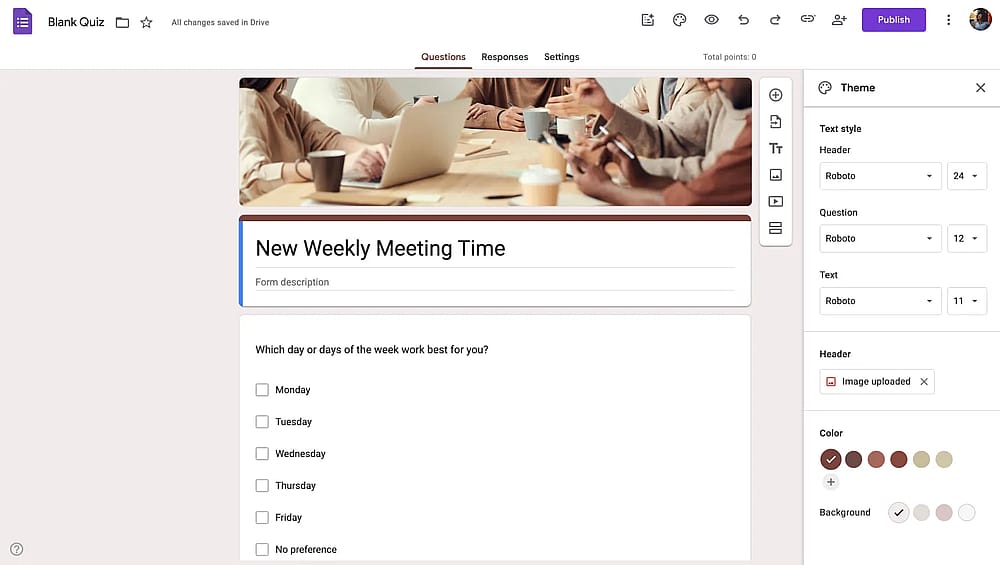
Customizing the appearance of the poll
7. Share your poll
After all the edits, all that's left is to share the poll. Click the publish button and send the link to the page to the recipients' social media accounts or email addresses.
You can also generate a QR for your Google Form, but Google Forms itself does not have this feature, so you will have to use other tools.
💡 Best practices for sharing
- Add a deadline: Specify when responses are due.
- Keep it short: Mention "1-minute poll" or "3 quick questions."
- Send reminders: Follow up 24-48 hours before closing.
- Thank respondents: Send a brief thank-you note after getting the responses.
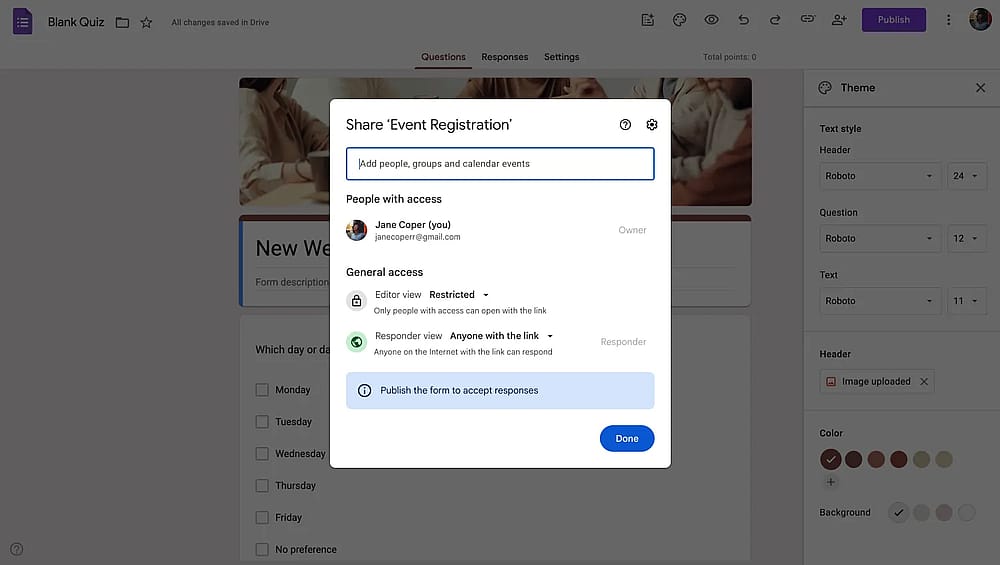
Sharing the poll
You can analyze poll results by returning to Google Forms and switching the responses tab whenever you want to review them. Connect your form to Google Sheets from here or view outcomes as charts.
Well, is it possible to create polls directly without needing form templates in any better way? The answer is below with all the details.
Limitations of Google Forms for Polling
While Google Forms works for basic polls, it has significant limitations that might impact your polling needs. Here are some of them:
- No poll templates
- Limited customization
- Basic analytics only
- Limited question types
- Basic conditional logic
- Limited sharing options
- No ranking question type
A better way to create polls: forms.app
If you are looking for a Google Forms alternative for polling, give forms.app a try. forms.app offers an easy-to-use drag and drop editor, a much better experience for the respondents, and free poll templates such as straw polls, employee polls, etc.
Here’s a detailed comparison of forms.app and Google Forms for polling:
Feature/tool | Google Forms | forms.app |
Poll templates | ||
Question Types | 12 | 30+ |
Ranking questions | ||
Customization | Basic | Advanced |
Shuffling answer options | ||
Setting open/close dates | ||
Setting response limit | ||
QR code sharing | ||
Pop-up embed | ||
Conditional logic | Basic | Advanced |
Layout | Questions are shown in a standard list | Both list view and step view options are available |
How to create polls on forms.app
The numerous customization options and features available make forms.app an all-around form builder, as well as a powerful poll maker, and gather feedback efficiently. Follow the steps below to learn how to make a poll online using forms.app:
1. Choose a poll template or create one with AI
Get started by choosing one of the free online poll templates on forms.app or use the AI option to create a free poll by describing it. Some available templates are employee poll, classroom poll, straw poll, scheduling poll, public opinion poll, and anonymous poll.
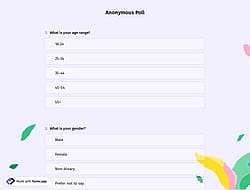
For this tutorial, we’ll create a poll to let employees pick a time for the next team retreat. So, we select the scheduling poll template, but you can choose whichever you like.
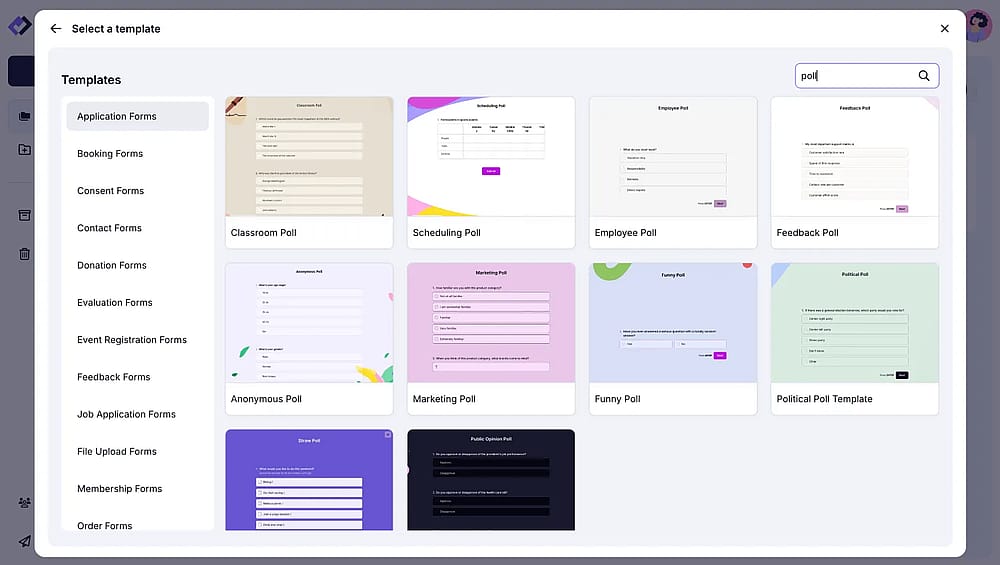
Choosing a poll template on forms.app
2. Change the title or add a welcome page
Add a clear poll title or add a welcome page to show before the questions. Here you can share important information, such as the deadline, and make the poll a little more fun, or make it feel more like you.
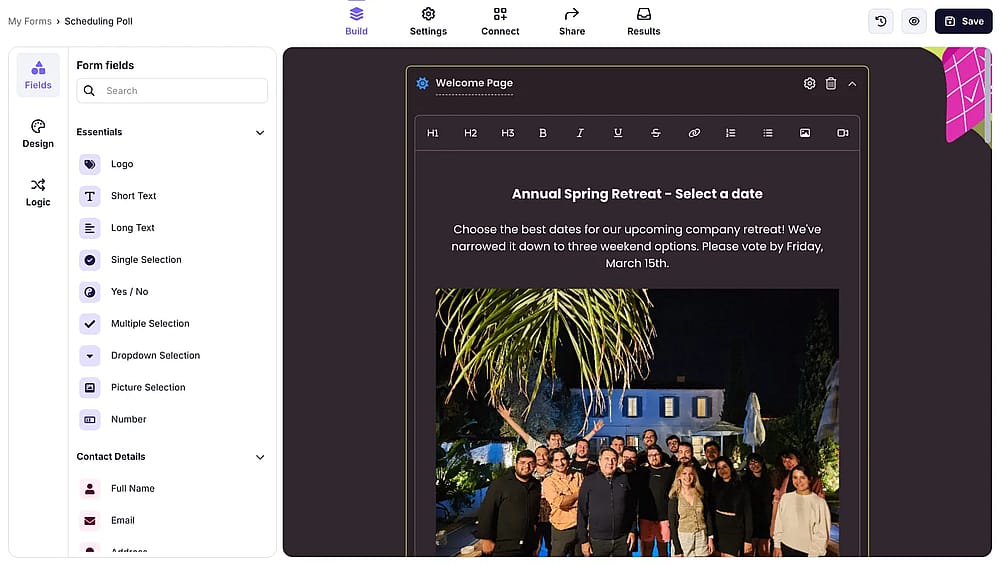
Change the title or add a welcome page
3. Add your questions
The template loads with sample questions and a custom design. Customize your poll however you like. Add questions to make your poll look professional, and adjust the order of the questions. Customize it using different questions such as multiple choice, open-ended, rating, ranking, etc.
For this tutorial, we are asking “Which weekend works best for you?” and show a conditional, follow-up question for those who choose “I cannot attend”, asking why.
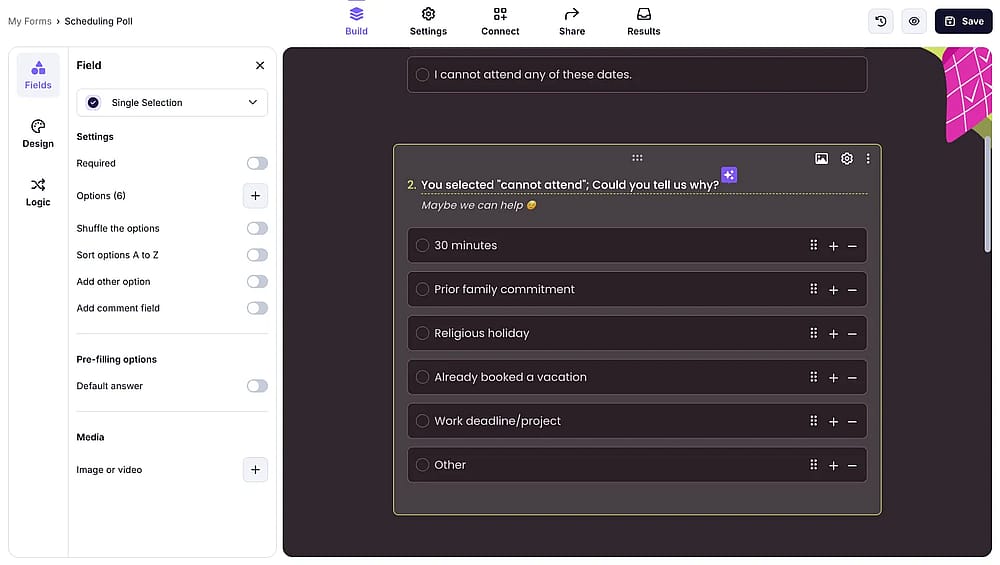
Add your poll questions
4. Customize your poll
Design your poll by choosing the background, font, and colors. You can add an image or a logo to make it look professional. You can even make more specific changes, such as button text and button alignment.
You can also set how your questions will appear with the step view and list view options. Unique features are waiting for you in the design button.
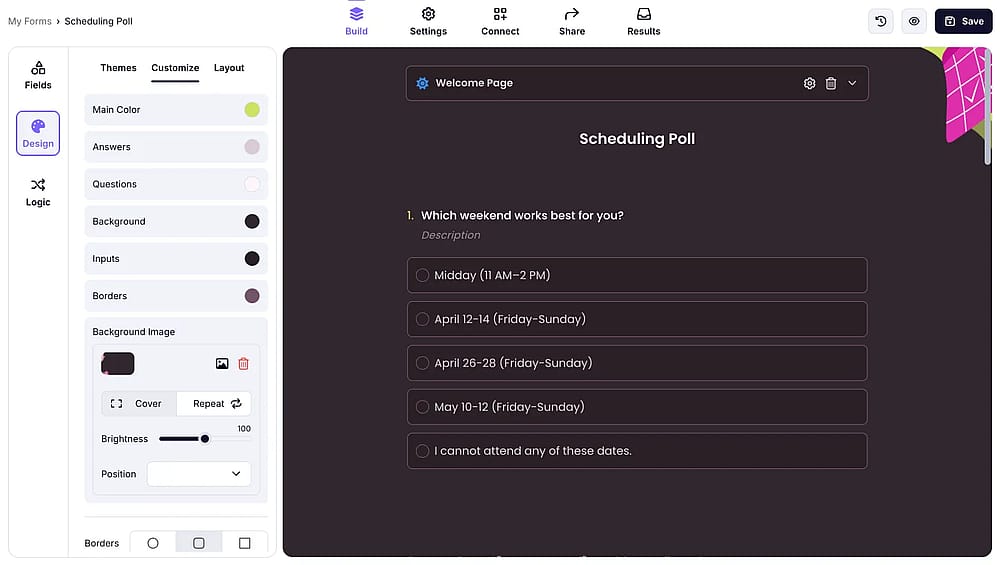
Customize how your poll looks
5. Share your poll & review responses
After you create your poll, click the share button above. Share the form you created with the link, social media, and QR code, and embed HTML options, or you can send it to specific recipients' e-mail addresses by limiting it.
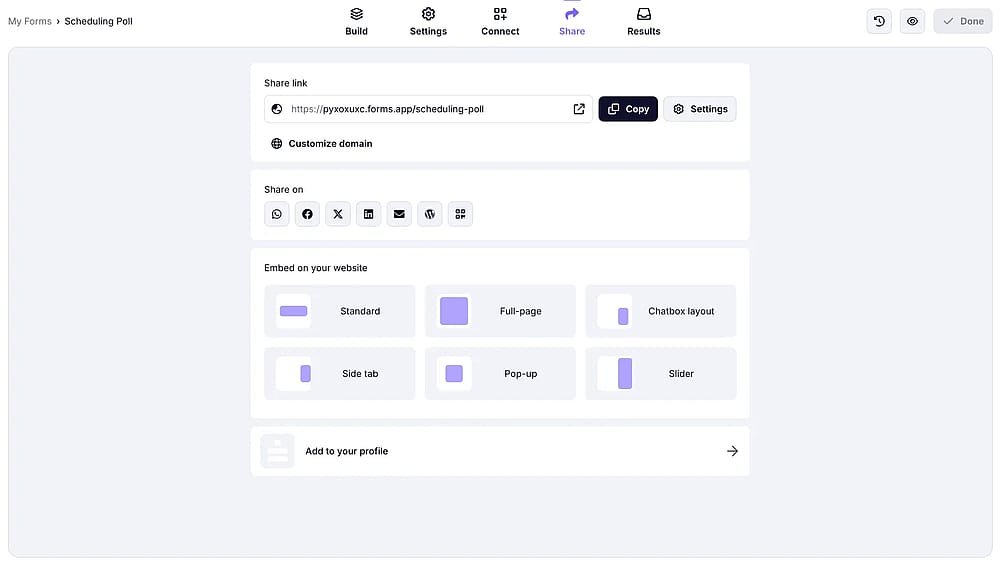
Share your poll by selecting a suitable sharing option
To review poll responses, go to “Results”. There, you can view each individual response, view the results as a table, see the results summary, view statistics, get AI insights, and share the poll results.
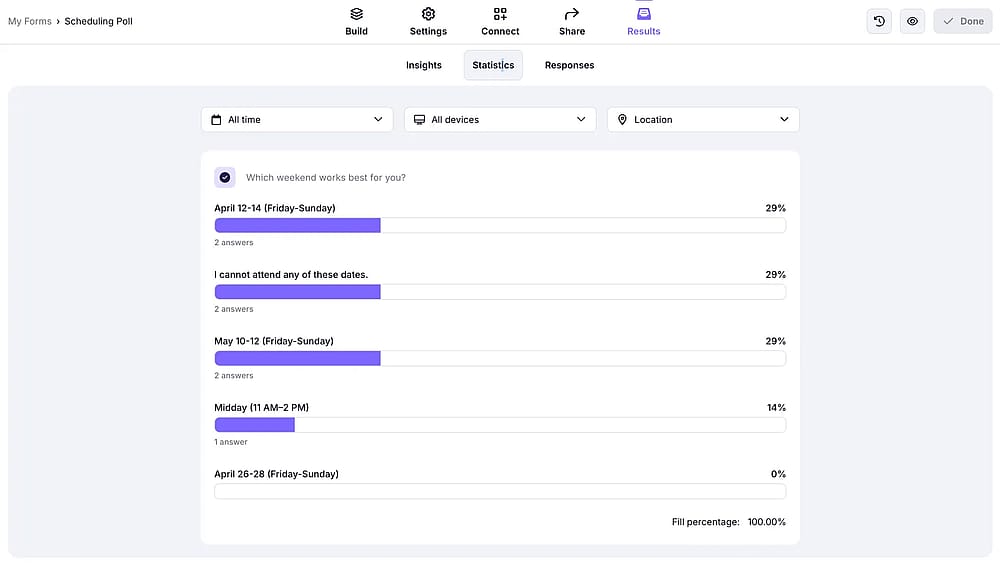
Viewing poll results on forms.app
Frequently asked questions
Enable "Limit to 1 response" in the Settings tab. This requires respondents to sign in with their Google account and prevents duplicate submissions.
Click on a question, then click the image icon on the right side of the question box. You can upload an image from your computer, search Google, enter a URL, use Google Drive, or use your camera. The image appears above the question text. You can also add images to answer options by choosing the image icon next to the response option input.
Yes. Google Forms has this feature since the start of 2026. Once you publish your poll on Google Forms, you can select on which date you want your poll to stop accepting responses.
Yes. In the Settings tab, toggle OFF "Collect email addresses" to make your poll anonymous. However, note that this means you can't track who has or hasn't responded. To prevent abuse and let only one response per person, enable "Limit to 1 response"; it requires Google sign-in but doesn't collect emails in the form itself.
Not directly, but there's a workaround: Use a "Multiple choice grid" question type. Set your options as rows and rankings (1st choice, 2nd choice, etc.) as columns. Enable "Limit to one response per column" to prevent duplicate rankings. However, this is clunky and not intuitive for respondents. Dedicated polling tools like forms.app offer native drag-and-drop ranking questions.
Yes, but it's limited. Google Forms has "section-based" branching. You can send respondents to different sections based on their answer to a multiple-choice question. However, it doesn't support complex conditional logic like "Show question 5 only if they answered A on question 2 AND B on question 3." For advanced logic, you need dedicated form tools, like forms.app.
Contributors
Researched & written by
forms.app, your free form builder
- Unlimited views
- Unlimited questions
- Unlimited notifications