Save up to 60% on yearly plans and enjoy our biggest offer of the year. Limited time only. 🍂
See pricing

How to create a vocabulary quiz in Typeform (tips + steps)
Summarize with
Vocabulary quizzes have become one of the most effective tools in online education and content marketing alike. They transform passive word study into an interactive experience, providing instant feedback, tracking progress, and keeping learners engaged in ways a printed word list never could. And with today's online quiz makers, creating one takes minutes, not hours.
This article walks you through a complete Typeform quiz tutorial, from setting up your first multiple-choice question to configuring branching logic and result screens.
TL;DR Vocabulary quiz in Typeform:
1. Log in and choose a quiz template or start from scratch
2. Add several question types from the Content panel
3. Switch to Knowledge Quiz mode and set the correct answer for each question
4. Open the Workflow tab to configure branching logic and result screens
5. Preview your quiz and share it
What is a vocabulary quiz, and how to build one
A vocabulary quiz is an assessment that tests a person's knowledge of words, their meanings, usage, synonyms, antonyms, and context.
Unlike personality quizzes that have no right or wrong answers, vocabulary quizzes are scored, making them one of the most straightforward ways to measure language progress and identify knowledge gaps.
The format you choose shapes the entire experience. Each question type serves a different purpose, and mixing them keeps learners on their toes:
- Multiple choice: the most common format; great for testing word recognition quickly
- Matching: pairs words with definitions or synonyms; works well for larger word sets
- True/False: fast and low-friction; ideal for warm-ups or shareable social content
- Open-ended: best for formal assessments where you need more than a selected answer
One practical detail worth deciding early: the time format. Quizzes with a timer add pressure and work well for exam prep; untimed ones are better for learning environments where the goal is comprehension over speed.
How to create a vocabulary quiz in Typeform
The Typeform online quiz maker is one option for building vocabulary quizzes: a one-question-at-a-time format and a dedicated Knowledge Quiz mode that handles scoring without complex workarounds. Here's how to create a quiz in Typeform from start to finish in four steps:
1. Set up your quiz
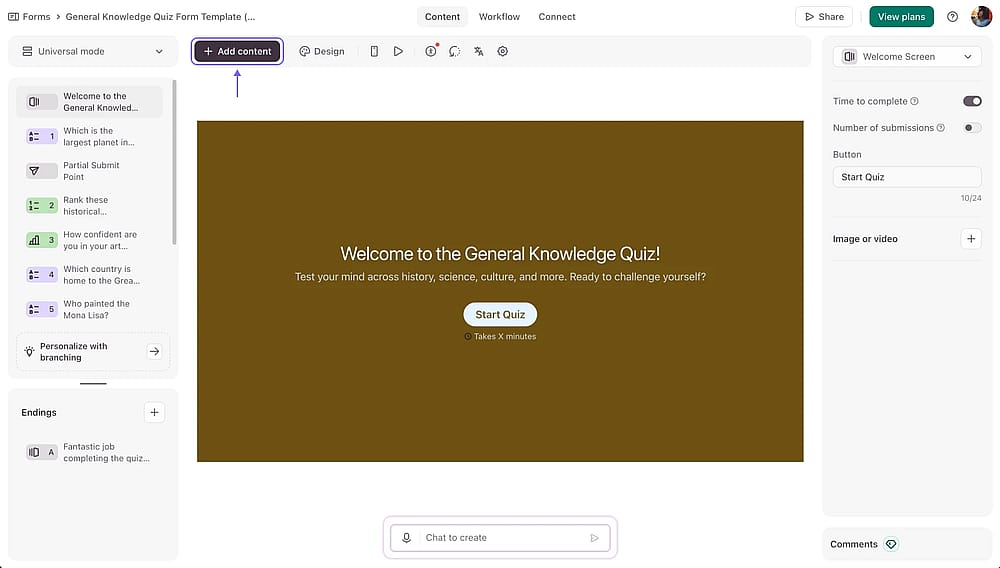
Once logged in, create a form and start adding questions
Log in to your Typeform account and either pick from the available quiz templates or start from scratch. Once inside the editor, open the content panel on the left and click +Add content to insert your questions.
2. Switch to Knowledge Quiz mode and set correct answers
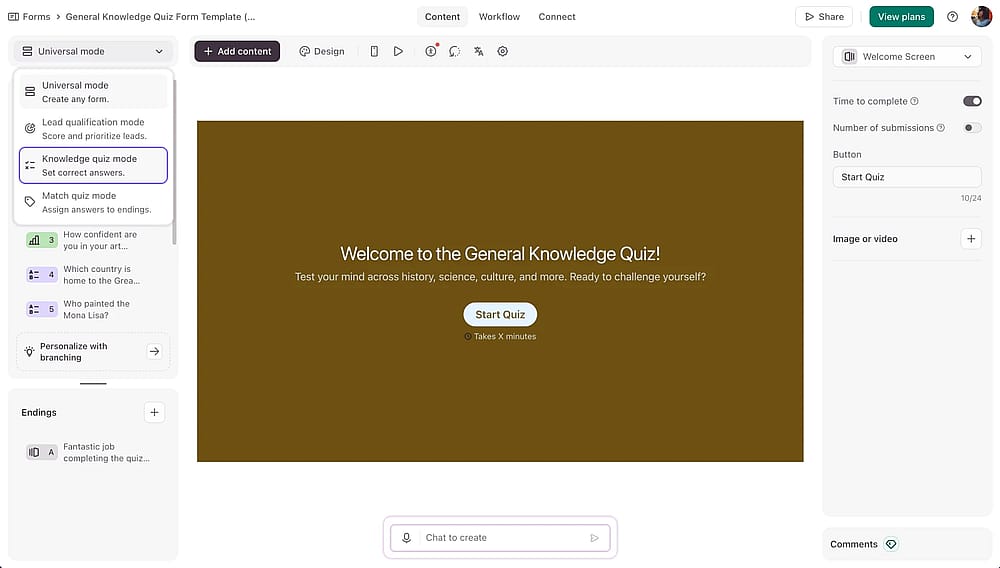
Select the ‘Knowledge quiz mode’ from the dropdown menu on the upper left side
At the top of the editor, switch your form type to Knowledge Quiz. This unlocks a dedicated correct answer toggle inside question settings for each question. Typeform will handle scoring automatically. Repeat for every question, and click save as you go.
💡 Knowledge Quiz mode is only available on Typeform's paid plans. If you're on the free plan, you'll need to work around this using conditional and manual branching in the workflow tab.
3. Configure branching logic
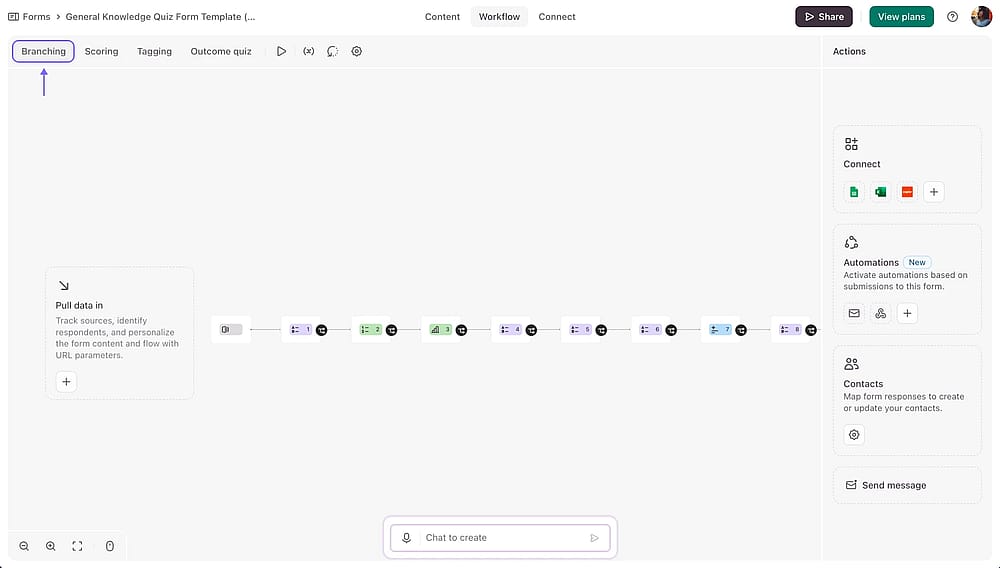
Access the ‘Branching’ section from the ‘Workflow’ tab
Open the Workflow tab to control what happens after each answer. Here you can set up branching logic to route respondents to different result screens based on their answers, for example, directing high scorers to an advanced word set or showing low scorers a review page.
4. Customize and share
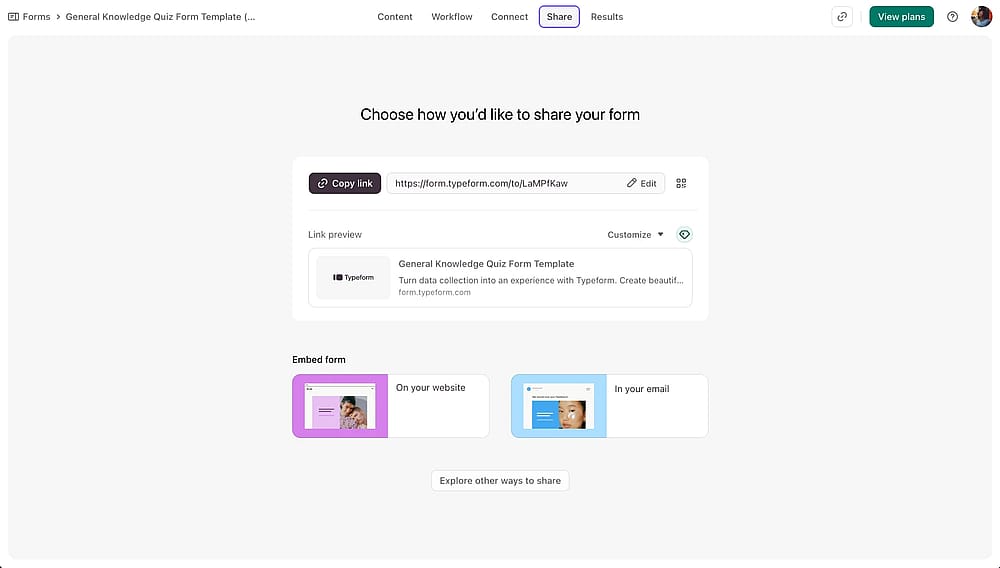
Open the ‘Share’ section to check the sharing options
Next, adjust the design to match your brand, and preview the quiz on both desktop and mobile before publishing. When you're happy, share the link directly, embed it on your website, or distribute it via email or social media.
💡 Expert tip: Test your quiz on mobile before sharing. A layout that looks clean on a desktop can feel cluttered or confusing on a phone, especially with long questions, images, or multiple-choice options.
Explore forms.app, a better alternative
Typeform is a solid tool, but its free plan limitations and restricted features make it a frustrating starting point. forms.app's free lifetime plan includes everything you need to build, score, and share a fully functional vocabulary quiz from day one. Here's what makes it worth considering:
Timer field
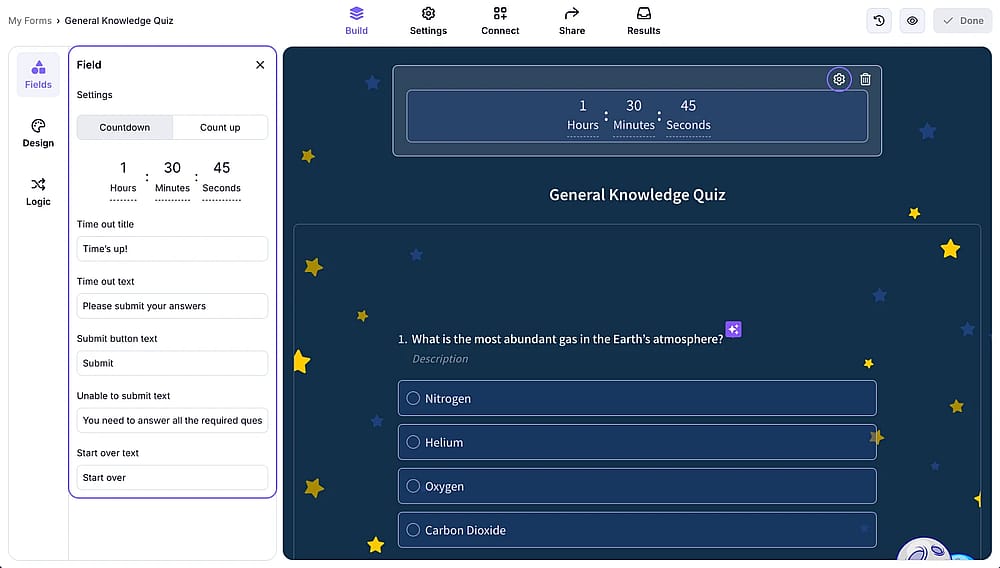
Select the ‘Timer’ field from the field menu to set up a countdown or a count up
Add a countdown for exam-style pressure or a countup to simply track time without limiting respondents, a level of control over time format that Typeform's standard setup doesn't offer.
Progress bar
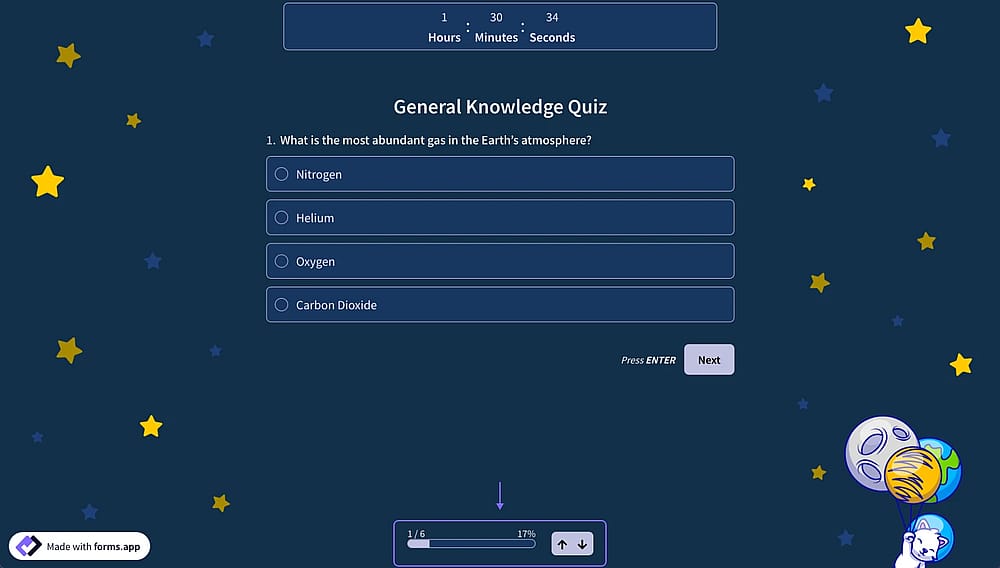
Select the ‘Step view’ and check the progress bar within your quiz questions
Available in step view, where questions appear one at a time. Respondents can track their progress through the quiz without feeling overwhelmed, which works especially well for longer vocabulary assessments.
Auto-scoring
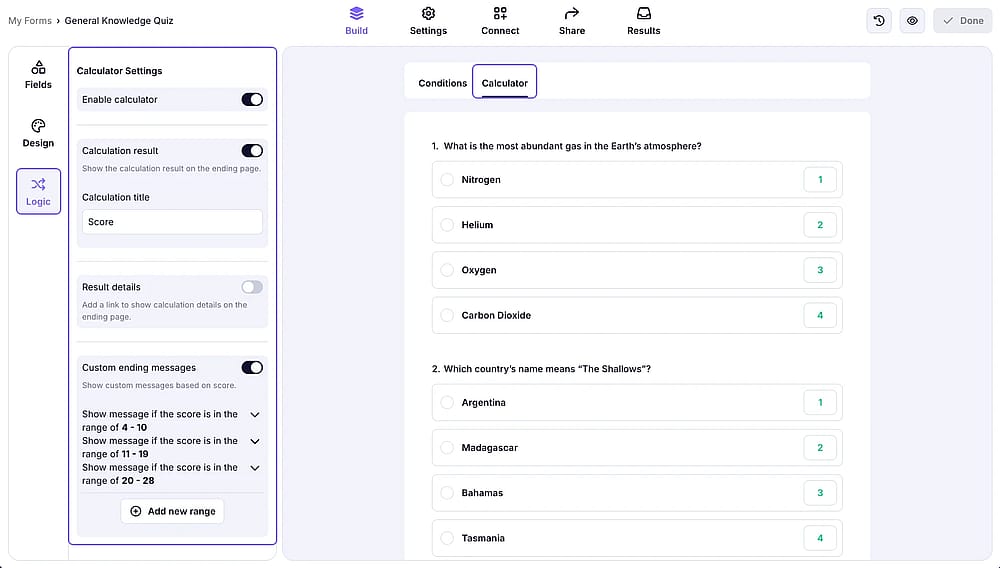
Access the ‘Logic’ tab from the left and go to the ‘Calculator’ section to set up the scoring
Assign points to answers and show personalized messages based on score ranges, not just a number at the end. A respondent scoring 80-100% can see a different message than someone scoring below 50%, making feedback far more meaningful.
Customizable Submit button
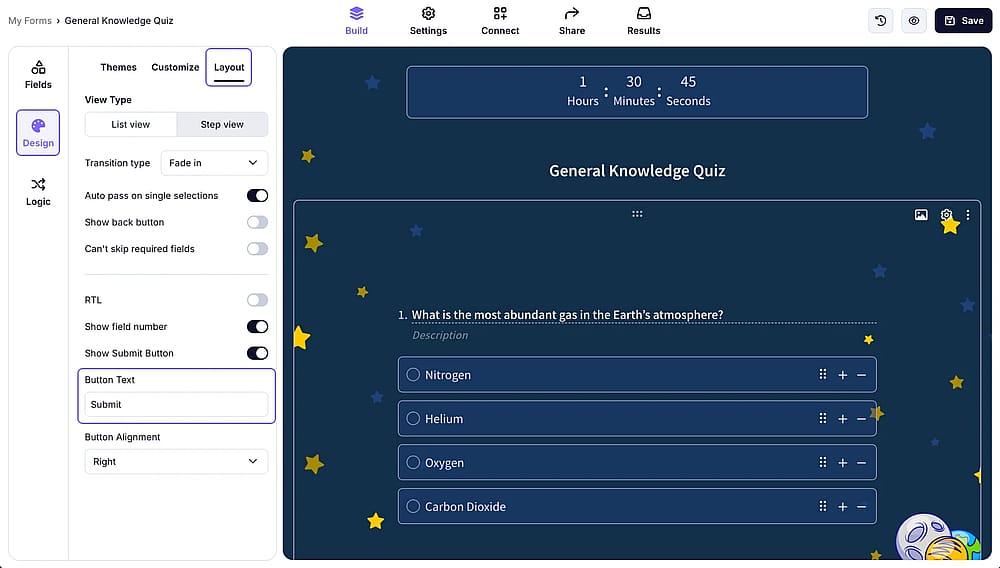
Go to the ‘Design’ section and click ‘Layout’ to check the ‘Submit button text’ settings
Change the default button text to something like "See My Results" or "Check My Score"; a small but effective way to keep the quiz experience intentional and polished.
List view and step view
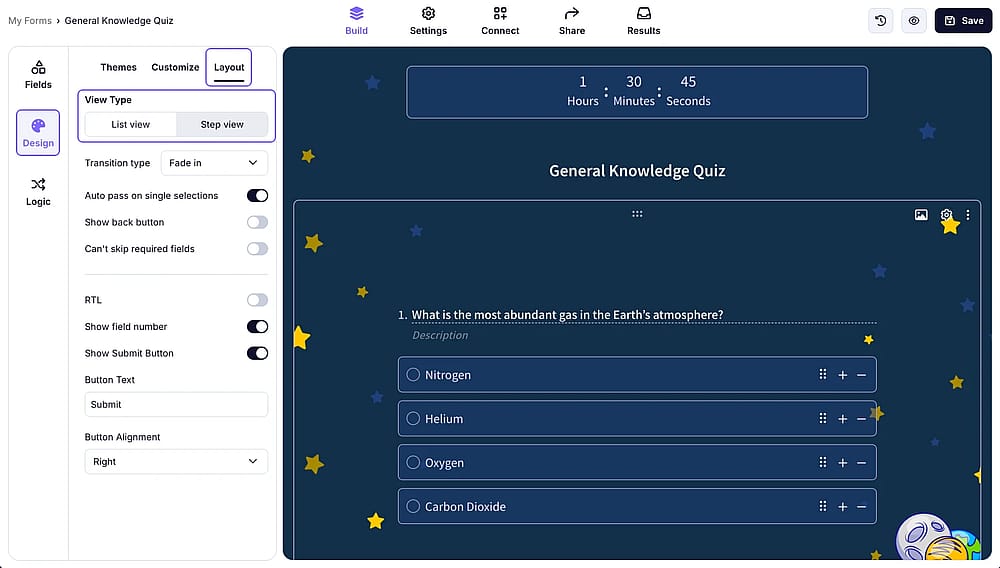
From the ‘Design’ section, you can also select the view type of your quiz
Switch between a single scrollable page or a one-question-at-a-time format depending on your audience and assessment style.
6 expert tips that actually work
Creating a vocabulary quiz is easy. Creating one people finish, and learn from, takes a little more thought. Here's what separates the forgettable ones from the ones that get shared, retaken, and remembered:
Don't let length kill engagement
Quiz fatigue is real. If your question list is too long, break it into multiple shorter quizzes; it can save time for both you and your learners in the long run.
Calibrate difficulty to your audience
A quiz that's too easy gets dismissed. One that's too hard gets abandoned. Build separate question banks for different levels and use conditional logic to route respondents to the right difficulty based on their answers.
Choose the right question type
Not every field needs a multiple-choice question. Mix in fill-in-the-blank or matching questions to keep things varied, and go into question settings to fine-tune each one.
Always set the correct answer
It sounds obvious, but make sure every scorable question has a correct answer defined. This is what allows you to show your respondents the correct answers as they finish the quiz.
💡 Instant feedback is one of the biggest advantages of online vocabulary quizzes over paper tests. When learners see the correct answer immediately after answering, they're more likely to remember the word.
Use your quiz for more than just testing
A well-designed vocabulary quiz can double as a lead-generation or lead-capture tool. Add a name and email field before results are revealed, and you've turned a learning experience into a list-building one.
Always show progress
A visible progress indicator is one of the easiest ways to reduce drop-off. When respondents can see how far they've come, they're far more likely to push through to the end.
💡 Practical tip: For vocabulary quizzes specifically, a progress indicator works best when questions are served one at a time, as you can set up with the Step view. Seeing "Question 6 of 10" feels manageable; staring at a long scrollable page doesn't.
Key points to take away
A well-built vocabulary quiz gets finished, shared, and retaken, and the difference comes down to how you build it.
From choosing the right question type and time format to setting up branching logic and personalized result messages, the decisions you make in the quiz builder shape whether learners actually walk away knowing more words than when they started.
Typeform is a capable option with a clean interface and dedicated Knowledge Quiz mode, but its most useful features require a paid plan. forms.app's free plan removes that barrier entirely, offering more question types, flexible layout options, a countdown timer, and customizable scoring messages out of the box, making it the stronger choice for anyone who wants to build a great vocabulary quiz in seconds.
Frequently asked questions (FAQs)
Multiple-choice questions are the most practical starting point; they're easy to score, quick to answer, and effective for testing word recognition. For deeper assessments, mixing in fill-in-the-blank or matching questions gives you a more complete picture of a learner's vocabulary knowledge.
Yes, you can build a basic quiz on Typeform's free plan, but Knowledge Quiz mode is only available on paid plans. If you need a fully functional, scored vocabulary quiz for free, forms.app's free lifetime plan covers this without any upgrade.
No, no coding is required for the platform. It offers a drag-and-drop editor, ready-made quiz templates, and intuitive settings panels that make it straightforward to build, score, and publish a vocabulary quiz without any technical background.
Contributors
Researched & written by
forms.app, your free form builder
- Unlimited responses
- Unlimited questions
- Unlimited team members