Save up to 60% on yearly plans and enjoy our biggest offer of the year. Limited time only. 🍂
See pricing

How to create a job application form in Typeform (+expert tips)
Summarize with
Hiring the right person starts long before the interview.
The moment a candidate lands on your job application form, they're already forming an opinion about your company, and a clunky, confusing form can cost you great applicants before you ever read a single answer. That's why many teams today are turning to form builder tools to build clean, engaging job application forms that feel less like paperwork and more like a conversation.
In this guide, you'll learn how to create a Typeform job application form from scratch, what questions to include, and how to make the most of features like conditional logic, file uploads, and ready-made Typeform templates.
TL;DR Creating a job application form in Typeform:
1. Log in to Typeform, view templates, or create a form from scratch
2. Collect essential data via multiple choice, short text, and file uploads
3. Use conditional logic to show relevant questions only
4. Hit Share and publish the link
What is a job application form & what should it include?
A job application form is a structured document employers use to collect standardized information from candidates.
Unlike a resume, which the candidate writes on their own terms, a job application form is designed by you, meaning every applicant answers the same questions in the same format.
A solid job application form covers these areas:
- Basic contact details (name, email, phone, location)
- Role-specific information (position applied for, work authorization, availability, start date)
- Professional background (work experience, education, skills, references)
- Documents (CV upload, cover letter, portfolio link, or work samples)
💡 Pro tip: Only ask for what you'll actually use in screening. Every unnecessary field increases drop-off. If a question won't actually influence your hiring decision, cut it.
How to create a job application form in Typeform
Typeform's biggest strength is its one-question-at-a-time format; it feels less like filling out a form and more like a conversation, which keeps candidates engaged from start to finish. Here's how to set up a job application by using Typeform:
1. Start from a template or scratch
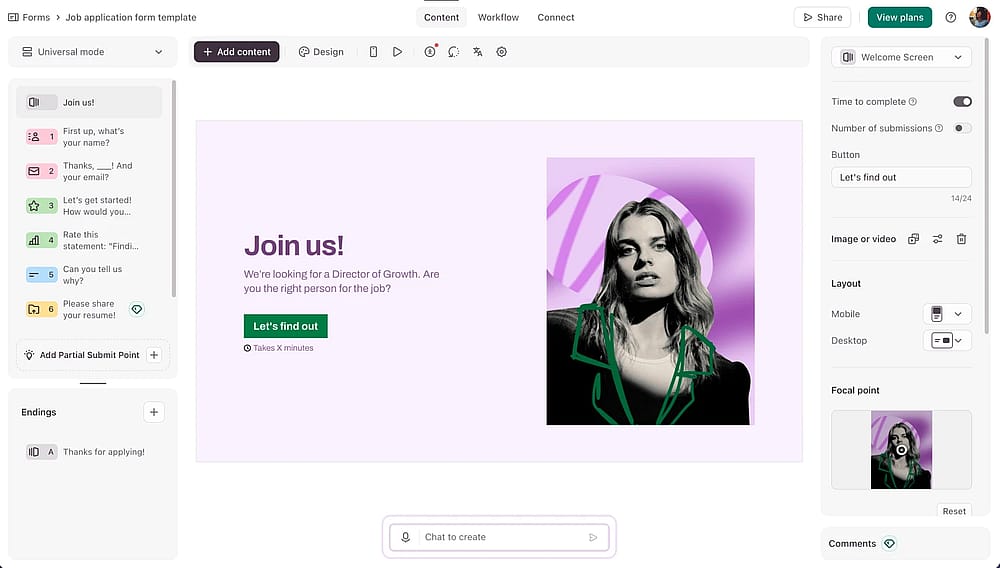
Once logged in, select a template or create a new form from scratch
Log in to Typeform, click + Create a form, and choose whether to start from scratch or view Typeform form examples options. From job application form templates to feedback forms, survey templates, and even a quiz template, you'll likely find one inspired by relevant templates and categories that matches your role.
2. Build your question flow
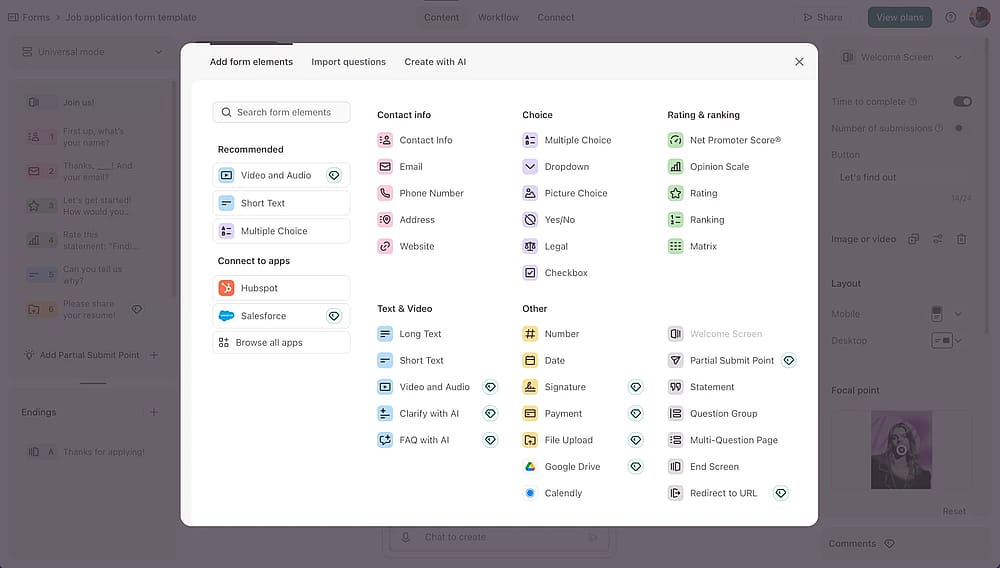
Add your form fields by pressing the ‘+Add content’ button
Add your fields by mixing multiple-choice for quick filters (location, availability, experience level. For example, "How many years of experience do you have?") with short- and long-text questions for open-ended answers like "Why do you want to join our team?"
For document collection, add a file upload question so candidates can submit their CVs, portfolios, and cover letters.
3. Set up conditional logic
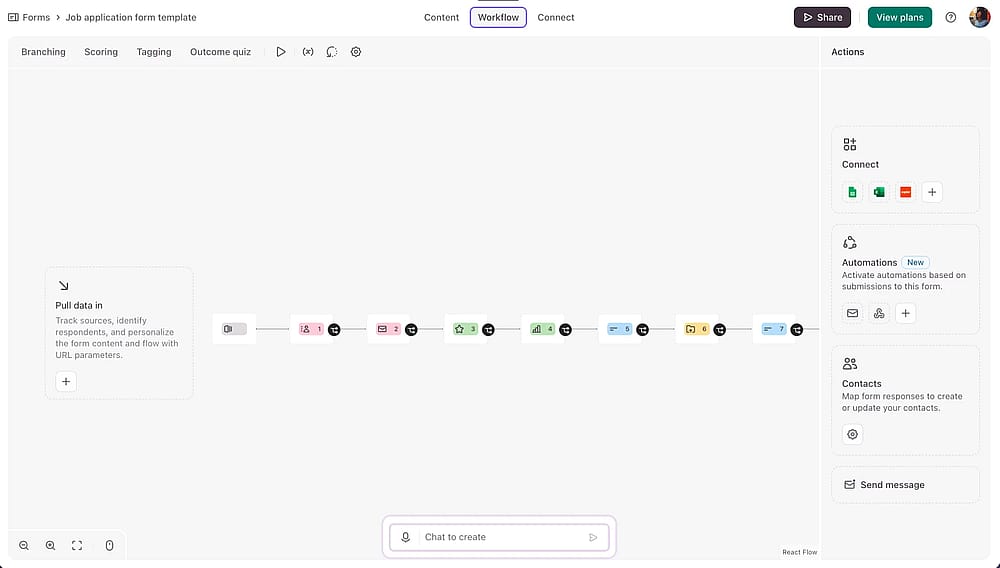
Head to the ‘Workflow’ tab to set up branching logic
Head to the Workflow panel to add conditional logic to show different questions based on their answers. For example, route candidates applying from different regions to different scheduling options, or skip irrelevant questions entirely.
4. Brand it and publish
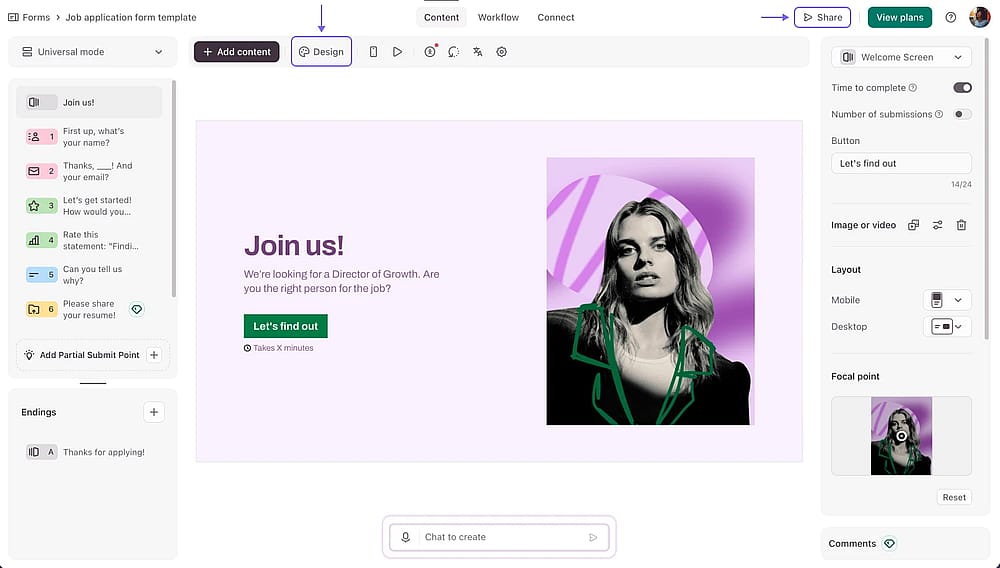
Adjust your form design and press ‘Share’ to publish your form
Apply your logo, colors, and fonts under the Design tab; consistent branding builds trust with candidates and makes your form feel like a natural part of the hiring experience rather than a generic third-party tool.
When you're happy, hit Share, and publishing your form gives you a link you can embed on your careers page, share via email, or post directly to LinkedIn.
💡 Practical tip: Before publishing, switch to preview mode and complete the form yourself as a candidate would. You'll immediately spot any questions that feel unnecessary or out of order.
DOs and DON'Ts of job application forms
The difference between a form that converts and one that gets abandoned often comes down to a few small decisions. Here's what separates the good from the frustrating:
✅ What great job application forms do
- Ask one thing at a time: Candidates answer more honestly when they're not staring at a wall of questions at once.
- Use conditional logic: Show questions based on their answers. A designer shouldn't see the same form as a sales hire.
- Reflect your brand: Your form is often the first touchpoint. A polished design signals that your company takes culture seriously.
- Follow up promptly: Set up automated confirmation messages so candidates know their application landed; silence reads as disorganization.
💡Silence reads as disorganization, and in a competitive job market, that's enough for a great candidate to move on.
🚩 Red flags that cost you great candidates
- Asking for everything upfront: Salary history, references, and a cover letter before a first conversation tanks completion rates.
- Vague or double-barrelled questions: "Describe your experience and what makes you a good fit" is two questions. Split them up.
- No mobile optimization: A large share of candidates apply from their phones. A painful mobile experience is a lost applicant.
💡 According to statistics, 89% of job seekers use a mobile device during their job search, making a smooth mobile experience essential.
- Using the same form for every role: A generic form misses role-specific signals. Ten minutes of tailoring makes a real difference.
forms.app: a more flexible alternative
If Typeform's free plan feels restrictive for your hiring needs, forms.app covers the essentials without asking you to upgrade. Here's how the two free plans compare on the features that matter most for job application forms:
Feature | Typeform (Free) | forms.app (Free) |
|---|---|---|
Monthly responses | 10 responses | Unlimited responses |
Custom branding | Paid plans only | Add your logo or cover image |
File uploads | Paid plans only | Available on free plan |
Signature collection | Paid plans only | Available on free plan |
💡 With forms.app's File Upload field, respondents can upload up to 10 files at once, each up to 100 MB. On the Premium plan, that limit jumps to 1GB per file, plenty of room for high-quality portfolios, design files, or video introductions.
Conslusion
A well-built job application form is one of the most underrated parts of the hiring process. It's often the first real interaction a candidate has with your company, and how it feels reflects directly on your brand. A clear, focused, and easy-to-complete form attracts better candidates, reduces drop-off, and makes screening significantly faster.
As Typeform examples show, a conversational form format can meaningfully improve candidate experience. But if you find yourself hitting submission limits or paid features, forms.app can be a practical Typeform alternative depending on your needs. Whichever tool you choose, the principles stay the same: keep it simple, make it human, and your next great hire will follow.
Frequently asked questions (FAQs)
Cover the basics, contact details, position applied for, work experience, and education, then add role-specific questions that reveal relevant skills or working style. Use multiple choice for quick filters and long text for open-ended questions where you want candidates to elaborate.
Yes, you can also create surveys with Typeform survey examples across many use cases, employee engagement, customer satisfaction surveys, and event feedback forms.
Yes, Typeform allows you to add your company logo through its Brand Kit feature, which lets you apply logos, color palettes, and fonts across your forms. However, this feature is only available on Basic or above plans.
If having your logo on the free plan matters to you, forms.app includes this as a free feature with no upgrade required.
Contributors
Researched & written by
forms.app, your free form builder
- Unlimited responses
- Unlimited questions
- Unlimited team members