Save up to 60% on yearly plans and enjoy our biggest offer of the year. Limited time only. 🍂
See pricing

How to make a Google Form anonymous (step-by-step guide)
Summarize with
TL;DR: How to make a Google Form anonymous:
1. Open Google Forms and create a new blank form
2. Add your questions (without name, email, or other personal info fields)
3. Go to Settings → Responses
4. Set "Collect email addresses" to "Do not collect"
5. Uncheck "Limit to 1 response" (this forces a Google sign-in)
6. If using Google Workspace, turn off "Restrict to users in your organization"
7. Test by submitting a response in an incognito browser window
8. Add a short privacy statement at the top of your form (optional, but we recommend)
Creating an anonymous Google Form can lead to more participation and honest feedback.
It's important for people to feel safe expressing themselves, especially in the corporate environment. Ensuring anonymity in surveys is key to raising honest feedback and higher participation. Addressing employee concerns about feedback confidentiality can lead to a more positive and open workplace culture.
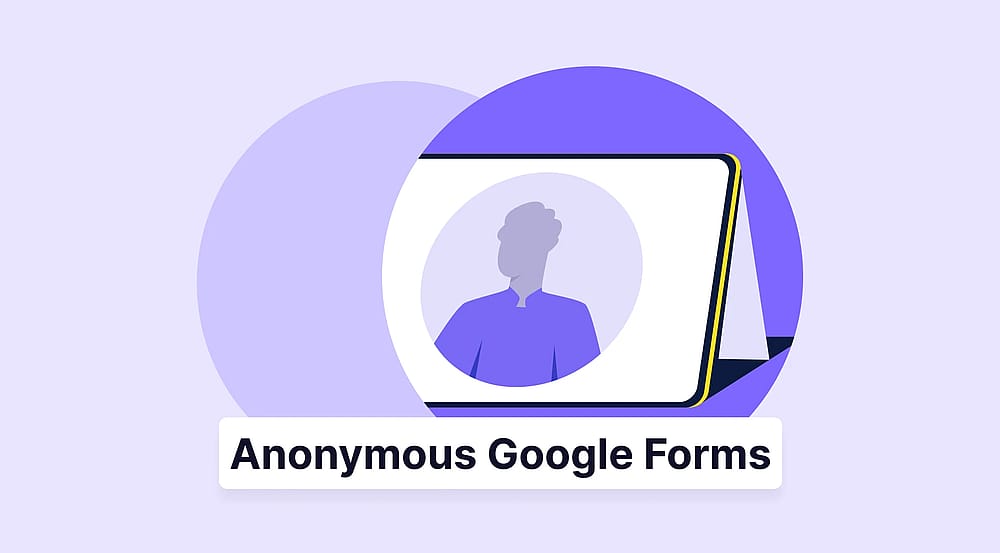
Google Forms is one of the most widely used tools for creating surveys, but it is not anonymous by default. Depending on how your account is set up, it can collect email addresses, timestamps, and tie responses to the logged-in account. Getting to true anonymity requires a few specific configuration changes and an awareness of what the tool can and cannot do.
This article will cover how to make an anonymous Google Form, the pros and cons of anonymous Google Form surveys, the limitations you might face when making Google Forms anonymous, a better alternative, and commonly asked questions, such as “Are Google Forms anonymous?”, “What happens if I want to limit responses to 1?” and so on.
What does "Anonymous" mean in the context of forms & surveys?
An anonymous form or survey is one where no information that could identify a respondent is collected or stored. That means no name, no email address, no employee ID, no IP address, and no metadata that could be used to trace a response back to a specific person.
This is different from a confidential form/survey, where the form owner can see who submitted a response but commits to keeping that information private. It is also different from Anonymized form/survey, where the identifying information was collected, but was later stripped or masked. Anonymous means identity is unknowable by design.
Can Google Forms Be Anonymous?
Yes, Google Forms can be anonymous, but only if you configure it correctly. Out of the box, Google Forms may collect email addresses, require a Google sign-in, and restrict access to people within your organization (especially in Google Workspace accounts).
With the right adjustments, you can make your form genuinely anonymous for most practical purposes. The steps below show exactly how to do that.
How to make Google Forms anonymous (in 5 steps)
Many forms or survey types need to be anonymous to work as intended. So whether you create online surveys on Google Forms, employee feedback forms, market research sheets, or even a Google Forms petition form, you may need to make your Google Form anonymous. Here are the steps:
1. Log in to Google and start creating a new form
Go to docs.google.com/forms and log in to your Google Account. Once you log in, start a new form by clicking on the “Plus” button for a blank form or choosing from Google Forms templates from the gallery.
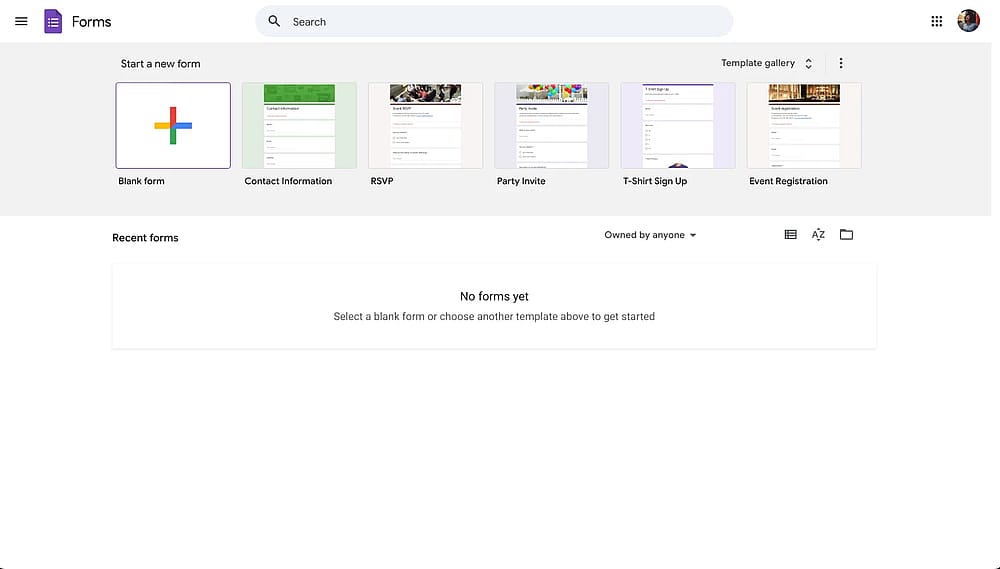
Plus button for creating a new form on Google Forms
2. Add your questions (and leave out PII)
Now, you can customize your form and add the necessary questions. It is wise to think carefully about what you are actually asking. In small teams, especially, even a combination of demographic questions, like "what department are you in?" and "how long have you worked here?", can make responses identifiable.
Remember
Do not include fields for name, email address, phone number, department, employee ID, or job title unless they are strictly necessary.
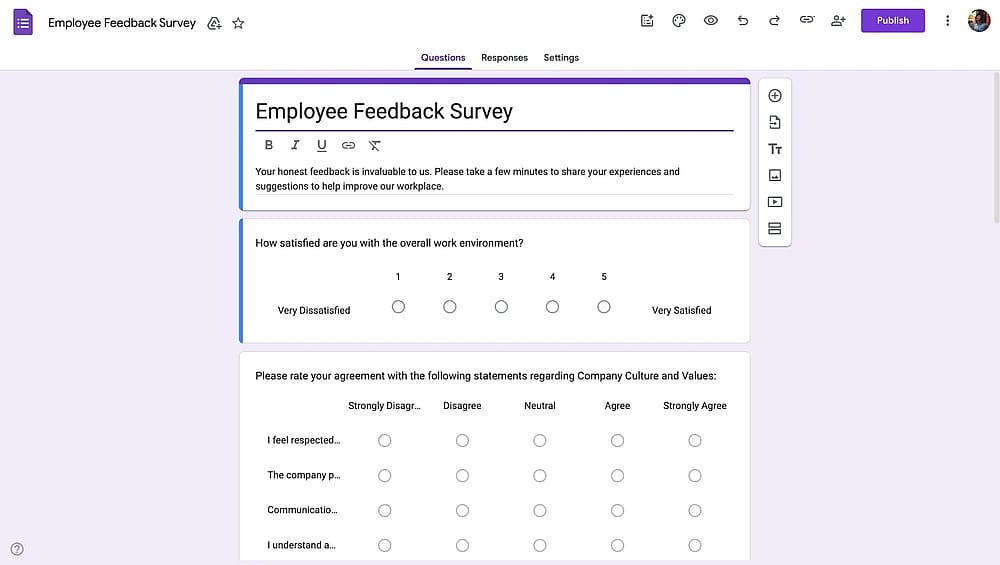
A customized employee feedback form example on Google Forms
3. Go to form settings & open “Responses” dropdown
When you are finished customizing, press the "Settings" button on the form editor. Then open the “Responses” dropdown section.
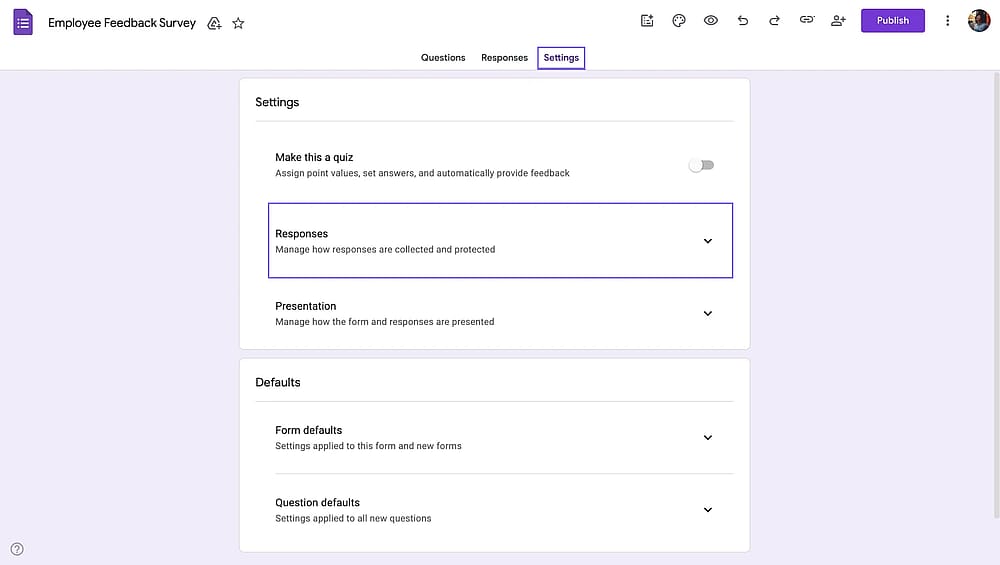
Opening the responses section under the settings
4. Turn off "Collect email addresses"
Now, you need to turn off gathering email addresses with Google Forms to make your form anonymous.
Under the "Responses" area, choose “Do not collect” option for the "Collect email addresses" setting for Google Forms privacy.
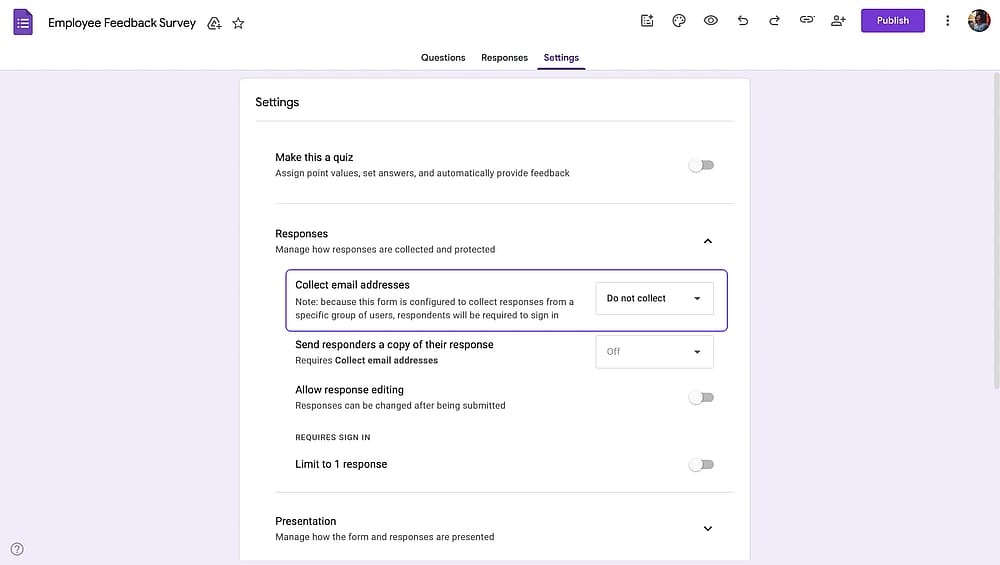
Choosing “Do not collect” option for the "Collect email addresses" setting
5. Disable "Limit to 1 response"
Then, make sure the “Limit to 1 response” option is disabled to permit multiple responses. When this option is enabled, Google Forms requires users to sign in. If you want to create a truly anonymous form and let people submit a Google Form without signing in, the limit to 1 response option should stay disabled.
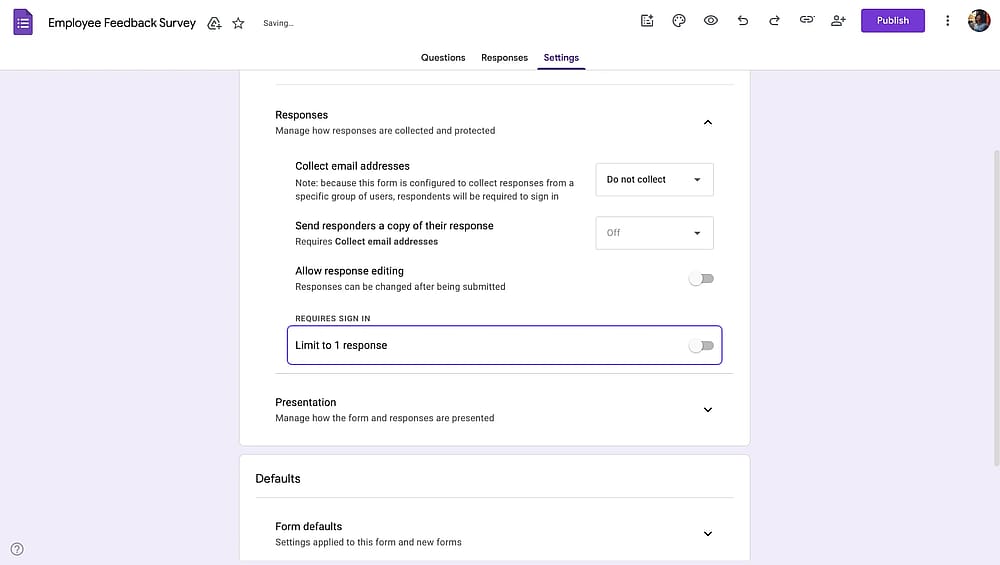
Disabling the "Limit to 1 response" setting
6. Check for organization restrictions (Google Workspace users)
If your form was created through a Google Workspace account, click on “Publish” and look for a setting that says "Restrict to users in [your organization]" or similar. If this is enabled, only signed-in members of your organization can respond, which again ties responses to identities. Turn this off if anonymity across your team is the goal.
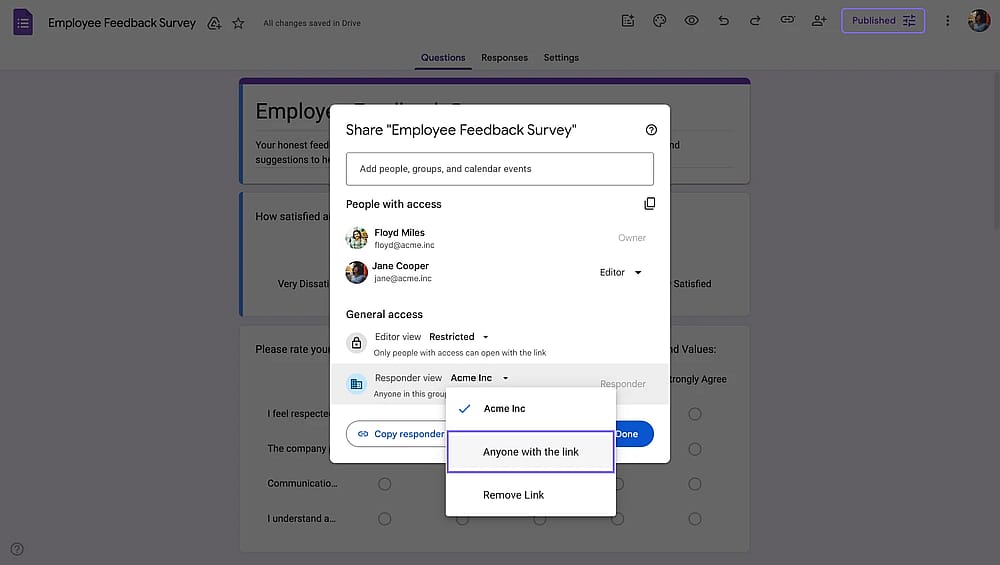
Changing organization restrictions when publishing a Google Form
7. Preview and ensure anonymity
You can click on the eye icon at the top of the screen to preview your form. Press the "Send" button and share the form with yourself using the link. Fill out and submit the form as a participant. Review the results by clicking the "Responses" tab to ensure no identifying information is present.
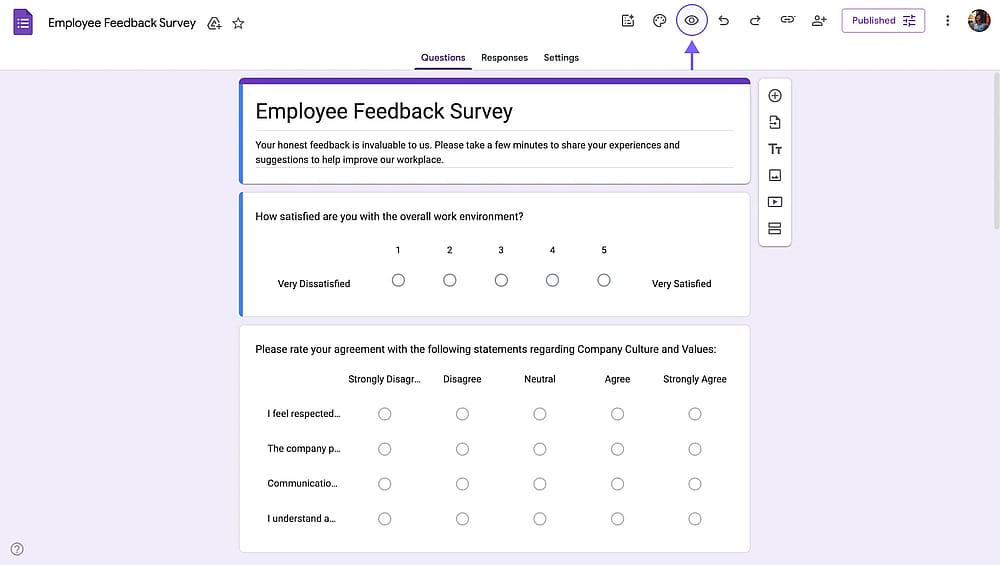
The location of the preview button on Google Forms
8. Add a privacy statement to your form (optional)
Add a short note at the top of your form, something like: "This survey is completely anonymous. No names, email addresses, or other identifying information are collected." This simple step increases both participation rates and response honesty. When respondents can see the commitment upfront, they are more likely to answer candidly.
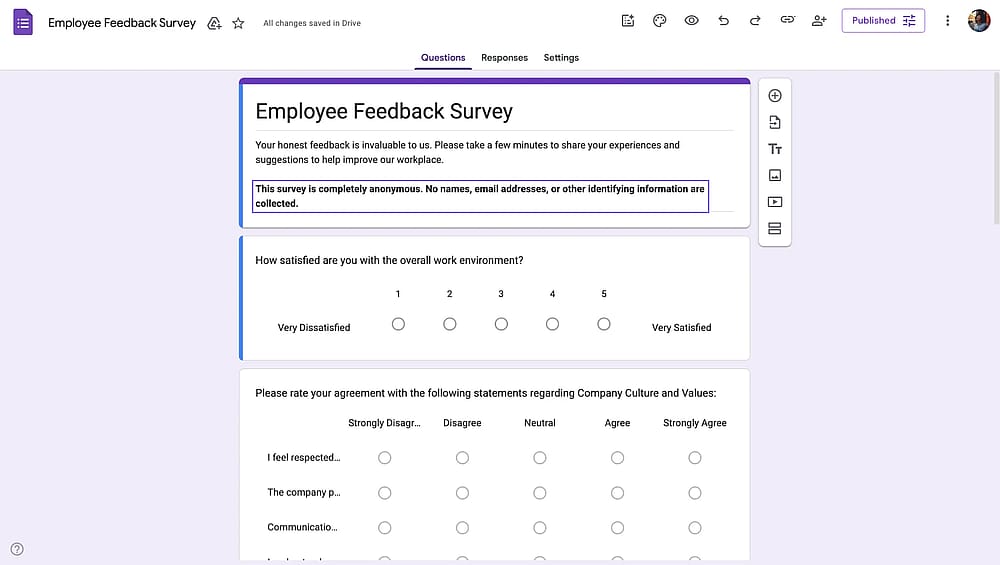
Adding a privacy statement in the Google Form description
When should you use an anonymous survey?
Anonymous surveys are not always the right choice. They work best when:
- You need honest feedback about sensitive topics: Think of employee satisfaction surveys, manager feedback, workplace culture assessments, and health or wellness surveys, and all. People share more honestly when there is no fear of consequences.
- Identity is irrelevant to the data: If you are conducting market research, gathering general opinions, or running a public poll, you likely do not need to know who said what. Collecting that data unnecessarily is both a privacy risk and a disincentive to participate.
Anonymous surveys are a poor fit when follow-up is critical (if you need to contact specific respondents for clarification), when accountability matters (such as compliance assessments), or when you need to analyze results by specific segments that require knowing who responded.
Pros and cons of anonymous Google Forms surveys
Pros | Cons |
More honest responses | No ability to follow up |
Higher participation rates | Potential for low-effort responses |
Cleaner data | Loss of context |
No unnecessary data collection | Soft de-anonymization risk |
Limitations of Google Forms for anonymous forms
Google Forms is a capable tool for basic anonymous data collection, but it has several limitations that are worth understanding before you rely on it for sensitive surveys and forms. Apart from anonymity, Google Forms comes with many limitations. Below, you will find a comparison table to better understand the limitations of Google Forms, especially when you compare it with an advanced form builder, like forms.app.
Feature/Tool | Google Forms | forms.app |
Anonymous by default | ||
One-question-at-a-time layout | ||
AI form generation | ||
Customization | Basic | Advanced |
Templates | 17 | 5,000+ |
Conditional logic | Basic | Advanced |
Multilingual forms | ||
Native integrations | Google ecosystem only | Many popular business apps |
Built-in response analytics | Basic charts | Summary, Statistics, AI-powered insights & more |
Free plan | ||
PDF generation from responses | ||
Payment collection | ||
E-signatures | ||
Custom form URLs |
How to create an anonymous form with forms.app
If anonymous surveys are a regular part of how you gather feedback, forms.app removes the configuration burden entirely. There are no hidden settings to disable; the form simply does not collect information you do not ask for.
Here’s how to create an anonymous survey with forms.app:
1. Log in to forms.app & Click "Create a form" and either choose a form template or use the AI form generator.
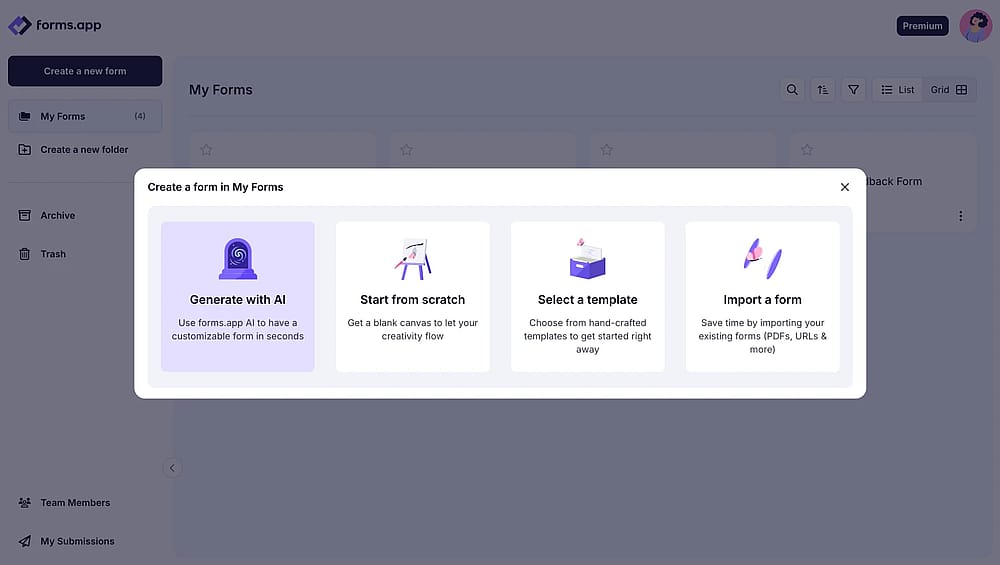
The form creation options on forms.app
2. Add your questions, and simply do not include name, email, or other identifying fields.
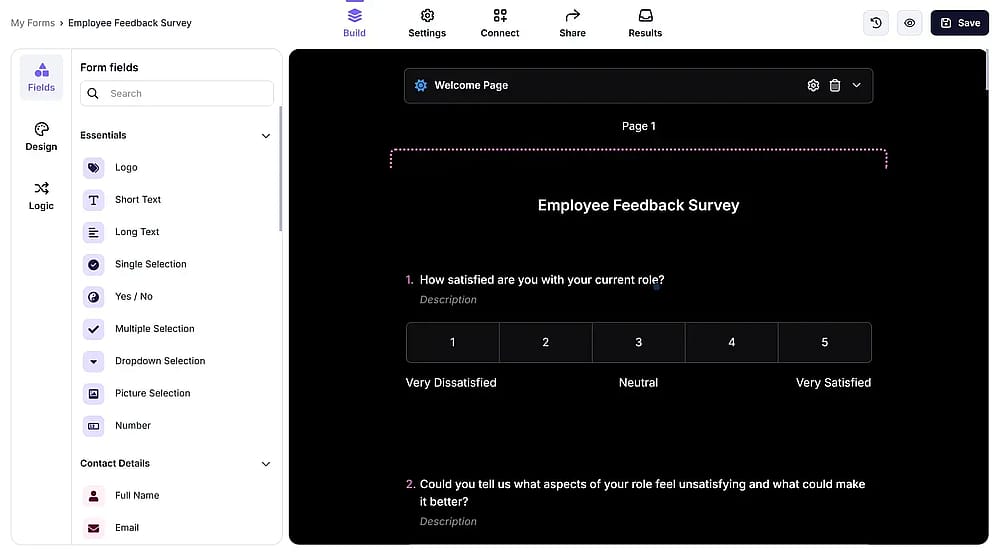
Editing a form on forms.app
Pro tip
You can customize your forms by adding your logo, uploading a custom background image, or changing form colors to your brand colors.
3. Add a brief privacy statement by dragging and dropping an explanation field to the top of your form, or to the welcome page. In this guide, we’ll add the statement to the welcome page.
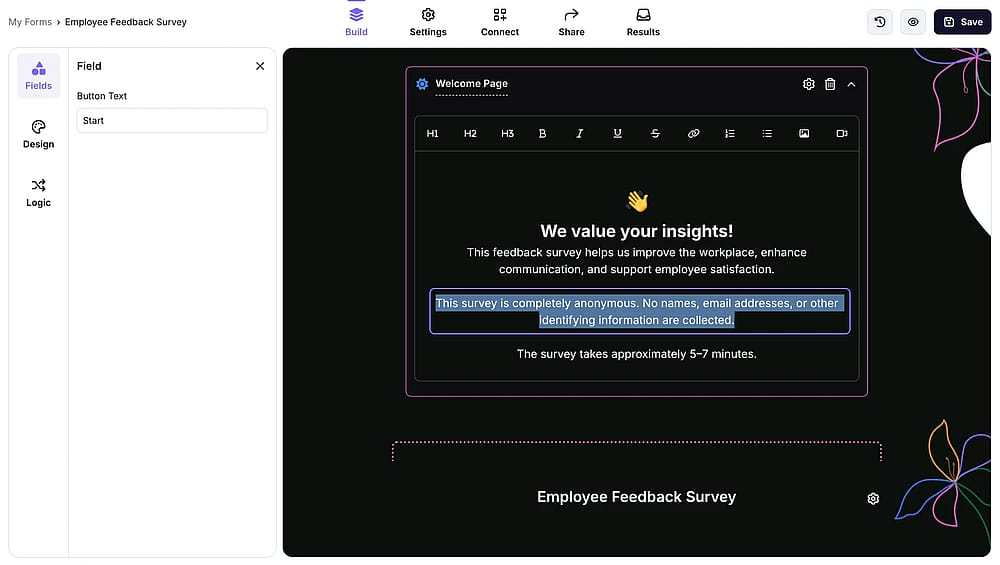
Add a brief privacy statement to the form’s welcome page
4. Click Share and distribute via link, embed code, or email.
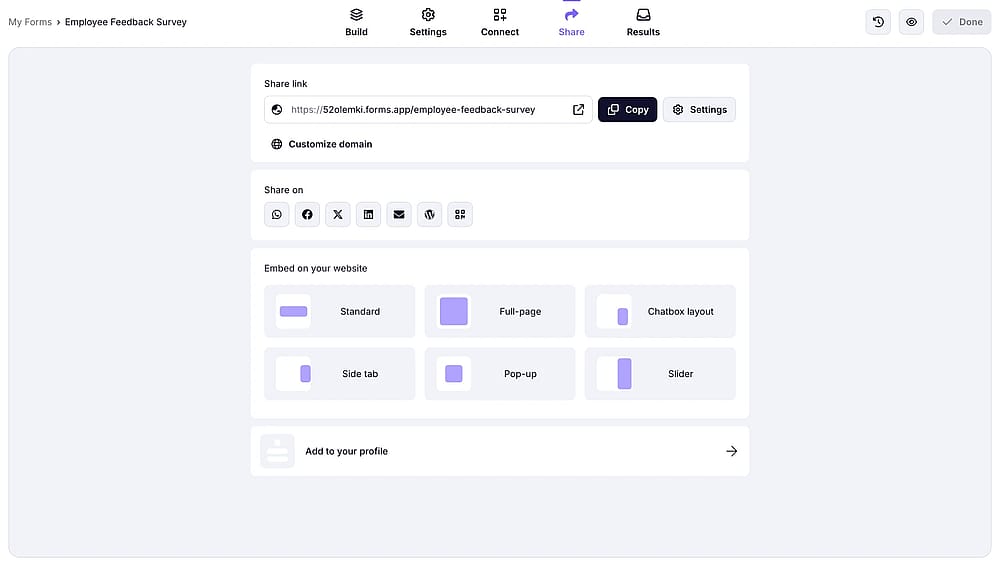
The form sharing page on forms.app
Frequently Asked Questions
Only if you configure them correctly. By default, especially in Google Workspace, Google Forms may collect email addresses, require a Google sign-in, and log timestamps. With the necessary settings changes (disable email collection, remove sign-in requirements, check for Workspace restrictions), you can get Google Form anonymous responses.
If you have disabled email collection and removed the sign-in requirement, responses will not have names or email addresses attached. However, timestamps are still recorded, and in small groups, writing style or the content of open-ended responses can still make a person identifiable, not through the tool, but through context.
An anonymous survey is one where the respondent's identity is unknowable by design; the tool simply does not collect any identifying information. A confidential survey collects identifying information but restricts who can see it. Anonymous means no one knows who responded. Confidential means someone knows, but has committed to keeping it private.
Google Forms does not display IP addresses in the response data you see. However, Google's documentation does not explicitly clarify how IP-level data is handled at the infrastructure level, particularly for Workspace accounts. For Google Forms anonymous surveys involving highly sensitive personal information, this ambiguity is worth noting.
Yes, the settings changes (disabling email collection, removing sign-in requirements, checking for Workspace restrictions) can be applied to existing forms too. Be aware, however, that any responses already collected before the changes will still contain whatever data was captured at the time. Previously collected email addresses or account information will not be erased retroactively.
When "Limit to 1 response" is enabled, respondents will be required to sign in to a Google account before submitting the form. Their Google account identity will be linked to their response, even if you are not explicitly collecting their email address. If you like to disable multiple responses from one person, this won’t be possible with Google Forms anonymous surveys.
Key points to take away
In conclusion, anonymous employee surveys enhance the work environment and boost team productivity. By prioritizing anonymity and acting on feedback, you can build trust between management and the team, improving your company's business process.
In this article, we showed you how to make responses anonymous on Google Forms. You also learned about its benefits and drawbacks. With our step-by-step guide, you are ready to make your form anonymous in Google Forms or in forms.app!
Contributors
Researched & written by
forms.app, your free form builder
- Unlimited responses
- Unlimited questions
- Unlimited team members