Save up to 60% on yearly plans and enjoy our biggest offer of the year. Limited time only. 🍂
See pricing

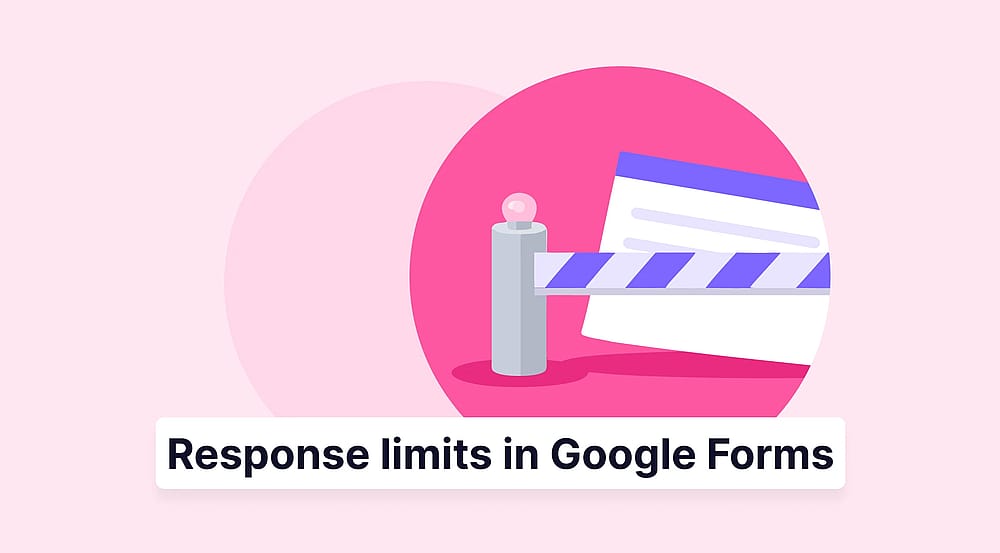
How to limit the number of responses in Google Forms
Summarize with
Limiting the number of responses in Google Forms automatically is necessary in many use cases. Imagine you've built a form for a workshop with 50 seats, a giveaway limited to the first 100 entries, or a research survey that only needs 200 responses. The last thing you want is to manually check response counts and scramble to close the form in time. Fortunately, Google Forms now has a built-in way to cap submissions
This guide walks you through exactly how to set a response limit in Google Forms, what the tool can and can't do, and how forms.app handles the same task with significantly more flexibility, and frequently asked questions. Let’s get started!
Can you limit number of responses on Google Forms?
Yes. Google Forms allows you to set a maximum number of responses or a specific close date and time. This basic feature has been added as of 2026 and is now available directly from the publishing settings. Once the limit is reached, the form automatically stops accepting new submissions. That’s it, no manual toggling required.
How to limit responses in Google Forms (Step by step)
Here's the 5-step process for Google Forms responses limit using built-in settings:
- Open or create a Google Form
- Publish the form
- Open publishing options to set limits
- Choose “After a number of responses” and set a response limit
- Customize the "Form closed" message
1. Open or create a Google Form
Go to docs.google.com/forms and either open an existing form or click the (+) button to create a new Google Form. Alternatively, you can click “Template gallery” to choose from Google Forms templates. Then, add your questions and configure any settings you need before worrying about limits.
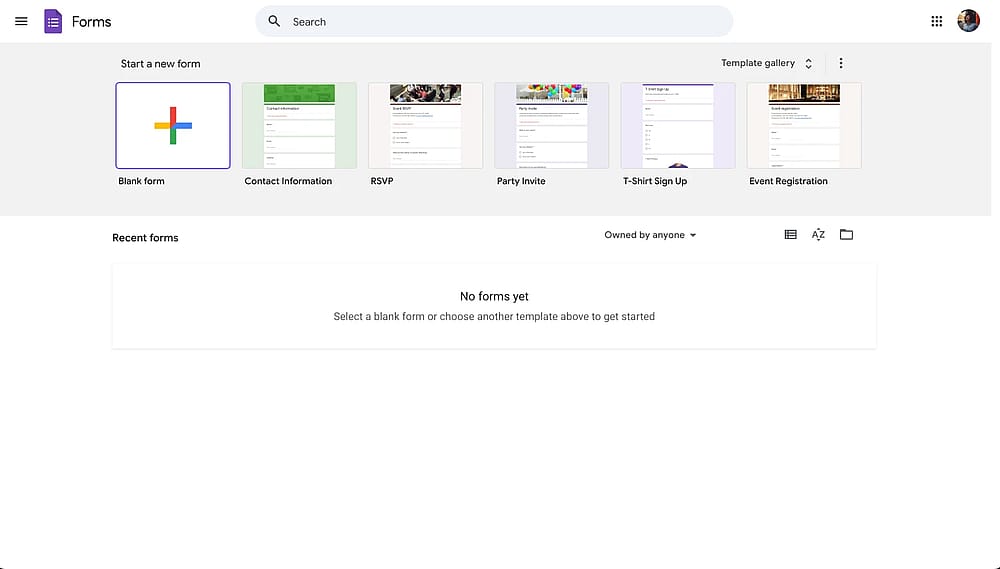
Google Forms dashboard
2. Publish the form
Once your form is ready, click the Publish button in the top-right corner. A dialog will appear asking how you want to share the form. Send the link via email or copy it for distribution.
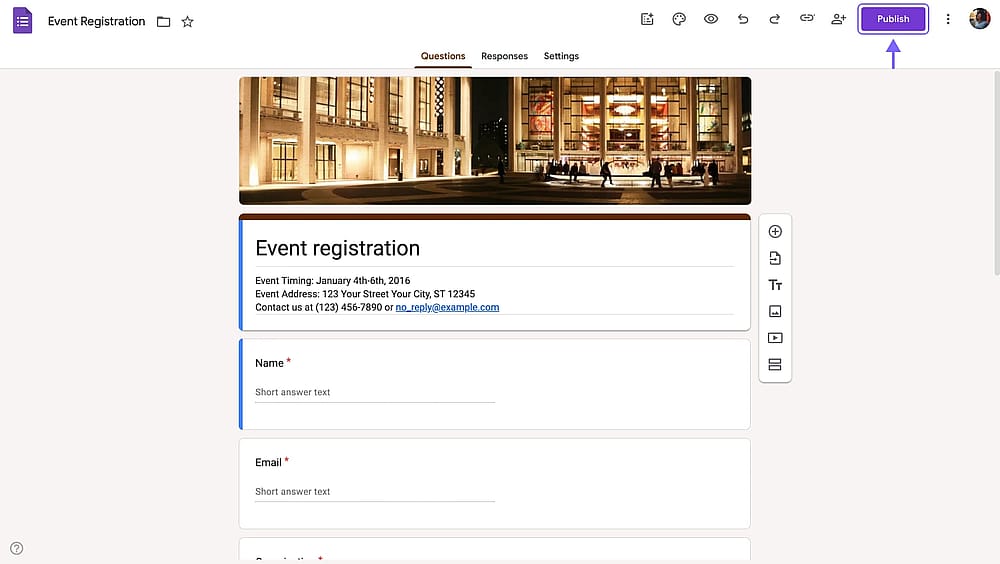
The location of the “Publish” button in Google Forms
3. Open publishing options to set limits
After the form is live, click the Publish button again (it will now say “Published”). This opens the publishing settings panel where you can manage response acceptance. Here, just click “Set close date or response limit”.
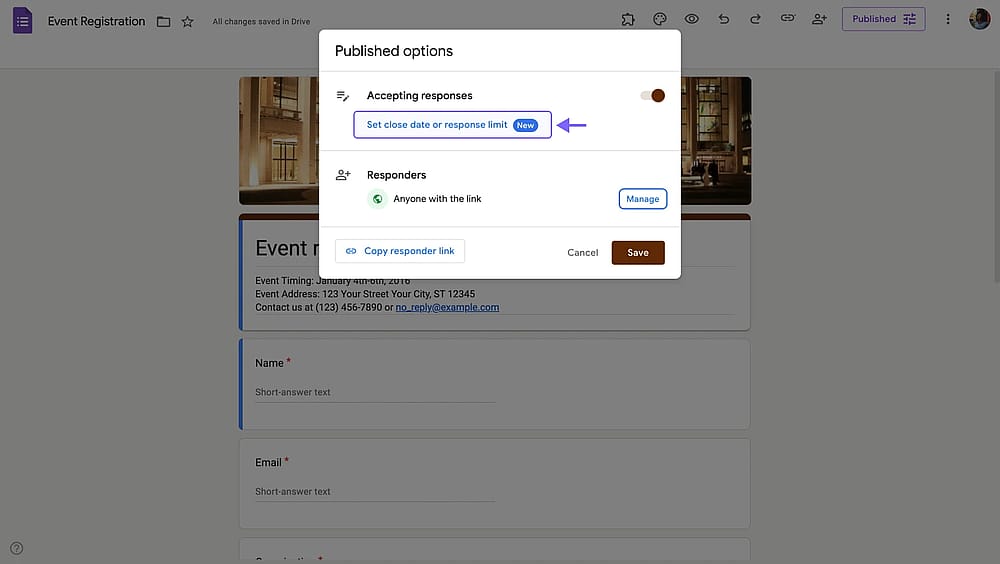
Google Forms limit responses option within publishing settings
4. Choose “After a number of responses” and set a response limit
You have two options here: You can set a Google Forms maximum responses limit or add a closing date to your Google Form. It’s possible to use either one, but it’s not possible to use both together. To limit the number of submissions, just select “After a number of responses” and enter a number.
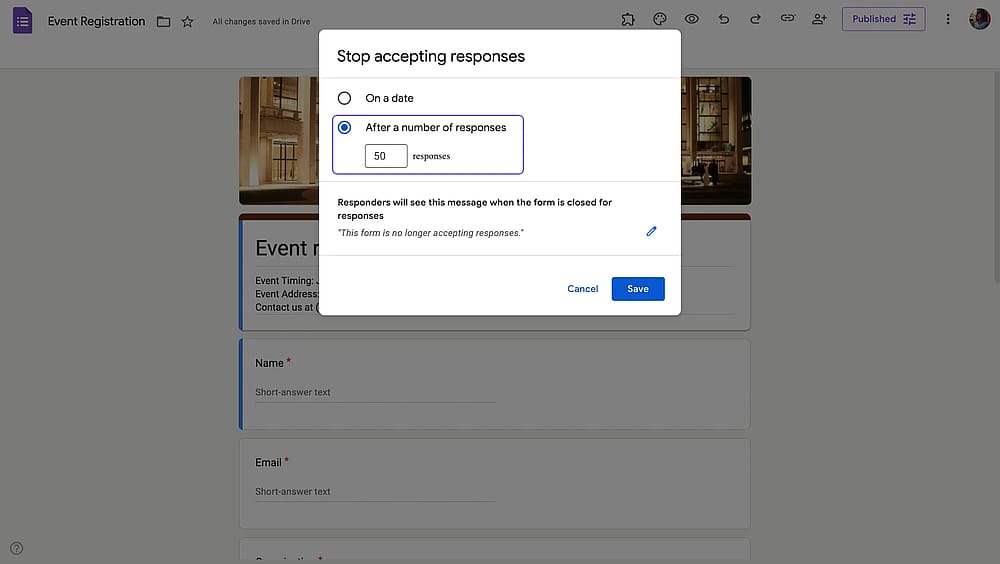
Entering a number for the maximum number of responses
5. Customize the "Form closed" message (optional)
Click the edit icon next to the "This form is no longer accepting responses." message. Type whatever you'd like respondents to see when they land on the closed form. Just to give an example, for an event registration, you can say "No more seats left. Thank you for your interest!"
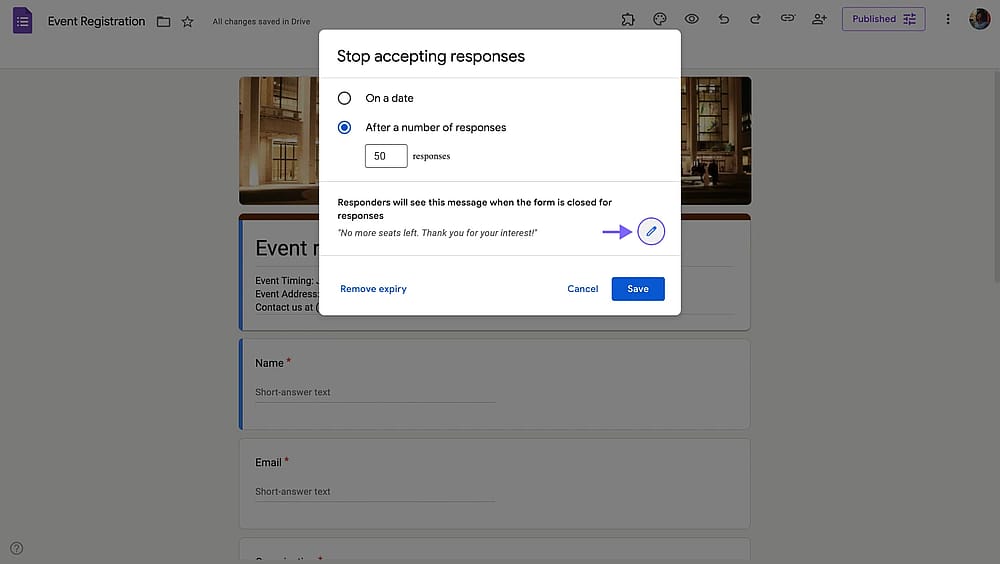
Editing the "Form closed" message
That’s it! Now you can close your Google Form after it gets a certain number of responses. If you like to open your Google Form again or increase the response limit, simply go to the publish settings, follow the same steps above.
A better way to limit form responses with forms.app
Google Forms finally added this essential feature to control how many responses you get in a form. However, you can’t still use both response limit and close date togater. Plus, there is no way to open your form on a certain date.
forms.app has response limits built deeply into its settings; not bolted on as an afterthought. On forms.app you can cap responses by count, by date, or both. Plus, you can customize exactly what respondents see when the form closes (images, videos, links, and all). Here's how to set it up:
1. Create or open your form on forms.app
Log into forms.app and either select an existing form or click “Create a new form” to get started. If you create a new form, you can start with a blank form, use forms.app’s AI form generator, choose from customizable form templates, or import from other sources.
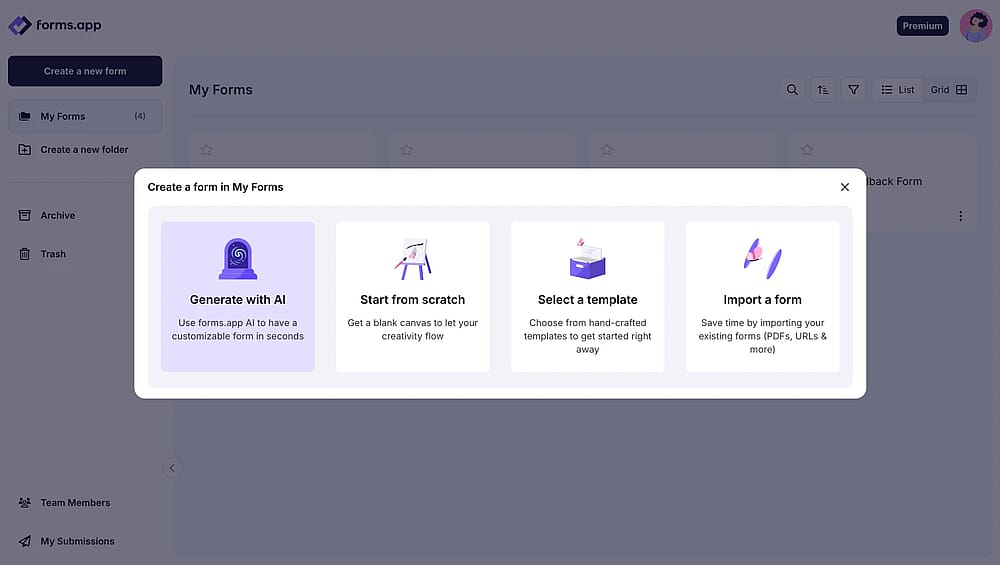
Form creation options on forms.app
2. Go to settings
Once you’re done with your form content, click on the “Settings” tab and then “Access”.
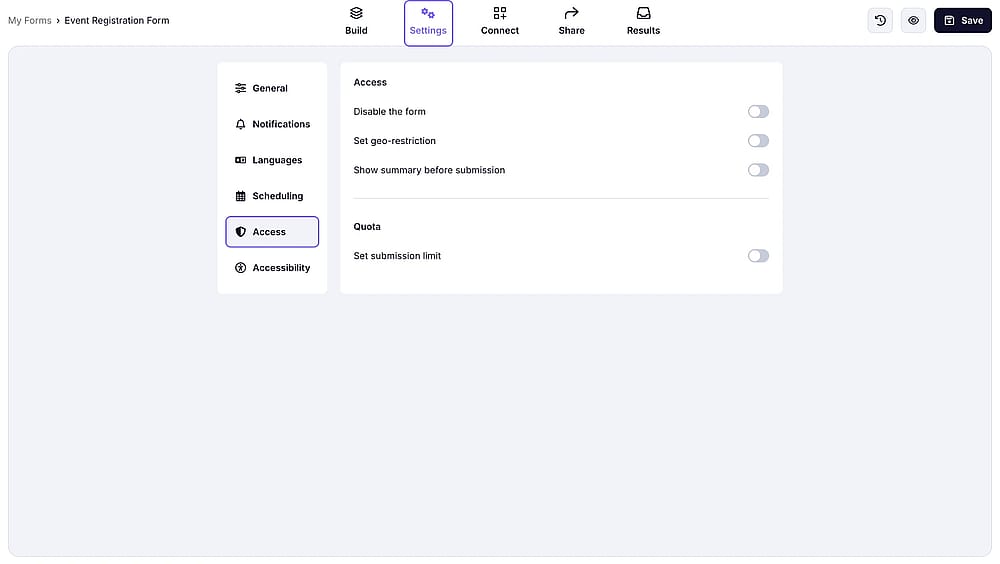
Form access settings on forms.app
3. Set submission limit
Toggle on the submission limit and enter a number for capping form responses. Click save and your response limit is now set.
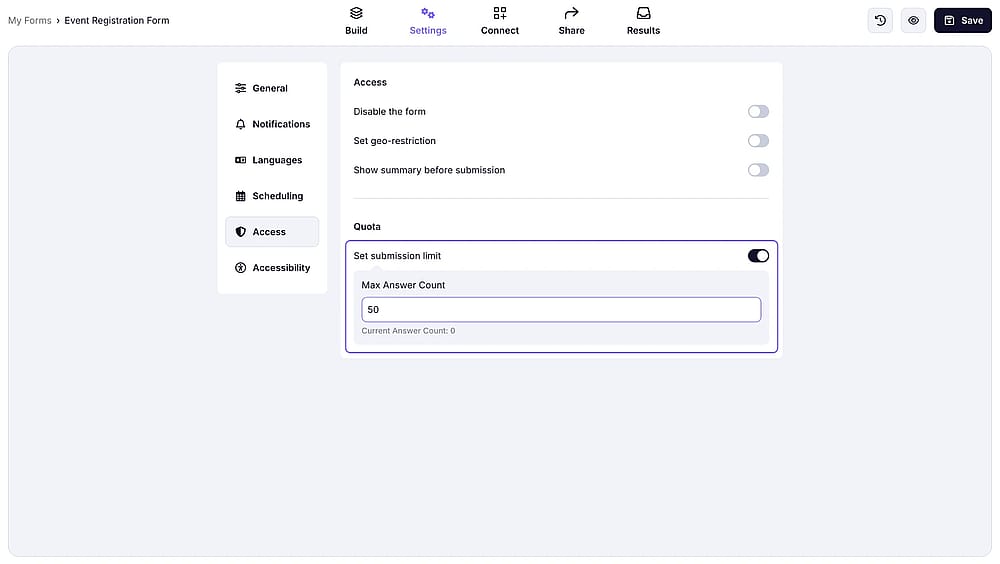
Submission limit setting on forms.app
4. Change the “record exceeded” message
Go to "Language" within settings to change the form closed message. This is a simple message, similar to the Google Forms’. For showing detailed and visual messages, you can explore form scheduling settings.
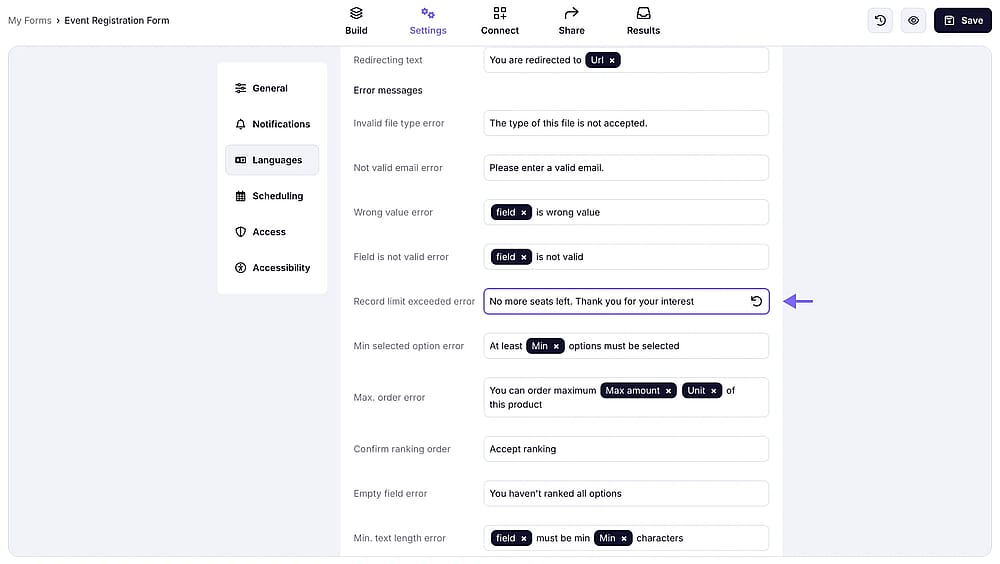
Changing the “record exceeded” message on forms.app
5. Explore form scheduling settings
Go to “Scheduling” to select open and close dates for your forms. Here, you can also set custom messages with images, videos, and links to show before or after a specific date.
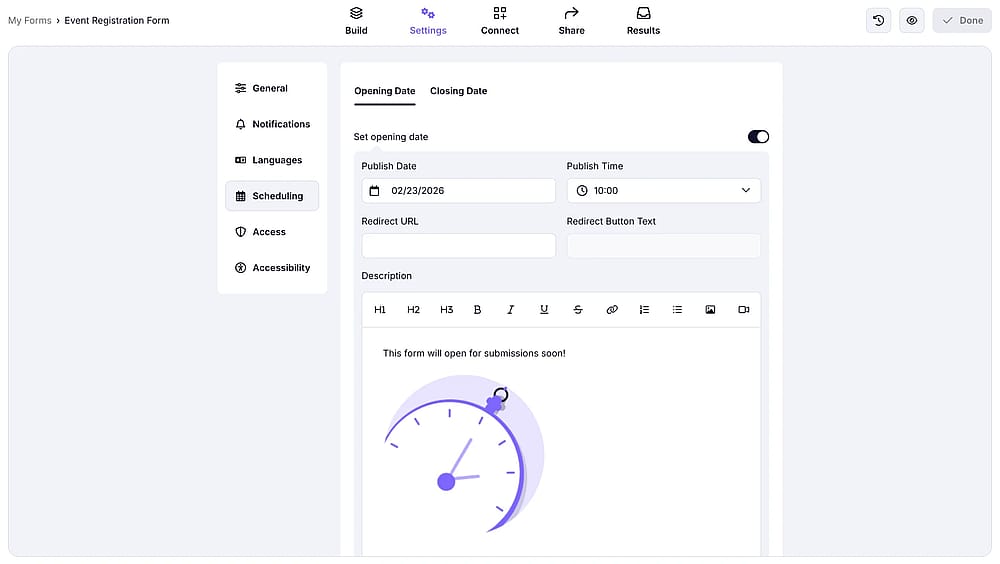
Scheduling settings on forms.app
Frequently asked questions about limiting the number of responses in Google Forms
Yes. Google Forms can automatically close once it hits a set number of responses or reaches a specified date and time. On Google Forms, limit the number of responses within the publishing settings after your form is live. No manual intervention is needed once it's set.
The form stops accepting new submissions and displays a "not accepting responses" message to anyone who opens the link afterward. You can customize the text of this message in the publishing settings, though it's limited to plain text with no links or redirects.
Yes. You can reopen the form at any time by going back to the publishing settings and toggling "Accepting responses" back on, or by removing or changing the response limit. Changes take effect immediately.
Yes, but only for respondents who are signed in to a Google account. Under Settings, you can enable "Limit to 1 response." This doesn't work for anonymous submissions or respondents outside the Google ecosystem.
No. Google Forms only supports a single global response cap. You cannot set individual limits per answer choice (e.g., "Morning session: max 20" and "Afternoon session: max 20").
The bottom line
Google Forms now has a built-in response limit, and for simple use cases like capping a giveaway at 100 entries or closing a survey on a set date, it works perfectly well with zero setup beyond a few clicks.
But if you need anything beyond that basic form response limits, a branded closed-form experience, better-looking forms, and advanced features, Google Forms will leave you reaching for workarounds. forms.app covers all of those gaps in an intuitive way. forms.app is an all-around form builder that offers a better experience than Google Forms in every way. Give forms.app a try today for free!
Contributors
forms.app, your free form builder
- Unlimited responses
- Unlimited questions
- Unlimited team members