Save up to 60% on yearly plans and enjoy our biggest offer of the year. Limited time only. 🍂
See pricing

How to add a link to your Google Form (Step-by-step)
Summarize with
TL;DR: Quick Guide to Adding Links in Google Forms
Google Forms allows you to add hyperlinks to most text areas in your forms. You can link to external resources, documents, websites, or any URL necessary. Here are the quick steps to add a link:
1. Open your Google Form and navigate to the text where you want to add a link
2. Double-click or select the text you want to turn into a hyperlink
3. Click the link icon (chain link symbol) in the formatting toolbar below the text field
4. Enter your URL in the "Link to" field
5. Click OK to save the hyperlink
6. Preview and test your form to ensure the link works correctly
Where you can add links: Form titles, section titles, descriptions, question titles, image titles, video titles, multiple-choice options*, checkbox options*, and grid labels*.
Where you can't add links: Dropdown menus and image hover texts.
Adding hyperlinks to Google Forms is a powerful yet often underutilized feature that can significantly improve your forms' functionality and user experience. Whether you're directing users to additional resources, citing sources, linking to your website, or providing context for your questions, strategic use of links can make your forms more professional and effective.
In this comprehensive guide, we'll walk you through everything you need to know about adding links to Google Forms, including where you can (and can't) add hyperlinks, best practices, common use cases, troubleshooting tips, and alternative solutions when Google Forms' limitations become restrictive.
Where can you add a link to your Google Form?
Google Forms is surprisingly flexible when it comes to link placement. You can add hyperlinks to nearly every text element in your form. This includes:
- Form title and description
- Section title and description
- Question title and description
- Image and video titles
- Checkbox and multiple-choice answer options (Plain URL only)
- Scales and grids (Plain URL only)
Here’s a comparison table for visualization + common use cases:
Location | Hyperlinked text | Plain URL | Common use cases |
Form title | Branding, main info page | ||
Form description | Policies, instructions, FAQs | ||
Question text | Context, definitions, examples | ||
Section title | Section-specific resources | ||
Section description | Section-specific instructions | ||
Image caption | Attribution, more info | ||
Video title | Attribution, more info | ||
Help text (description) | Context, definitions, examples | ||
Multiple choice option | Product links, references | ||
Checkbox option | Product links, references | ||
Scale labels | Reference materials | ||
Grid headers | Category information | ||
Response confirmation message | Response received, message, detailed instructions for later | ||
Dropdown option | Question options | ||
Image hover text | Image description |
How to add a hyperlink in Google Forms
Now that we have looked at where you can use links in Google Forms, it is time to learn how to add your links to a Google Form. Fortunately, adding a link in Google Forms is a fairly simple process that is easy to understand. Therefore, you will easily be able to add any link you like after following these steps.
1. Open your Google Form or create one
The first step before anything is creating a new Google Form, if you don’t already have one. Simply choose from Google Forms templates or start with a blank form, and add your title, description, and questions. Afterward, simply make the necessary customizations to your questions and the visuals of your form.
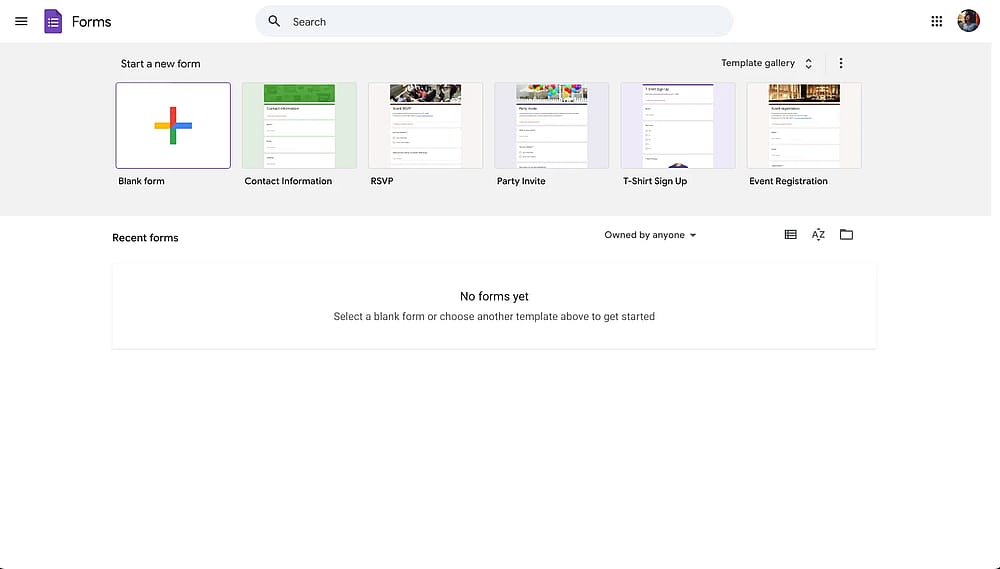
Google Forms dashboard
2. Highlight the text you want to link and click on the link icon
After you have written every text in the necessary places, such as your question fields, locate and highlight the text or part of the text to select it.
After you select the text or part of the text by highlighting it, simply click on the Insert Link icon, which is located under the text with a link icon. Clicking this setting will open a menu in front of you.
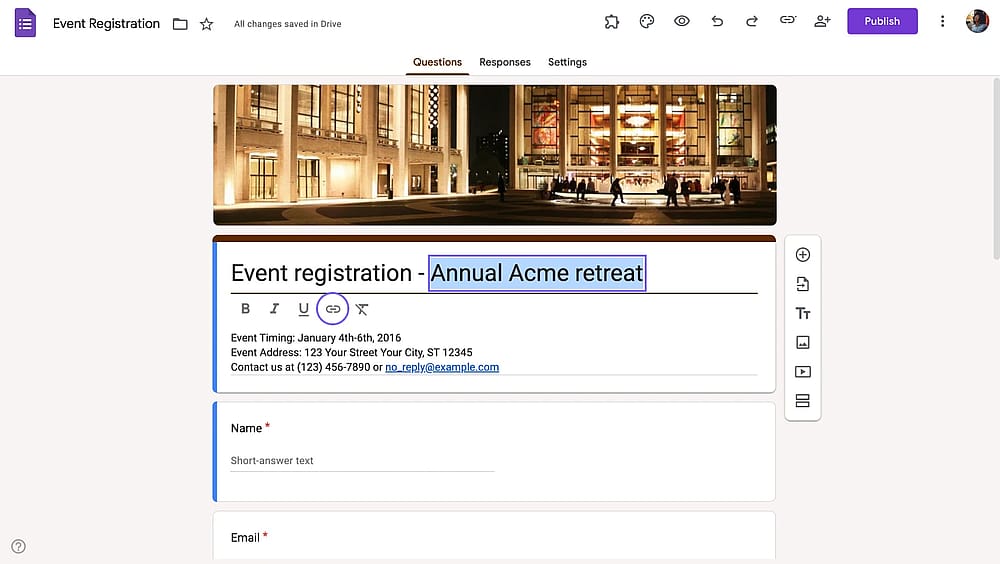
Selecting a text on Google Forms
3. Paste your link and click OK
From the “Insert Link” menu, you can edit the anchor text and paste the link into the “Link to” field. Once you are done, simply click OK, and your link should be added.
Make sure to preview and test your form to confirm your link works.
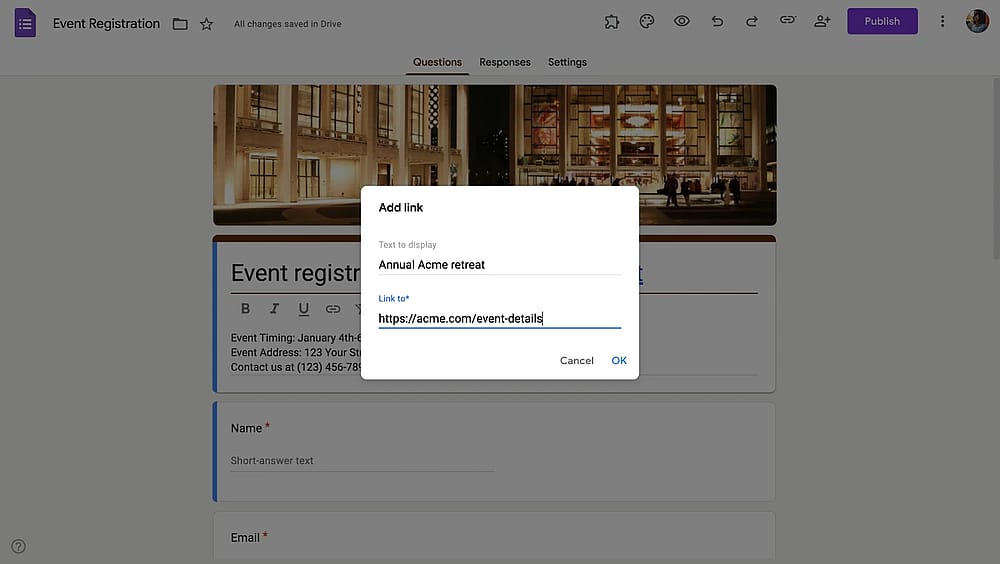
Adding a link to text on Google Forms
How to add links to answer options in Google Forms
You can only add plain URLs to answer options in Google Forms. But this method works anywhere where you can add links. Sometimes you want to display the actual URL rather than hiding it behind hyperlinked text. This is appropriate when the URL itself is meaningful or when you want maximum transparency.
1. Click on the field where you want to add the URL
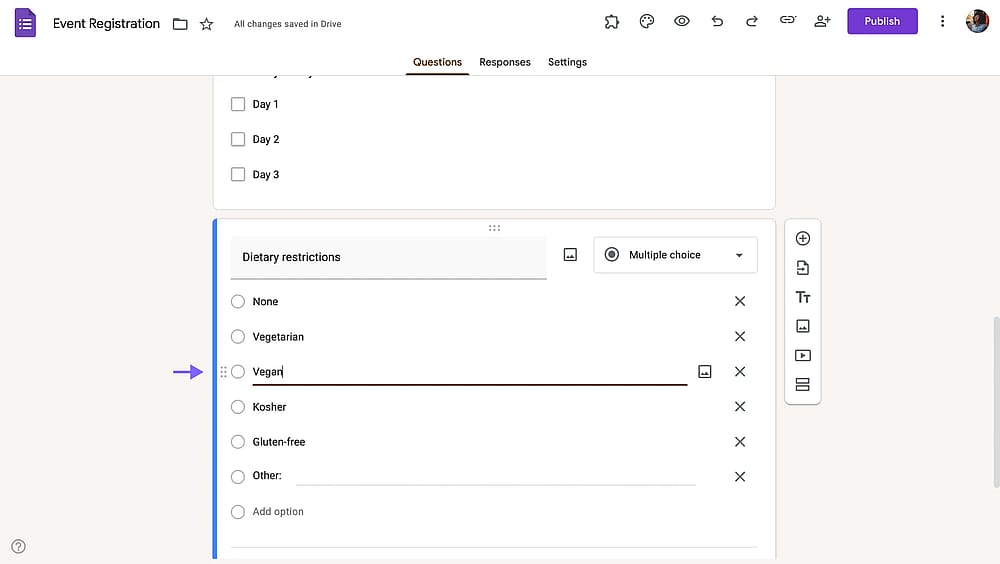
Selecting a field on Google Forms
2. Simply type or paste the complete URL, including https://
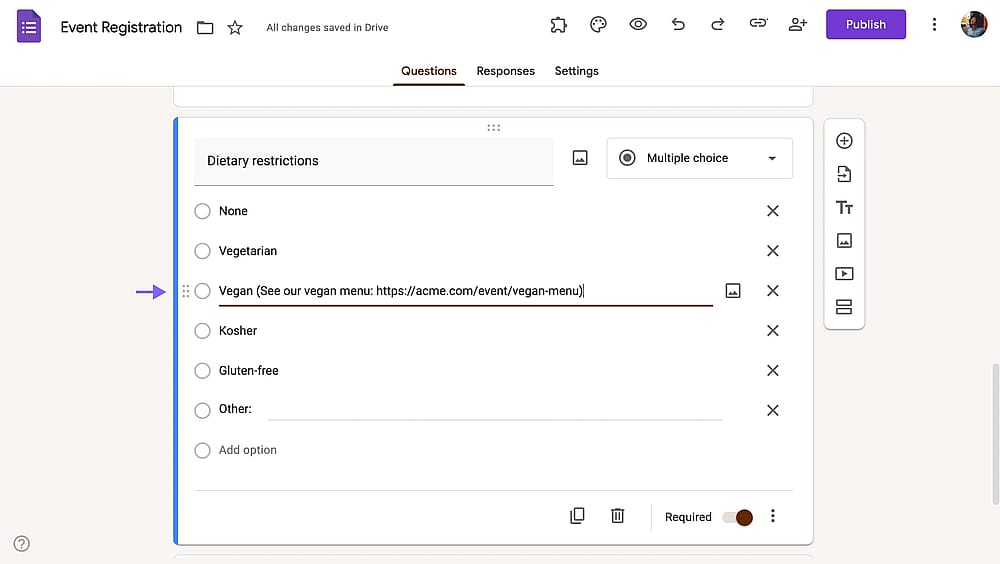
Adding a link to an answer option on Google Forms
3. Google Forms will automatically recognize it as a URL
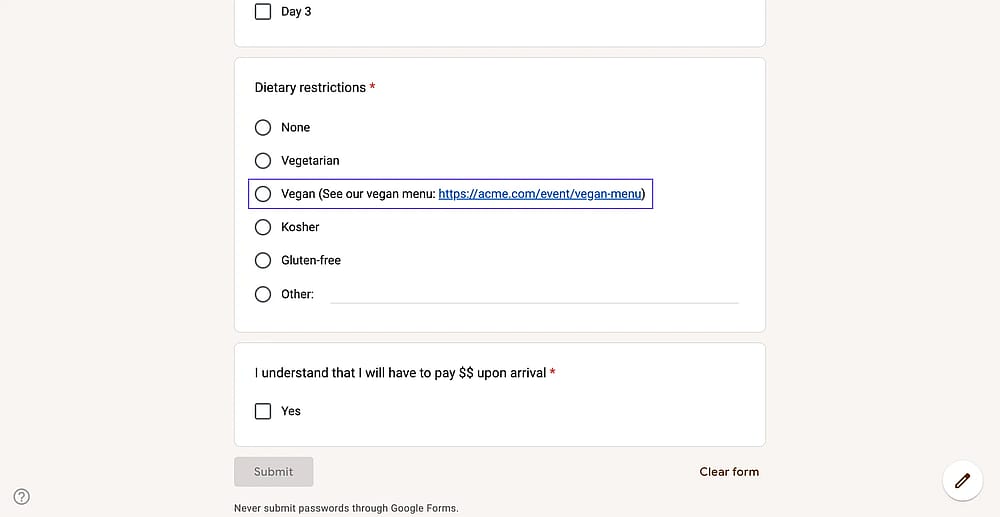
Clickable answer option on Google Forms
How to add email links in Google Forms
You can add clickable email links to Google Forms, and they will open the user's default email client upon click. Here’s how:
1. Highlight your text.
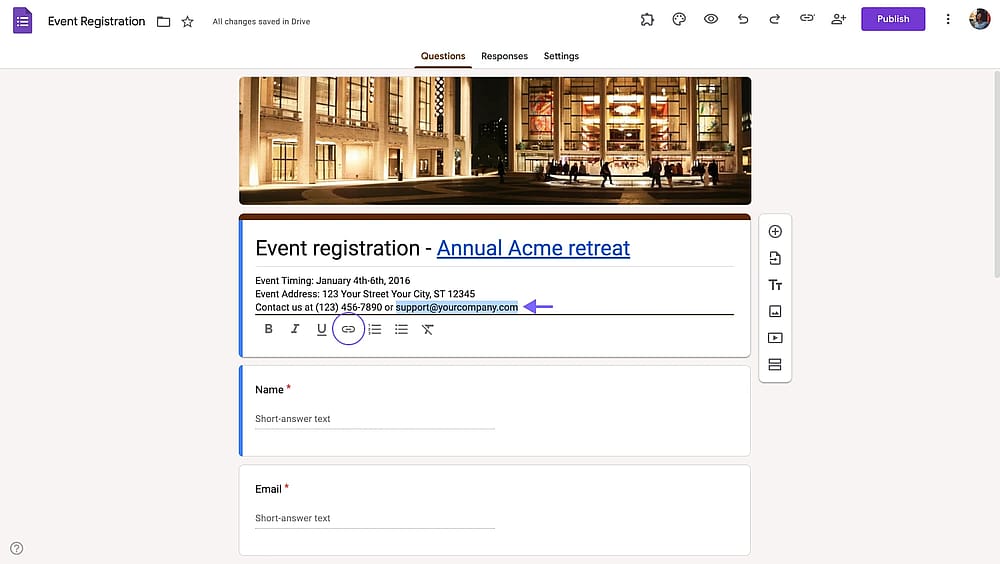
Selecting an email text on Google Forms
2. In the “Link to” field, enter:
mailto:support[@]yourcompany.com
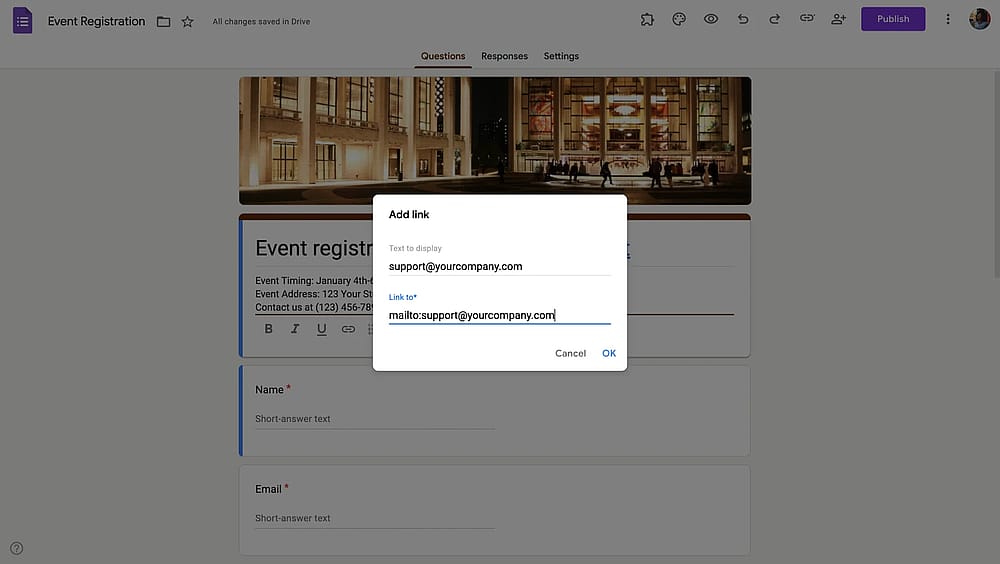
Making an email text clickable on Google Forms
3. Optionally, you can add subject and body:
mailto:support[@]yourcompany.com?subject=Form Inquiry&body=Hello, I have a question about…
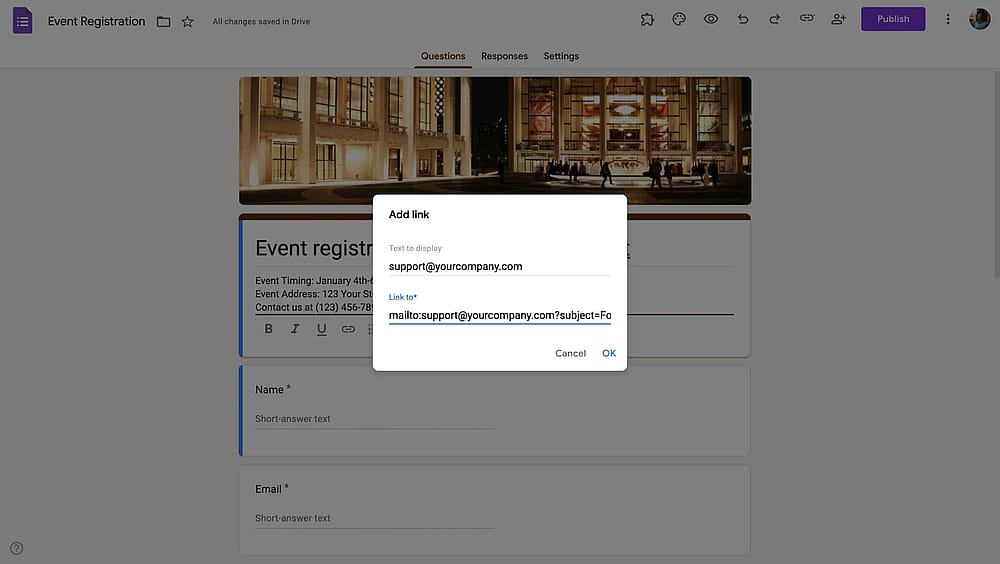
Adding subject and body text to email links
How to add phone links in Google Forms
Similar to clickable email links, you can make phone numbers clickable. These phone links trigger the phone dialer with the number pre-populated, so responders on mobile can easily contact you with a single tap.
1. Highlight the phone number text
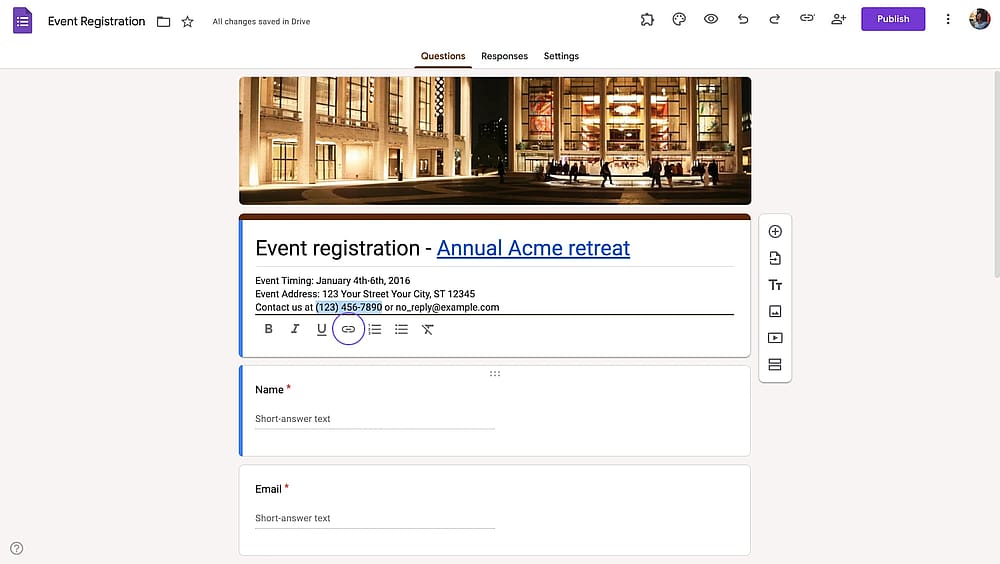
Selecting a phone number text on Google Forms
2. In the Link to field, enter: tel:+1234567890
💡 Use the international format with + and country code for best compatibility.
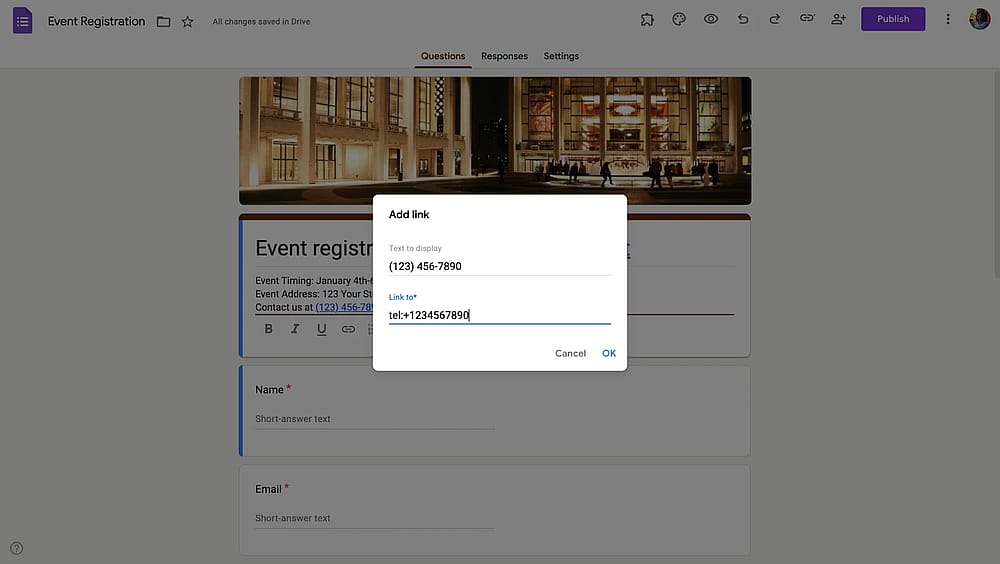
Making a phone number text clickable on Google Forms
Why add a link in Google Forms? (Example use cases)
Often overlooked, adding a hyperlink in your Google Forms form can be a powerful tool to increase engagement and boost your brand. With the help of links, you can easily enhance your advertising efforts for your products or services. Other benefits of adding links to your Google Forms include, but are not limited to:
1. Better experience for the responder
By adding links to your form, you can redirect people to related resources such as videos, articles, and more. It is better to redirect them to a dedicated page then give all the information in the form itself.
2. Getting informed consent
Linking to sources, research, privacy policies, or terms of service demonstrates transparency and builds trust with your respondents.
Did you know?
On forms.app, you can add a dedicated “Terms & conditions” field where you can show the terms in a pop-up or redirect people to external sources.
3. Sharing social media links
Direct users to your social media profiles, specific posts, or social media campaigns. It’s best for, building social following, sharing social proof, providing additional context, or event coordination.
4. Collecting payments
Accepting payments directly in Google Forms is not possible. But there are workarounds. For example, you can link to payment processors, donation pages, or e-commerce checkouts.
forms.app: A better alternative for forms with rich texts
forms.app has an exclusive field called “Explanation” with a rich text editor, where you can add links, multiple headings, descriptions, colors, and other formatting options. Plus, you have additional advantages beyond links. Just to name a few:
- Advanced conditional logic
- Custom PDF generation
- Native Integrations with popular tools
- Built-in payment collection
- Built-in T&C field for getting consents (Which you can add links to)
- 30+ field types
- Customizable URLs (with custom domain support)
- And, much professional looking forms out of the box
Frequently asked questions about adding links to Google Forms
Yes, you can include URLs in the confirmation message that appears after someone submits your form. However, the confirmation message doesn't support the rich text editor, so URLs will appear as plain text in some contexts. To make them clickable, paste the complete URL including https://. Most browsers will auto-convert these to clickable links.
Links in Google Forms open in a new tab by default. However, Google Forms doesn't provide a built-in option to control whether links open in new tabs or the same tab.
Yes, absolutely. Google Forms allows you to add as many hyperlinks as you need within a single question or description. Simply repeat the process of highlighting text and adding links for each URL you want to include.
Example: "Please review our [privacy policy], [terms of service], and [data retention policy] before continuing."
No, Google Forms doesn't support anchor links or jump-to-section links within the form itself.
Conclusion
Adding links to Google Forms transforms them from simple data collection tools into interactive, informative experiences. Throughout this guide, we've explored the where, how, and why of Google Forms links, from basic hyperlinks to advanced tracking strategies.
I hope you find this article helpful. Happy form building, and may all your links be clicked!
Contributors
Researched & written by
forms.app, your free form builder
- Unlimited responses
- Unlimited questions
- Unlimited team members