Save up to 60% on yearly plans and enjoy our biggest offer of the year. Limited time only. 🍂
See pricing

How to change Microsoft Forms themes: Colors & custom backgrounds
Summarize with
A form that looks unfinished gets treated like it's unimportant. I've watched the same survey get very different response rates just from swapping a default gray shell for a branded one.
Microsoft Forms themes won't give you designer-level control, but they'll get you from "internal draft" to "something I'd send to a client" in about two minutes, and the Style panel hides more options than most people ever open.
Here's every way to customize Microsoft Forms, plus the limits worth knowing before you commit.
TL;DR
- Open your form → click Style (top right) → pick a preset, color, or image.
- Custom colors need a hex code; there's no color picker.
- You can upload your own form background from your device, OneDrive, or image search.
- You can't change fonts, edit CSS, add a logo, or save a theme to reuse on other forms.
What are Microsoft Forms themes?
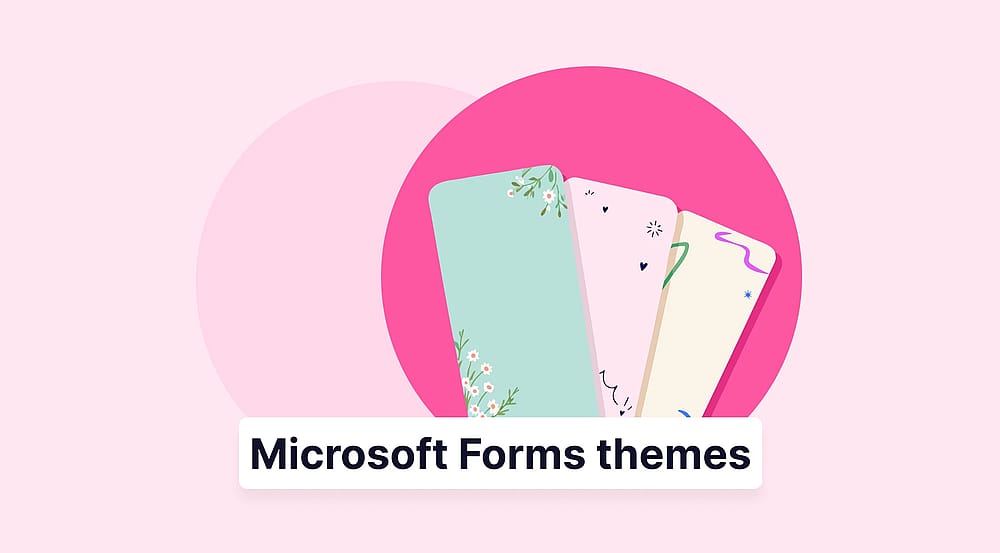
Microsoft Forms themes are preset combinations of background color, background image, accent color, and text shading that apply to your entire form.
They are in the Style panel, which is also where several other Microsoft Forms settings related to appearance live.
One thing that people mix up: Microsoft uses two words for two different things.
Term | What it controls |
|---|---|
Style | The full preset look: background, accent color, button color, text shade |
Themes | The color or image layer applied underneath a style |
Customized theme | Your own hex color and uploaded image combination |
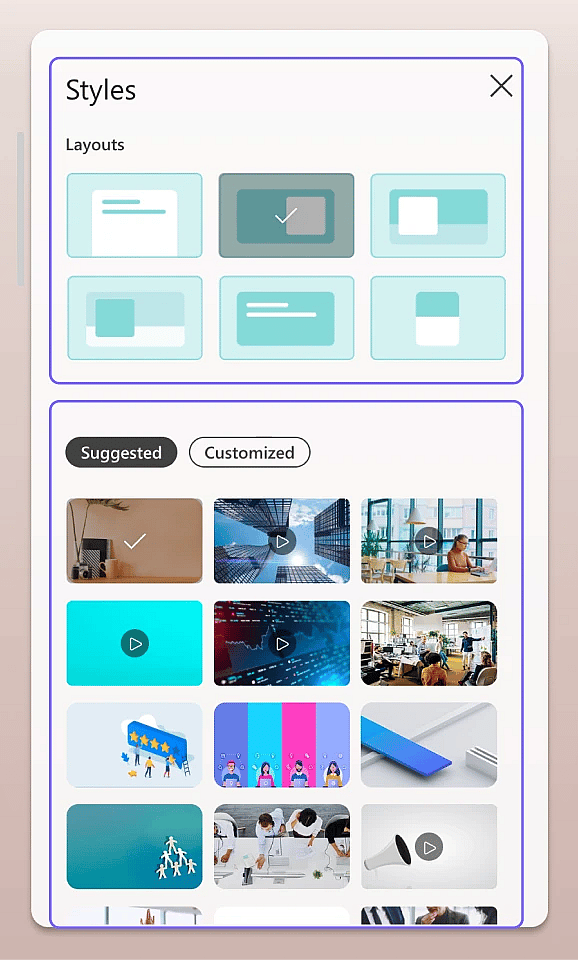
Personal experience: I still run into help articles pointing at a "Theme" button that no longer exists by that name. If a guide's screenshots don't match what you see, check the top-right corner for Style; that's the current label.
How to change the theme in Microsoft Forms
1. Open the form you want to style (or create one from scratch or a template).
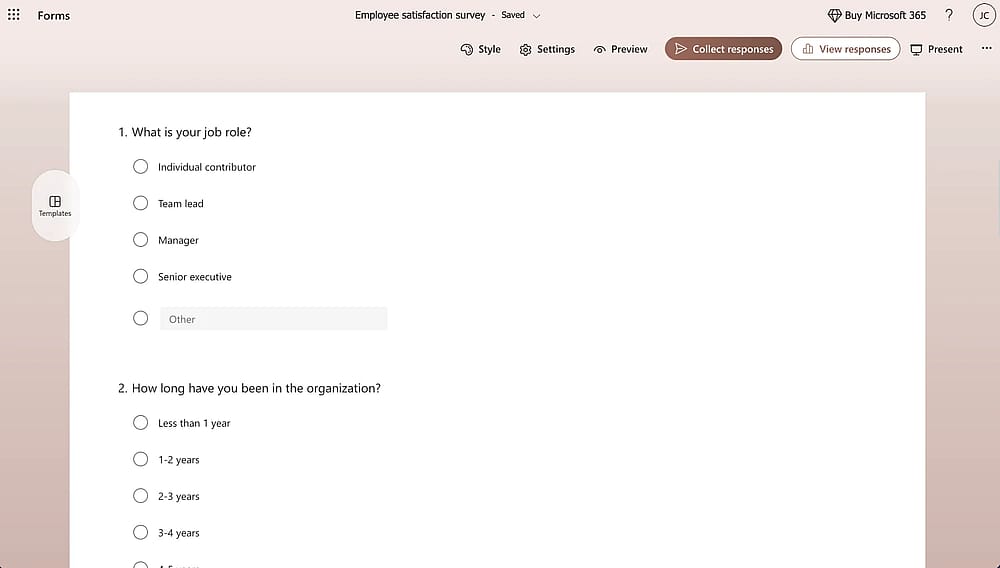
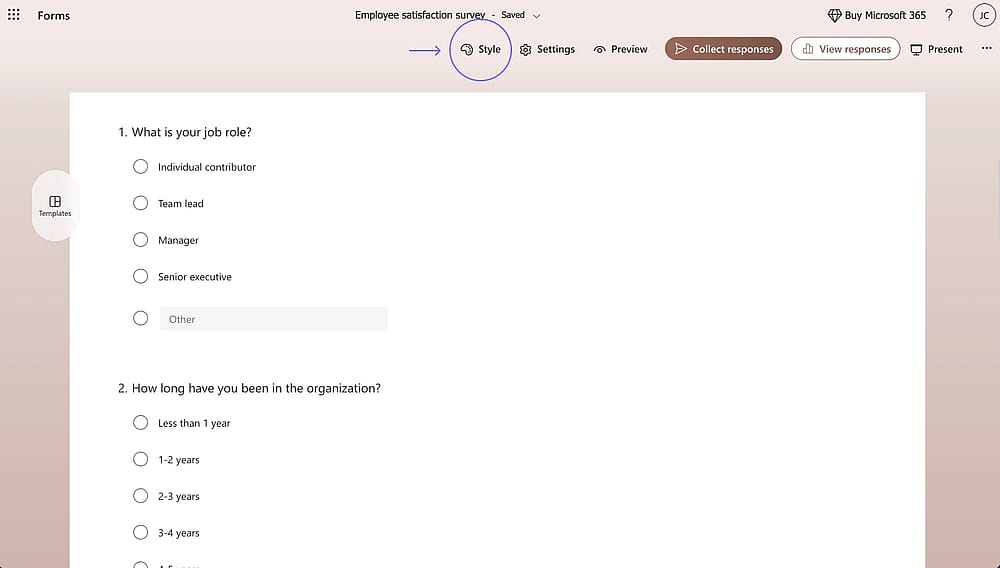
2. Click Style in the upper-right corner of the editor.
3. Pick one of the suggested styles in the right-hand panel.
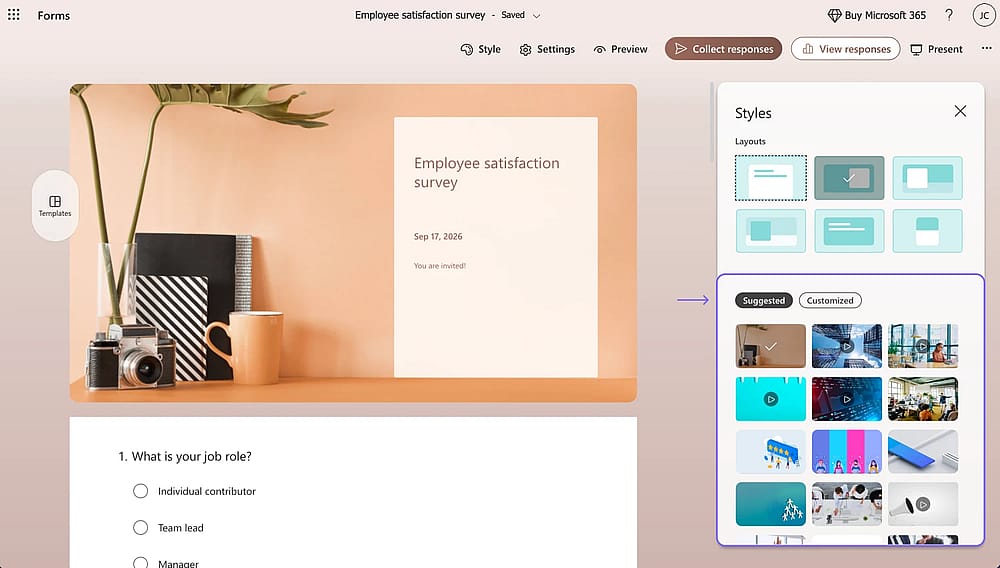
4. Close the panel; your change is already live.
💡There's no save button because there's no save step. Every click applies immediately to the form respondents see.
Microsoft Forms theme options explained
Microsoft Forms is customized in various ways; here are some theme options to color your survey, form, poll, or quiz:
1. Preset styles
The default gallery offers several suggestions. Each preset changes the background, button color, and text shade at the same time. You can't take the background from one and the accent from another.
2. Color-based themes
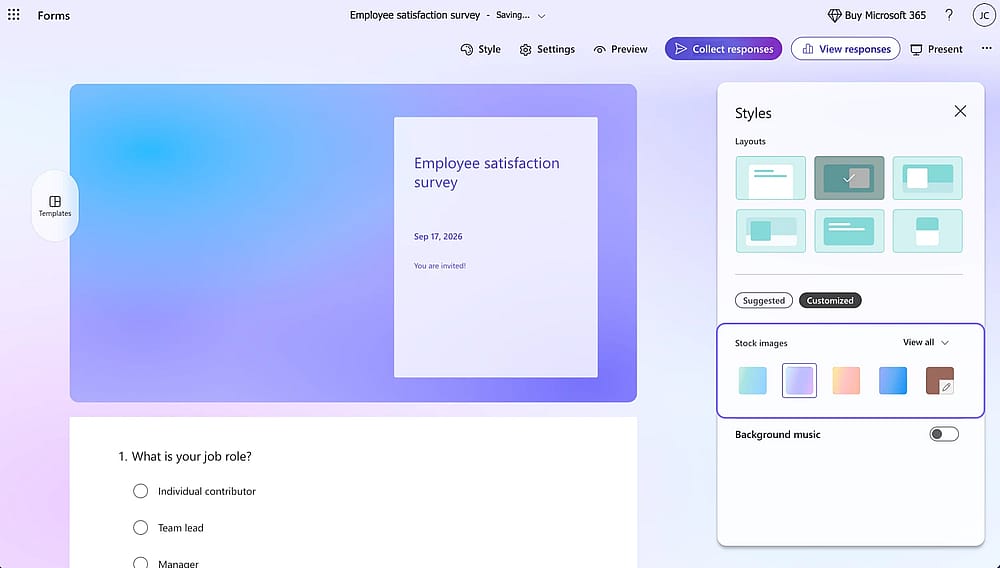
Below the styles, you'll find solid colors. Click one, and Microsoft applies it as the form's base color, replacing any background image with a soft wave pattern in the same shade. It's the fastest route to something clean and on-brand.
3. Image-based themes
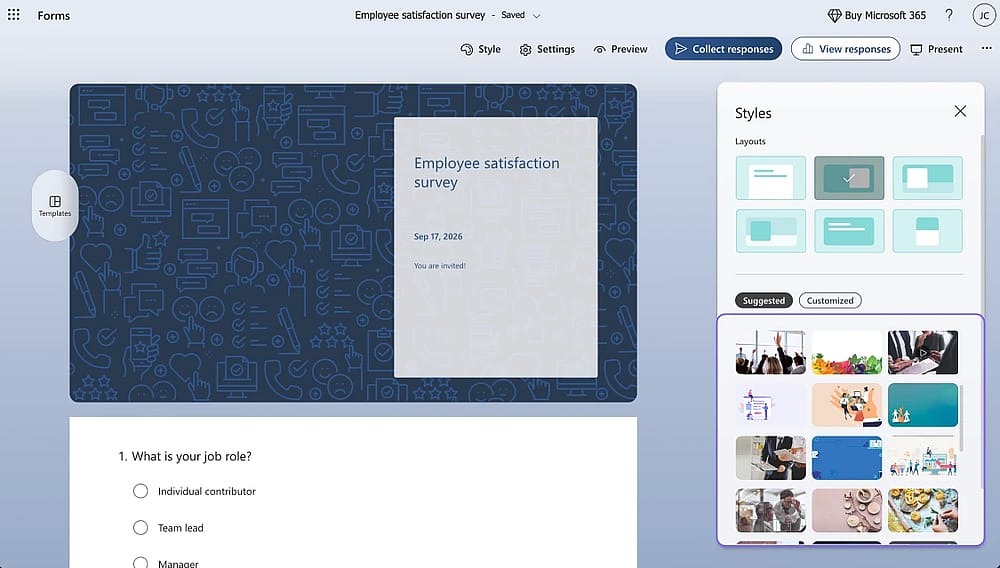
The same panel holds a set of built-in images, including a few animated ones. Animations look polished on a short poll and distracting on a twenty-question survey.
Personal experience: I tested an animated background on an employee feedback form and got two separate messages asking if the page was loading correctly. On anything longer than five questions, I now default to a static image or a solid color.
4. Background music
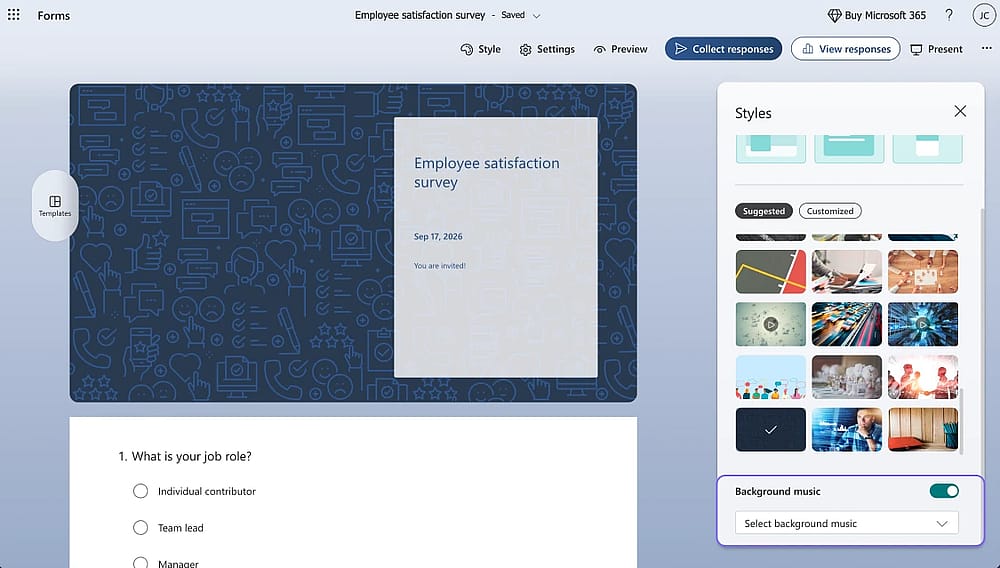
There's a toggle with about half a dozen short tracks. It's genuinely useful in a narrow set of cases: a classroom quiz, a kids' event RSVP, a holiday poll. For anything work-related, leave it off; respondents often have several tabs open and won't thank you for the hunt.
How to create a custom theme with your own colors and images
You can create a survey, quiz, or poll with custom colors and images. Check the different ways to successfully do it:
Adding a custom hex color
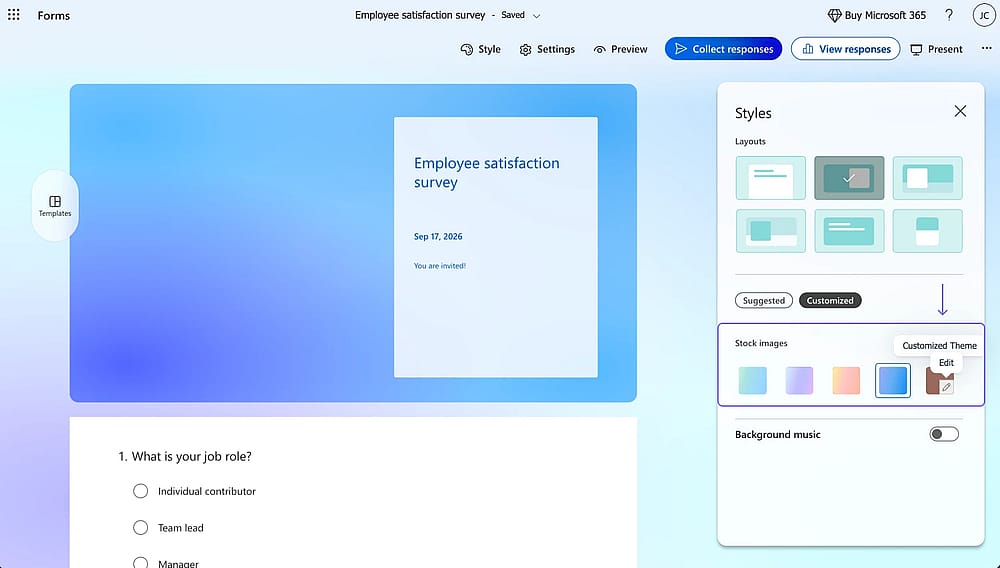
Open Style, scroll to Customized theme, and click the pencil icon. Enter a hex code in the color field. Unlike the preset colors, changing the color here doesn't wipe your background image; it shifts the overall shade of the form frame, buttons, and text.
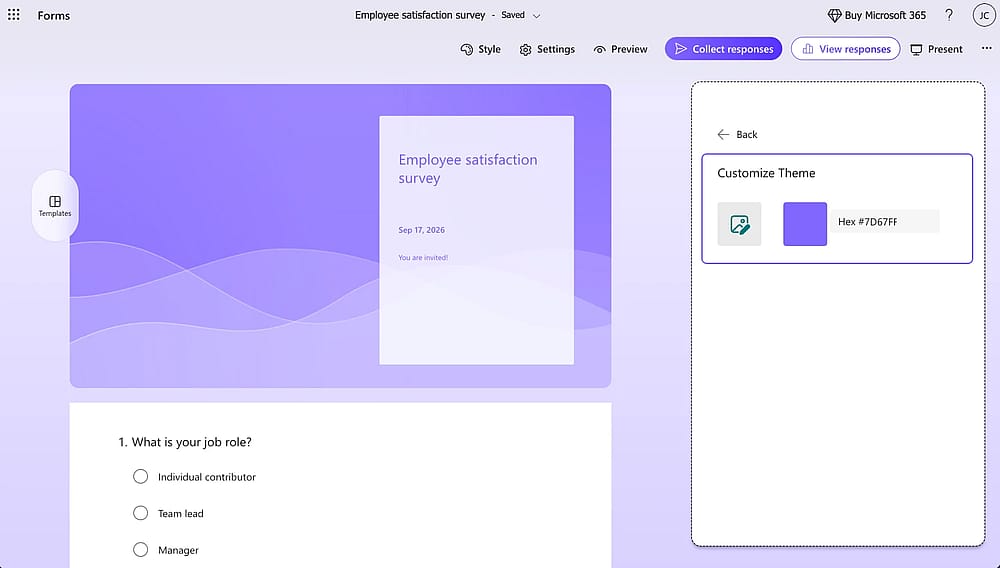
💡 There's no eyedropper or color picker, so you need the exact code from your brand kit. Anything under 4.5:1 will be hard to read on a phone in daylight.
Uploading your own Microsoft Forms background
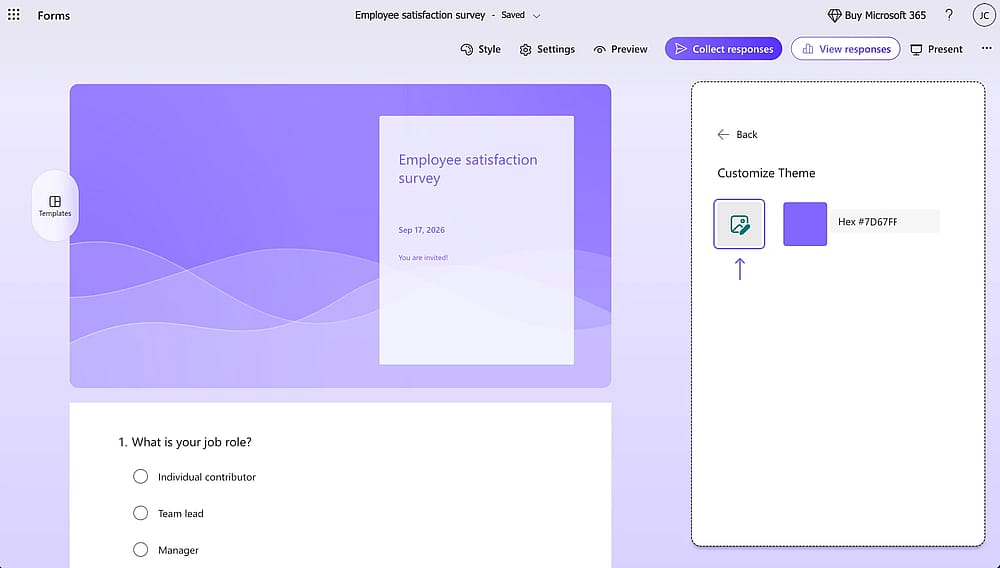
On the Customize theme page, click the image icon. You get three sources:
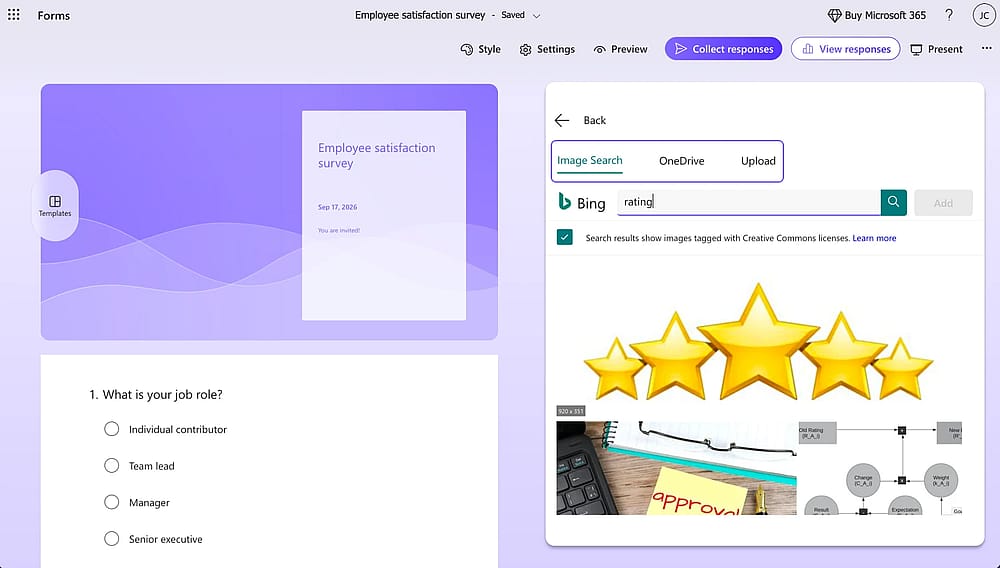
Source | Best for | Watch out for |
|---|---|---|
Image search | Quick generic backgrounds | You're responsible for image rights |
OneDrive | Approved brand assets | Must already be uploaded to your account |
Upload | Anything on your device | Large files slow the form's first load |
Personal experience: Practical specs that have worked for me: landscape orientation, at least 1920 px wide, under 1 MB, JPG or PNG. Keep the focal point in the outer thirds; the form card sits over the center and will cover anything important there.
Microsoft Forms theme limitations
Microsoft Forms is an easy option to create surveys, polls, or quizzes quickly. However, there are some limitations besides its ease of use. Here are some limitations:
- No per-element color control. You can't set a different header and body color.
- No font family or font size options.
- No CSS access.
- No logo placement inside the theme (you'd add it as a form header image instead).
- No saved theme library. Every new form starts from defaults.
- No white-labeling; Microsoft branding stays on the form footer.
When Microsoft Forms styling isn't enough
If your requirements go beyond color and background, the built-in options run out fast. An advanced form builder like forms.app is worth considering when you need any of the following:
Capability | Microsoft Forms | forms.app |
|---|---|---|
Preset themes | ||
Custom hex colors |
(no picker) |
(with picker) |
Font selection | ||
Custom CSS | ||
Reusable saved themes | ||
Remove platform branding |
Bonus: Troubleshooting common theme problems
Problem | Likely cause | Fix |
|---|---|---|
Theme won't save | Session expired mid-edit | Refresh, sign back in, reapply |
Hex code rejected | Missing # or wrong character count | Use a full 6-digit code with # |
Image looks cropped | Portrait or low-res upload | Re-upload landscape, 1920 px+ |
Background too dark to read | Low contrast with text shade | Adjust the customized theme color |
Theme looks different in Teams | Embedded forms inherit Teams styling | Test the standalone link separately |
Conclusion
A preset style, a custom hex color, and your own form's background image cover almost everything you need. Whichever way you create a form, from scratch, a template, or a duplicate, settle on a house look early and reuse it.
Just note whether you're on a personal, work, or school account first, since the latter can carry organizational branding or admin restrictions on top of your theme. Check the live link on both desktop and mobile before sharing. If Microsoft Forms’ theme customization does not fulfill your expectations, forms.app is the best Microsoft Forms alternative .
Frequently asked questions
No. Font family and size are fixed, and only the text shade changes with your theme.
Not as the theme itself. Add it as an image at the top of your form instead, then match the form's background color to your brand.
Usually an expired session or browser cache. Refresh, confirm you're signed in, and reapply.
Yes. Themes carry over to mobile browsers, but always check readability on a phone before sharing.
No. Duplicate an existing styled form instead of rebuilding from scratch.
Yes, quizzes and forms use the same Style panel.
Contributors
Researched & written by
forms.app, your free form builder
- Unlimited responses
- Unlimited questions
- Unlimited team members