Save up to 60% on yearly plans and enjoy our biggest offer of the year. Limited time only. 🍂
See pricing

How to create a Google intake form (Updated for 2026)

Summarize with
TL;DR: Steps to create a Google Forms intake form
1. Open Google Forms and start a blank form
2. Title and describe your form so respondents know what to expect
3. Add questions using the right field types (short answer, dropdown, multiple choice, etc.)
4. Set required fields for the information you can't afford to miss
5. Add conditional logic to route respondents to different sections
6. Customize the appearance with colors and a header image
7. Configure response settings (email collection, response limits)
8. Share or embed your Google Forms intake form
9. View responses in the built-in summary or Google Sheets
Just as in life, first impressions matter in business.
That is why a good intake form is essential. A good intake form ensures your business's initial success when leaving a good impression and collecting customer information. While it may seem easy to craft an intake form, making a professionally designed intake form requires experience.
In this article, you will learn what an intake form is, when you need an intake form, a Google Forms tutorial on how to create an intake form, a more advanced way to create the best intake form possible with forms.app, the advantages of using intake forms, and five tips to make sure that you create the best intake form possible.
What is a Google intake form?
A Google intake form is an intake form built using Google Forms. It is an online document that helps organizations collect the information they need before beginning a service, appointment, project, or relationship.
Intake forms are process-initiating, not reactive. An intake form is designed to gather specific, structured information upfront, so that by the time you have your first conversation with a client or patient, you already know the essentials.
Common use cases for intake forms
All businesses usually need some type of intake form, as it is the best way to collect and share information. Most companies nowadays rely on online intake forms, which clients fill out on their phones or computers, but for more severe cases, such as medical intake forms, they are still printed.
Here are several instances in which an intake form is needed:
For general business & sales
- Client onboarding intake: Collect project goals, timelines, and budget before a kickoff call
- Sales discovery form: Qualify leads before your sales team invests time
- Vendor or partner intake: Gather business details for new supplier relationships
For healthcare & wellness
- New patient medical intake: Health history, medications, insurance information
- Therapy or mental health intake: Background, presenting concerns, consent
- Health coaching intake: Lifestyle details, goals, and health history
For legal & financial services
- Law firm new client intake: Case type, timeline, prior legal history
- Tax preparation intake: Income sources, deductions, filing status
- Financial planning intake: Assets, liabilities, financial goals
For education & community
- School program registration: Student information, guardian details, needs
- Volunteer onboarding intake: Availability, skills, background check consent
- Animal shelter adoption intake: Living situation, experience with animals, household details
How do I create an intake form in Google Forms?
Google Forms is a widely used tool for creating an intake form. It is an easy-to-understand form builder that will ensure you understand the process. You can go to Google Forms and start making an intake form for your business.
1. Open Google Forms and start a blank form
Go to docs.google.com/forms and click the + (blank form) button. If you'd prefer a head start, select from Google Forms templates in the template gallery, though none are purpose-built for intake scenarios.
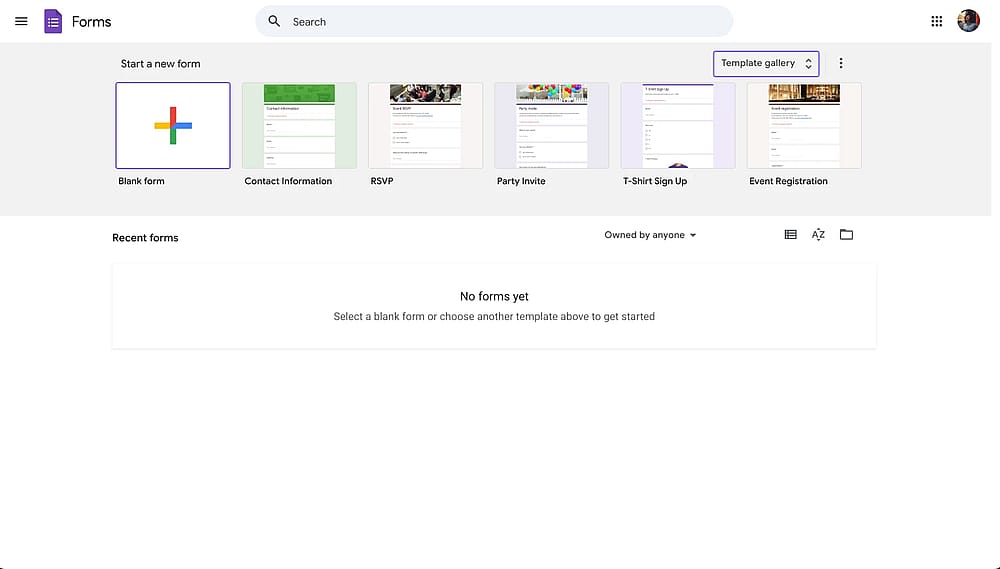
Google Forms dashboard
2. Title and describe your form
Click into the Untitled form field and give your form a clear, professional name. We recommend something your respondent will recognize, like "New Client Intake: Acme Agency." Add a brief description underneath: set expectations about how long it takes and what happens after they submit.
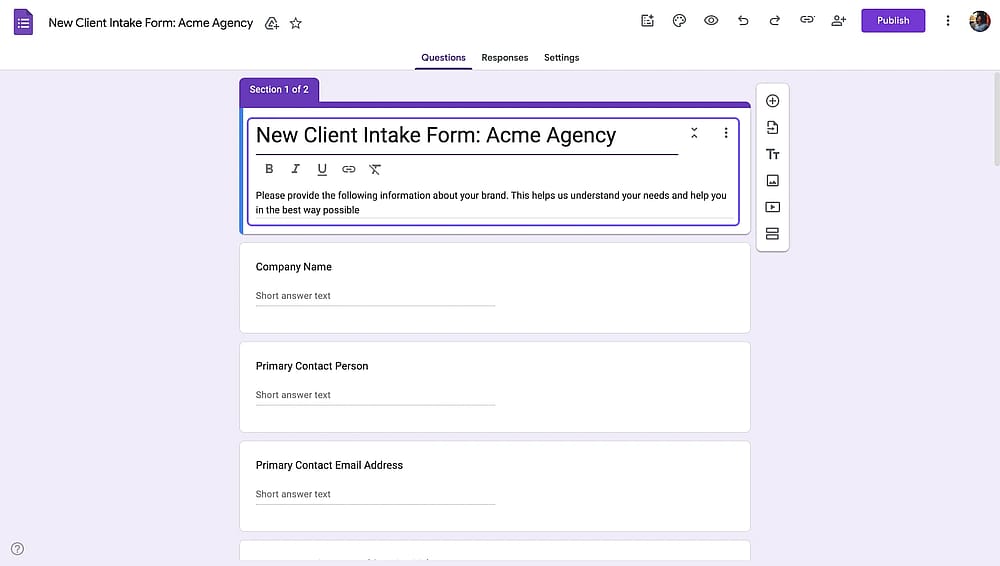
Adding title and description to Google intake form
3. Add your questions
Click into the + button from the floating menu on the right and type your first question. Use the dropdown on the right to select the field type. Here's a quick guide to matching field types to intake form fields:
- Short answer → Name, email, company, job title
- Paragraph → Open-ended questions like "Describe your situation"
- Multiple choice → Single-select options like preferred contact method
- Checkboxes → Multi-select options like services of interest
- Dropdown → Budget range, industry, company size
- Linear scale → Urgency or priority ratings
- Date → Project start date, deadline
- File upload → Supporting documents, briefs, existing assets
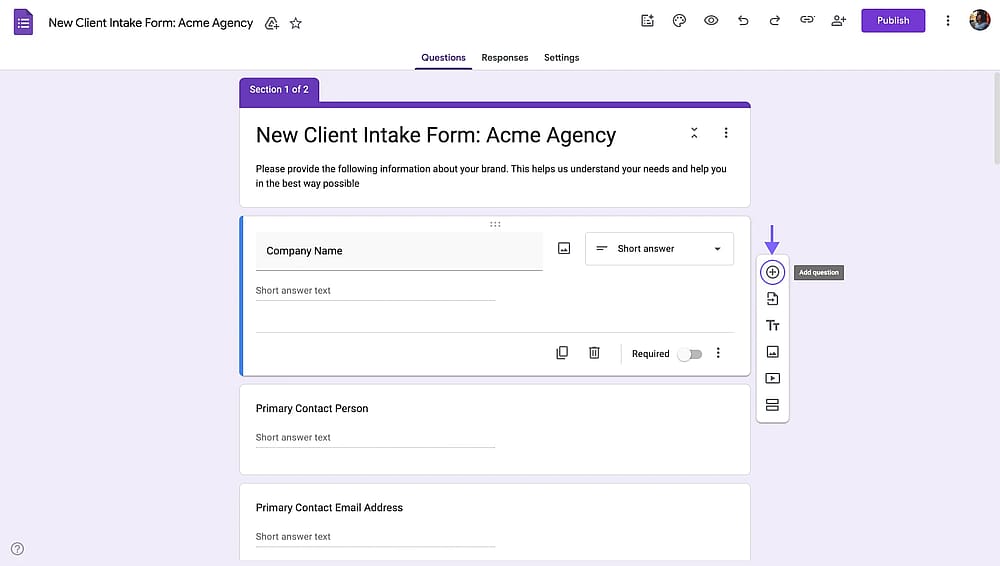
Adding a new question to Google intake form
4. Set required fields
Toggle the Required switch at the bottom right of each question to make it mandatory. Be selective. Mark the essentials (name, email, core context questions) and leave softer questions optional.
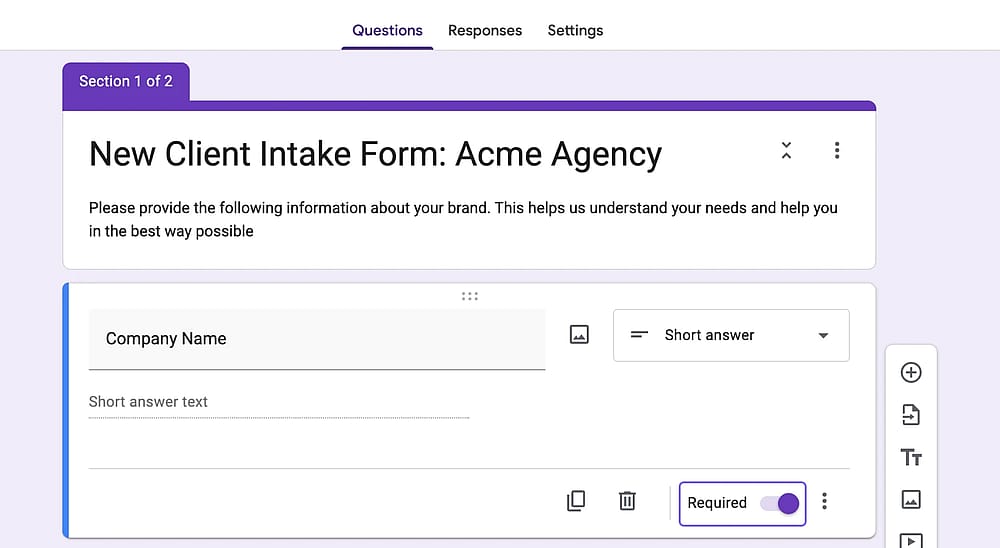
Toggling on “Required” for important intake questions
5. Add conditional logic (Optional)
Google Forms supports basic branching via "Go to section based on answer." This lets you route respondents to different sections depending on what they select, for example, sending healthcare clients to a different section than legal clients.
To set this up: click the three-dot menu at the bottom of a multiple-choice or dropdown question, then select "Go to section based on answer." Assign each answer option to a destination section.
Important to note Google Forms can route between sections, but cannot show or hide individual questions within a section based on answers. That's a meaningful limitation for complex intake forms.
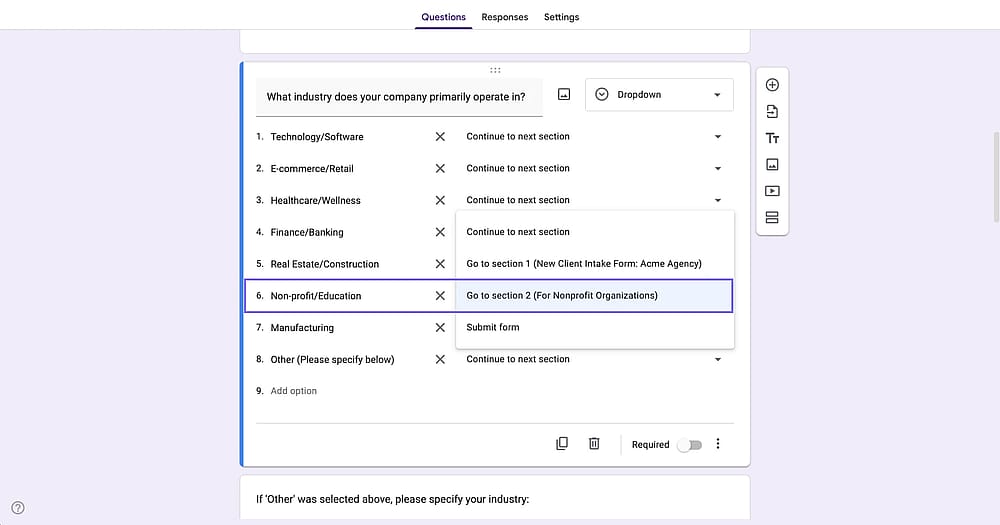
Adding conditional logic to some intake form questions
6. Customize the appearance
Click the palette icon in the top toolbar to access theme settings. You can change the header color, add a header image, and select a font family. Options are limited, there's no logo upload, and no fine-grained styling control.
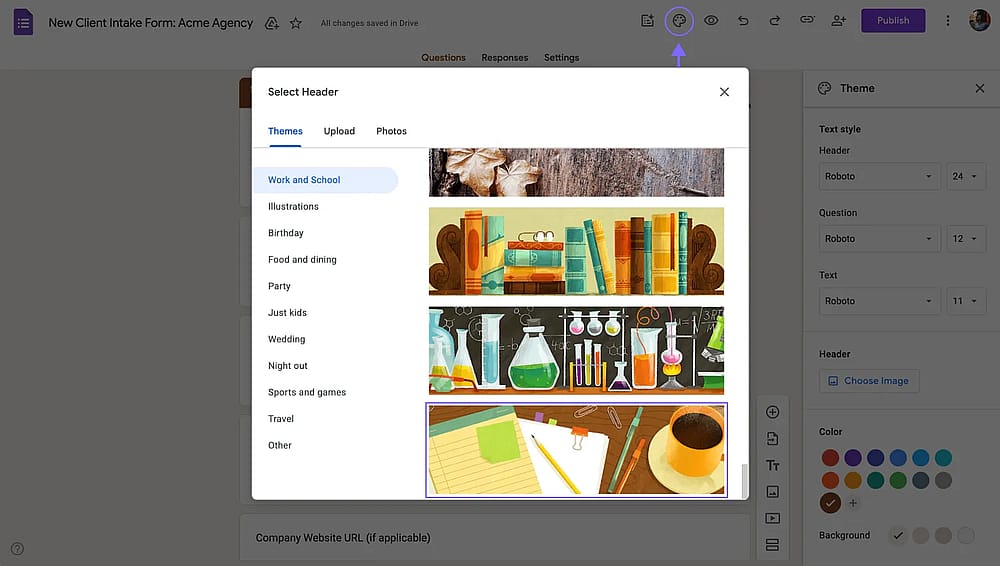
The “Theme” sidebar on Google Forms
7. Configure response settings
Click the Settings tab (gear icon) to configure:
- Collect email addresses: automatically captures the respondent's Google account email, or prompts them to enter one
- Limit to 1 response: prevents duplicate submissions
- Confirmation message: customize what respondents see after submitting
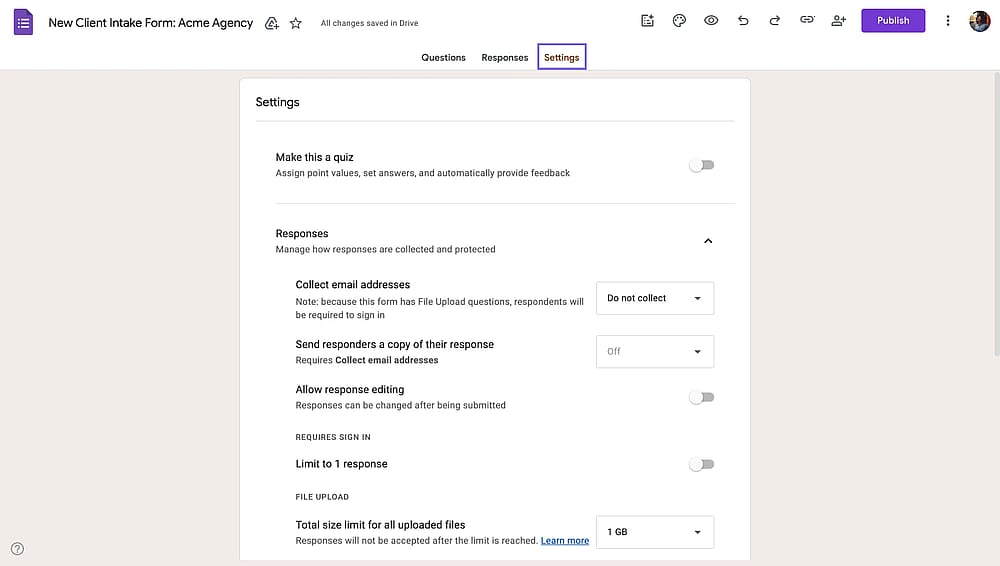
Google Forms settings
8. Share or embed your form
Click the Publish button to get a link for your online form.
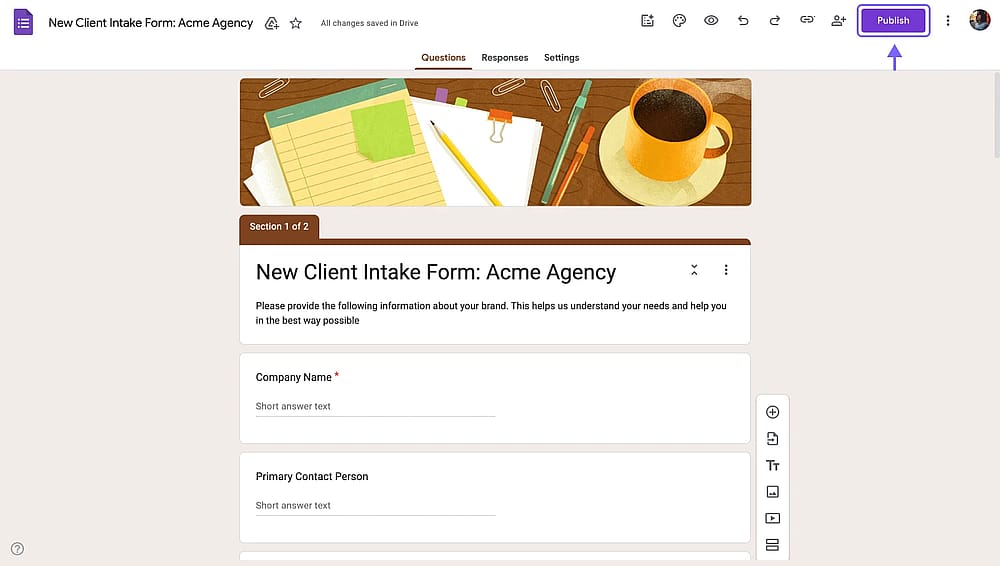
Google Forms publishing
9. View and manage responses
Click the Responses tab in your form editor. You'll see a summary view with charts and totals, or you can click the Google Sheets icon to open all raw responses in a spreadsheet, which makes filtering, sorting, and exporting easy.
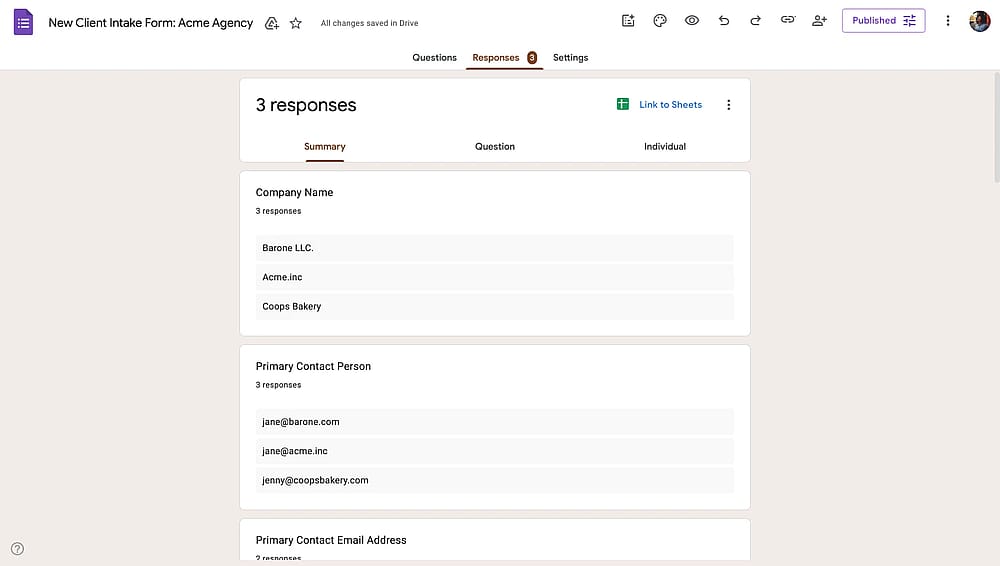
Google Forms Responses tab
Google Forms limitations for intake forms
Google Forms is genuinely useful for simple, low-volume intake needs. But it has hard limits that become friction points as your requirements grow. Below, we have charted out a comparison table to help you visualize Google Forms limitations for intake forms and what would you get with an online form builder like forms.app:
Feature/Tool | Google Forms | forms.app |
Conditional logic | Basic | Advanced |
Question types | 11 | 30+ |
Email notifications | ||
PDF generation from responses | ||
Step view (one question at a time) | ||
Customization | Basic | Advanced |
File uploads | ||
Payment collection | ||
Multilingual forms | ||
E-signature field | ||
Form templates | 17 | 5,000+ |
A better alternative for online intake forms: forms.app
forms.app is an all-around form builder with a super user-friendly interface. It is designed for teams that need more than basic data collection. With forms.app, you can create an intake form for counseling, medical intake form, marketing intake form, and any other intake form. Here’s how:
1. Choose a template, start from scratch, or use forms.app’s AI form generator
To begin creating your intake form with forms.app, you can choose one of our free intake form templates, start with a blank form, or use forms.app’s AI form generator. Our breakthrough AI helps you create a customized form with just a sentence and lets you have the best experience possible.
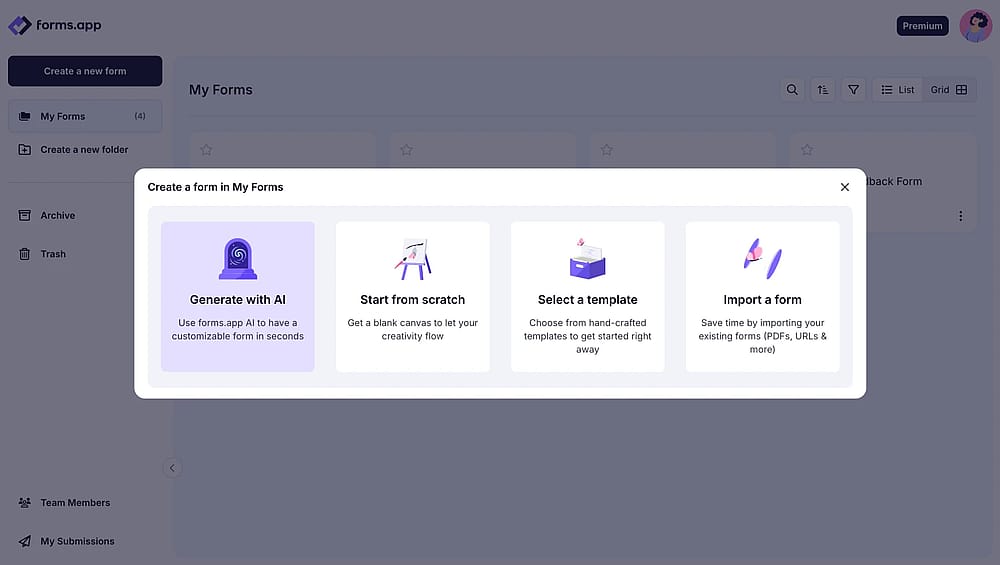
The form creation options on forms.app
2. Edit the questions or add your own
After choosing which base you would like to start with, you can add questions or edit existing intake form questions from our templates. Simply click on any question you would like to edit and change anything from the question's title, the answers, and the description.
💡 You can also use rewrite with forms.app’s AI question helper to edit questions. Click the purple icon next to any question title to rephrase or rewrite your question using forms.app AI.
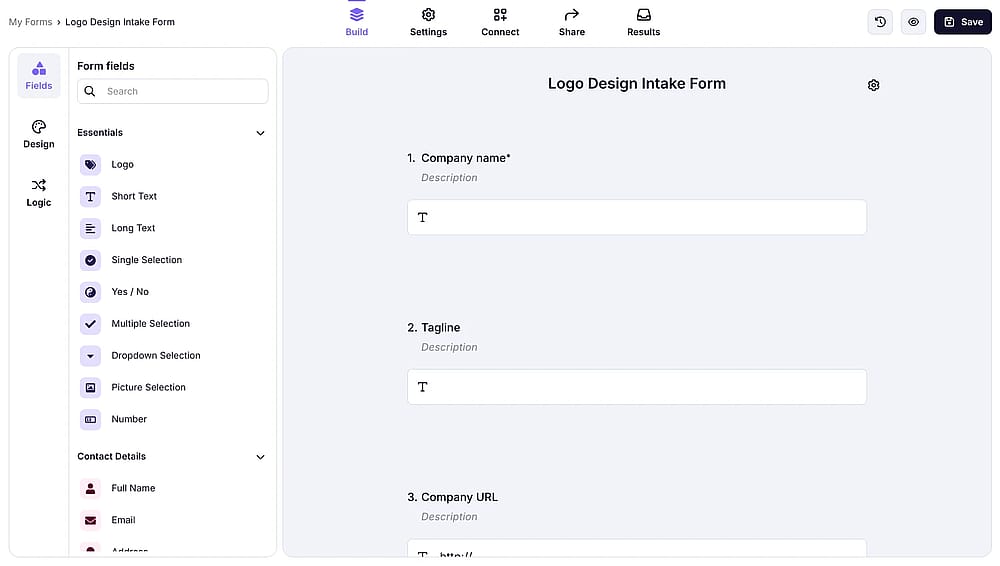
The drag-and-drop interface of forms.app
3. Customize the form design
Once you are done with the general creation process, you can get to editing your form’s overall design. To customize the visuals, go to the “Design” tab within the “Build” section and make any visual changes to the form's theme. You can also make further changes, such as font colors, border radiuses, and other settings, from the “Customize” section of the “Design” tab.
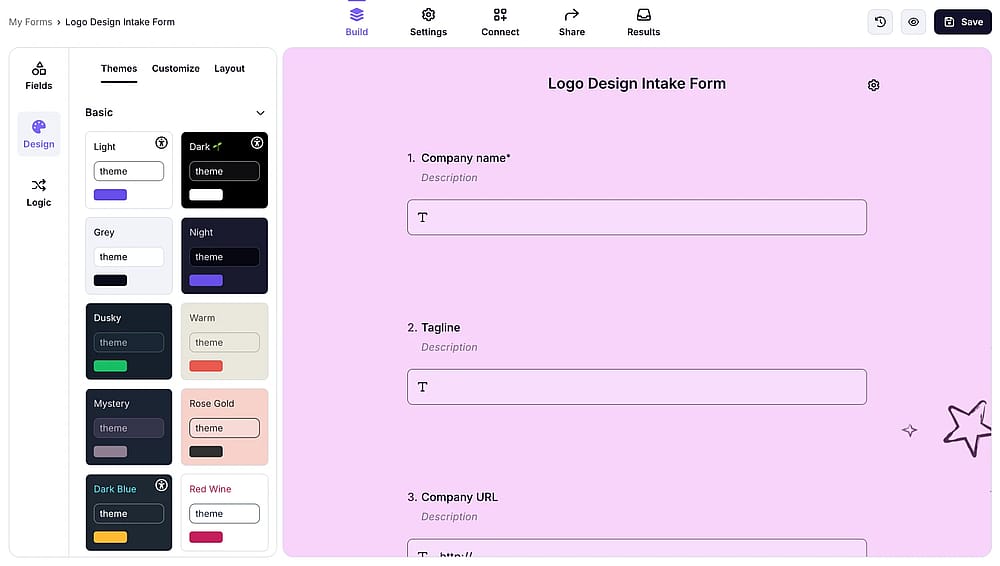
Customize your intake form
5. Preview & share
After you are done creating, you can preview your form by clicking the eye icon at the top right side of the page. This feature allows you to examine your form from a customer’s perspective. You can also connect your survey to several different databases using the “Connect” section. The connect section allows you to pair the results of your form with several types of databases.
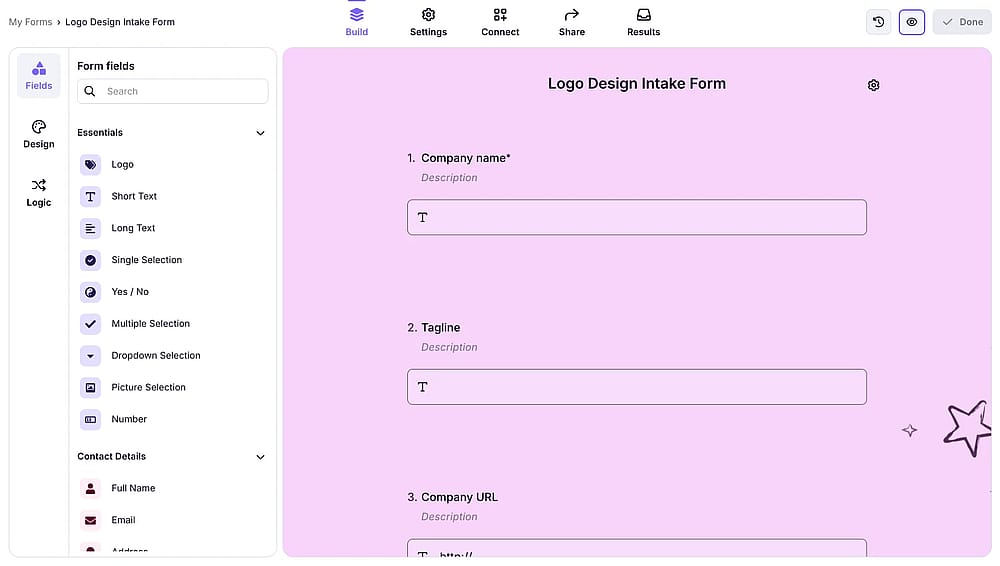
The preview icon on forms.app
In the end, you can share your form with the world through the “Share” tab. However, the “Share” tab is not just for sharing; it also allows you to customize your survey's URL or embedding. The embedding feature lets the survey pop up wherever you want on your website. You can choose between full-page, side tab, slider, and more.
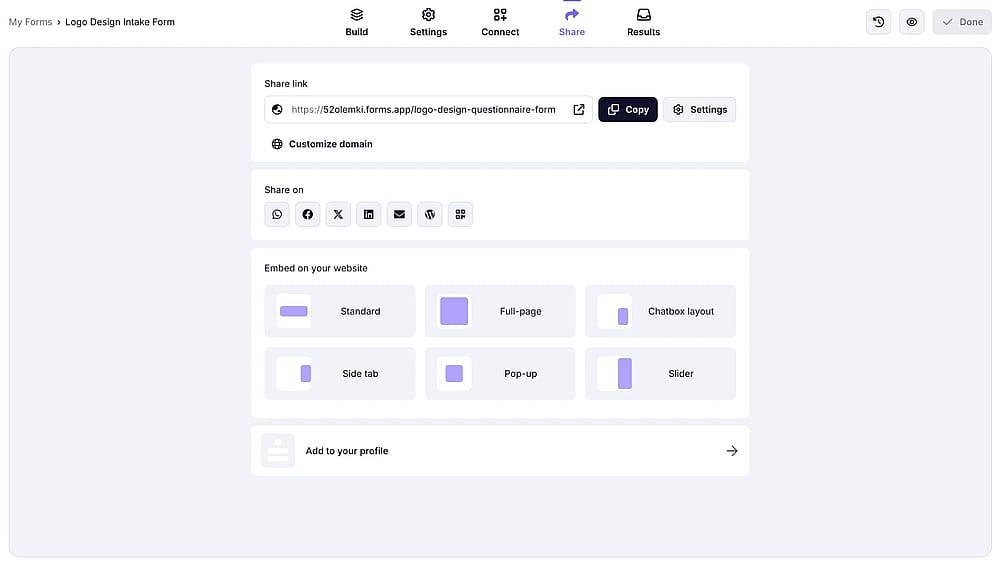
The form sharing settings on forms.app
6. Analyze your results
forms.app also helps collect and analyze the results of your intake form. Collecting data is the main goal of intake forms. But analyzing your data and connecting it to your workflow is just as important. You can go to the “Connect” tab for integrations, and the “Results” tab for your intake data.
On forms.app’s results tab, you can:
- View each response individually.
- See statistics for each question.
- Get a summary of your form results.
- View the drop-off analysis to see where your respondents leave your form.
- Apply time, location and device filters.
- Export your form results as a spreadsheet or PDF.
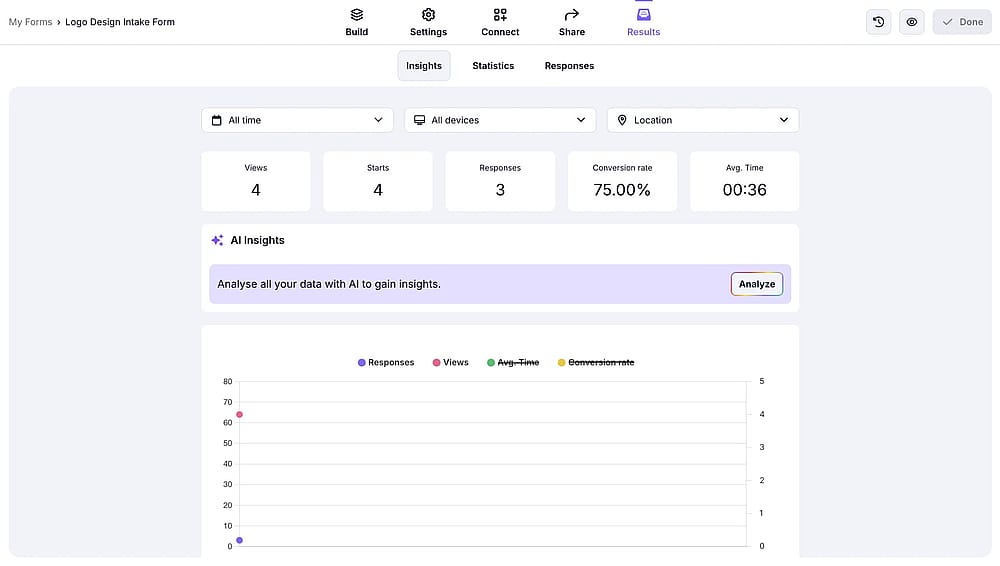
The “Results” tab on forms.app
Tips for creating a better intake form on Google Forms
There are a few things to know to create the best intake form possible for your business. These tips will ensure that you allow the best experience for your customers while increasing the efficiency of your business and your workforce.
1. Keep it under 10 questions if possible
Research consistently shows that completion rates drop as form length increases. If you have 20 things you'd like to know, prioritize the 8-10 that matter most before the first conversation.
2. Lead with easy questions
Start with name, company, and role; things respondents can answer on autopilot. Save harder or more sensitive questions (budget, challenges) for after they're already engaged with the form.
3. Write in plain language, not internal jargon
Use the words your clients use, not your internal team vocabulary. "What's your biggest challenge right now?" works better than "Describe your primary operational pain point."
4. Make your form look like your brand
Even basic color customization increases perceived professionalism and trust. A form that matches your website feels like a seamless part of the experience, not an afterthought.
5. Always include a confirmation message
Tell respondents exactly what happens next. This can be when you'll be in touch, what to expect, and who to contact if they have questions. Leaving people in the dark after they've shared their information is a missed opportunity.
6. Test it yourself before sending.
Fill out the form as a respondent. Check for confusing wording, awkward field types, or required fields that shouldn't be required. Ask a colleague to do the same.
Frequently asked questions about Google intake forms
No. Google Forms does not have an e-signature field. If your intake form requires a signature, for consent, agreements, or authorization, you'll need a different form tool, such as forms.app. forms.app includes a built-in e-signature field on all plans, including the free tier.
Google Forms works well for simple, internal, or low-volume intake needs. It's free, easy to set up, and integrates directly with Google Sheets. Its main limitations for intake forms are: no per-question conditional logic, no e-signature field, no save-and-continue option, and no PDF generation from responses. If you need a more customized intake form with more features, try other dedicated form builders, like forms.app.
Most intake forms should include contact information, a description of the respondent's situation or goal, their main challenges or pain points, timeline, budget range, and an open field for anything else. Keep it as few questions as possible. Every extra field reduces the chance someone completes it.
Intake form templates to get you started
There are not Google intake form templates on Google Forms; If you'd rather not build from scratch, forms.app has ready-made templates for the most common intake scenarios. Here are just a few:
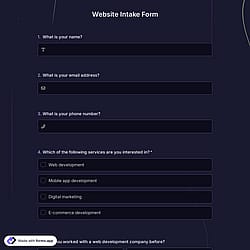

Each template is editable and can be customized with your branding, logic, and fields in minutes.
Thank you for reading our guide on Google intake forms so far. We hope you find it helpful, and we are looking forward to have you try forms.app to see the difference yourself.
Contributors
Researched & written by
forms.app, your free form builder
- Unlimited responses
- Unlimited questions
- Unlimited team members