How to create a quiz for your website (step-by-step guide)
Summarize with
A good quiz does something most blog posts can't: it gets people to click, answer, and stick around to see their result. That's why quizzes are one of the most reliable ways to boost engagement, collect leads, and learn more about your visitors all at once.
But there's a difference between slapping a quiz on your homepage and building one that actually converts. In this guide, we'll walk through how to create quizzes that work, which quiz builder for website use cases fits your goal, and how to embed a quiz once it's ready.
Why add a quiz to your website?
Quizzes work because they ask for participation instead of just attention. A visitor reading a blog post is passive; a visitor answering quiz questions is invested, and invested visitors are more likely to give you their email address to see their result.
A few concrete reasons to build one:
- Higher engagement. Interactive content consistently keeps visitors on a page longer than static text.
- Lead generation. A quiz result page is a natural, low-friction place to ask for an email address; people want to know their outcome.
- Audience insight. Every answer your visitors give is data. Over time, quiz responses can reveal what your audience struggles with, prefers, or needs next.
- Shareability. Personality and fun quizzes in particular tend to get shared more than plain articles, especially on social.
The catch: a quiz only delivers these benefits if it's built around a clear goal. That's the part most guides skip, so let's start there.
Types of website quizzes (and which one fits your goal)
Before you open a quiz builder for website use, decide what you actually want the quiz to do. The format changes depending on the goal.
Quiz type | Best for | Example |
|---|---|---|
Personality quiz | Reach and shares | "What type of marketer are you?" |
Scored / assessment quiz | Quality leads, credibility | "How strong is your website?" |
Trivia quiz | Education, brand authority | "How much do you know about SEO?" |
Lead-gen quiz | Segmenting and capturing contacts | "Which plan fits your business?" |
I’ve watched teams default to a personality test because it "seems more fun," then get disappointed when it brings traffic but not signups. If the goal is leads, an assessment quiz almost always outperforms a personality quiz, even though it's the less flashy choice on paper.
How to make an online quiz (step-by-step)
Before choosing a quiz generator, there are before-and-after processes. Creating online quizzes that are easy to build, share, and analyze can make the entire process more efficient.
Step 1: Define your goal and audience
Decide upfront what "success" looks like: more email subscribers, more time on site, more product signups, or just more social shares. This single decision shapes everything else: quiz length, tone, question difficulty, and what you offer on the result page.
Step 2: Choose a quiz type and template
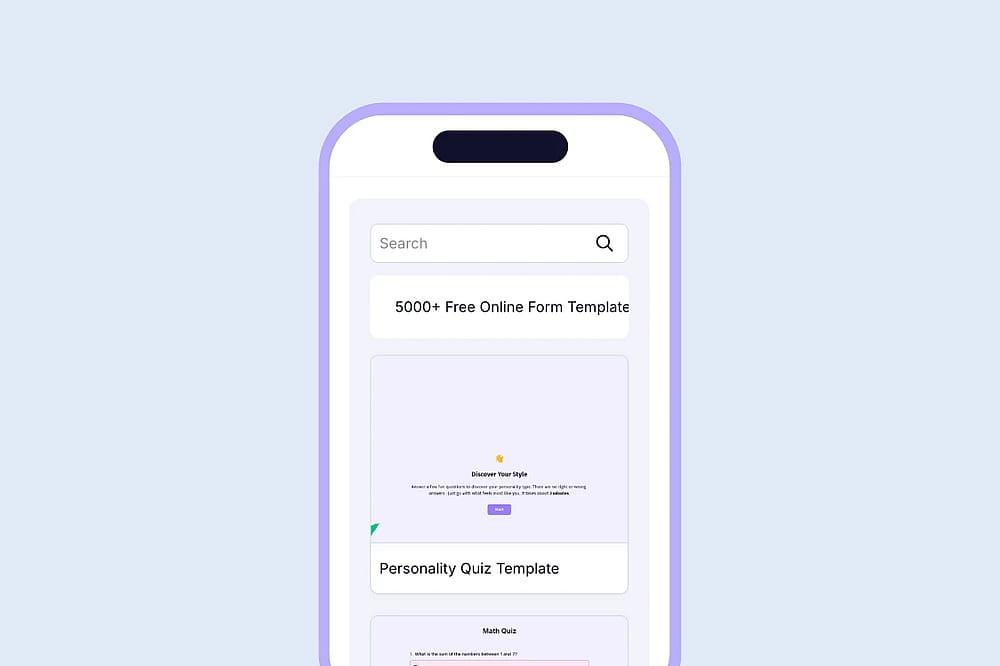
Choose a quiz template
Pick the format from the table above, then start from a template rather than a blank canvas. A quiz maker website with ready-made templates for personality, trivia, and scored quizzes saves you from rebuilding logic and layout from scratch; you're mainly dragging and dropping fields.
Step 3: Add your questions
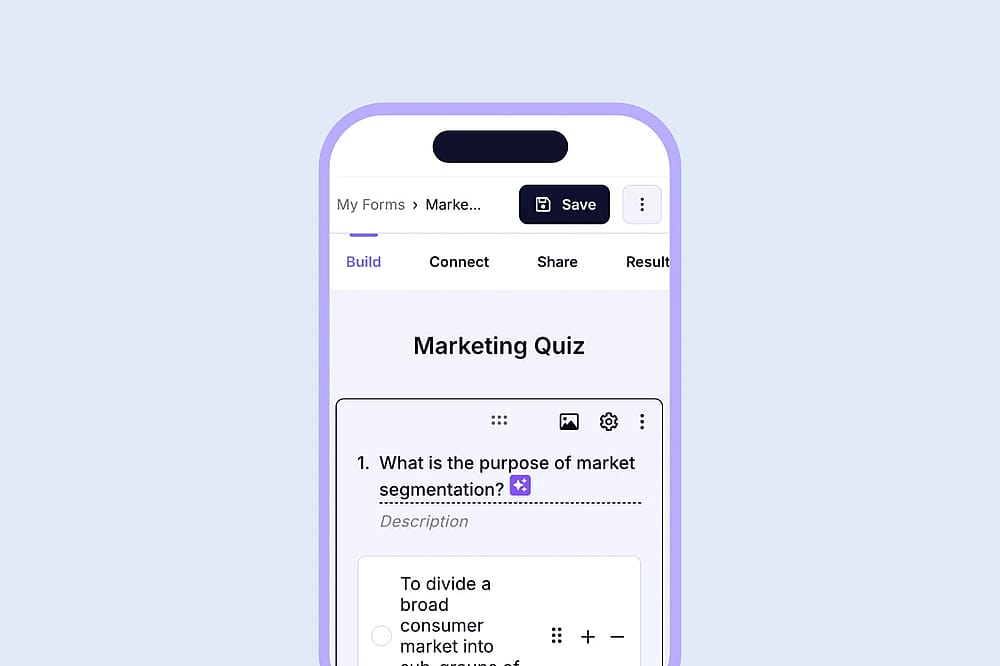
Add your quiz questions
Keep each question short enough to scan in a few seconds. Mix question types - multiple choice, image-based answers, or a 1-10 scale to keep the quiz from feeling repetitive.
The biggest drop-off I've seen in quiz testing happens between questions 3 and 5 - right when the initial curiosity wears off. Front-loading your easiest, most engaging question first (not your hardest or most personal one) noticeably improves completion rates.
Aim for 5-10 questions for a fun or personality quiz, and up to 15 for an in-depth assessment quiz. Beyond that, completion rates drop sharply regardless of topic.
Step 4: Set up scoring and result pages
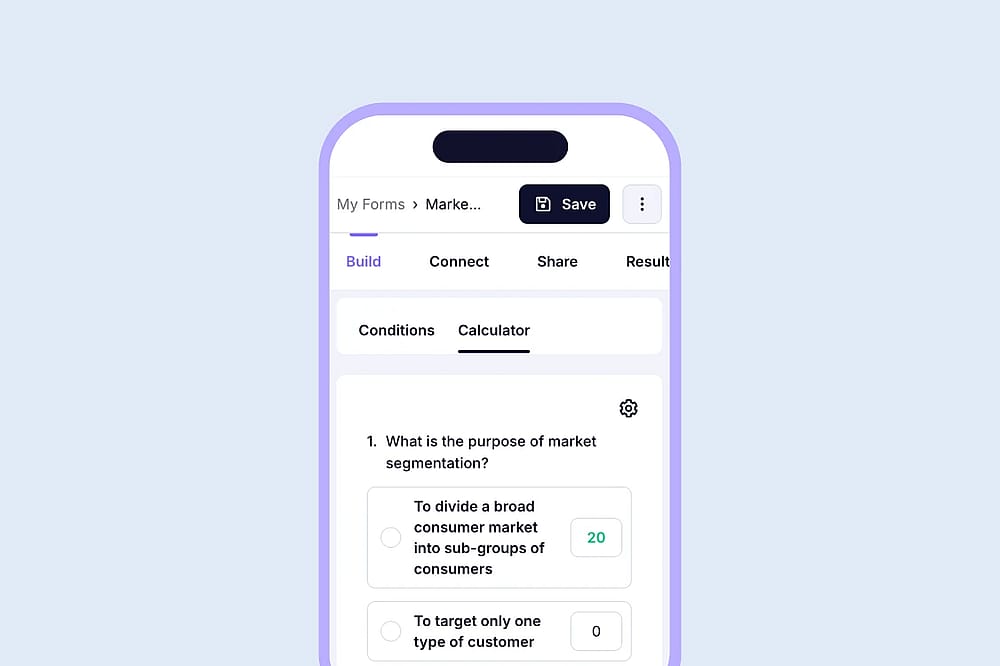
Add points to each question
If you're running a scored or assessment quiz, assign point values to each answer choice, then map score ranges to specific outcomes. Each result should feel earned and specific: "You scored 40/50: Your website converts well but loses visitors at checkout" is far more useful (and more likely to be shared or trusted) than a generic "Great job!" by quiz takers.
This is also where lead capture happens: you can show a partial result openly and gate the full breakdown behind an email opt-in, which keeps the experience from feeling like a paywall right at the start.
The wording of the result headline matters more than most people expect. "You scored 6/10 - here's what's holding you back" consistently pulls more opt-ins in our testing than a flat "Your Score: 6/10," because it hints there's something worth unlocking rather than just a number.
Step 5: Design for mobile and visual appeal
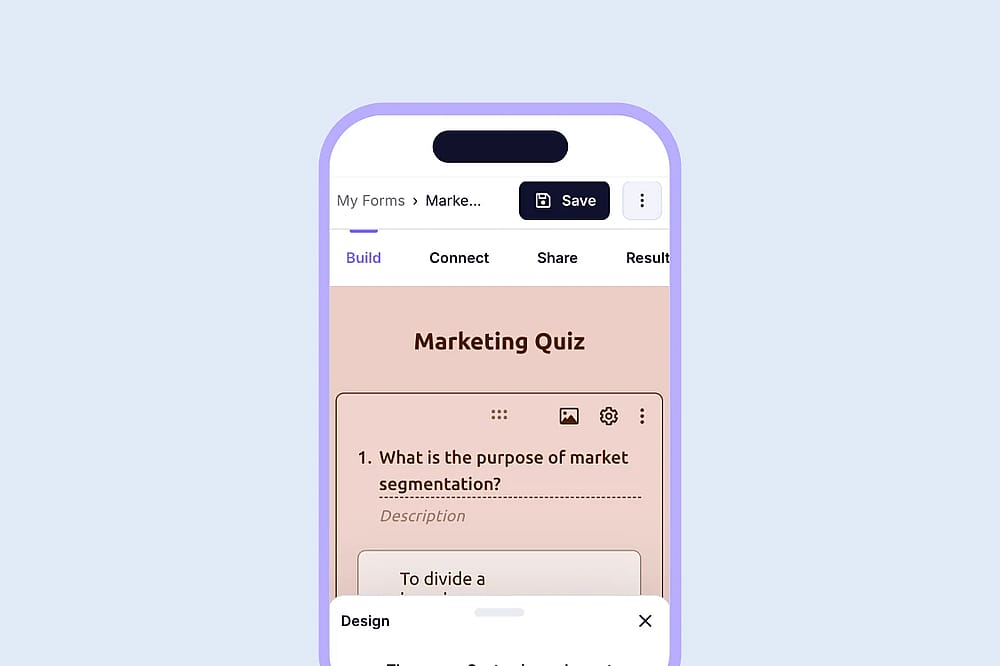
Customize your quiz
Most quiz traffic is mobile, especially if you're promoting it on social media. Use large tap targets, minimal text per screen, and a visible progress bar; seeing "Question 4 of 8" measurably reduces abandonment compared to an open-ended flow with no sense of how much is left.
Step 6: Embed the quiz on your website
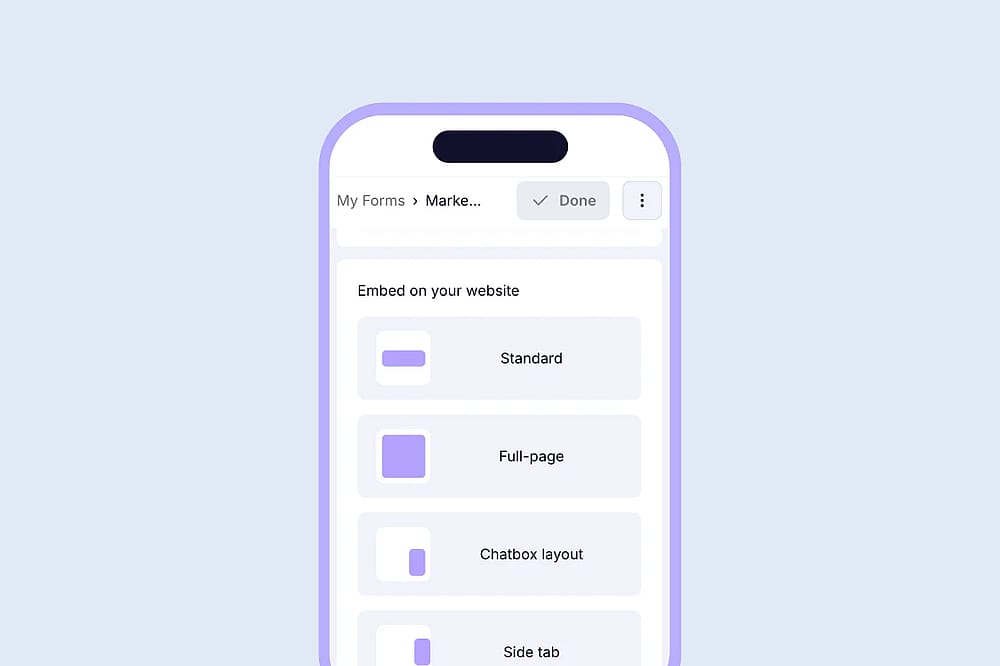
Embed your quiz into your website
Once it's built, you'll need to get it in front of visitors, which brings us to embedding.
How to embed a quiz on your website
There are a few ways to handle a quiz embed, and the right one depends on where you want the quiz to live:
- iFrame embed: The most common method. Copy the embed code from your quiz builder for the website and paste it into your page's HTML. This keeps your page loading fast since the quiz content loads separately from the rest of the page.
- Direct link: Share the quiz as its own standalone page: useful for social posts, email campaigns, or a QR code in print materials.
- Pop-up or slide-in: trigger the quiz after a set time on page or on exit intent, useful for driving completions without cluttering the layout.
Quiz design best practices (pro tips)
A few tips to apply no matter which quiz type or tool you use:
- Make it scannable. Visitors should understand the question and options in a couple of seconds.
- Choose mobile-friendly images where it makes sense. Visual answer choices break up text and speed up decision-making.
- Keep the tone consistent with your brand. A playful quiz on a serious B2B site can feel out of place - match the tone to what your audience expects from you elsewhere.
- Test the full flow before publishing. Go through it as if you were a first-time visitor, including on mobile.
Adding a welcome page that sums up how much time the quiz takes and what it is about helps the quiz takers a lot.
Common mistakes to avoid
Paying attention to the aspects given below will boost your quiz:
- Making the quiz too long for its purpose. A fun personality quiz with 20 questions will lose most people before the end.
- Gating everything behind an opt-in. Give something away for free, or drop-off spikes right at the email step.
- Ignoring mobile. If the quiz isn't easy to tap through on a phone, you're losing the majority of potential traffic.
- Vague or generic results. "You're awesome!" doesn't build trust the way a specific, earned result does.
The most common mistake we see isn't in the quiz itself; it's publishing it and never looking at the answers again. Even a small batch of responses can tell you which question people struggle with or skip, which is often more useful than the lead count alone.
Why forms.app works well for building quizzes
Every step above - templates, question types, scoring logic, result pages, and embedding- is something forms.app is built to handle without needing separate tools or custom code.
You can start from a quiz template, set point values for each answer option, customize result messages, and grab an embed code for your site in the same place you built the quiz.
If you'd rather skip manual setup, the AI quiz maker can generate a full question set from a topic or prompt, which is useful if you're building your first quiz and don't want to start from a blank page.
Frequently asked questions
Most quizzes perform best between 5 and 10 questions. Fun or personality quizzes should stay on the shorter end; in-depth assessment quizzes can run up to 15 questions if each one adds real value to the final result.
forms.app allows you to create quizzes with a calculator feature and collect unlimited responses for free. Also, add your logo, invite unlimited team members, and embed the quiz into your website with $0 cost.
Indirectly. A quiz itself won't rank on its own, but it increases time on page and engagement signals, and gives you a natural way to link out to related content from the result pages.
An iFrame embed is the simplest and most reliable option for most websites. If you're on WordPress, a plugin-based embed using a shortcode can be easier to manage long-term.
Yes, especially assessment or scored quizzes where the result feels personal and useful. Showing a partial result before asking for an email tends to convert better than gating everything upfront.
- August 2026 - Steps revised and updated to align with August 2026 standards
- The editor's personal experiences were added as infoboxes
- Visuals were updated
Contributors
Researched & written by
forms.app, your free form builder
- Unlimited responses
- Unlimited questions
- Unlimited team members