Save up to 60% on yearly plans and enjoy our biggest offer of the year. Limited time only. 🍂
See pricing

How to stop Google Forms spam: 7 proven methods that actually work
Summarize with
If you've ever opened your responses tab to find it flooded with gibberish, fake emails, or the same entry submitted fifty times, you already know the problem, and you are not alone.
Google Forms spam is only getting more common, especially on public-facing forms. Spam form submissions don't just clutter your data; they waste review time and can quietly wreck the accuracy of surveys, quizzes, and lead forms.
The good news is that you don't need to accept it. Below are 7 tested ways to prevent spam form submissions, a quick comparison of which method fits which situation, and what to do when spam still gets through.
TL;DR
1. Restrict access to signed-in users
2. Add a verification question
3. Lock down fields with response validation
4. Limit to one response per person
5. Add a hidden honeypot field
6. Turn on real-time email notifications
7. Use a spam-blocking add-on
Why Google Forms attracts spam in the first place
Google Forms has no native Google reCAPTCHA and no built-in spam-filter setting you can just flip on. Any form set to "Anyone with the link" is a completely open URL, which is exactly what spam bots are built to scan for. Combine that with forms shared on social media or indexed by search engines, and you've got an easy target. Every method below works around this one structural gap.
7 ways to prevent spam form submissions
Wasting time and meaningful data with bot fills or unwanted submissions is annoying. However, several ways can prevent automated spam or block spam. Take a look at the solutions given below for Google anti-spam forms:
1. Restrict access to signed-in users
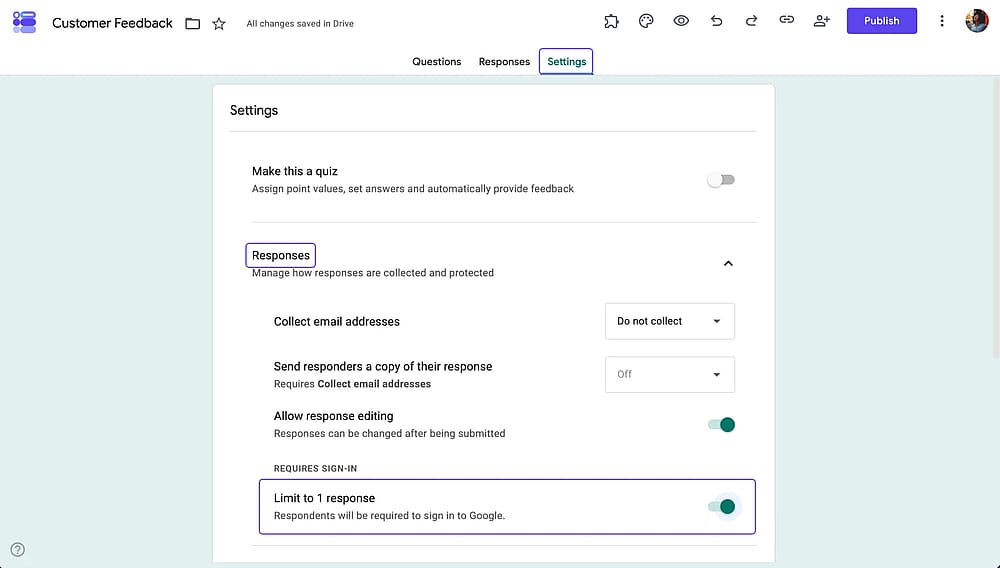
Under Settings > Responses, require sign-in and set responder access to "Restricted" if you're on Google Workspace. This forces every submission to come from a verified account, which eliminates most anonymous bot traffic instantly.
2. Add a verification question
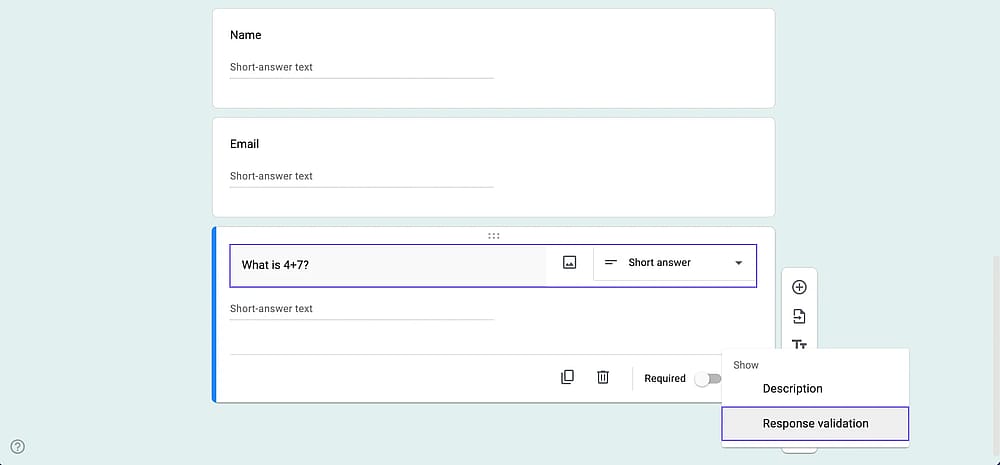
Add a short-answer form field ("What is 4 + 7?") and use Response Validation to accept only the correct number. It's a low-tech but effective stand-in for CAPTCHA.
💡 From experience: A plain math question stops the vast majority of scripted bots, but I've seen spammers bypass single-digit sums within days once a form link circulates widely. Rotating the numbers occasionally, or pairing it with sign-in restriction, holds up much better long-term.
3. Lock down every field with response validation
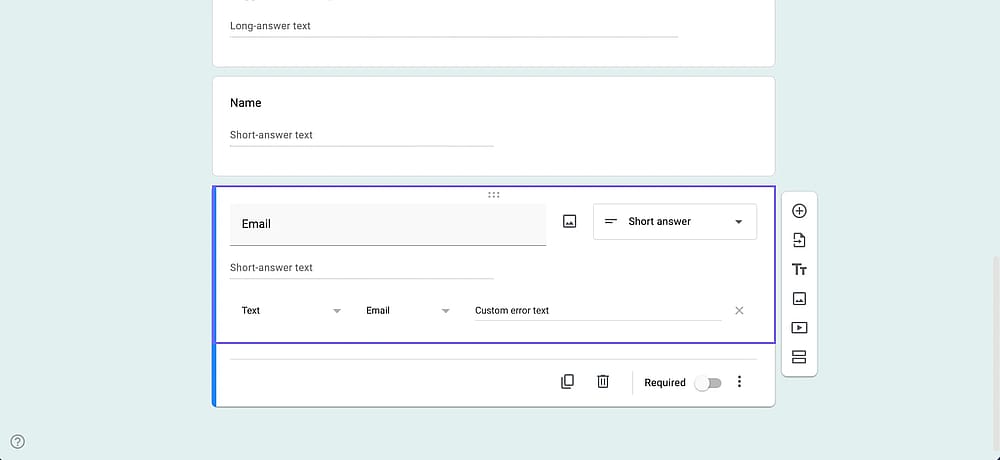
Beyond the verification question, apply validation to email fields (must match email format), phone fields (numbers only), and text fields (character limits). Bots that can't guess your exact format usually give up or get auto-rejected.
4. Limit to one response per person
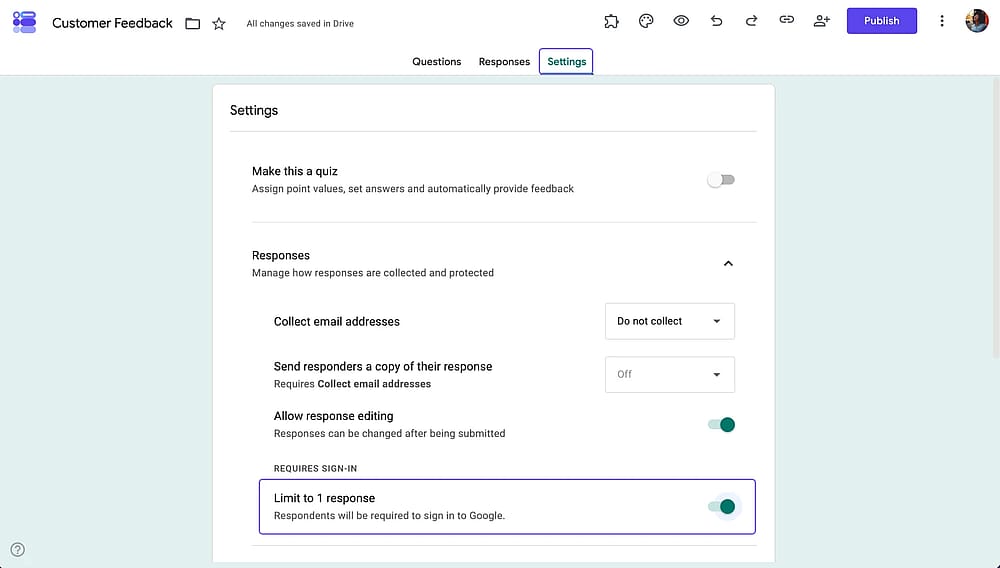
This setting (available once sign-in is required) blocks the same account from resubmitting, which is useful against both bots and repeat human spam.
5. Add a hidden honeypot field
Create a text field, then hide it visually using a linked section or conditional logic so real users never see or fill it in. Bots that auto-fill every field on the page will fill this one too, giving you an easy rule to flag and discard those responses.
💡 From experience: This is the method I've found most competitor guides skip entirely, but it's one of the most reliable signals I've used: a filled-in honeypot field is close to a guaranteed bot, with almost no false positives from real users.
6. Turn on email notifications for real-time alerts
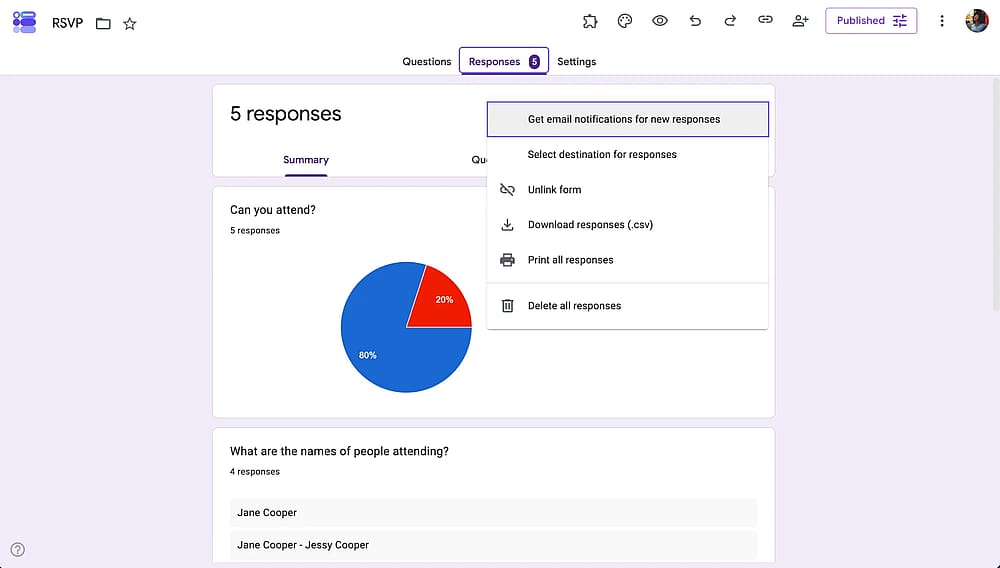
Under Responses > More options > Get email notifications for new responses, you'll get pinged the moment a new entry lands. This won't stop spam form submissions from coming in, but it lets you catch and react to a spam wave in real time instead of finding it days later during export.
7. Use a spam-blocking add-on
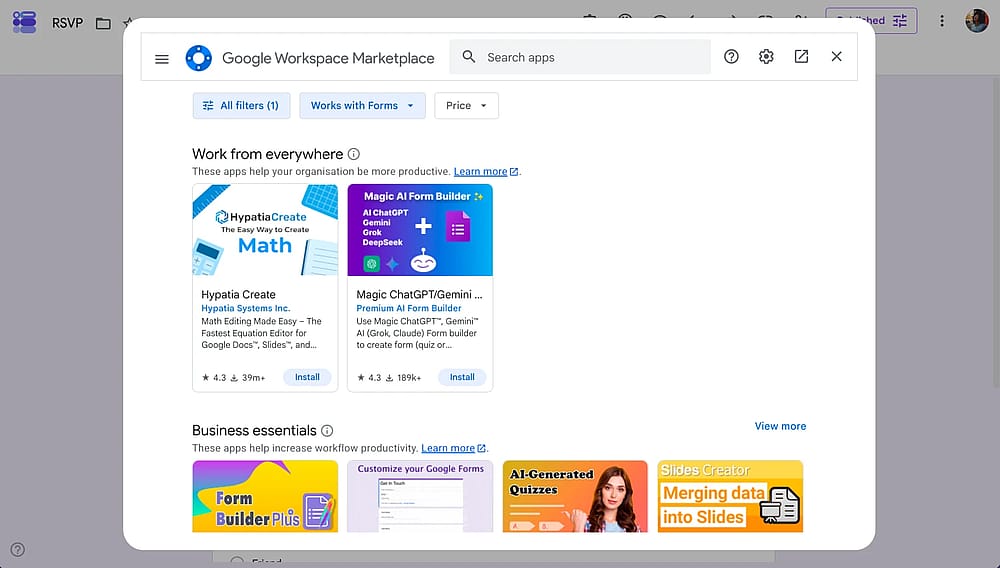
Add-ons like formLimiter or Choice Eliminator can cap total responses, close a form automatically, or restrict submissions by criteria. Most have free-tier limits, so check whether the paid tier is worth it before relying on one for a high-traffic form.
Which method should you actually use?
No single method prevents Google Forms spam. Check the table given below and find the true match for your case:
Method | Effort | Blocks bots | Blocks repeat humans | Best for |
|---|---|---|---|---|
Restrict to signed-in users | Low | High | Medium | Internal/org forms |
Verification question | Low | Medium | Low | Public forms, quick fix |
Response validation | Medium | Medium | Low | Any form with structured fields |
Limit to 1 response | Low | Low | High | Forms requiring sign-in |
Honeypot field | Medium | High | Low | High-traffic public forms |
Email notifications | Low | None (detection only) | None | Catching spam waves early |
Add-ons | Medium | Medium–High | Medium | Forms needing automated limits |
💡 From experience: No single method fully solves Google Forms spam on its own. The combination that's held up best for me is sign-in restriction plus a honeypot field; it covers both anonymous bots and repeat offenders without adding real friction for genuine respondents.
Bonus: What to do when spam gets through anyway
Even with these in place, some spam form submissions will slip through, especially on forms that must stay public.
Link your form to Google Sheets, sort by timestamp to spot submission bursts (a dozen entries in the same minute is a strong spam signal), and filter out entries with obviously fake or malformed data before bulk-deleting. Building this into a regular five-minute check is far faster than reacting to a mess after the fact.
When Google Forms' spam protection isn't enough
For low-stakes forms, the methods above are usually enough. But if you're collecting form submissions where data quality really matters: paid signups, high-volume lead capture, public research - Google Forms' lack of native anti-spam tooling starts to show, since every workaround above has to be built manually.
This is where forms.app closes the gap. Under Settings, you can toggle on "Always show CAPTCHA" to add a real verification challenge at submission. No third-party add-on or manual math-question workaround required. Pair that with the option to disable multiple submissions per person, and you get two of the biggest spam sources (bots and repeat submitters) covered out of the box, without configuring separate validation rules for every field.
The result: Cleaner data from the moment a form is submitted, instead of a cleanup step you have to run after the fact.
FAQ
No. Google Forms has no native CAPTCHA feature; the workarounds above (verification questions, honeypot fields) exist specifically to fill that gap.
Yes, but only if sign-in is required. Enable "Restrict to users in [organization]" or general sign-in, then turn on "Limit to 1 response."
This usually means a bot script is targeting your form URL directly. Adding a verification question or honeypot field is the fastest fix, since neither requires changing your sharing settings.
For low-traffic forms, often yes. For anything shared widely or indexed publicly, pair it with response validation or a honeypot field; a single static question is the first thing spam scripts adapt to.
Contributors
Researched & written by
forms.app, your free form builder
- Unlimited responses
- Unlimited questions
- Unlimited team members