Save up to 60% on yearly plans and enjoy our biggest offer of the year. Limited time only. 🍂
See pricing

How to add a Google Form to Google Classroom (2026 step-by-step)

Summarize with
If you've ever wondered how to create a quiz in Google Classroom, here's the good news: Google Forms already does the job, and attaching one to your class takes just a few clicks.
What trips people up isn't the form-building; it's the handoff between Forms and Classroom. In this guide, I'll walk through the exact steps to run quizzes on Google Classroom correctly, plus a few fixes I've picked up along the way.
Step-by-step: Adding a Google Form to Google Classroom
Before you start: Make sure you have three things ready: a Google account with access to both Forms and Classroom, the class already created in Classroom, and your form built (or at least outlined) in Google Forms. Attaching a form goes faster when you've already decided the quiz logic and grading; deciding mid-attachment usually means starting the assignment over.
1. Open Google Forms and start with a form.
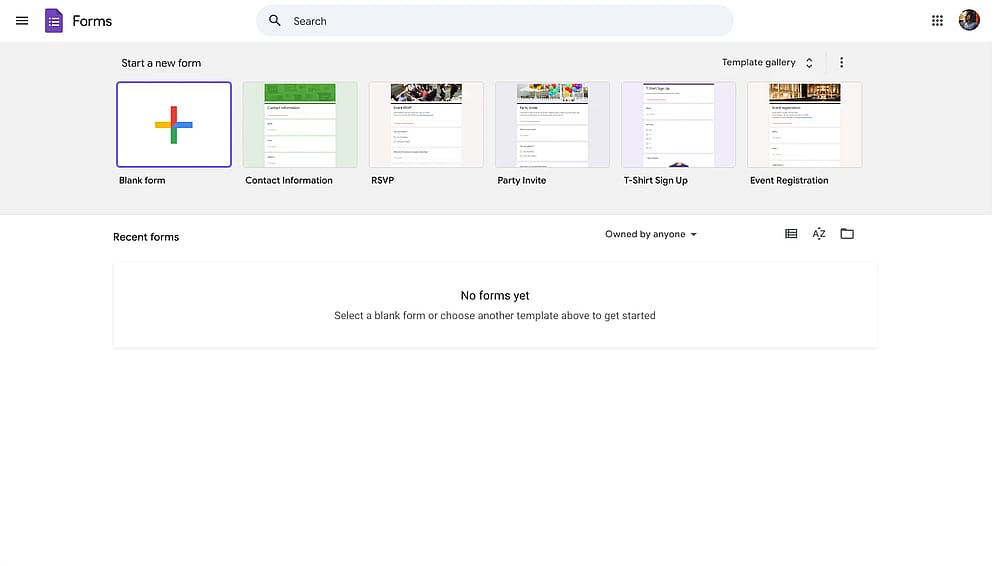
Start with a blank form
2. Add your questions and sections based on your own needs.
3. Toggle the “Make this a quiz” button from the settings tab.
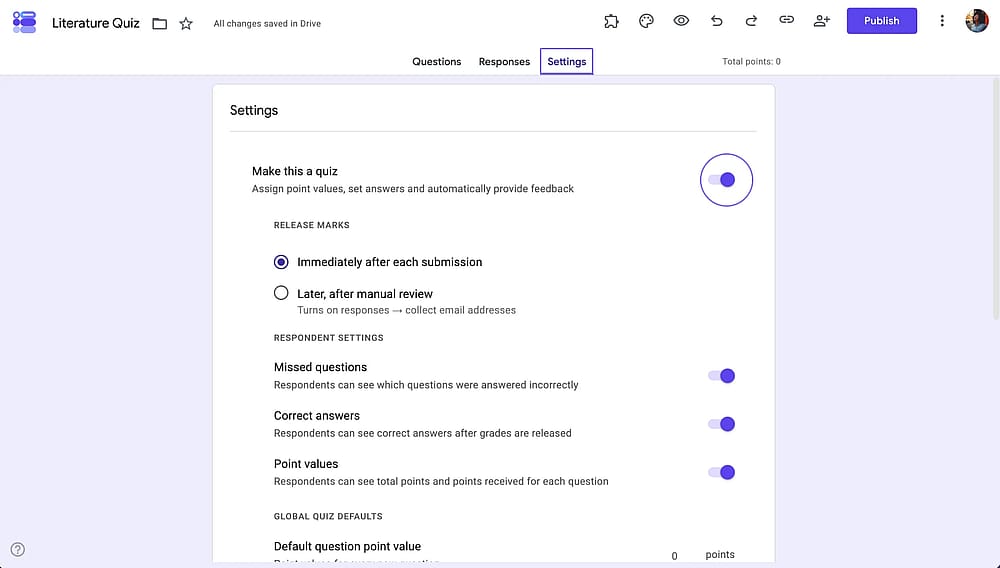
Toggle the quiz button
4. When your quiz is ready, go to Google Classroom.
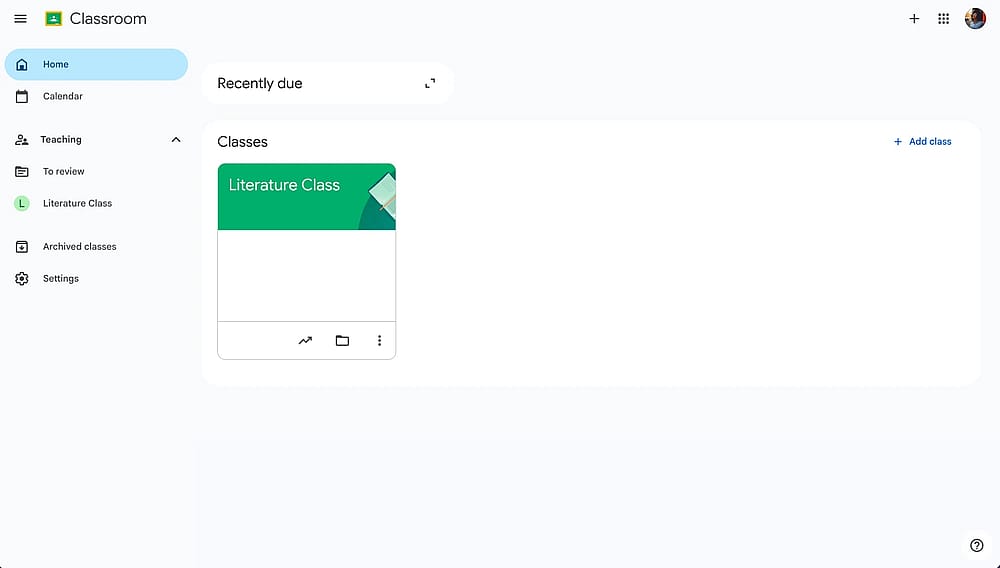
Open Google Classroom
5. Go to the relevant class and click “Create”
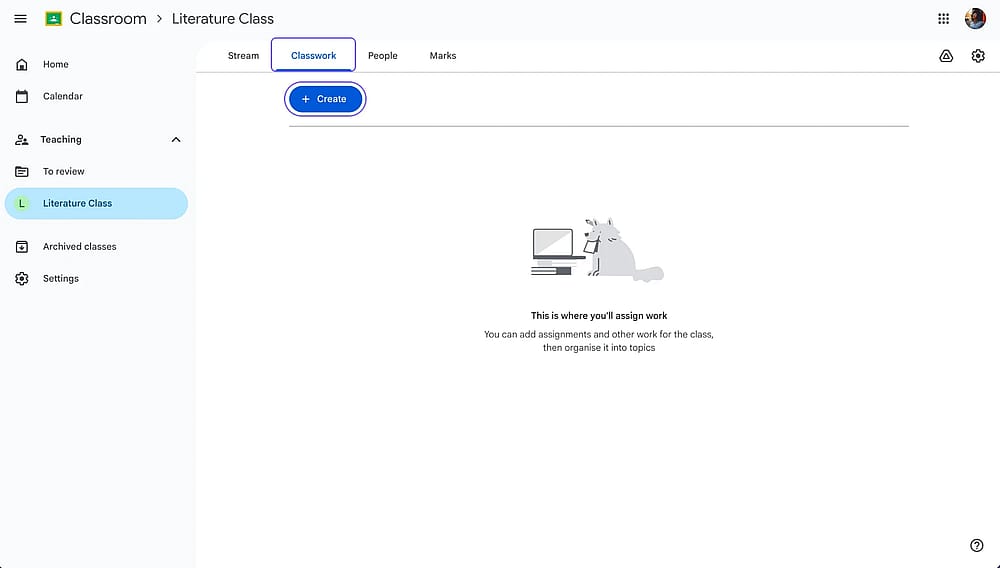
Click the “Create” button
6. Click the Drive button to connect your quiz.
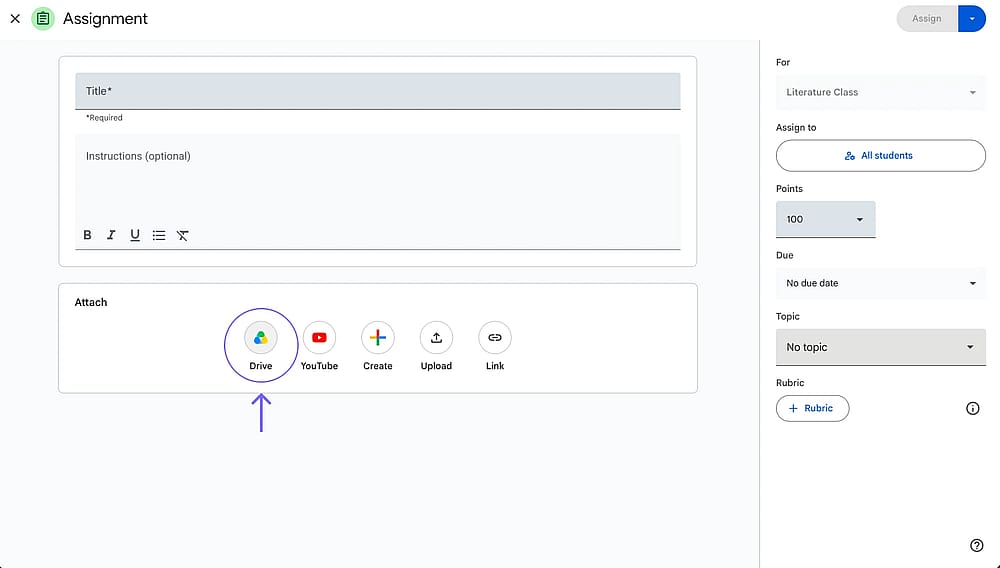
Click the “Drive” button
7. Add the quiz you want to add.
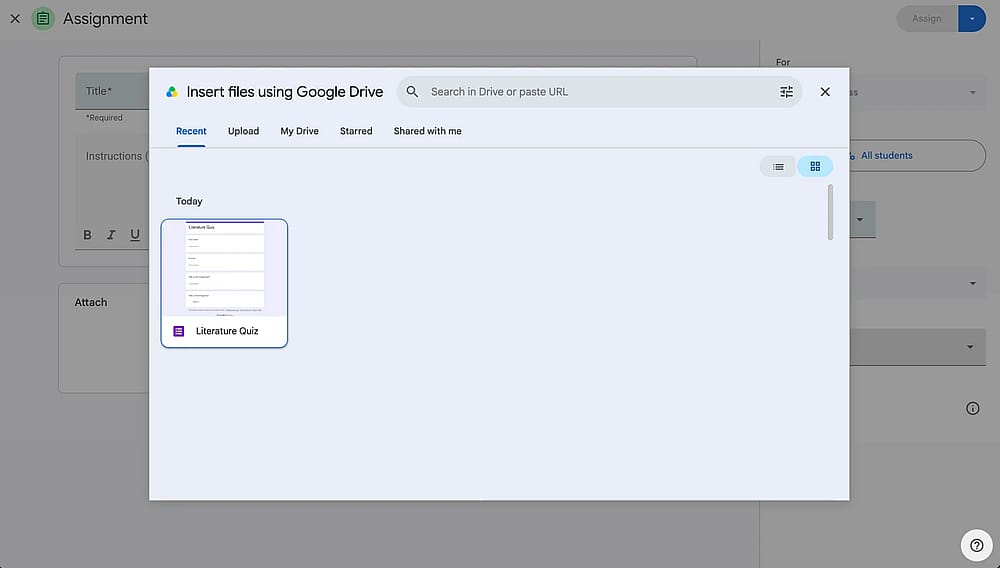
Add the quiz
Pro tip: Troubleshooting common issues
If you are having trouble with the Google Classroom process, here are some possible solutions you can apply based on the problem:
- Assignment not marked "turned in": Usually caused by an extra attachment alongside the form. Keep the form as the sole attachment if you want automatic completion tracking.
- Grade importing turned off unexpectedly: This happens automatically the moment you attach more than the original form. Remove extra attachments if you need grades to import.
- Can't import grades after editing: Once an assignment is posted, changing the form's settings or reopening it to make edits can break the grade-import link. Make edits before assigning, not after.
- Students can only submit once: If your form restricts responses by domain email, each student gets one submission - good for stopping duplicates, but retakes require you to manually reset a response.
- No version history: Note that Google Forms doesn't track changes. Delete a question and it's gone, and if responses feed into a linked Sheet, deleted questions won't disappear from the Sheet on their own.
When a Google Form isn't the right fit
Google Forms is free, fast, and fine for a simple quiz, but the deeper you get into regular classroom use, the more its limits start to show:
- No native file-upload question type for personal accounts.
- Google Forms’s conditional logic is shallow. Google Forms only supports simple "go to section based on answer" branching.
- Grade importing is fragile. It silently turns off the moment you attach a second file to the assignment.
- Limited design and branding control. Quizzes all look visually similar out of the box, with minimal control over layout, question grouping, or matching a school or class's own branding.
- No built-in payment or e-signature fields, which matters for teachers collecting field trip fees, permission slips, or paid materials alongside a quiz.
None of this makes Google Forms a bad choice for a quick quiz; it's still a fast option for that. But once you're running quizzes and forms regularly and start hitting these walls, a more flexible builder like forms.app covers most of the gaps: native file uploads on any plan, deeper conditional logic, form version history, and more design control.
Frequently asked questions
Assignment lets you attach a form you already built. Quiz assignment creates a new blank form for you automatically, but ties it more closely to that one assignment, making it harder to reuse elsewhere.
Only if you've enabled response editing in the form's settings. By default, submissions are final.
Check that you attached it through the Drive picker in a plain Assignment rather than pasting a link, and confirm you're not confusing it with the Quiz assignment flow.
Yes, when creating the assignment, select multiple classes before assigning.
Contributors
Researched & written by
forms.app, your free form builder
- Unlimited responses
- Unlimited questions
- Unlimited team members