Save up to 60% on yearly plans and enjoy our biggest offer of the year. Limited time only. 🍂
See pricing

How to add a linear scale question in Google Forms

Summarize with
TL;DR: How to Add a Linear Scale Question in Google Forms
1. Log in to Google Forms and open a form.
2. Click the "+" button in the right-hand toolbar to add a new question.
3. Open the question type dropdown and select Linear scale.
4. Write your question clearly and concisely in the question field.
5. Set your scale range (the minimum can be 0 or 1; the maximum can be any whole number from 2 to 10).
6. Add end labels (optional, but we recommend) to anchor the scale, e.g., "Not at all satisfied" and "Extremely satisfied."
7. Preview and share your form.
Linear scales are one most common types of questions in forms and surveys. Of course, there is a reason behind it. By adding linear scale questions to your forms, you allow people to rate something in the fastest way possible.
You can use linear scale questions in Google Forms. In this article, you will learn how to create linear scale survey questions, see some linear scale question examples, and finally find out about alternative ways to ask your linear scale questions. So, to kick this off, let’s take a look at what a linear scale is in Google Forms.
What is a linear scale in Google Forms?
A linear scale is a question type in Google Forms that asks respondents to pick a number along a defined range to express their opinion, satisfaction, or likelihood. The range is usually 1-5 or 0-10, and respondents select whichever number best reflects their answer.

A linear scale question example from Google Forms
How to create a linear scale in Google Forms (Step by Step)
If you are looking for a way to ask linear questions on your Google Forms, you will easily be able to do so without any plugins or extensions. Simply check out the steps below and follow them to add your own linear question to your Google Form:
1. Open or create a Google Form
Go to forms.google.com and sign in with your Google account. You can start from a blank form or choose one of Google's built-in templates as a starting point.
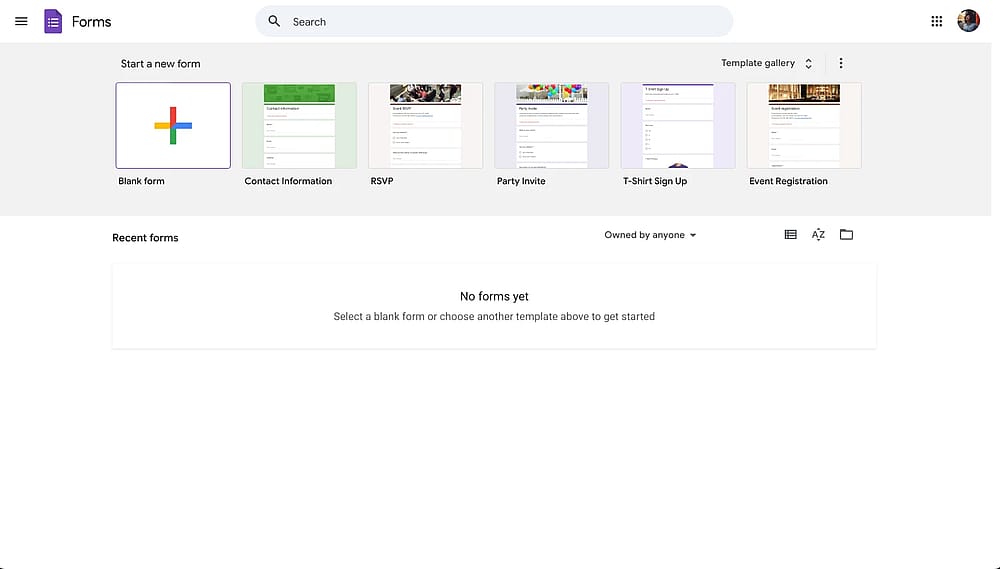
Alt text: Google Forms dashboard]
2. Add a new question
Click the "+" icon in the floating toolbar on the right side of the screen. A new multiple-choice question will appear by default.
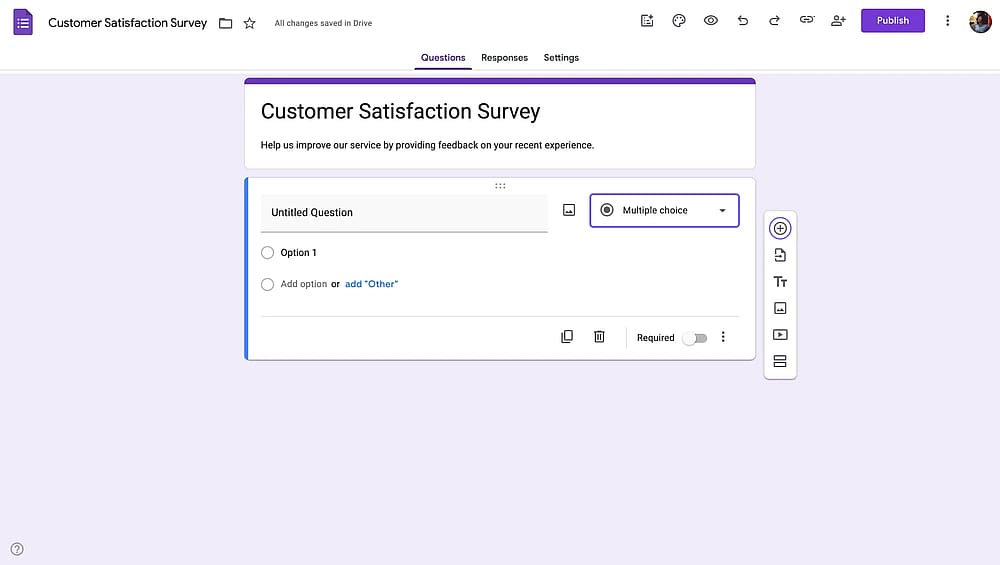
Adding a new question to a Google Form
3. Select "Linear scale" from the question type dropdown
Click the dropdown menu on the right side of the question box, it will say "Multiple choice" initially. Scroll down and select Linear scale. The question field will update to show the scale configuration options.
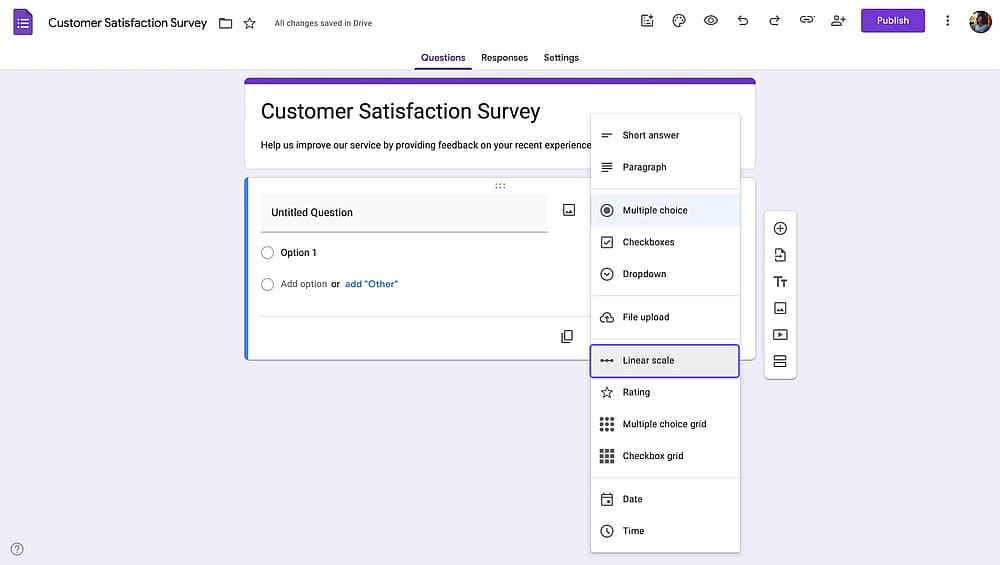
Changing field type to Linear Scale in a Google Form
Did you know?
It’s also possible to ask linear questions on Google Forms by adding a checkbox grid, multiple-choice grid, or star rating.
4. Write your question
Type your question in the question field. Keep it focused on a single topic. Avoid compound questions like "How satisfied were you with the product and the delivery?", that's two questions in one, and it will muddy your data.
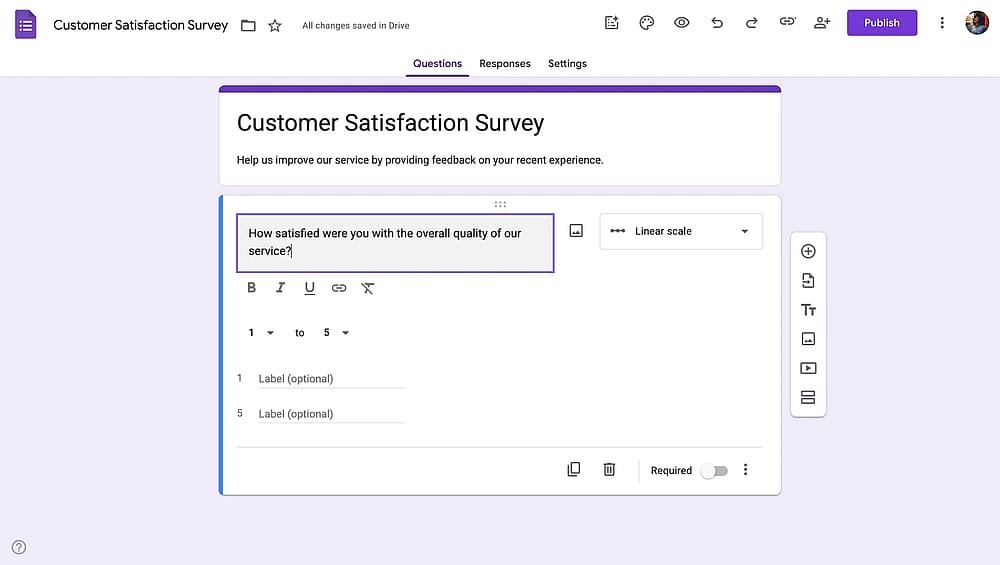
Writing a question on a Google Form
You can also add a description below the question title to give respondents any context they need.
5. Set your scale range
Use the two dropdowns below the question to set the minimum and maximum values. The minimum can be 0 or 1. The maximum can be any whole number from 2 to 10.
A few common conventions:
- 1–5 works well for satisfaction ratings and quick pulse surveys.
- 0–10 is the standard for NPS questions and gives more granularity.
- 1–10 is common for general opinion questions.
Pick a range and stick with it consistently across your form so respondents aren't recalibrating their mental model with each question.
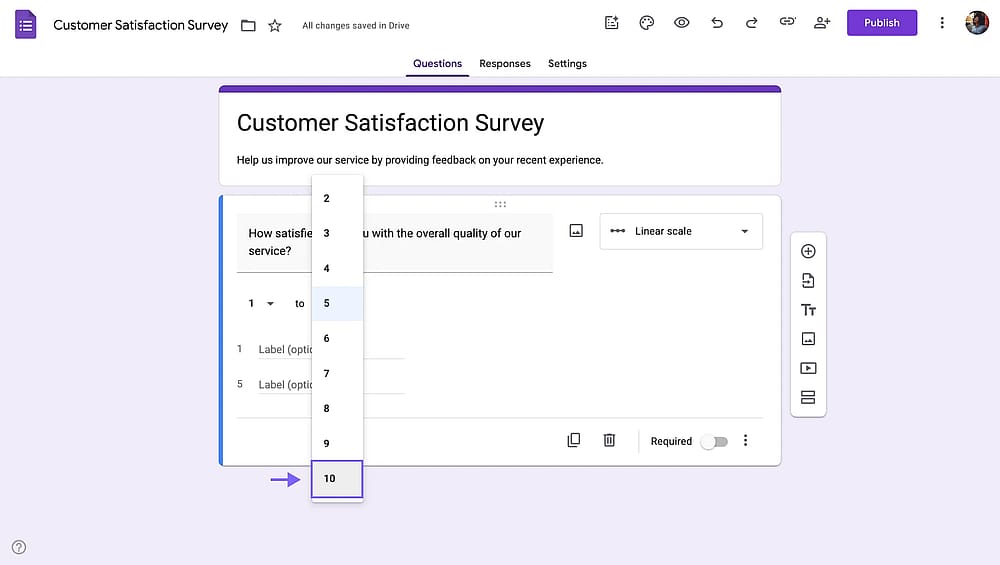
Set a range for a linear scale question
6. Add end labels
Click the label fields next to the minimum and maximum values to add descriptive anchors. These are optional in Google Forms, but they're strongly recommended; a scale from 1 to 5 means nothing without context. Good examples:
- "1 = Not at all satisfied" / "5 = Extremely satisfied"
- "0 = Not at all likely" / "10 = Extremely likely"
- "1 = Very difficult" / "5 = Very easy"
Note
Google Forms only allows labels at the two endpoints. You cannot add per-number labels.
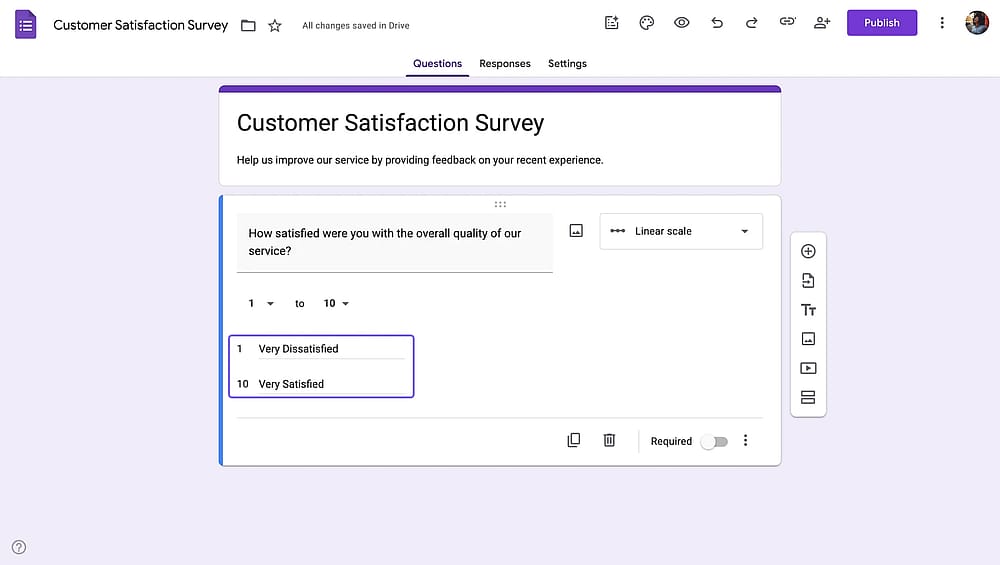
Adding labels to a linear scale question in a Google Form
7. Preview and test your linear scale in Google Form
Click the eye icon at the top of the screen to open a preview. Select a few numbers yourself to make sure the scale looks and behaves the way you expect before sharing the form.
Pro tip
If you're running a multi-question survey with several linear scales, keep the direction consistent. If 5 always means "best" or "most," never flip that convention mid-form, it's a common mistake that corrupts your data.
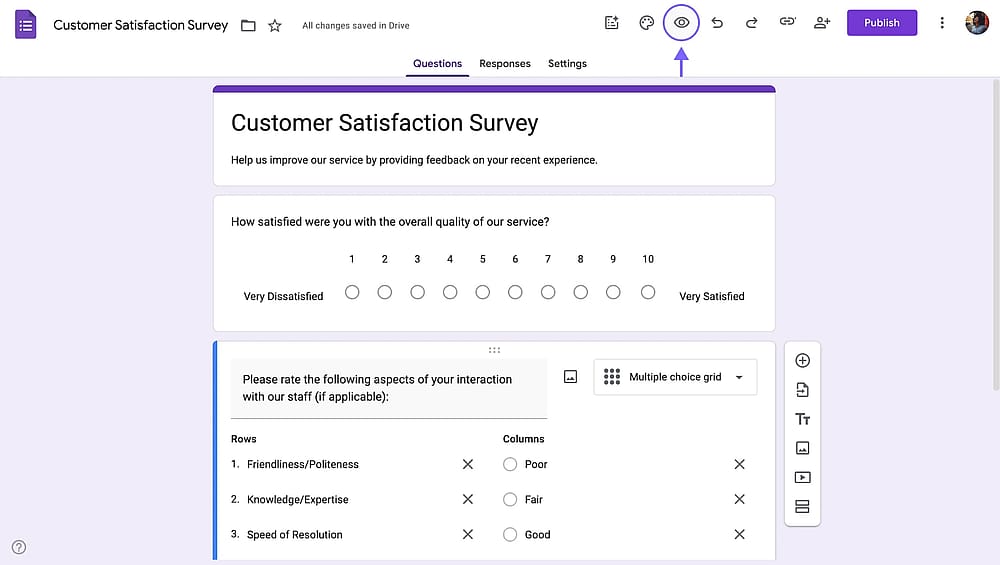
Adding labels to a linear scale question in a Google Form
And that’s it, now you can easily add linear scales to your surveys or questionnaires. But, you may have noticed that Google Forms has only a few customization options, both for your forms and your linear scale questions. In the next section, we will talk about a better way to create linear scales and forms/surveys in general.
How to Analyze Linear Scale Results in Google Forms
Once responses start coming in, Google Forms gives you a basic built-in view and the option to export for deeper analysis.
Open your form, click the Responses tab, and then select Summary. Linear scale questions are displayed as bar charts showing how many respondents chose each number. This gives you a quick read on distribution: are responses clustered toward one end, spread evenly, or split into two groups (a bimodal pattern, which often means your question is touching on a divisive topic)?
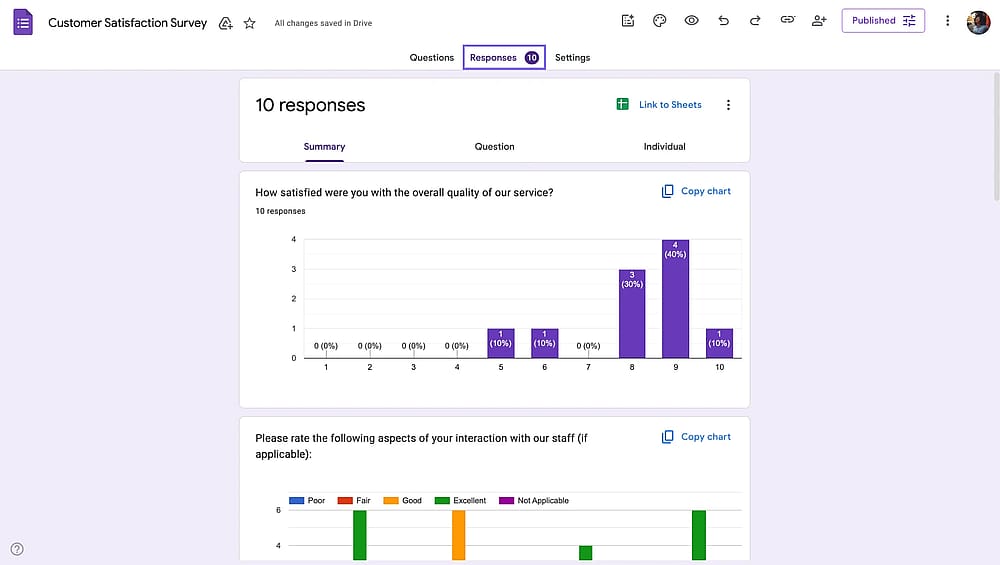
Adding labels to a linear scale question in a Google Form
Google Forms doesn't show an average directly in the summary view, but you can calculate it easily once you export to Sheets.
Click the Sheets icon in the Responses tab to send all response data to a new spreadsheet. From there, you can calculate averages, medians, filter by other answers, and create your own charts.
When should you use a linear scale question?
The right question type depends on what you're trying to learn. Linear scales work best in these situations:
- Customer satisfaction (CSAT): Ask customers to rate their experience on a 1-5 scale immediately after an interaction, purchase, or event. The simplicity drives high response rates.
- Net Promoter Score (NPS): The classic "How likely are you to recommend us to a friend or colleague?" question uses a 0-10 scale by design. If you're running NPS, a linear scale is the standard approach.
- Employee engagement surveys: Rating satisfaction with management, workload, or company culture on a scale is faster for respondents than written responses and easier to track over time.
- Product or feature feedback: Ask users to rate how valuable a specific feature is, or how easy a task was to complete.
- Event feedback: Post-event surveys benefit from linear scales because attendees can rate multiple aspects (speaker quality, venue, organization) quickly and consistently.
- Academic or research questionnaires: Linear scales produce ordinal data that's easy to analyze across a large sample.
- When not to use a linear scale: If you need to understand why someone feels a certain way, open-ended questions are more valuable. If your categories have meaningful labels that matter (like "Never / Sometimes / Always") a Likert scale is the better fit.
forms.app: A better alternative to Google Forms for linear scale questions
If you want to create a customized linear scale survey question with more functionalities, forms.app is a better alternative you should check out. As an all-around form-building application, forms.app offers you various form fields to ask linear scale questions, and you will have many advanced features free of charge, such as:
- Numerous ways to add linear scales
- More customization options (+free themes)
- Conditional logic that works with linear scales
- Automatic score calculator
- +5,000 free form templates
3 Form fields for asking linear scale questions on forms.app
On forms.app, you can ask a linear scale question with three different form fields. Having these options will make your questions more targeted and match your goals. Plus, you will have additional features and options that are not available in Google Forms’ linear scale questions. So let’s get right into it.
1. Star rating
The star rating is well-known and used form field in surveys, especially on websites on applications. It allows your respondents to rate something with a single click. Having a star rating instead of a numeric scale also improves the visual aspects in some cases.
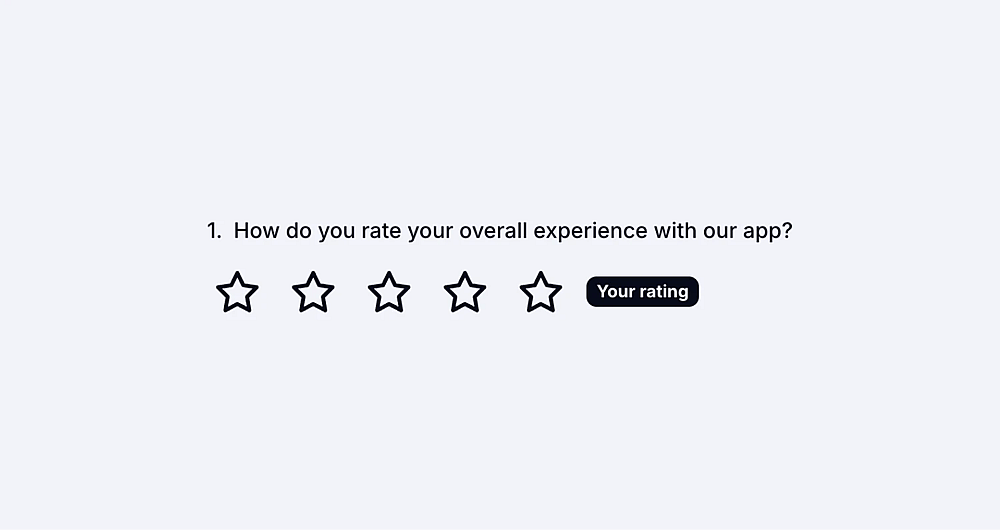
A star rating question example
Once you select the star rating option, customize it with just a few clicks. You can change the number of stars. Also, you can choose a default answer option in case of the question goes unanswered.
Did you know?
You can even change the icon of the response options of your star rating field, such as hearts, smileys, etc.
2. Opinion scale
Similar to a star rating, an opinion scale allows people to rate something by selecting a number on the scale. For example, an opinion scale question can help you assess public opinion of your business, product, or other topic. Additionally, opinion scales offer a simple and direct way of expressing feelings or thoughts.
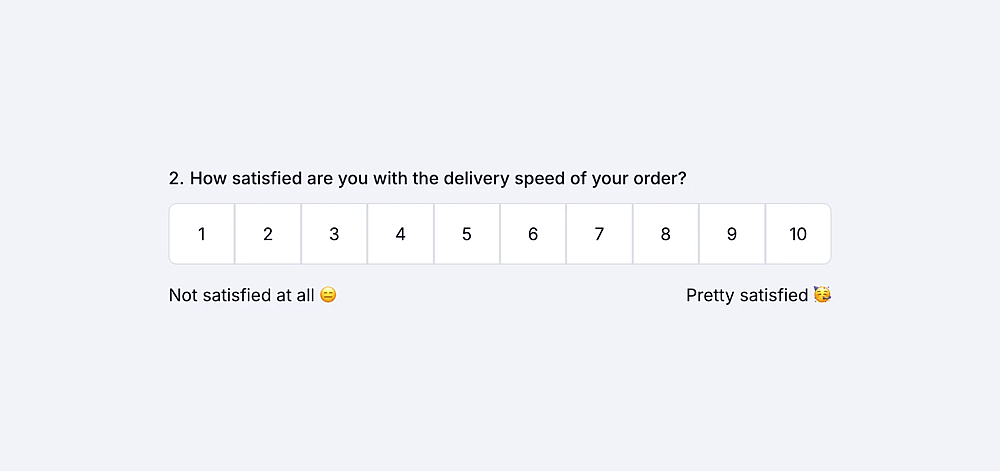
An opinion scale question example
After clicking the settings icon, you can find many options in the field settings menu. For example, you can find options to increase or decrease the numbers on the scale. Or you can click the default answer button in the menu. It helps in case the question goes unanswered by the responder (setting this to a neutral option is a good practice). Lastly, you can activate the add comment field button to let people express their thoughts.
3. Selection matrix
A selection matrix is an answer you need if you seek a simple and effective technique to get input and discover peoples' thoughts. Once you've got a selection matrix on your form, you can add your items and response options.
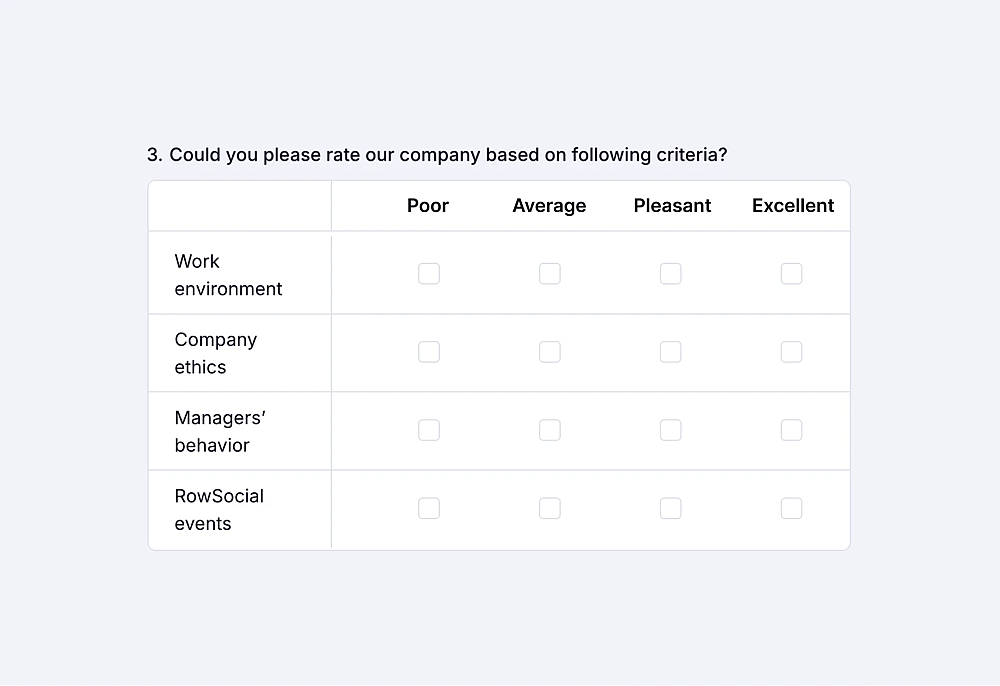
A selection matrix question example
Did you know?
You can allow single or multiple answers for the topics/side row.
How to add a linear scale question on forms.app
Now that you see the form fields, you can use them to pose your linear scale question on forms.app, it is to see how you can do it. Adding your questions will take much less time on forms.app, and you will be able to customize them for your needs. Here are all the steps:
1. Open or create a form on forms.app
First, sign in to your forms.app account. If you don't have an account, you can easily create one for free by using your Google, Facebook, Apple, and Stack Overflow accounts.
forms.app offers you three different ways to create your forms: Free form & survey templates, forms.app’s AI form generator, and starting from scratch. Templates will come with standard questions, and you can use them as a base. You also have forms.app AI, a free form generator, to create forms automatically. And, of course, you can always start from scratch.
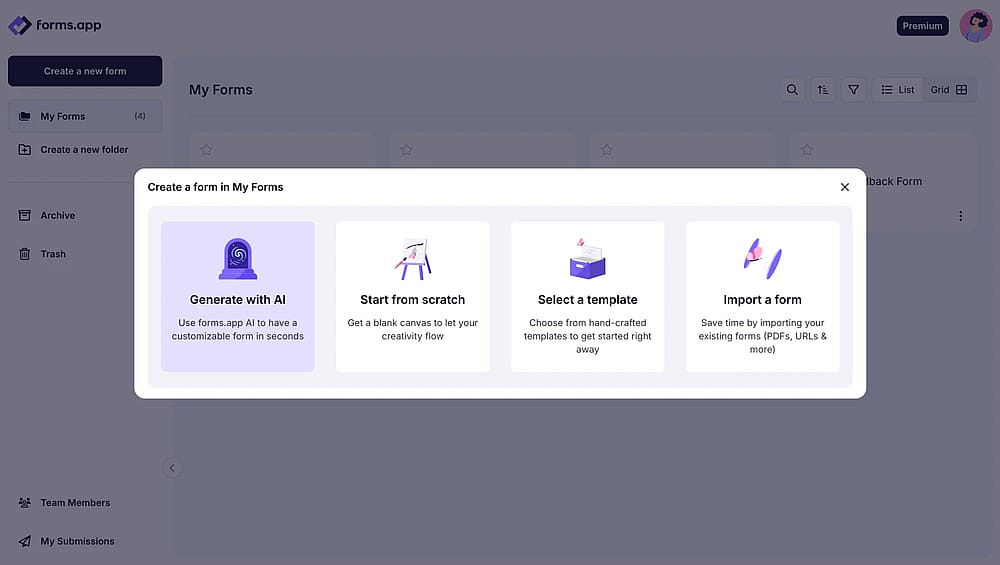
Form creation options on forms.app
2. Add an opinion rating field from the fields menu
After creating your form, you will find all the field types we have mentioned above under Rating Scales on the fields menu. Simply select one of them and customize it based on your needs.
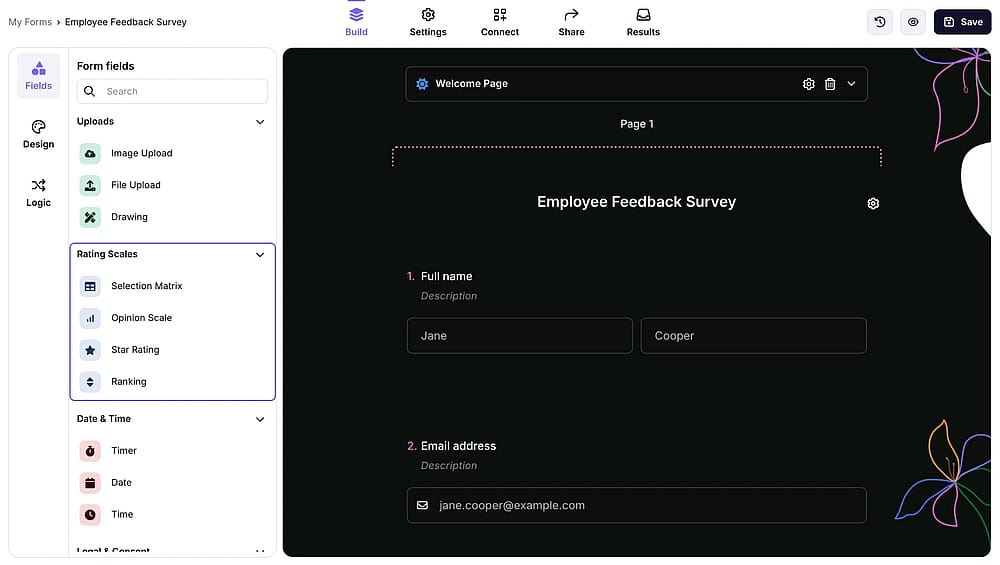
Rating scale field types from the fields menu
3. Set scales & add labels
After adding a rating question, simple enter a question title and click the gear icon to open field settings. There, you can change the scale number, add labels, and change other settings.
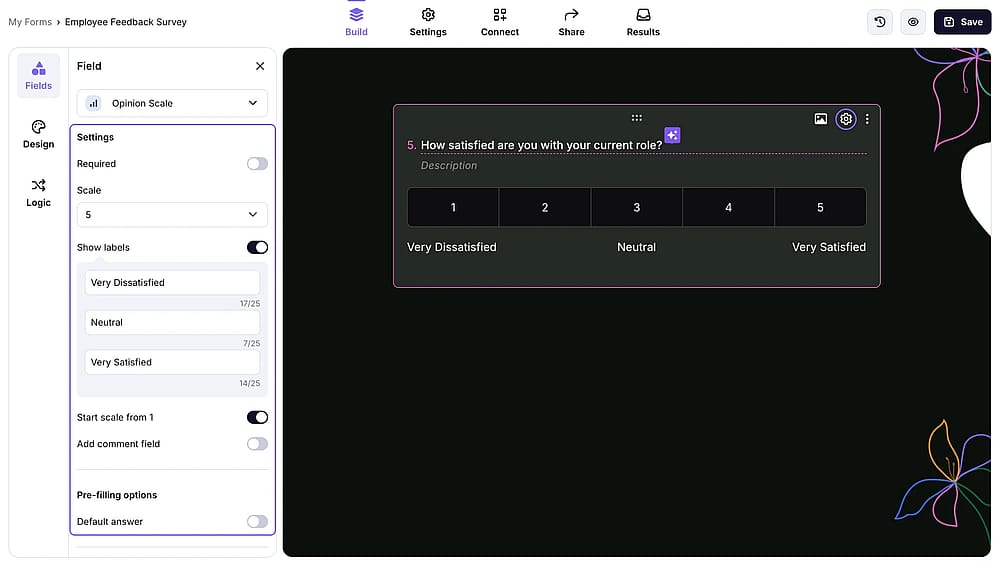
Field settings of an opinion scale question on forms.app
4. Preview & test your form
Lastly, click the eye icon too preview your form. Once you make sure everything works correctly, you can go to the share tab and get the link/embed code of your form.
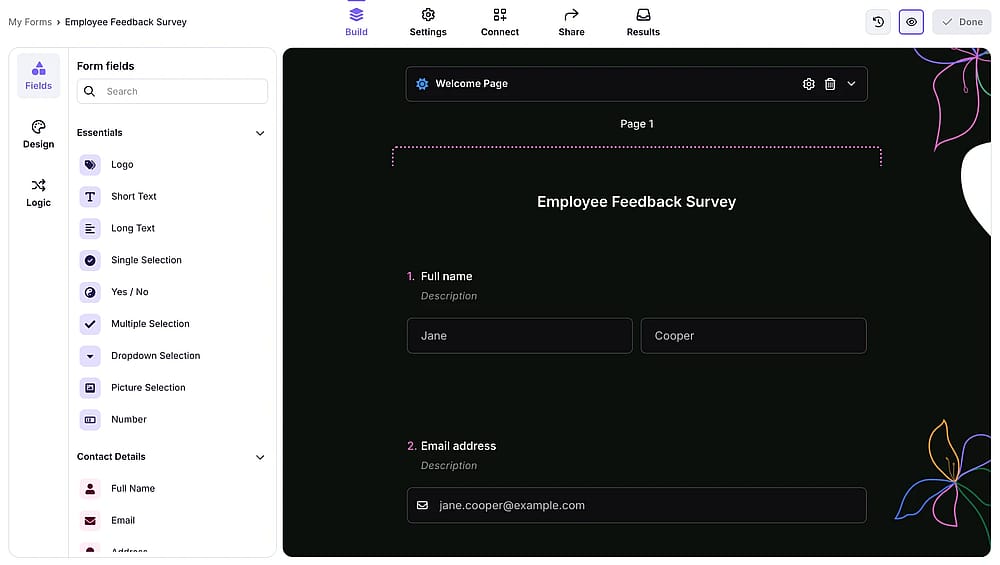
Preview icon on forms.app’s form editor
Frequently asked questions about linear scale questions in Google Forms
A linear scale uses numbers that respondents pick from a range. A Likert scale uses a fixed set of labeled categories, like "Strongly Agree / Agree / Neutral / Disagree / Strongly Disagree." Likert scales always have text labels for every option; linear scales rely on numbered anchors.
Star rating is a visual version of a linear scale, usually 1–5 stars. It is commonly used on review sites and apps. It can also be used in surveys, evaluation forms, and so on.
Not directly. Google Forms allows section branching based on multiple-choice or dropdown answers, but not based on a numeric scale value. For conditional logic tied to scale responses, you'd need a tool like forms.app, which supports branching based on opinion scale scores.
Wrapping it up
Google Forms' linear scale is a solid starting point for basic surveys and feedback forms. It's free, quick to set up, and gets the job done for straightforward use cases like event ratings or simple satisfaction checks.
But if you need conditional logic tied to your linear scale question, visual rating options, or just a cleaner and more customizable experience, you'll find Google Forms a bit... Restrictive. forms.app covers all of that available right on the free plan.
Whether you stick with Google Forms or try something more capable, like forms.app, the most important thing is asking the right questions in the right way. A well-written linear scale question, on any platform, will always return better data than a poorly framed one. We hope you find this guide helpful and create great forms and surveys that will help you grow your business.
Contributors
Researched & written by
forms.app, your free form builder
- Unlimited responses
- Unlimited questions
- Unlimited team members