Save up to 60% on yearly plans and enjoy our biggest offer of the year. Limited time only. 🍂
See pricing

How to see partial form responses
Partial responses let you see the responses that go unsubmitted, often the most honest responses of all. On forms.app, you can auto-save responses and follow up with respondents to remind them that they can return and submit their form within 30 days.
Who can see partial responses?
forms.app users with a premium plan can access the partial responses for their forms.
(See plans)
How to view partial responses on forms.app
Viewing partial responses is as easy as viewing your normal form submissions. Here are the steps:
1. Open a form and go to the “Results” page:
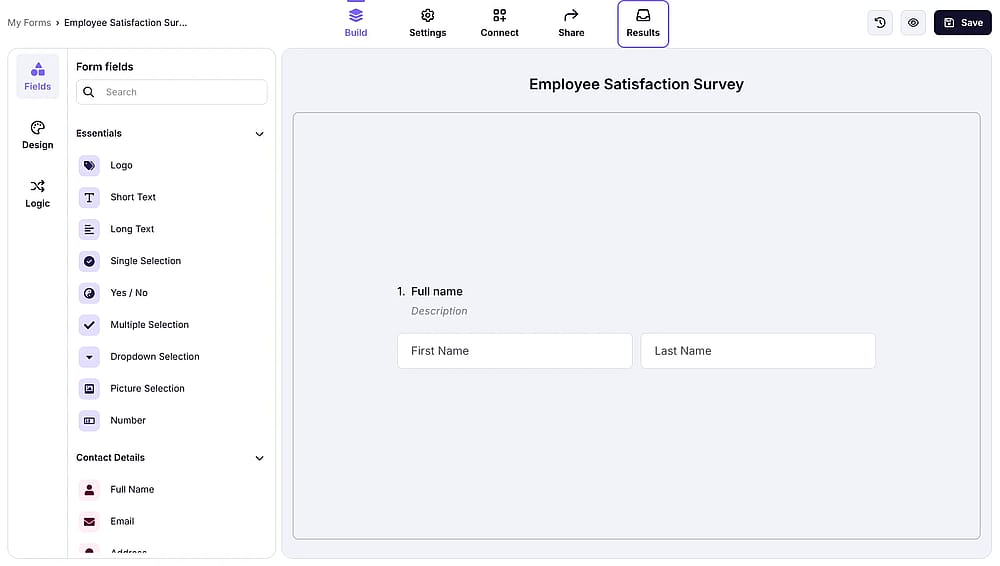
Opening the “Results” page on forms.app
2. On the “Results” page, you will notice the “In progress” tab; simply click on it:
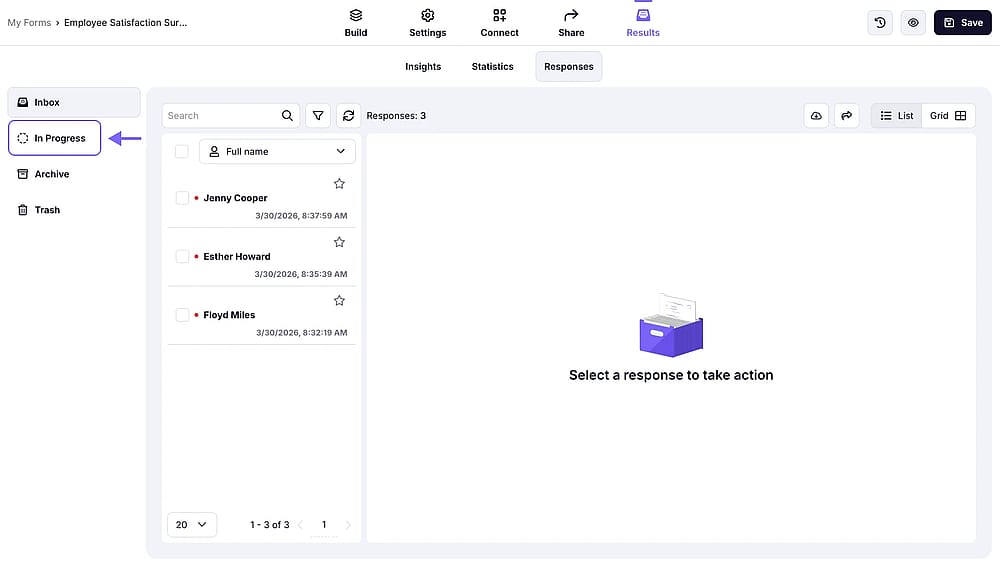
The position of the In progress tab under the “Results” page
3. Here, you can see the form responses people are working on at the moment or dropped off some time ago.
Important note
Partial responses are stored for up to 30 days.
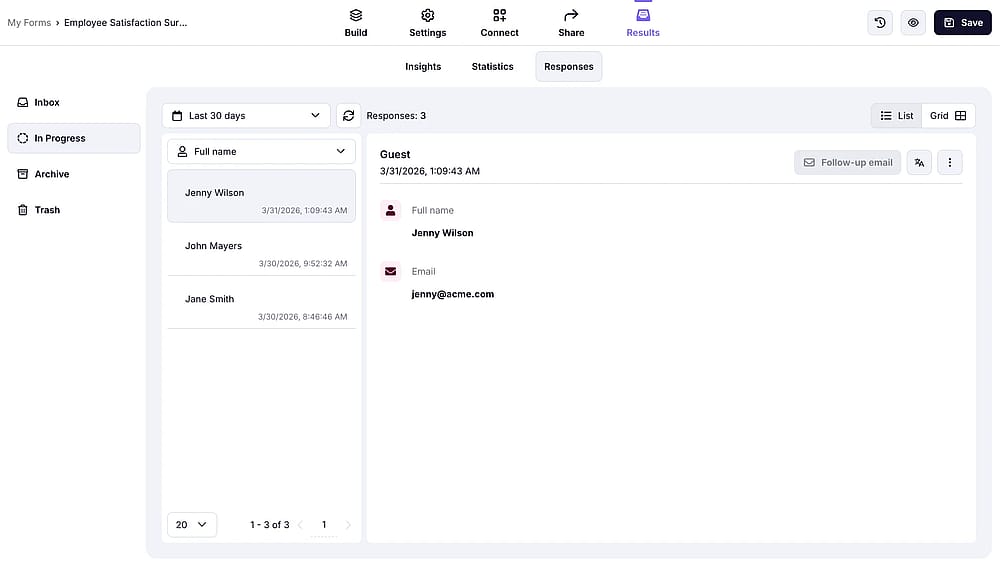
A partial response example within forms.app Results page
4. Click on “Follow-up email” to send a reminder for the respondent to finish their submissions.
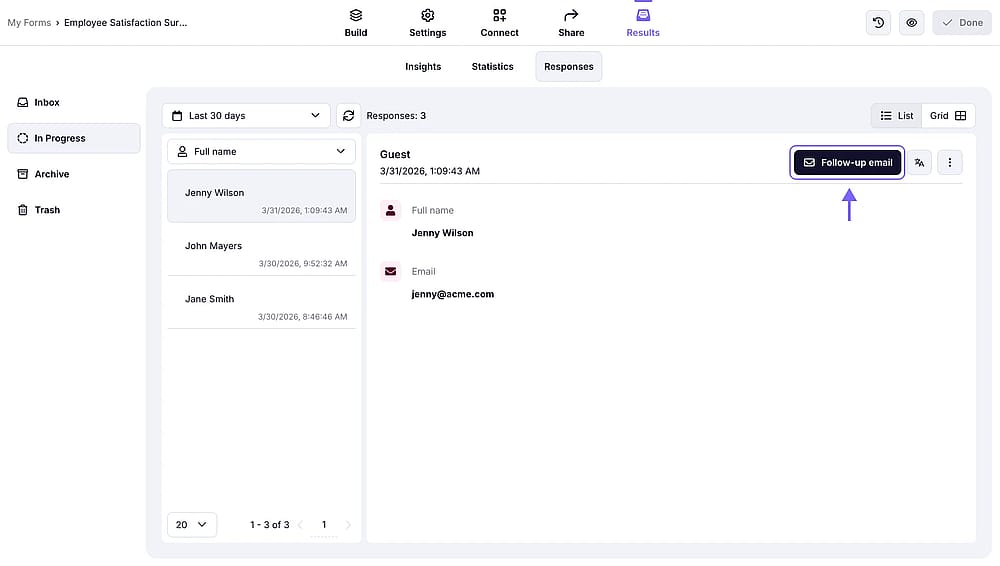
The “Follow-up email” button on the upper right corner of a partial response
5. Here you can customize your email and send it to the respondent.
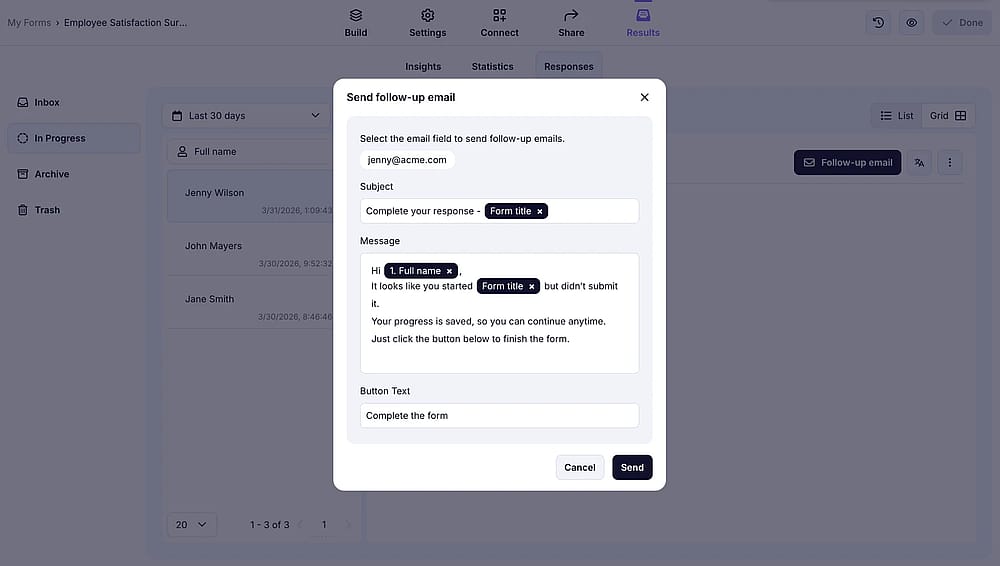
The email customization menu for follow-up emails
When a respondent returns and submits their form, the response will be moved from the In progress to the Inbox.
Form fields not shown within partial answers
Some form fields often hold sensitive information due to their nature. This is why you will not be able to view answers to the following field types:
- File upload
- Image upload
- Signature
- Drawing
Some questions you might ask about partial responses
When a respondent starts a form but doesn’t submit it, the partial responses are stored for 30 days.
If the respondents return and submit their form within 30 days, the partial response gets updated and moved to the Inbox. If the respondent fails to submit, the partial response gets deleted after 30 days.
Yes, you can enable “Save as draft” to let your respondents save their progress manually and return later on. When they eventually submit, their response will be moved from the in progress tab to the inbox as usual.
If the user has filled your email field, you can send a customized follow-up to remind them that their progress has been saved and they can return to submit their forms. The limit for sending a follow-up is 1.
No, sending follows automatically is not possible at the moment.
Yes, you can.
If the “Send follow-up email” button is disabled, it can be because:
- You do not have an email field in your form.
- The respondent didn’t enter an email address.
- The respondent still works on their submission.
No. Only normal form submissions can trigger integrations and webhooks.
No. Only submitted responses are counted in the Statistics page.
If you have multiple email fields in your form, you can select the one to send your follow-up email.