
Save up to 60% on yearly plans and enjoy our biggest offer of the year. Limited time only. 🍂
See pricing

How to install forms.app MCP
How to set up forms.app MCP
forms.app MCP allows AI models, such as Claude, ChatGPT, and Perplexity, to access forms.app functions and use them for you.
With forms.app MCP, the AI agents can:
- Create or update forms
- Fetch your forms in a list
- Get your answers
- Get statistics and drop-off rates (and create visuals for them!)
- Analyze your form responses
- Answer your questions about forms.app
How to set up forms.app MCP for Claude
1. In Claude, click on your profile and go to Settings → Connectors.
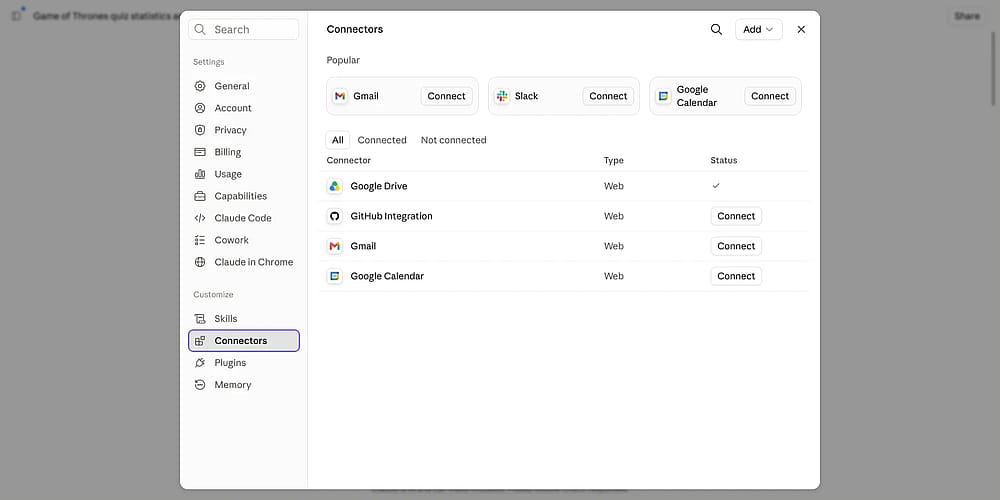
Connectors tab under Claude settings
2. Click Add → Add custom connector.
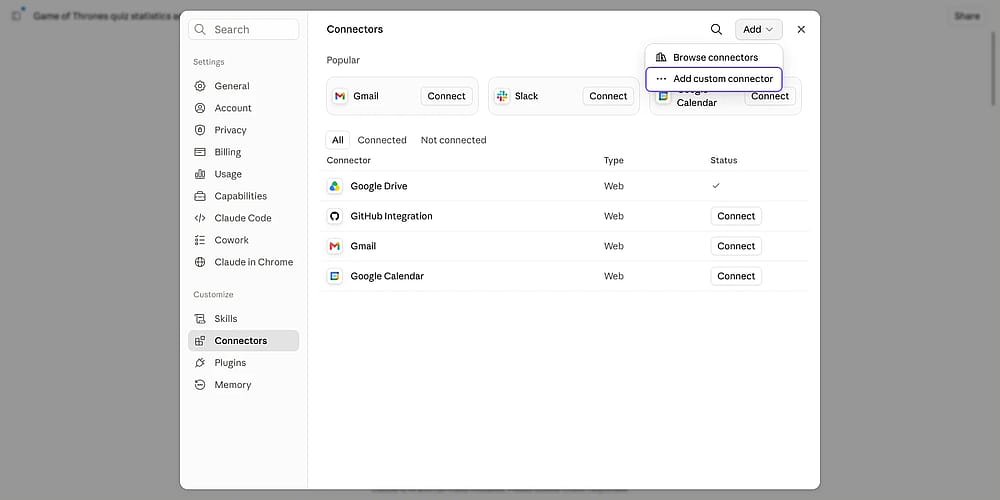
Add custom connector under Connectors
3. Set the server URL to https://api.forms.app/mcp and enter the client ID as Claude.
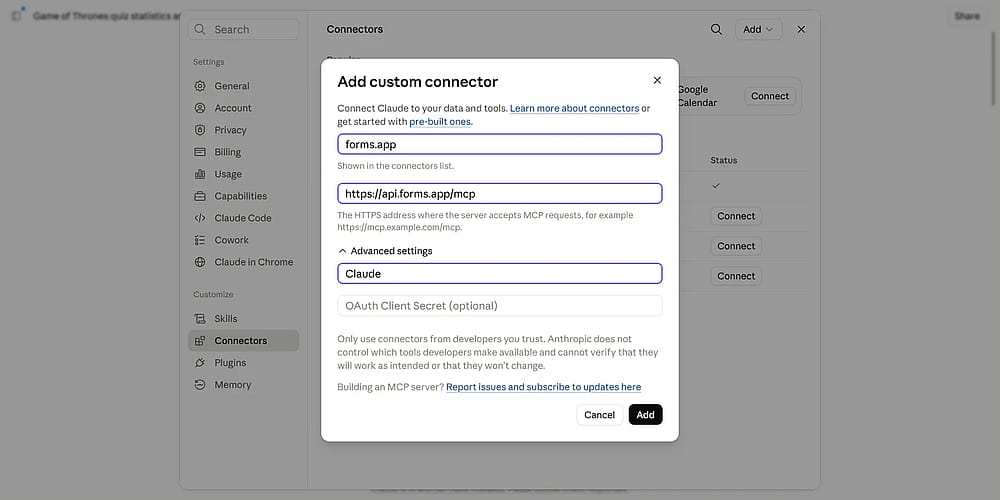
Custom connector inputs
4. After you click Add, click the button that says Connect.
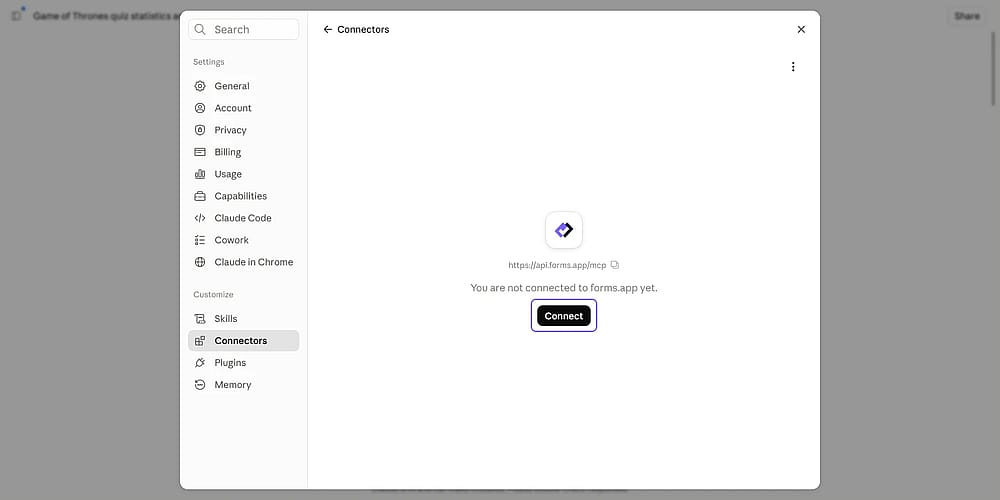
Custom connector inputs
5. Sign in to forms.app and allow when prompted to authorize access.
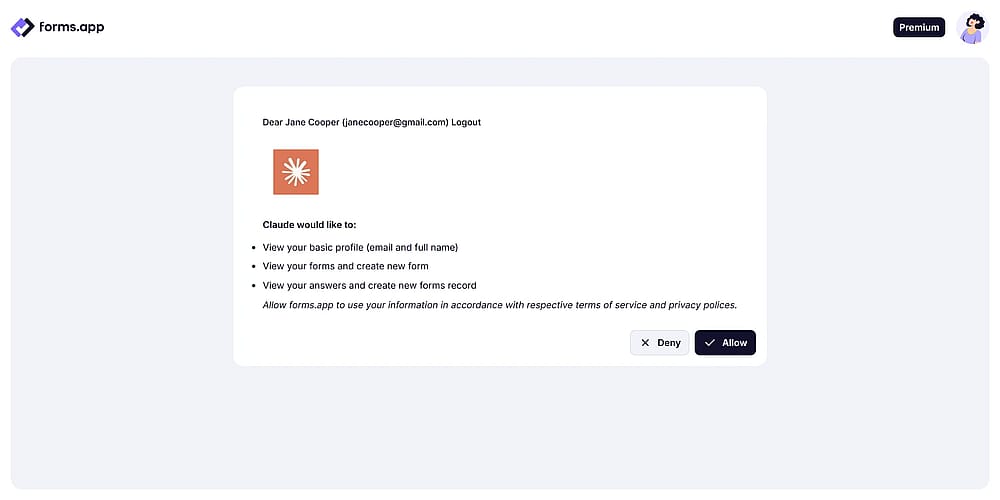
The access authorization page on forms.app
6. Start a chat to start using its tools.
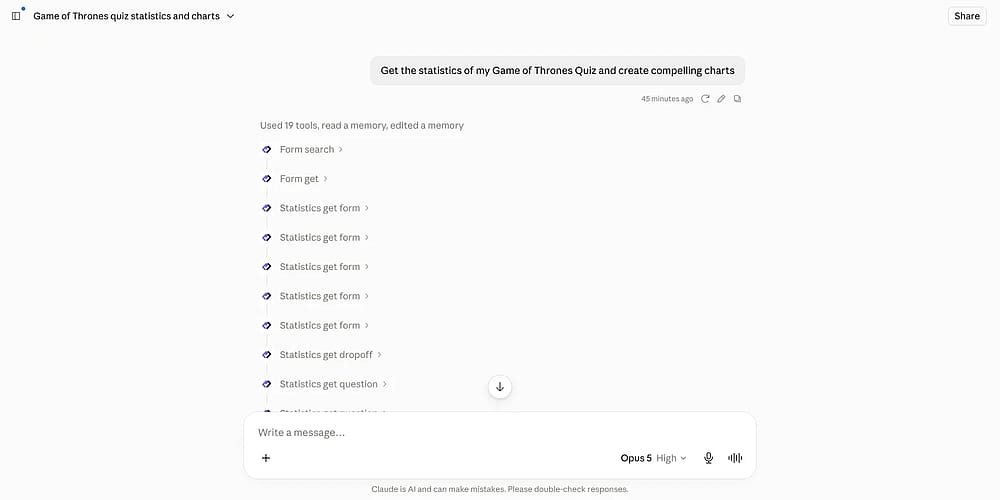
Claude using forms.app MCP to manage forms and generate reports
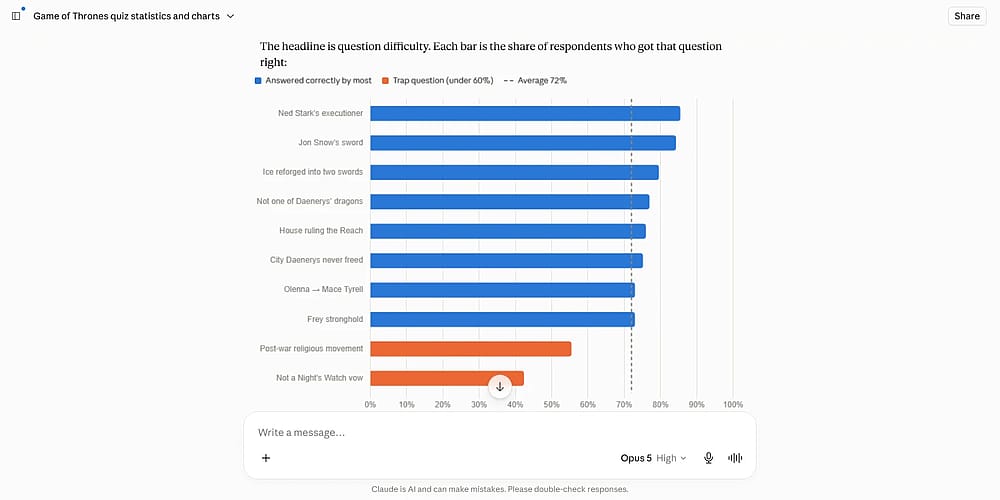
Claude’s answer with the requested reports
How to set up forms.app MCP for ChatGPT
1. In ChatGPT, click on your profile, then go to Settings → Plugins.
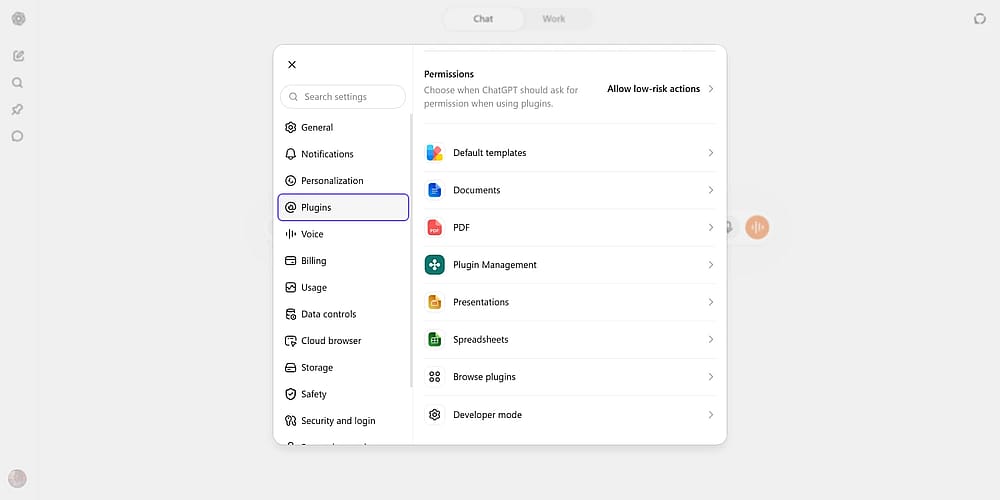
Plugins tab under ChatGPT settings
2. Make sure you have Developer Mode open; then browse plugins.
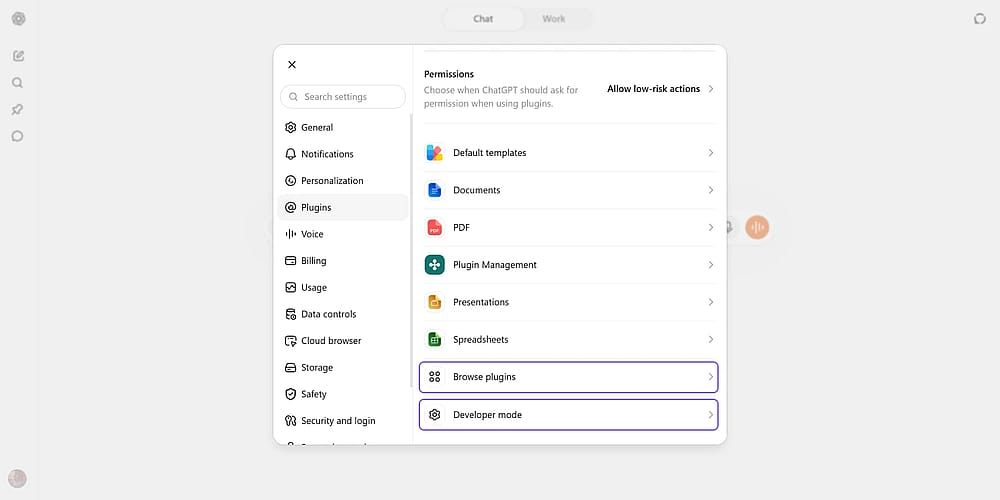
Developer Mode ve Browse Plugins options under ChatGPT settings
3. Click + button to add a new plugin.
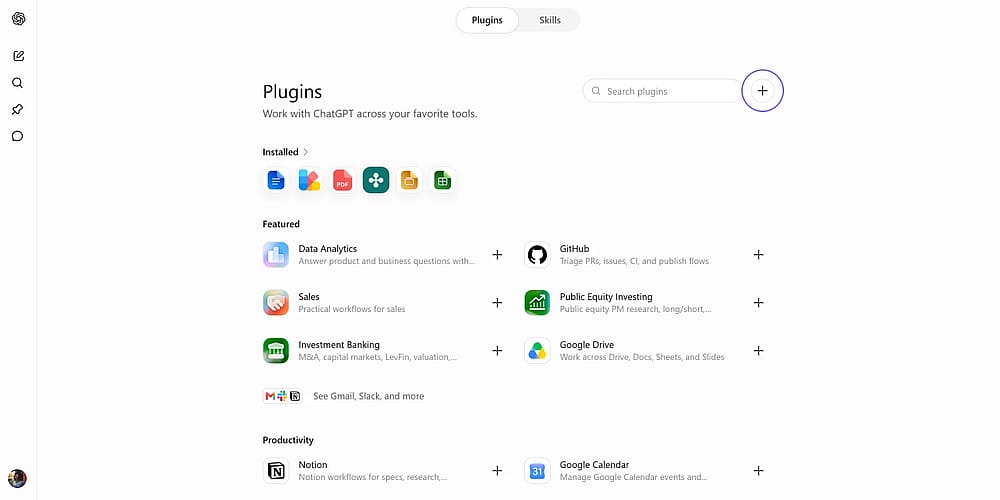
Plus/add button under Plugins
4. Enter a name, and set the server URL to https://api.forms.app/mcp.
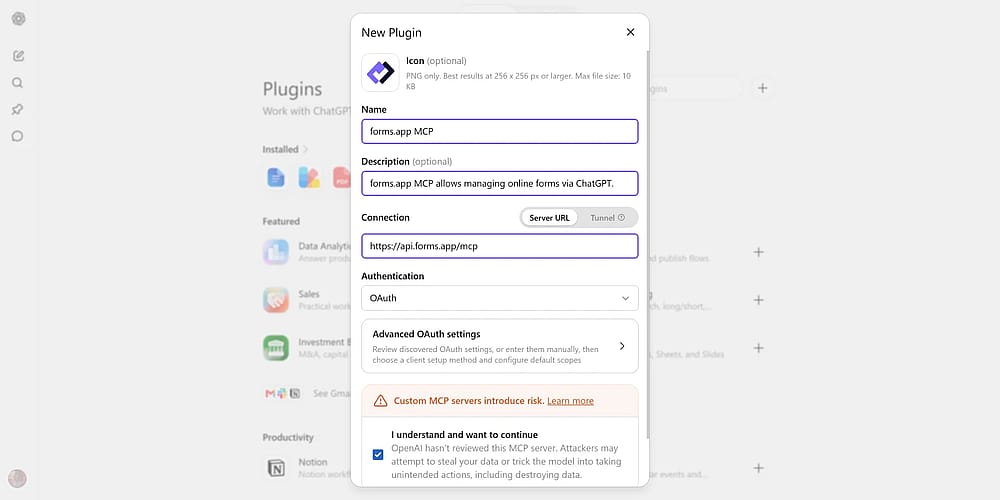
Custom plugin settings on ChatGPT
5. Choose OAuth as the authentication method and then click on Advanced OAuth settings.
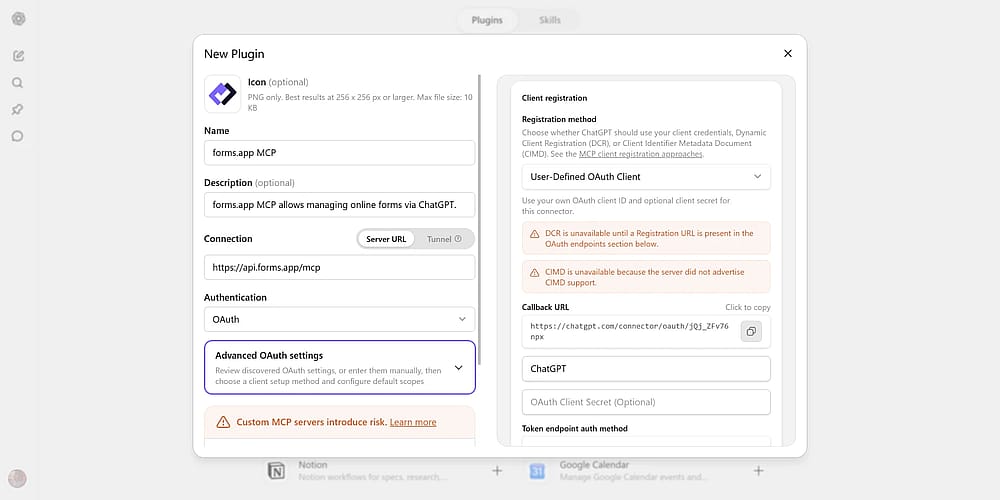
Advanced OAuth option under custom plugin settings
6. There, enter the OAuth client ID as ChatGPT.
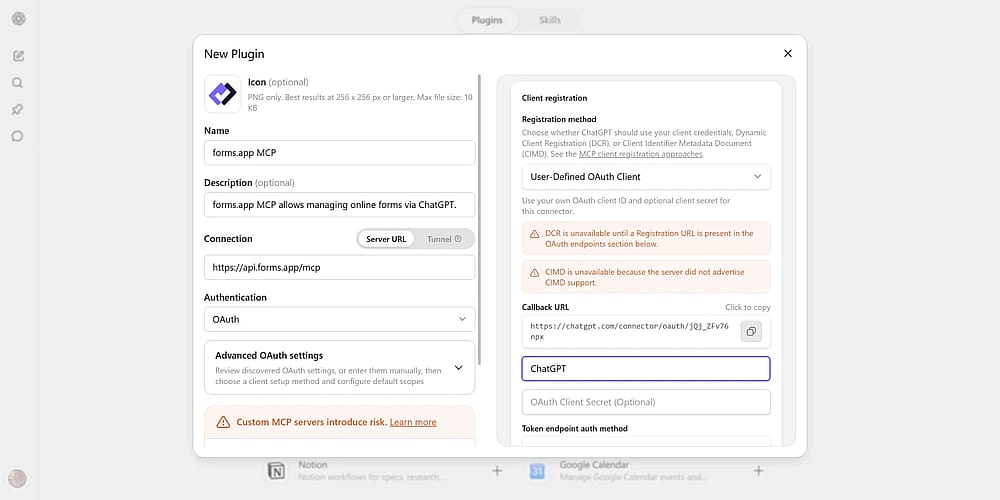
OAuth client ID input under custom plugin settings
7. Create, then authorize the connection with your forms.app account.
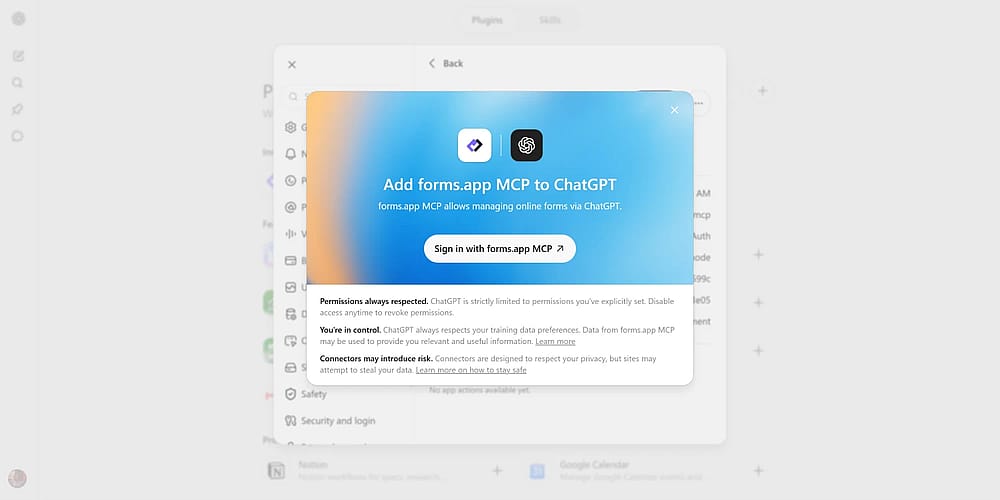
The sign-in button for access authorization
8. You can now start a chat to control your forms.app account through ChatGPT.
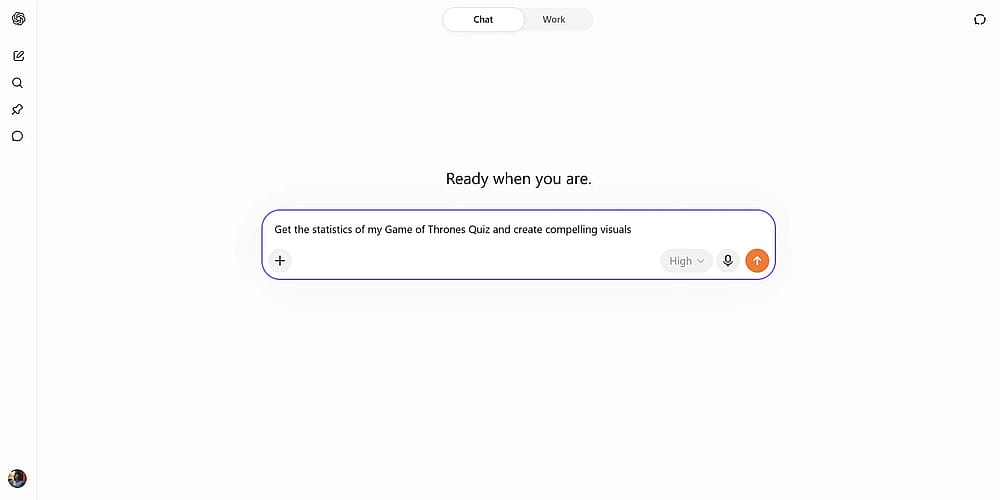
ChatGPT using forms.app MCP to manage forms and generate reports
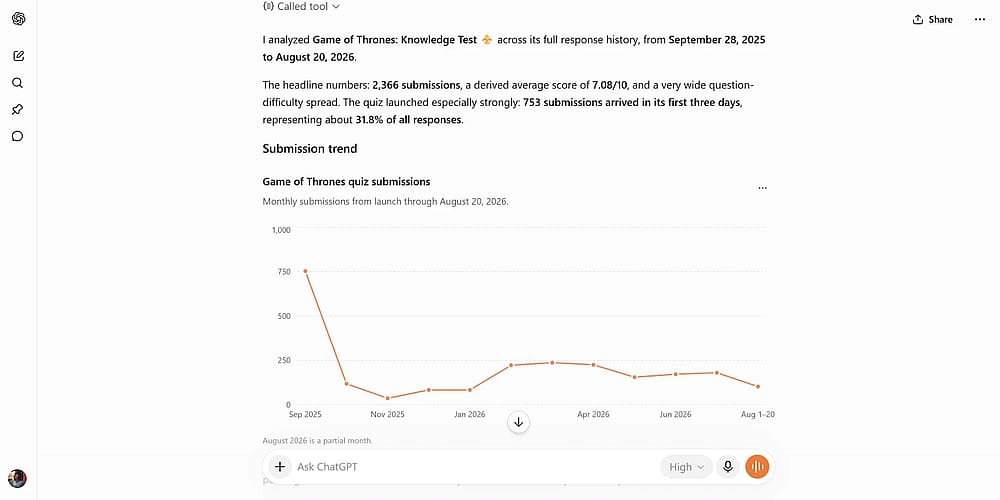
ChatGPT’s answer with the requested reports
That’s it! For detailed information about forms.app’s MCP server, please visit our developer documentation about MCP server.