Save up to 60% on yearly plans and enjoy our biggest offer of the year. Limited time only. 🍂
See pricing

How to customize your profile on forms.app
forms.app Profile is a navigation page for your online forms, statistics, and other links, such as websites and referrals. You can customize your profile to use it as a digital business card or link in the bio page. Here’s how:
1. On your forms.app Dashboard, click on your profile picture and choose the Profile option:
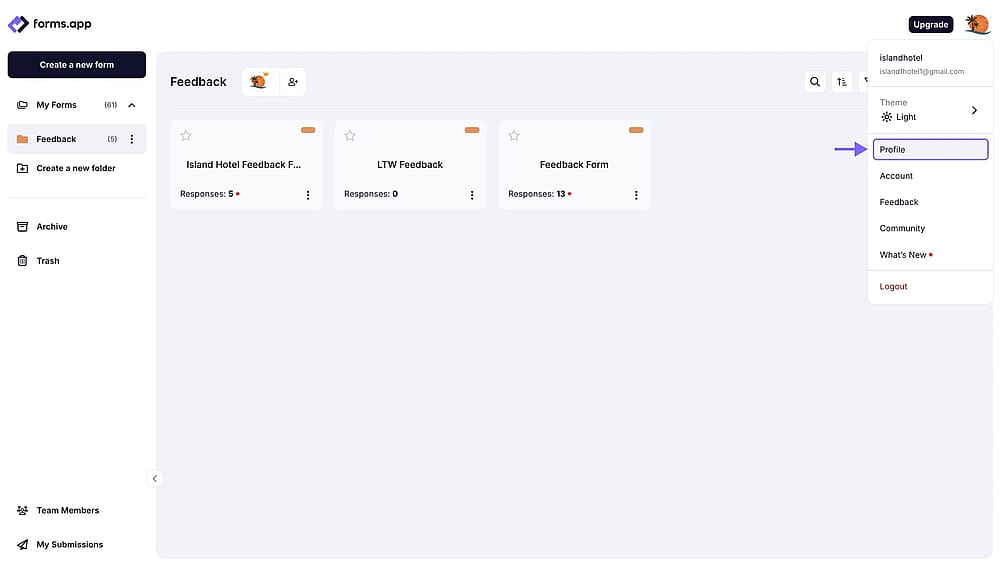
An image showing how you can access your forms.app profile editing page by clicking the profile picture on the upper right corner and selecting the “Profile” option
2. Here, you can build your profile page based on how you want to use it. There are several elements you can add, so here’s the full list:
- Your forms
- Responses you have collected or their statistics
- Links to other websites
- Your social media accounts
- Your logo or profile photo
- A cover image
- Custom titles
- Your biography or business description
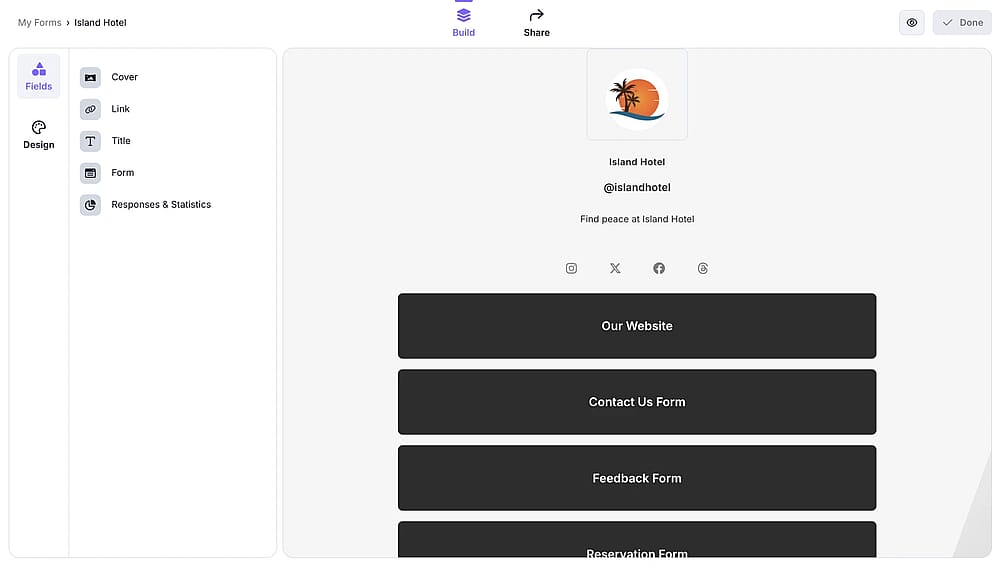
An image showing an example of the forms.app profile from the profile editing page
3. Head over to the Design tab to change how your profile page looks. You can select a theme created by our team or manually make changes:
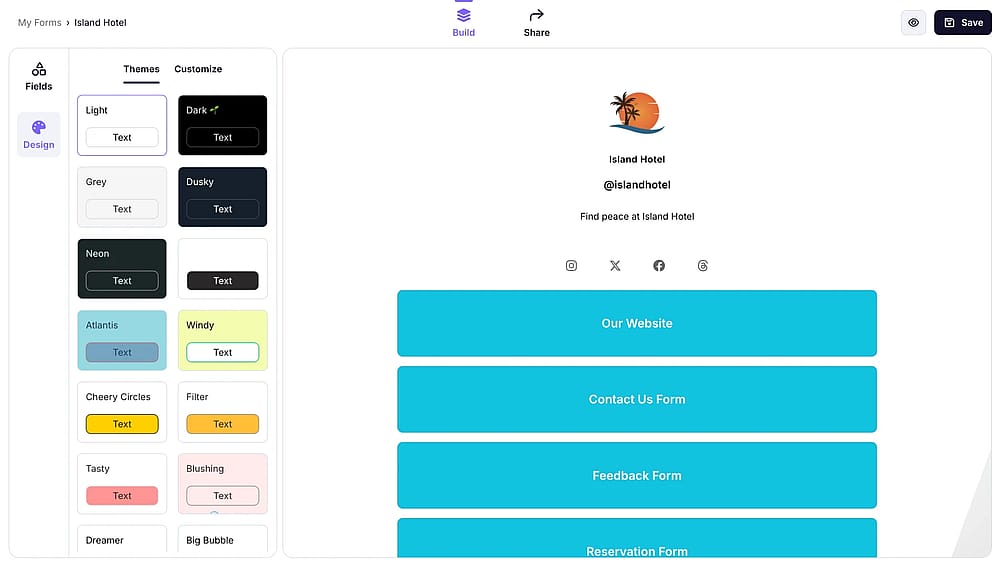
An image showing how you can select a theme for your profile by accessing the “Themes” section from the “Design” tab on the left
4. After making sure everything looks good, click Share and choose a sharing option. Here, you can simply copy your profile link, create a QR code for it, save it as a business card, and change the meta details:
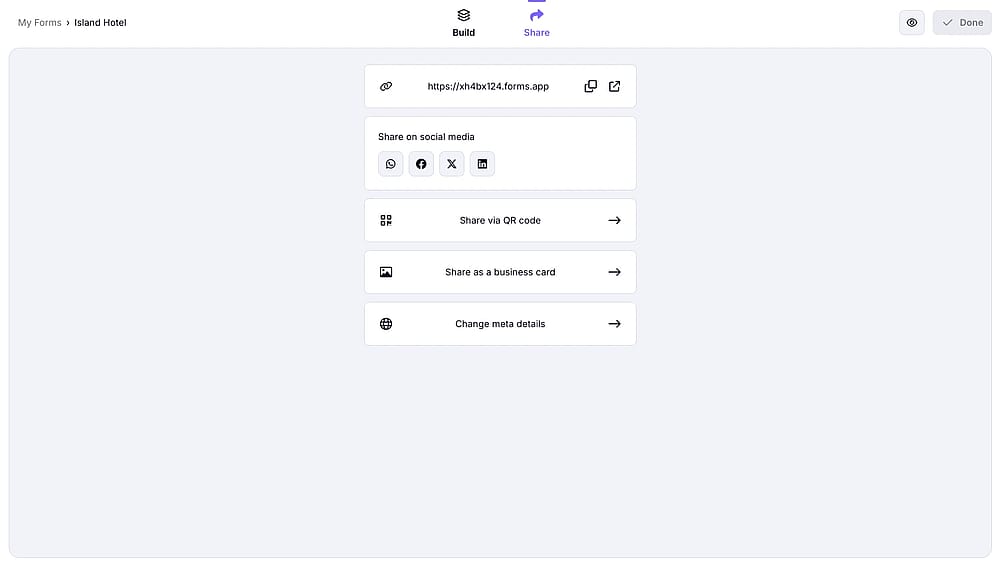
An image showing the sharing options you have when you access the “Share” tab
That’s it! Building a custom link in a bio page or digital business card is just that easy at forms.app. Plus, it’s free. So go to your Dashboard and try forms.app profile today!