Save up to 60% on yearly plans and enjoy our biggest offer of the year. Limited time only. 🍂
See pricing

How to make a consent form in Google Forms
Summarize with
Creating an informed consent form in Google Forms makes it easy for business owners to get permission, ensuring they follow the legal rules. The customization features of web forms allow businesses to create consent forms online for various situations. Whether it’s for medical records, granting permission for a photo/video project, or obtaining consent for event participation, having the right digital solution matters
Making an informed consent form benefits both businesses and clients, making the process smooth and ethical. This comprehensive guide shows you exactly how to create consent forms in Google Forms, best practices to follow when creating Google consent forms, plus more powerful alternatives for professional needs.
Can you create consent forms in Google Forms?
Yes, you can build consent forms in Google Forms.
Google Forms is a free tool within Google Workspace that allows you to build basic consent forms with multiple choice questions, text fields, and conditional logic. It's accessible to anyone with a Google account and works well for simple consent collection needs.
However, Google Forms has significant limitations when it comes to professional consent forms. It lacks e-signature capabilities, has limited customization options, and provides basic security measures that may not meet industry standards for sensitive information. We’ll have a dataliled feature comparison table to show what types of consent form you can create in Google Forms.
How to create a consent form in Google Forms
You have multiple ways to have an informed consent in Google Forms. From showing a simple explanation text, to having yes/no questions, checkboxes, or multiple choice question; you can select the best consent collection method for your business.
In this tutorial, we'll walk you through the step-by-step process of setting up a consent form using Google Forms:
1. Log in and create a new Google Form
To begin, go to Google Forms and sign in to your Google Account. There are 17 Google Forms templates available, however they are not for informed consent, so you are better off with starting with a blank form. Click the plus sign (+) or "Blank" under "Start a new form".
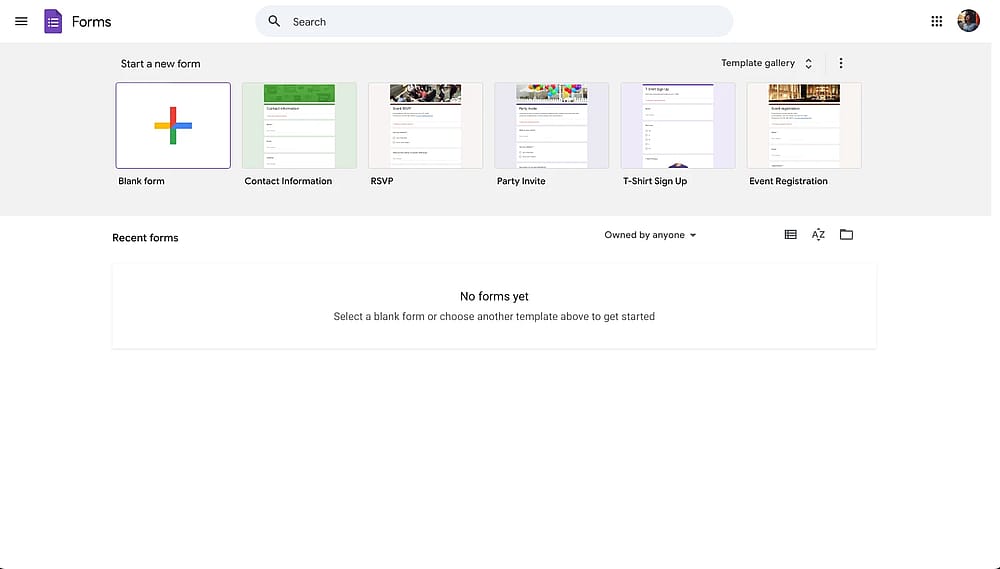
Creating a new Google Form
2. Add title and description to your form
Click on "Untitled form" at the top and enter a clear, descriptive title for your Google Forms consent form. Optionally, write a description to explain the form's purpose or include some additional information.
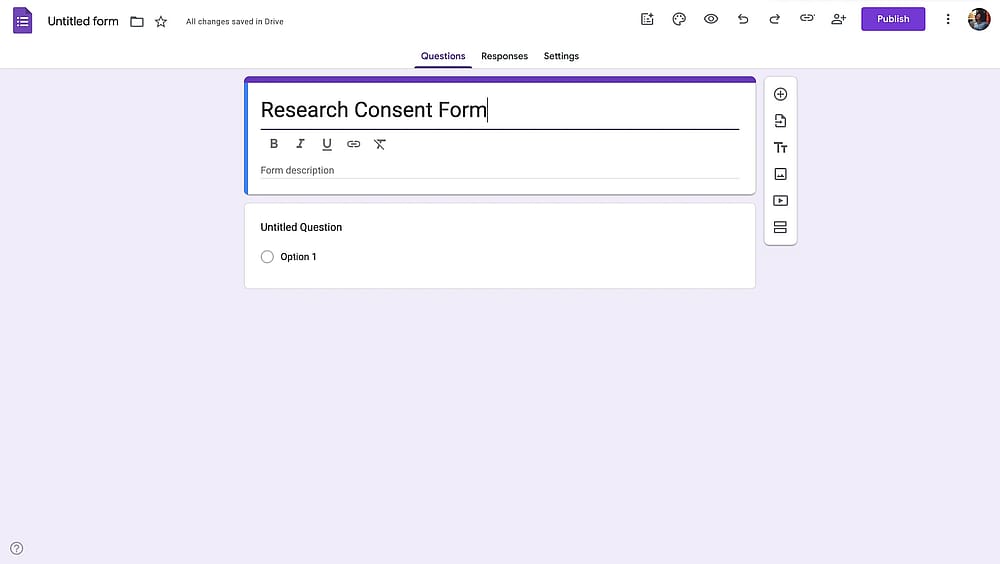
Adding a title to the Google consent form
3. Add Your Consent Information Section
Select "Add title and description" (the "TT" icon) from the sidebar next to the form. You can enter details about what the respondent is consenting to in this text box. Add a title like "Consent Information" or "I agree to…". In the description field, include:
- Detailed explanation of what you're asking consent for
- Any risks, benefits, or important information
- Rights the person retains (like the right to withdraw)
- How data will be used and stored
- Contact information for questions
Here’s an example:
Title: Informed Consent Information
Description: By participating in this study, you agree to:
- Spend approximately 30 minutes completing a survey
- Allow us to analyze your responses anonymously
- Understand that participation is voluntary
- Know you can withdraw at any time without penalty
Your responses will be kept confidential and used only for research purposes. Data will be stored securely for 5 years, then destroyed. If you have questions, contact: research[@]example.com
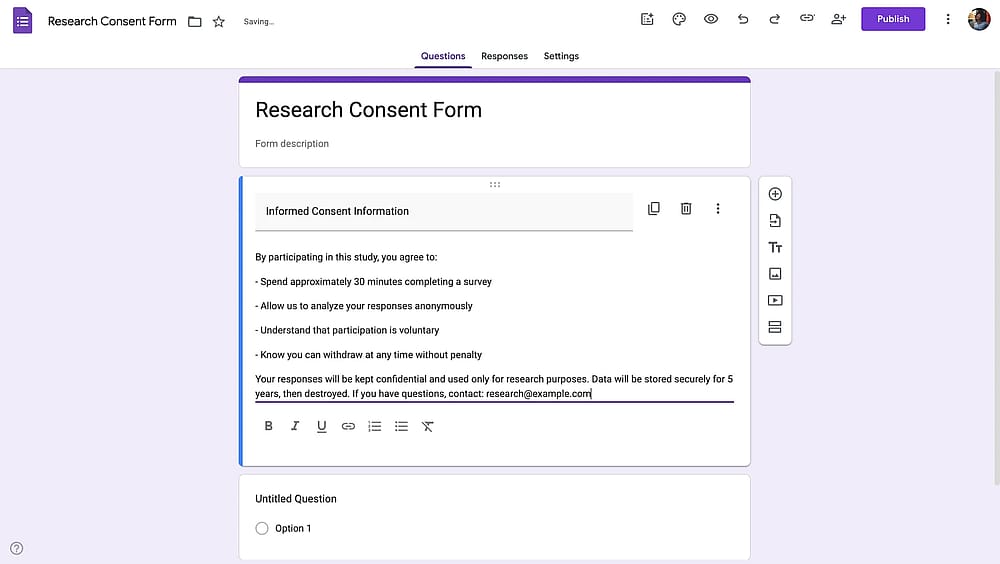
Adding informed consent section to the form
4. Create your consent questions
Google Forms starts with a single-question field by default. By clicking on this field, you can change the default question to a consent-related one. Or, add a new question by clicking the plus icon (+) in the right sidebar.
Type your consent question in the question field. For example, you can type "Do you consent to participate in this study?" or "I have read the above information and agree to proceed". You can go with the Multiple Choice field type or choose checkboxes if you have multiple items.
💡To ensure that respondents provide an answer to the consent question, don’t forget to toggle on the "Required" button.
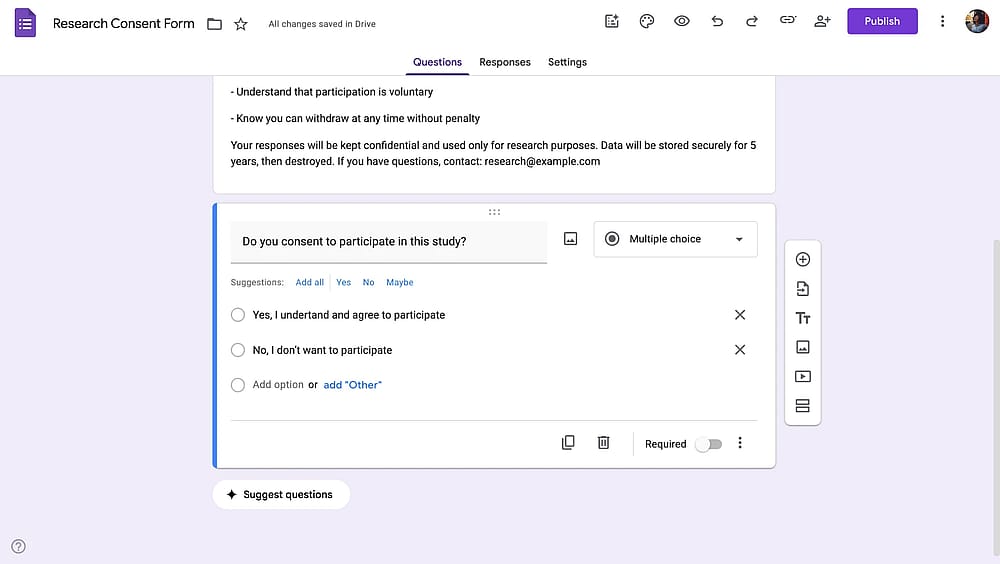
Adding consent questions
5. Create a "Consent declined" section
Making a particular form section for people who say "no" helps clarify things. So, if someone decides not to agree, they still get the proper information.
Press the "Add section" button in the same sidebar to create a section for those declining consent. Then add title and description for the details. Fill out information explaining that the user has chosen not to consent, and that declining will not affect anything.
Here’s an example explanation:
You have chosen not to provide consent.
Thank you for your time. You may close this form now. No information has been collected.
If you declined by mistake, please click on the “back” button to return to the first section or refresh the page to start again.
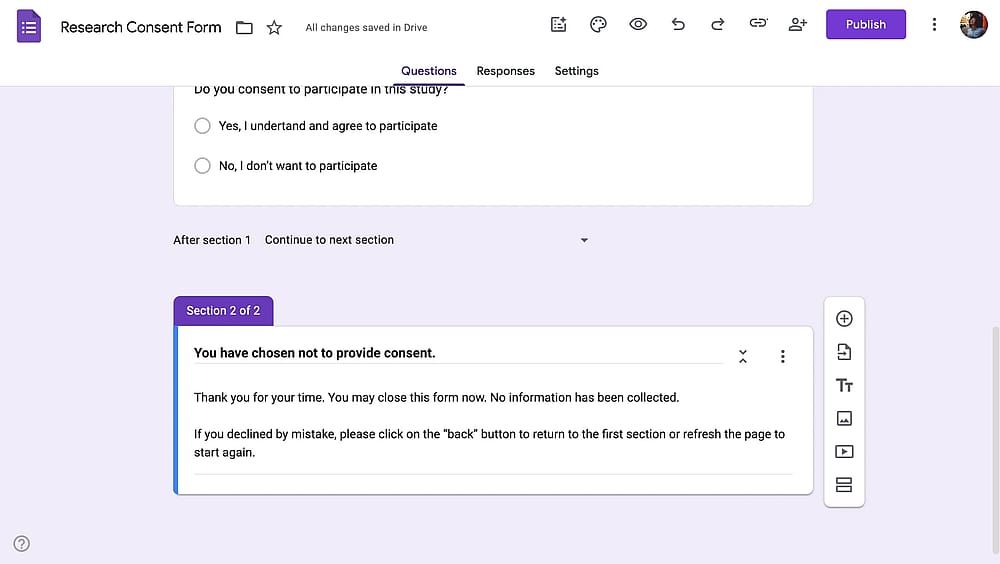
Adding a "Consent declined" section to the form
6. Use the conditional format and set up sections accordingly
If you use multiple-choice questions, you might need a conditional format. To achieve this, you need to follow some steps. First, click the three vertical dots (⁞) in the lower-right corner of your consent question. Then press the Go to section based on answer button.
Direct yes responses to the next section, where they can continue the form or submit it. And direct no responses to the consent declined section. Select the dropdown menu for each question and choose the appropriate section to guide users.
If it is not possible to continue the form without giving consent, state so in your “declined consent” message and add conditions to Google Forms that will make sure the form ends when the respondent declines.
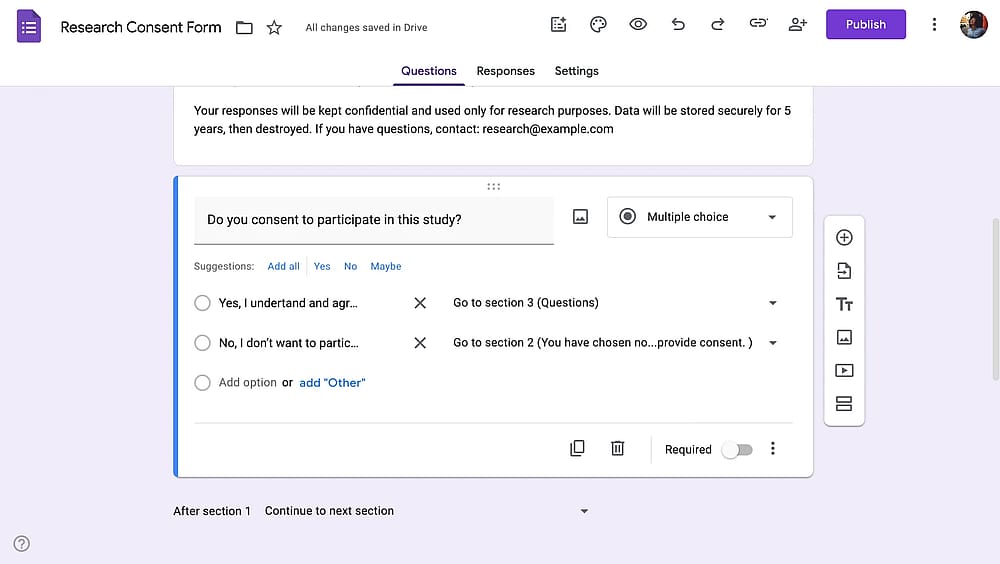
Using conditional format
7. Add additional required fields
For a consent form to be legally meaningful, you typically need to collect: Full name, date, and sometimes email address. Add these questions or other fields for essential information you need to collect. For example, in some waivers, you need the respondent to confirm if they have any special conditions, disabilities, dietary restrictions, and so on.
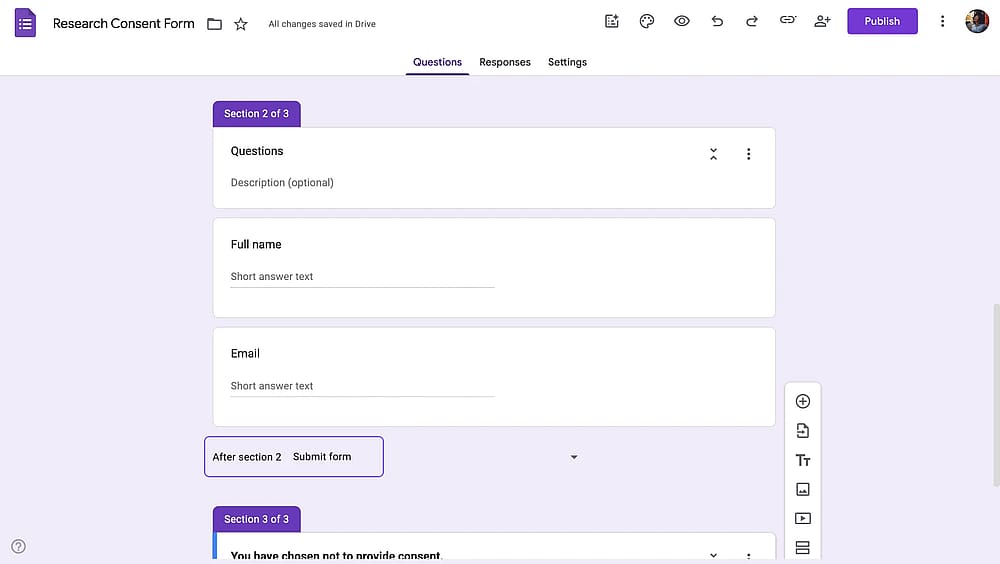
Adding other required questions
8. Test & share your crafted consent form
Before sharing with real users, click Preview (eye icon) to see how respondents will see it. Fill out your form multiple times, trying different scenarios. Once you make sure everything works as intended, share it with respondents or embed it on a web page.
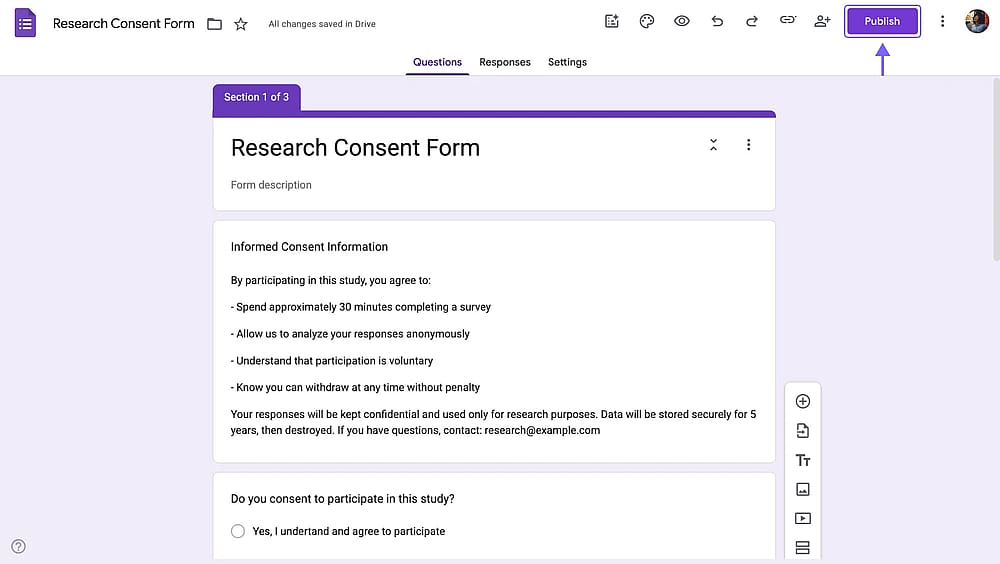
Sharing the consent form
Limitations of Google Forms for consent forms
While Google Forms works for basic consent collection, it has significant limitations that may make it unsuitable for professional or legally complex situations:
- No e-signature capability: Electronic signatures are the gold standard for digital consent forms, providing legal validity and authentication. Google Forms requires workarounds like text-based signatures ("type your name"), which are legally weaker and less professional.
- Basic customization: Google Forms, well, looks only like Google Forms. It is rigid, and there are not many customization options available. So it looks less professional and trustworthy.
- Basic conditional logic: Google Forms only offers section-based navigation. You cannot show/hide specific questions within a section based on answers. Or, you cannot have And/Or conditions.
A better option to create consent forms: forms.app
While Google Forms serves basic needs, organizations requiring professional, legally compliant consent forms should consider specialized form builders like forms.app. Here's an objective comparison of why forms.app offers significant advantages:
Feature/Tool | Google Forms | forms.app |
E-Signature field | ||
Terms & conditions field | ||
Consent templates | ||
Conditional logic | Basic | Advanced |
Customization | Basic | Advanced |
Analytics | Basic | Advanced |
GDPR compliance | ||
Custom PDF generation |
How to create a consent form on forms.app
forms.app offers a range of features, including over 100 consent form templates, user-friendly interface, drag-and-drop form builder, and AI features to make the form creation process effortless.
Below, you’ll find step-by-step tutorial on creating a consent form with forms.app. Also, check out the guide to consent forms for detailed instructions and helpful information.
1. Choose a consent form template, start from scratch, or generate with AI
To begin, log in to forms.app, or if you dont have an account, you can effortlessly sign up for a free one using your email, Google account, or Apple account. Then choose from consent form templates on forms.app or use AI to describe and create your consent form.
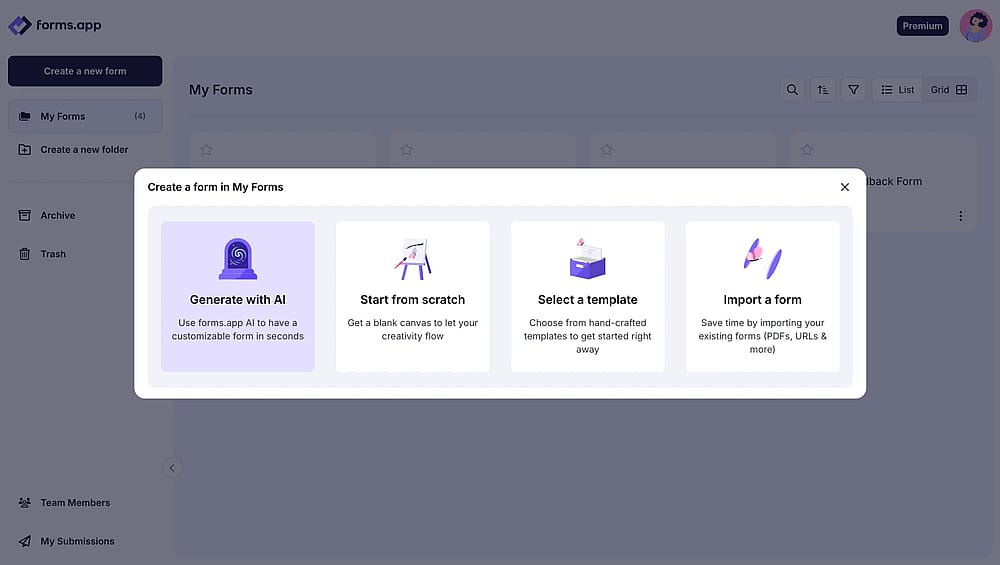
Choosing a starting option
2. Add and customize questions
After selecting a template or starting from scratch, customize your form by adding questions using the drag-and-drop feature. Write your questions based on the identified consent type. Here are just some of the form fields you can use to create a consent form on forms.app:
- Terms & conditions: It is a dedicated checkbox field that allows you to show a one-sentence statement, add a link to an external terms page, and show a pop-up with detailed terms and conditions when asking for consent.
- Signature: A dedicated signature field where the respondent can draw and sign online.
- Explanation: A what-you-see-is-what-you-get editor for the user to add detailed explanations to the form.
- Short text: A simple form field where you ask a question and expect the respondent to type a short answer.
And these are just the start. You also have page breaks, multiple choice questions, email, date, address fields, and many more.
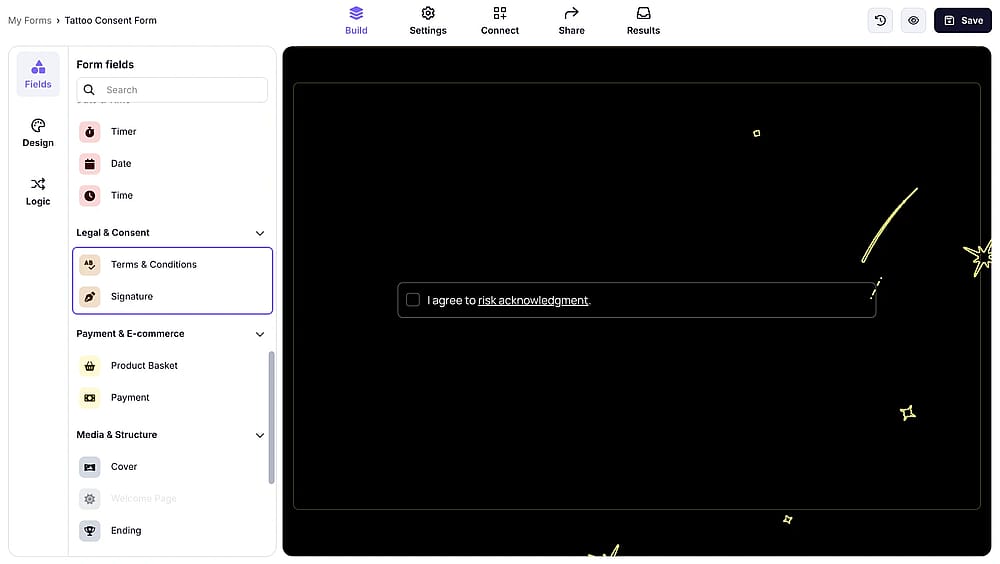
Adding questions to your consent form
4. Customize your form
Making your consent form look professional and match your brand is easy with forms.app. Your consent forms will look and feel professional out of the box, no matter the form layout you choose. Plus, you can add your own logo to your form, add a background image, change colors, font details, and the form layout.
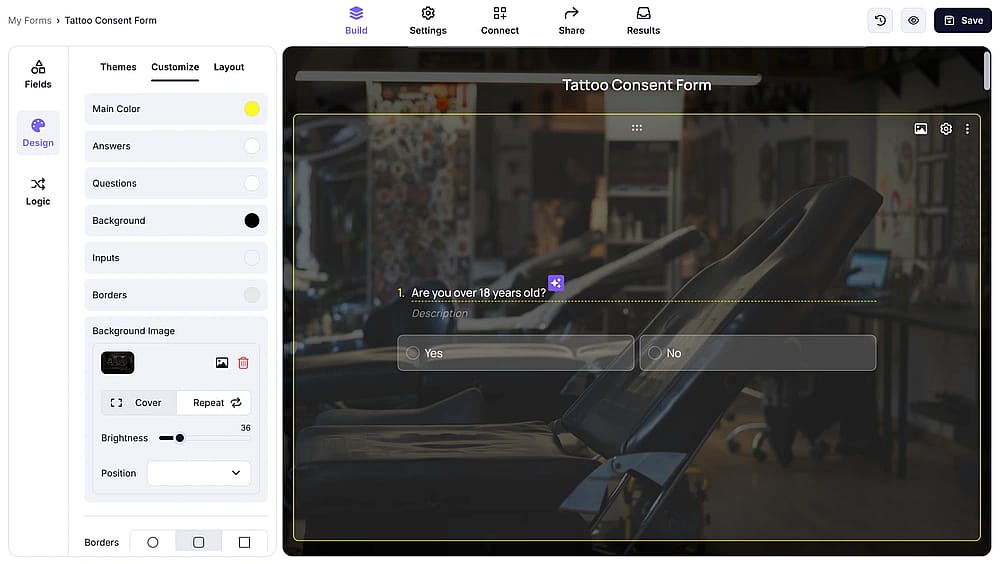
Customizing the consent form
5. Embed or share your consent form
After completing the creation of your consent form, you have the opportunity to integrate it into your website or share it directly through email. Explore embedding options like Standard, Full-page, Chatbox layout, Side tab, Pop-up, and Slider for embedding. You can also share your form on social media or create a QR code for it.
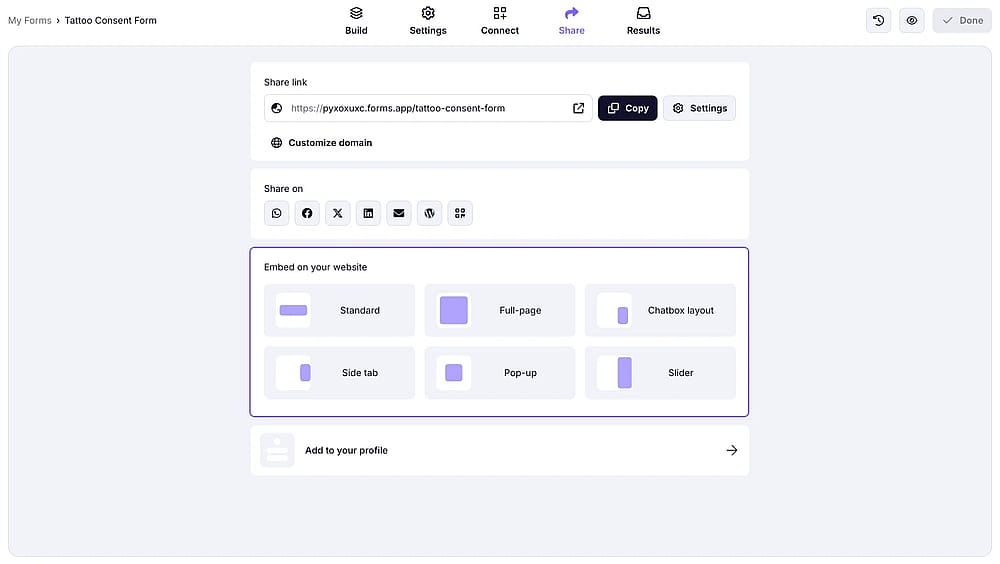
Choose an embedding option for your website
Bonus: Set up notifications and integrations
On forms.app, you can get a notification whenever someone submits a form. There are numerous ways to automate what happens after you get a response. For example, you can create a custom PDF template to export each form response automatically.
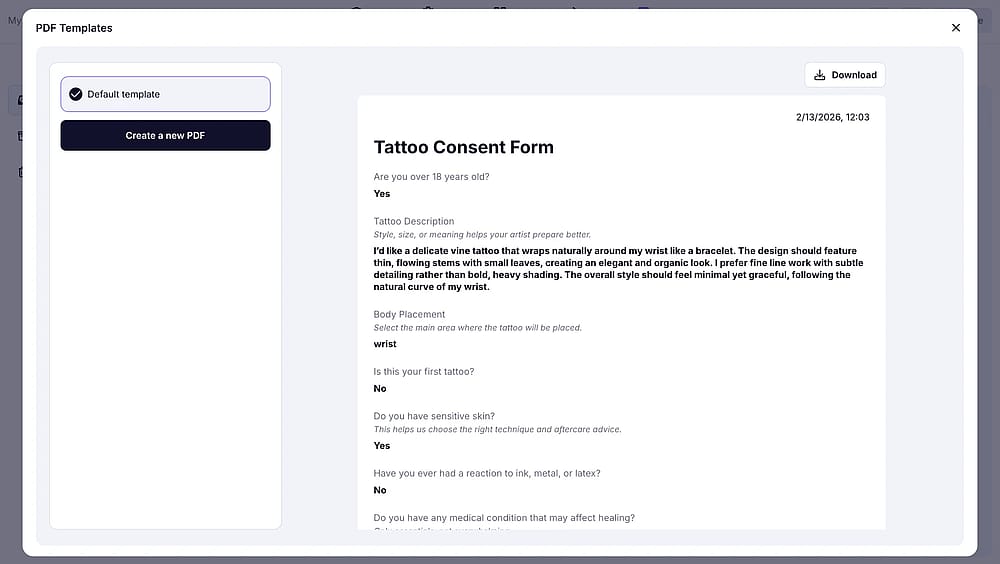
Setting up custom PDF documents for your consent form
Frequently asked questions about consent forms in Google Forms
Yes. Google Forms can collect basic informed consent for research studies, but you should be aware of its constraints. Consult with your IRB before using Google Forms for informed consent. They may require additional documentation or a different platform.
No, Google Forms does not have a built-in signature field. While some add-ons claim they allow collecting signatures in Google Forms; they simply create the same form on another platform and doesn’t allow collecting signatures on Google Forms as they claim.
A consent form is a legal document that records an individual's voluntary agreement to participate in a specific activity, undergo a procedure, or allow use of their information or likeness. It serves as documented proof that the person was informed about the nature, purpose, risks, and implications of their agreement before providing consent.
Final words
Creating effective consent forms is essential for legal protection, regulatory compliance, and ethical business practices. While Google Forms offers a free, accessible starting point for basic consent collection, it has significant limitations that make it unsuitable for many professional applications.
If your organization needs consent forms with electronic signatures, GDPR compliance, professional branding, advanced conditional logic, or integration with other systems, specialized form builders like forms.app provide significant advantages. Thank you for reading this far, and we hope this article offered the information you were looking for about creating consent forms in Google Forms. If you have any questions, the forms.app team is always willing to help you and answer your questions.
Disclaimer: This article provides general information about creating consent forms and does not constitute legal advice. Consult with a qualified legal professional for guidance specific to your situation.
Contributors
Researched & written by
forms.app, your free form builder
- Unlimited responses
- Unlimited questions
- Unlimited team members