Save up to 60% on yearly plans and enjoy our biggest offer of the year. Limited time only. 🍂
See pricing

How to make a copy of a Google Form (Step by step)
Summarize with
TL;DR: How can you copy a Google Form?
Method 1: Copy from the form editor
Method 2: Copy from Google Drive
Method 3: Copy someone else's form
Method 4: Use Google Form templates
Bonus: Copy to forms.app for more professional looking and capable forms
Copying a Google Form preserves all your carefully crafted questions, conditional logic, design choices, and quiz settings. Even for this reason alone, it is a much-needed step for most teams and businesses.
This guide will walk you through every method of copying Google Forms. This includes how to duplicate a Google Form in your own account, how to copy a Google Form to another account, and how to copy someone else’s form.
Method 1: Copying a form within Google Forms
On the Google Forms, you have the option to duplicate a form. This is the fastest method when you're already working inside a form and need a quick duplicate.
- Open the form you want to copy.
- Click the three dots (⋮) in the top-right corner of the screen.
- Select "Make a copy".
- Change the name of the copied form or its location.
- Click the “Make a copy” button to finish creating the copy.
That’s it! Your duplicate copy will automatically open in a new tab.
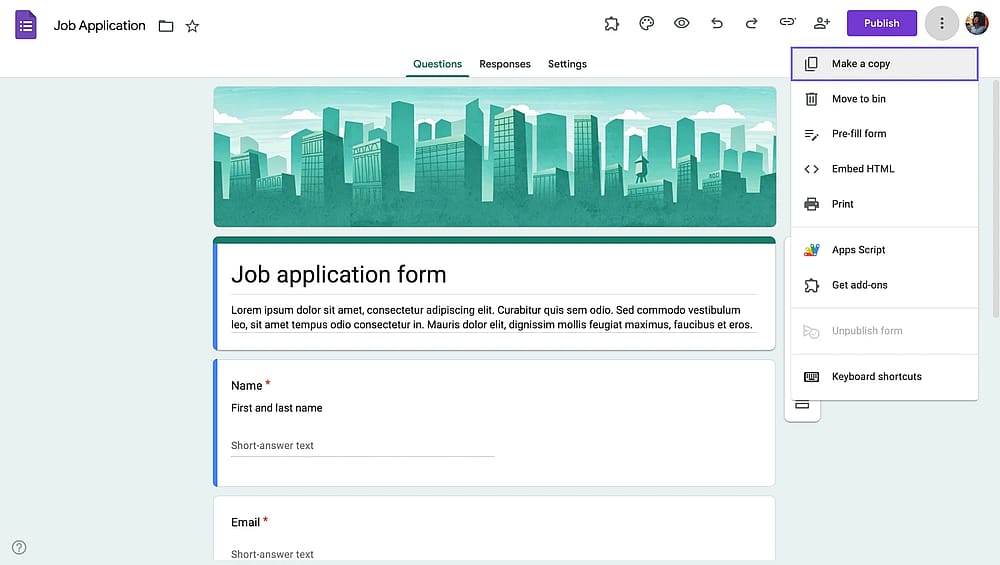
Making a copy within Google Forms
Remember
When you duplicate a Google Form, all your questions, section branching, theme, quiz mode settings, question images, and videos transfer to the new copy. However, your form responses won’t be transferred.
Method 2: Creating a copy within Google Drive
Your Google Form is stored in your Google Drive by default. So, you can actually view, move, delete, or duplicate your forms within Google Drive.
Businesses usually choose this method because it is a better way to copy multiple forms at once.
- Navigate to the form you want to copy in your Google Drive.
- Right-click and select “Make a copy” from the additional menu once you reach your desired form.
- This action will create a copy named “Copy of (file name).” You can choose to keep this name. However, we advise changing it to eliminate confusion, especially if you make several copies of the same form.
- To change the name of the copy, simply right-click on the copied file, then click on “Rename.” From there, you can type in any name you choose and hit “Enter.”
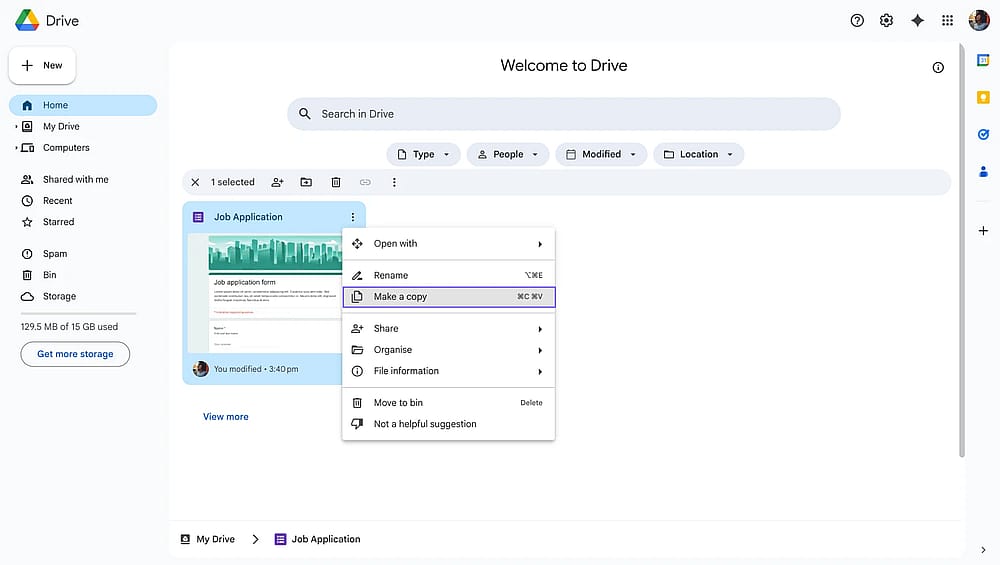
Making a Google Form copy within Google Drive
Method 3: Copying someone else's Google Form
When you need to copy a form you didn't create, permissions become important. To copy someone else's form, you need Editor access. If you have permission, the steps are the same as copying your own Google Form. Simply open the form, click the three dots, and choose the “Make a copy” option. Give your copy a name, and that’s it!
Note that
Unless you have the Editor permission, it is not possible to copy someone else’s form on Google Forms.
Method 4: Copying a form through Google Form Templates
Google Forms lets you turn your forms into templates, so that you and your team can use them as a base when creating new forms. You’ll only see 17 Google Form templates by default; however, if you have a workspace account, you will see a dedicated tab for templates created by your team.
Let’s first see how to create templates, how to use existing templates on Google Forms, and how to share your form as a template without saving as a template.
Saving a Google Form as a template
To turn one of your forms into a template, simply follow these steps:
1. Open the “Templates gallery” & click on your organization name.
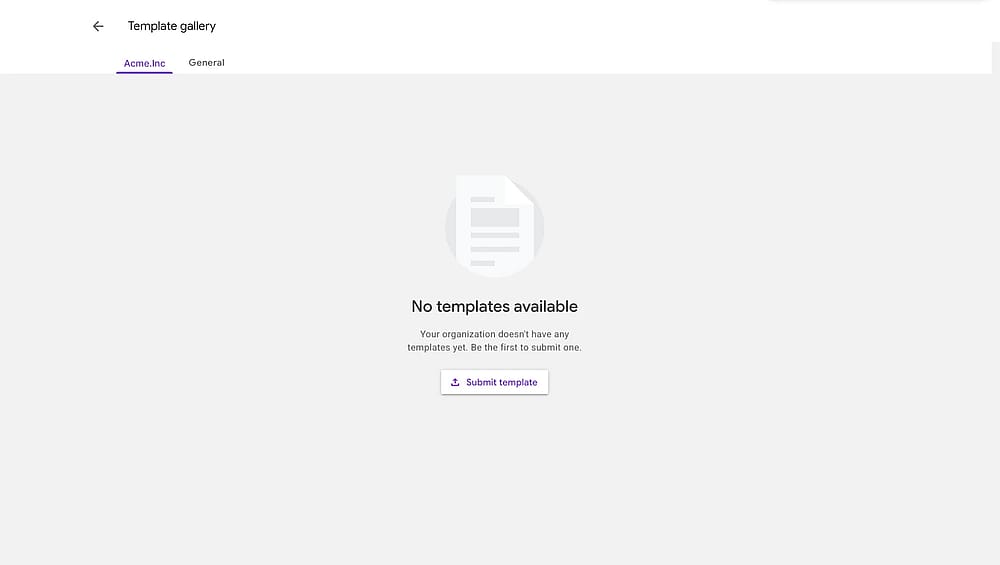
Opening the Templates gallery on Google Forms
2. Click on “Submit template”.
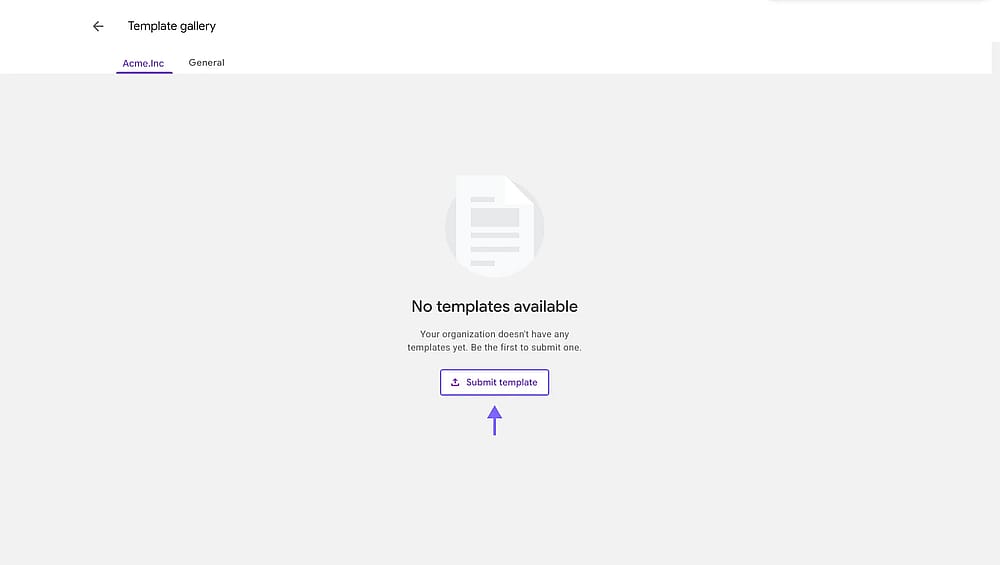
The location of the “Submit template” button within the Templates gallery
3. Select one of your forms and choose a category.
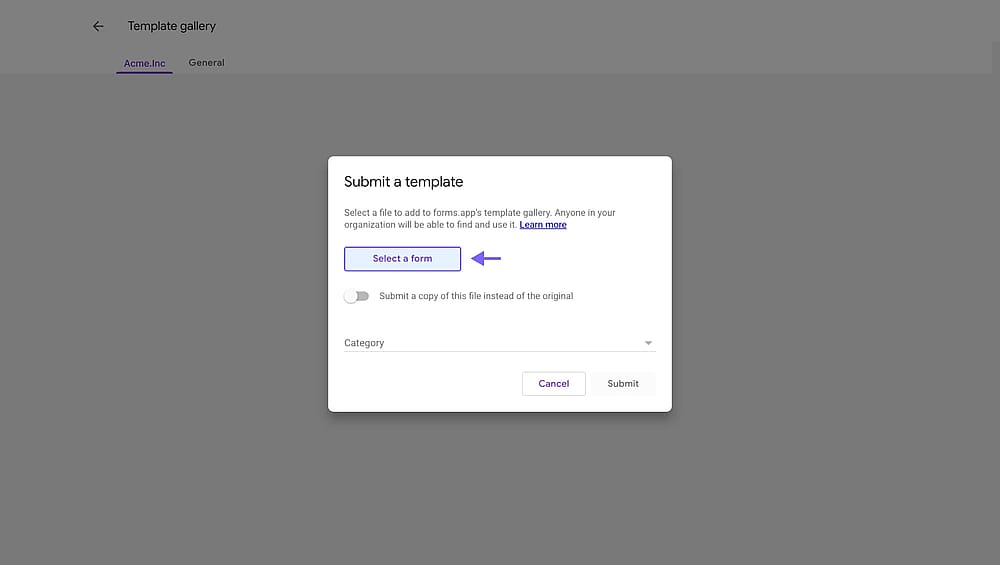
The location of the “Select a form” button
4. Lastly, hit the “Submit” button to save your template.
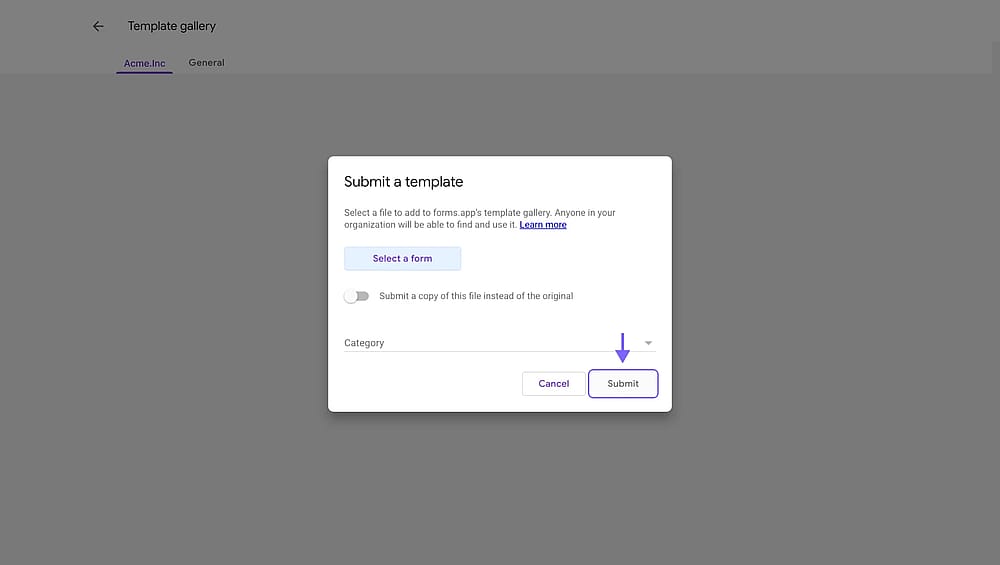
The location of the “Submit” button
Using a custom Google Form template
Using a custom Google Form template created by your team is fairly easy. Open on the “Template gallery” and choose the template you want to use. It will automatically copy the template form into your account.
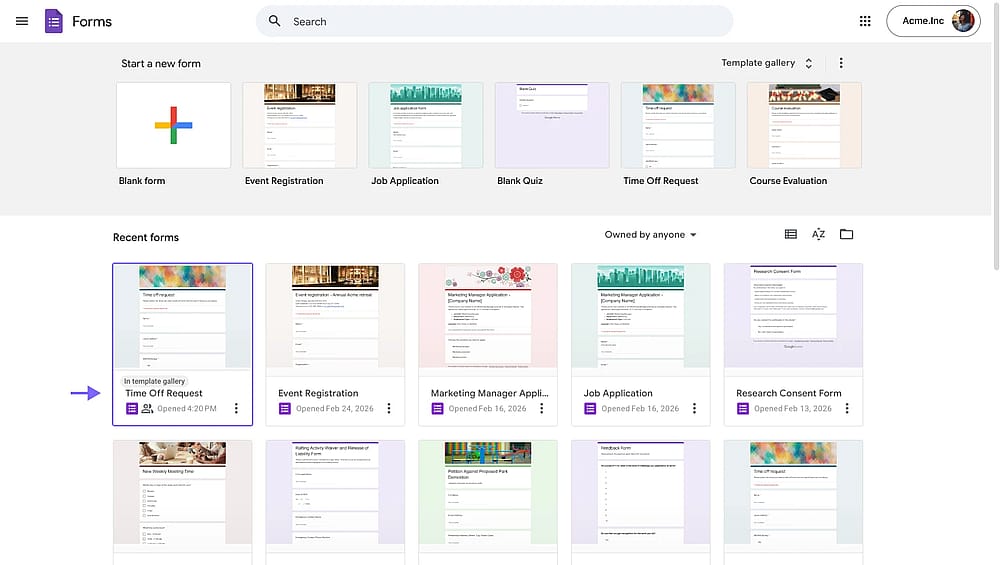
Using a custom Google Form template
How to share a Google Form as a template
You have another option to export a Google Form to another account: sharing it as a template link. This is different from saving a form into your team’s template gallery.
1. Open the form's sharing settings & invite your team as editors.
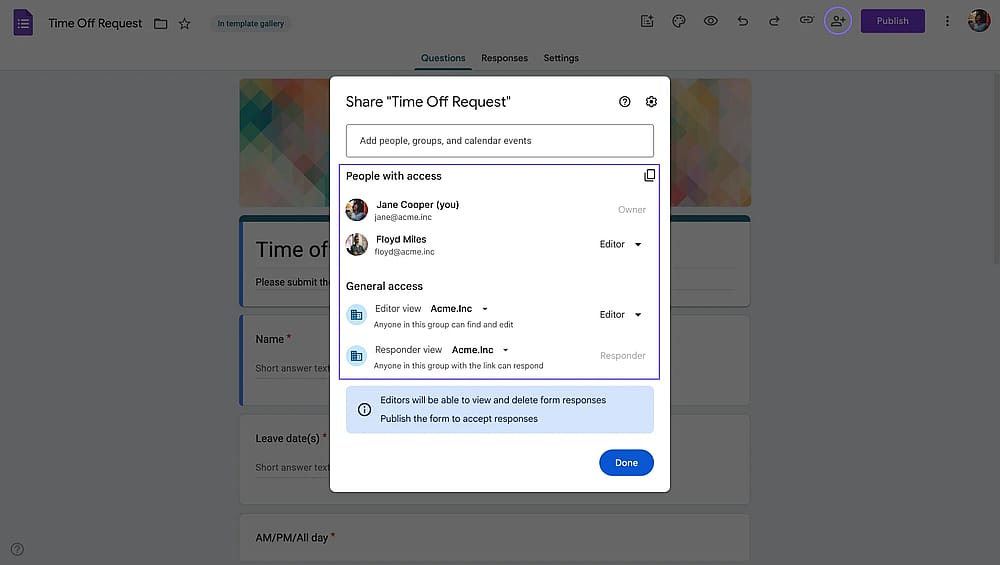
Changing the form's sharing settings
2. Copy the form's URL.

Copying the form's URL
3. Remove "/edit" from the end and replace it with "/template/preview".
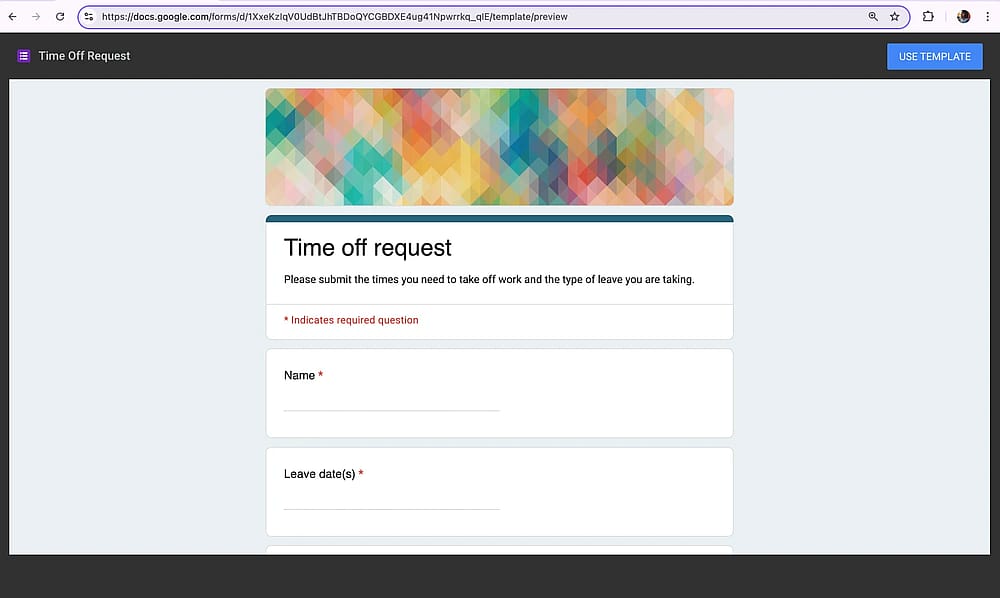
Changing the form URL to template URL
4. Share this modified URL with your team, and that’s it! People that has this URL can now easily copy your Google Form.
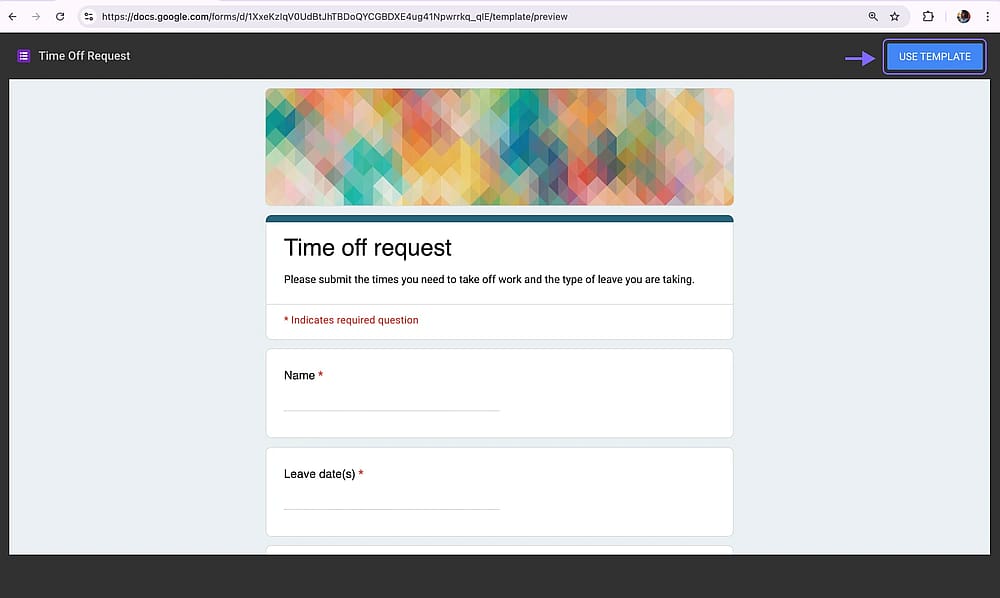
A customGoogle Form template example
Bonus: Another way to copy Google Forms
Copying a form in your Google account is possible, and you have several options. However, Google Forms itself has many limitations, especially in terms of features and customization. If you like to create professional-looking forms, forms.app is a solid Google Forms alternative.
Why copy your Google Forms to forms.app?
forms.app is an all-around form builder designed for teams who need more control, better branding, and advanced features without the complexity. Here's a quick comparison table to help you visualize the difference between forms.app and Google Forms.
Feature/Tool | Google Forms | forms.app |
Duplicating forms | ||
Form templates | 17 | 5,000+ |
Background image | ||
Step view & list view | ||
Redirect after submission | ||
Close dates | ||
Payment collection | ||
Signature field | ||
Custom domain |
How to import a Google Form to forms.app
If you already have a Form on Google Forms, then you don’t need to worry about recreating it on forms.app. Transferring your Google Form to forms.app is straightforward:
1. Sign up for forms.app & click on “Create a new form”
Create a free forms.app account at forms.app/signup. The free plan includes 5 forms, unlimited questions, and unlimited submissions, as well as advanced features and customization options that you won’t find on Google Forms.
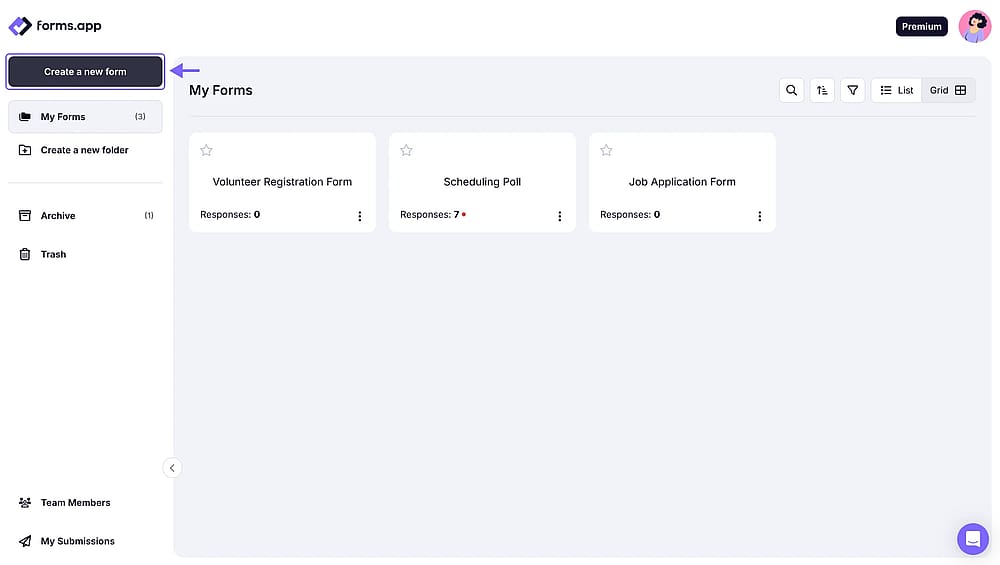
The “Create a new form” button on forms.app dashboard
2. Choose the “Import a form” option
forms.app has 5,000+ form templates, AI form generation, blank form, and form import options. Simply choose the “Import a form” option on the right.
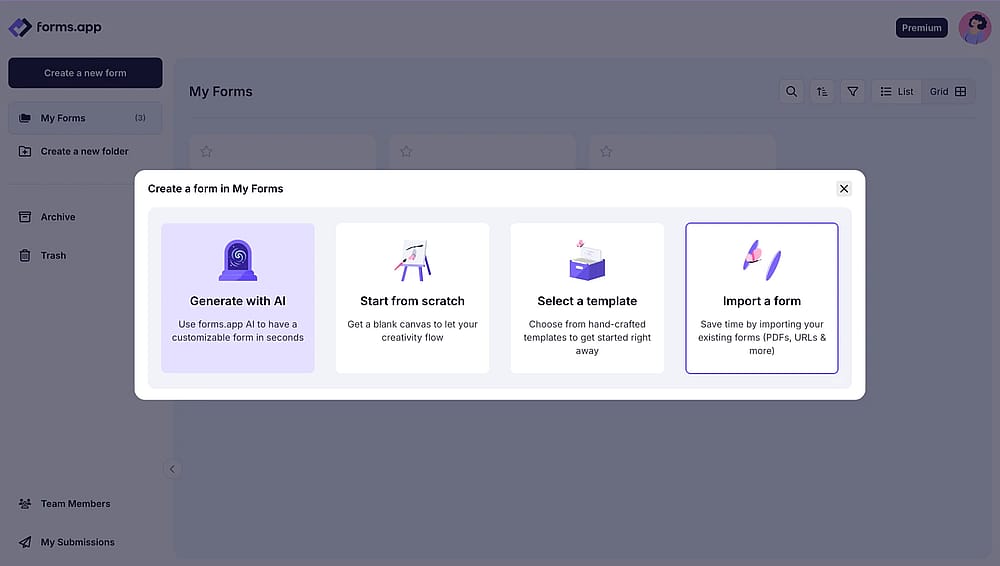
Choosing the “Import a form” option on forms.app
3. Choose “From website” option
Within the import options, you have more options. For example, you can import from a PDF, an image, another website, or another forms.app form. Continue with “From website”.
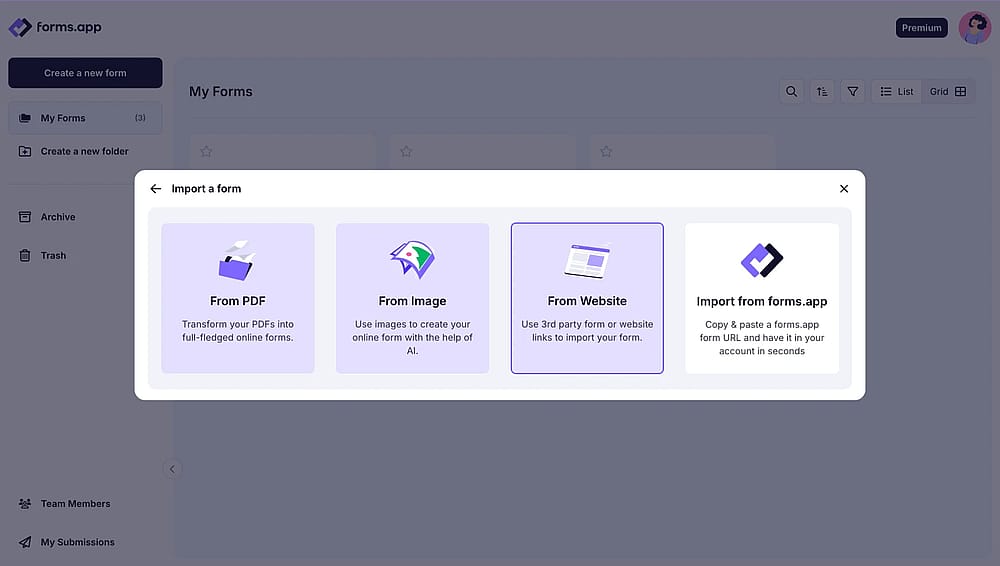
Choosing the “From website” option on forms.app
4. Copy and paste your Google Form URL and hit generate
Your form will be imported with questions. forms.app automatically converts Google Forms elements to its equivalent features.
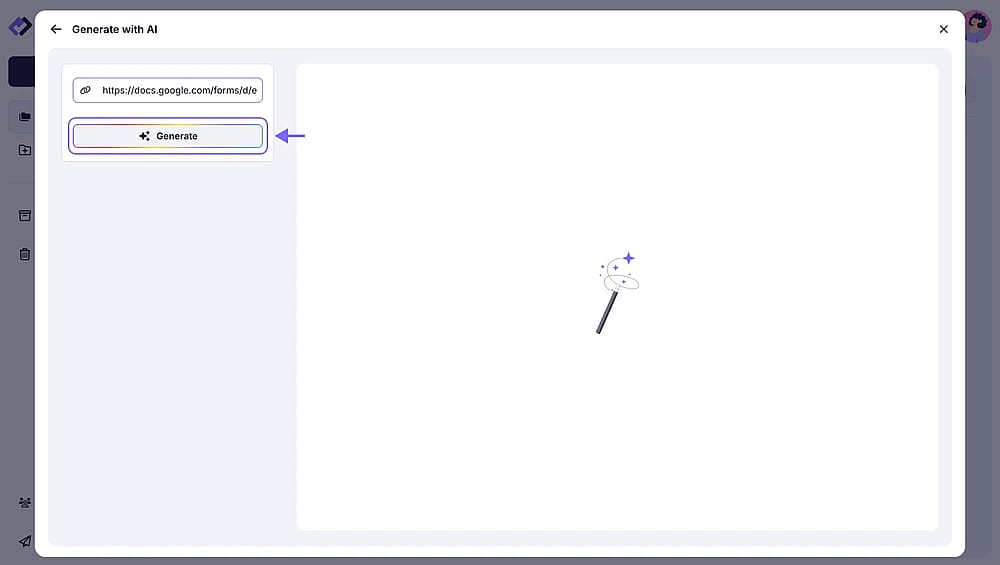
Pasting a Google Form URL to import input on forms.app
5. Adjust and complete your form
Once imported, you can:
- Apply professional themes from the theme library
- Add advanced conditional logic
- Enable save-as-draft for respondents
- Set up automatic PDF generation from responses
- Connect to 500+ integrations natively
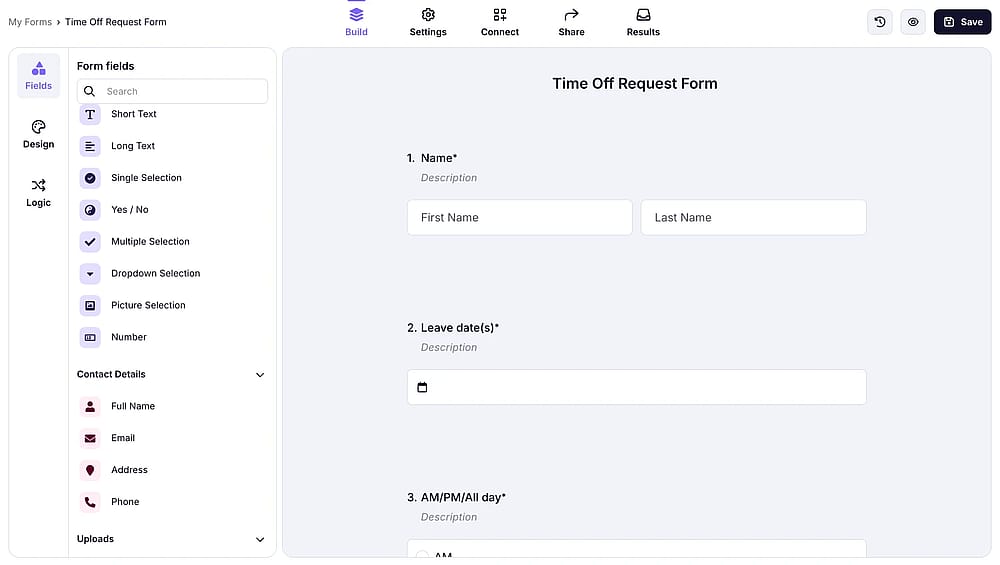
Editing the imported form on forms.app
How to import forms into forms.app
Once your forms are in forms.app, duplication is even simpler than Google Forms:
1. Go to "My forms" & click on “Create a new form”.
2. Choose the “Import a form” option.
3. Choose “Import from forms.app”.
4. Paste a forms.app form URL.
5. Click import.
That’s it. This process takes under 10 seconds, compared to 30-45 seconds in Google Forms.
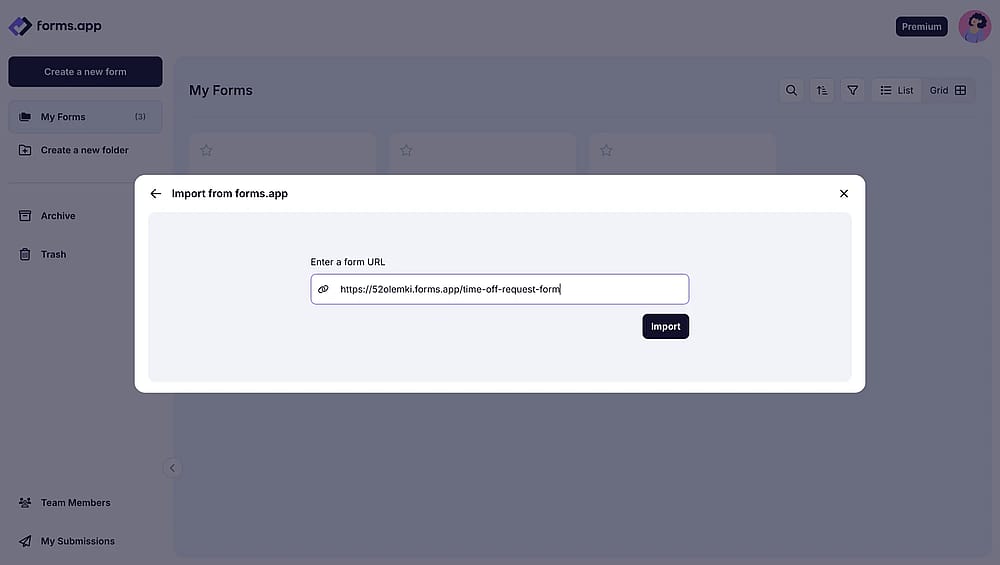
Importing a form on forms.app
Frequently asked questions about copying a Google Form
Yes. If the form is shared with your account with editor access, you can make a copy that will be owned by whichever account you're signed in with.
No. When you copy a Google Form, the new form starts with zero responses. This is by design to keep campaign data separate. If you need to combine responses from multiple forms, use IMPORTRANGE in Google Sheets to pull data from multiple response sheets into one master sheet.
Yes. Quiz mode, answer keys, point values, and auto-grading settings all copy to the new form.
Yes. Conditional logic (section branching based on answers) is preserved when you copy a form.
Google Forms doesn't have a built-in bulk copy feature. However, you can select multiple forms in Google Drive, copy them (Ctrl+C), and paste them (Ctrl+V) into a new folder. Each will create a copy.
Conclusion
Copying Google Forms is a simple yet powerful way to speed up your workflow and maintain consistency across campaigns.
In this article, we have looked at how to copy a Google Form, the steps you must take, and different ways to copy a Google Form. We have also examined how you can copy your Google Form to forms.app, as well as importing forms within forms.app. I hope this article helps you copy your Google Forms and answers any questions you have.
Contributors
Researched & written by
forms.app, your free form builder
- Unlimited responses
- Unlimited questions
- Unlimited team members
Related articles