Save up to 60% on yearly plans and enjoy our biggest offer of the year. Limited time only. 🍂
See pricing

Intercom Integration
Intercom is a very popular customer service platform that allows instant communication with customers and other site visitors. By integrating your forms with Intercom, you will be able to automatically create contacts and conversations with form responses.
How to create conversations and contacts with form responses
Having your Intercom integration ready is a basic process, and you can complete it within no more than two minutes. Simply follow the steps shown below:
1. Click the Connect tab and scroll down, and find the Intercom after completing your form:
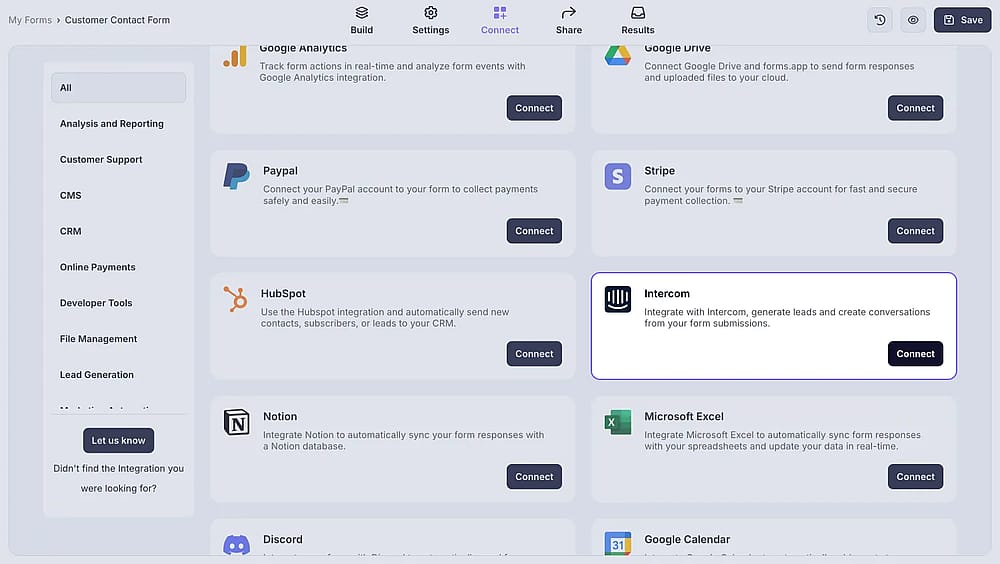
An image showing the “Intercom integration” button, which you can easily find by accessing the “Connect” tab
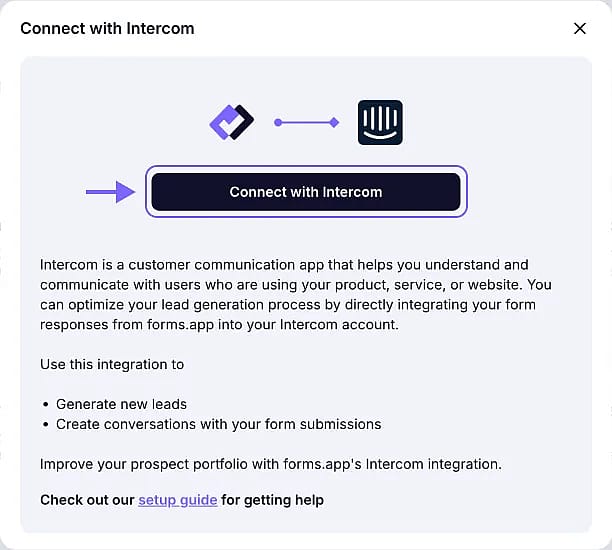
2. Press the Connect with Intercom button, log in to your Intercom account, and authorize the access:
3. Now it’s time to pair up your form fields with the Intercom properties:
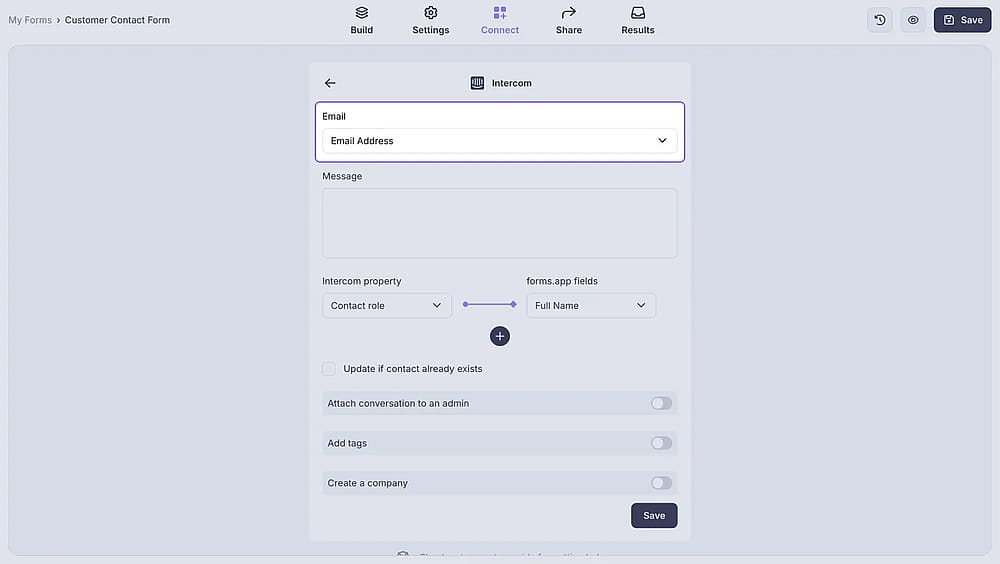
An image showing the area where you will need to match the properties of Intercom with the needed form fields
4. To add new properties for pairing up, click on the plus icon below:
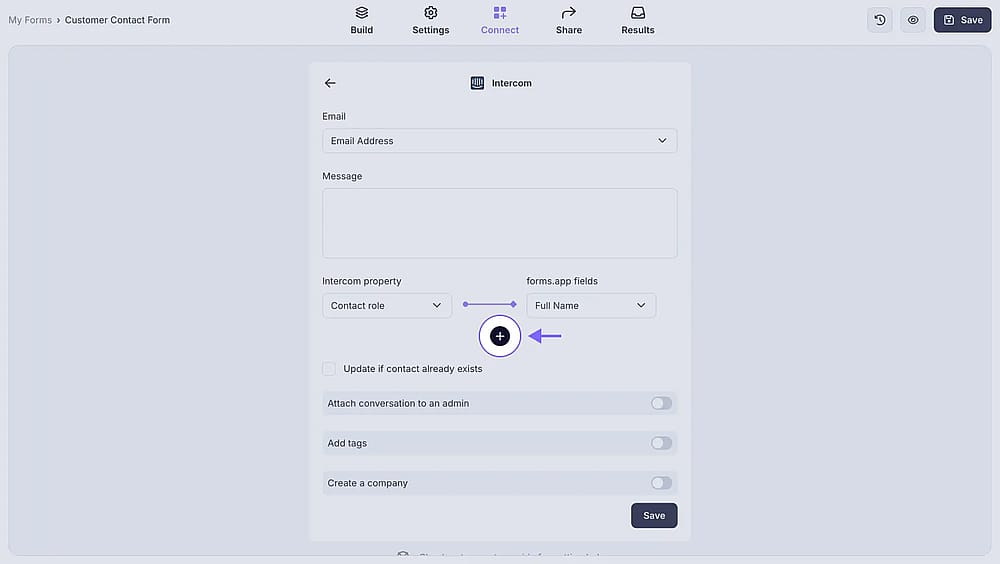
An image showing the “plus” button, which allows you to add more Intercom properties
5. Next, you can customize the message you will receive when someone fills out the form. Use the plus icon or type @ to inject respondents’ answers:
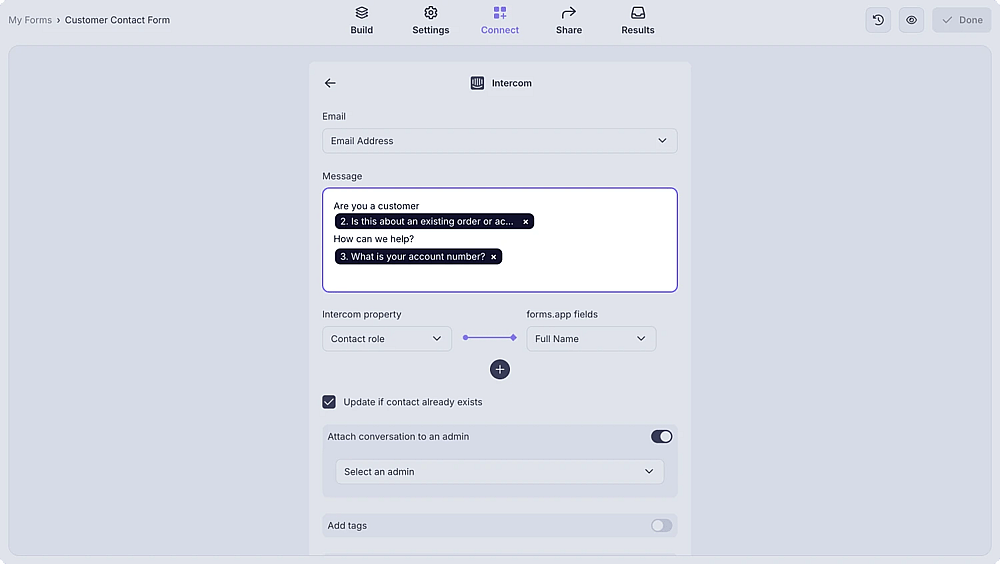
An image showing the “Message” area, where you can enter your text message and include fields from your form
6. You can also assign conversations to a specific user, add tags to conversations, and create a company:
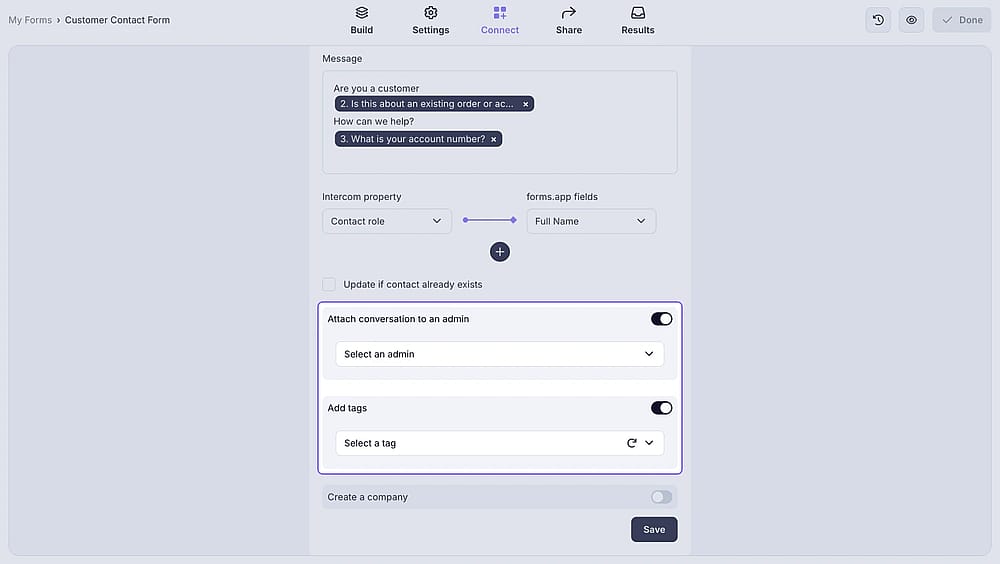
An image showing toggles below which allow you to assign conversations to a specific user, add tags to conversations, and create a company
7. If you want to create new contacts on Intercom, make sure to click on the checkbox below:
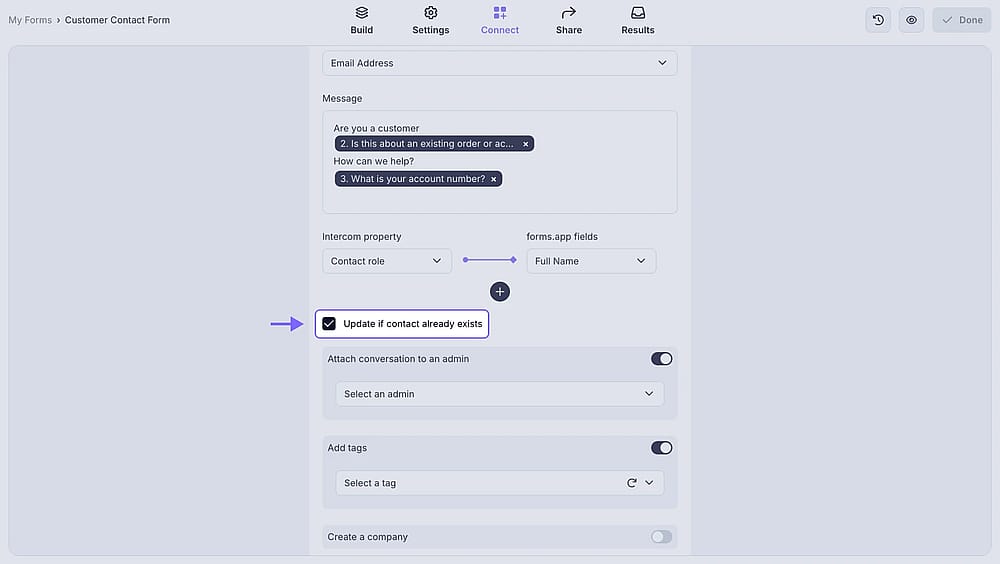
An image showing the checkbox that you can click in case you need to create new contacts on Intercom
8. Simple! Now you can test your integration to see if it works:
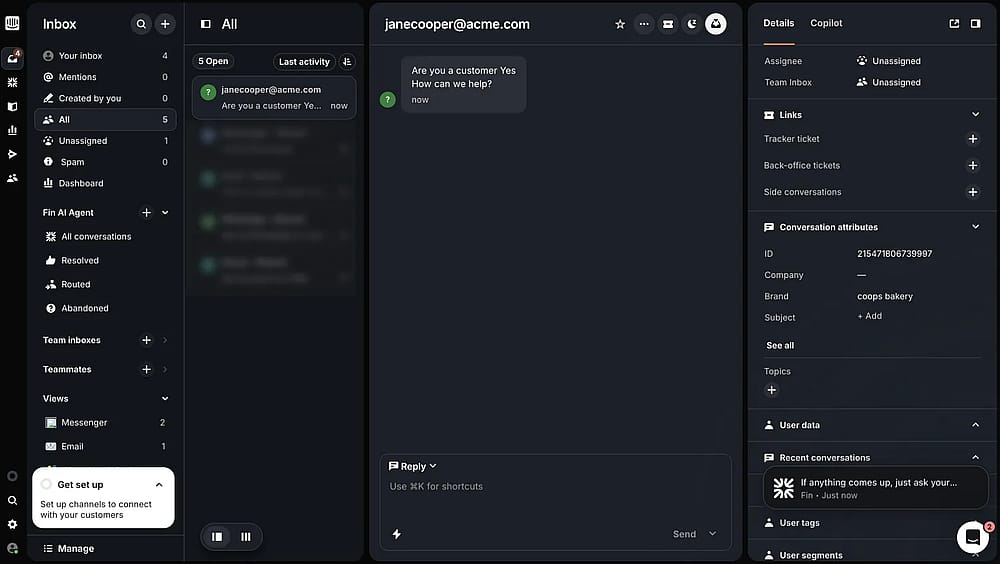
An image showing an example of the message received in the Intercom space after testing the integration
Yes, your custom Intercom properties will show up in the pairing screen, and you will be able to match them with form fields.