Save up to 60% on yearly plans and enjoy our biggest offer of the year. Limited time only. 🍂
See pricing

How to collect electronic signatures with Google Forms
Summarize with
If you are using Google Forms, then you may have noticed there are no built-in ways to add signature fields to your form. Luckily, a few solutions can help with collecting digital signatures via a Google Form.
In this comprehensive guide, we'll reveal the truth about Google Forms signature limitations, go over workarounds on how to add an electronic signature in Google Forms, explain the legal issues, and show you the best alternative for actually collecting electronic signatures that are legally binding, secure, and user-friendly.
Can I add a signature field to a Google Form?
The Short Answer: No, Not Really
Google Forms does not have a native signature field and cannot truly collect electronic signatures within the platform. This isn't an oversight; it's by design. Google Forms was built as a simple survey and data collection tool, not as an electronic signature or document management platform.
Some plugins and apps in the Google Workspace Marketplace claim thatthey allow collecting signatures on Google Forms, but what they actually do is create a separate form on their own platform and encourage users to use it instead.
Luckily, you have a few workarounds and a better choice. Let’s get right into collecting signatures in Google Forms.
How to create a Google Form with an electronic signature
To create a Google Form with an electronic signature, you'll need a workaround. Luckily, you have three (Plus one Google Forms alternative for collecting signatures). Let's examine the three main workarounds for adding signatures to Google Forms.
Method 1: Collecting signatures using the file upload field
While it is a bit redundant for respondents, adding a "File Upload" question to your Google Form and asking respondents to upload an image of their signature that they've created separately simply works. It is a solid way for gathering handwritten signatures. Here are the steps:
- Open your Google Form (or create a new one by selecting from Google Forms templates)
- Click the "+" button to add a question
- Select "File upload" from the question type dropdown
- Label it "Please upload your signature."
- Set file type restrictions to accept images
- Make the field required
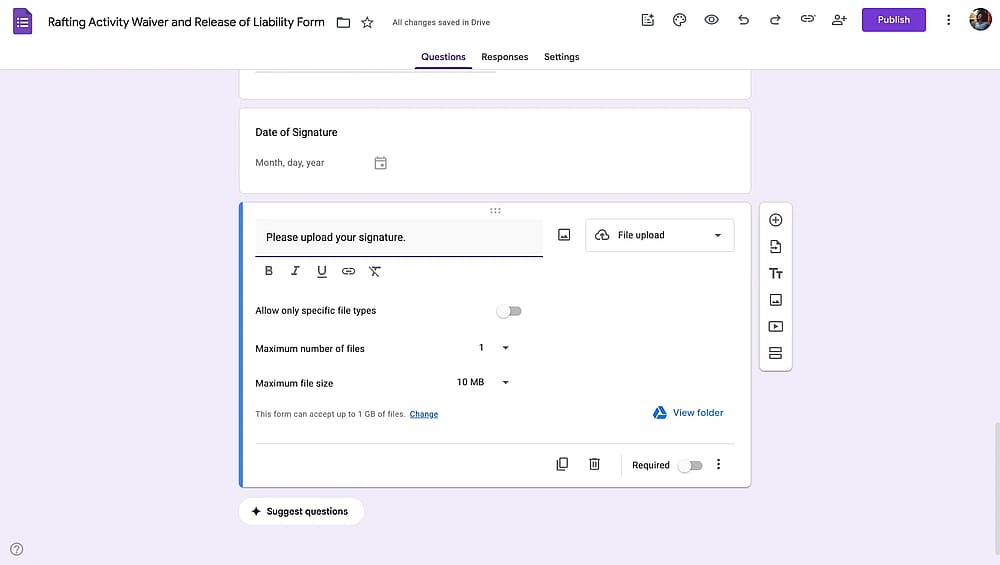
Using a file upload field to collect signatures on Google Forms
What are the drawbacks of using file uploads for signatures?
- Sub-optimal user experience: Users must create a signature separately, save it on their device, and upload it to the form.
- No verification: You have no way to verify that the person uploading is the person whose signature it is.
- Not legally binding: A simple image upload doesn't meet legal requirements for electronic signatures.
Method 2: Google Workspace Marketplace add-ons
While this is the most commonly recommended workaround, it simply doesn’t work. We include this option only as a workaround to share accurate information.
Here’s the process: You install a third-party add-on from the Google Workspace Marketplace that claims to add signature functionality to Google Forms. The add-on copies your form and creates a separate form on its own platform; you are no longer using Google Forms when you follow the link. These platforms allow as few as 10 signatures per month.
Why don’t add-ons actually allow collecting signatures on Google Forms?
- You're no longer using Google Forms: These add-ons copy your form, not add a signature field to your Google Form.
- Severe limitations on free tiers: Most limit you to 5-10 signatures per month.
- Privacy and security concerns: You're granting a third-party app full access to all your Google Drive files, access to all form responses, and control over data that may be stored on their servers.
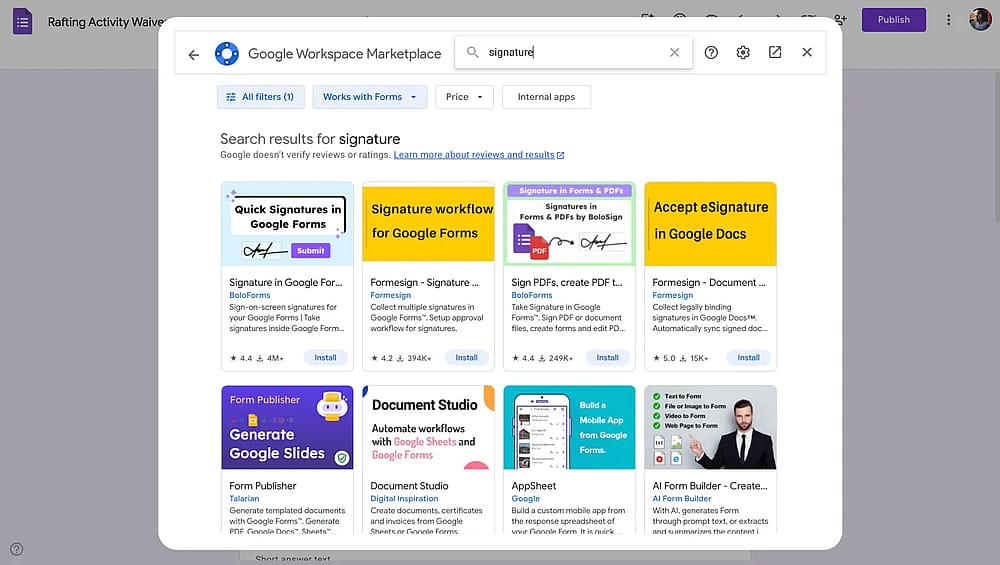
“Signature” add-ons on the Workspace Marketplace
Method 3: Link to an external signature tool
Another workaround is to add a text or link field in your Google Form that directs users to a separate signature collection tool like DocuSign, Adobe Sign, or HelloSign. Here are the steps:
- Create your form in Google Forms
- Add a text field with a link to your signature document
- Instruct users to click the link and sign the document separately
- Optionally, ask users to confirm they've signed
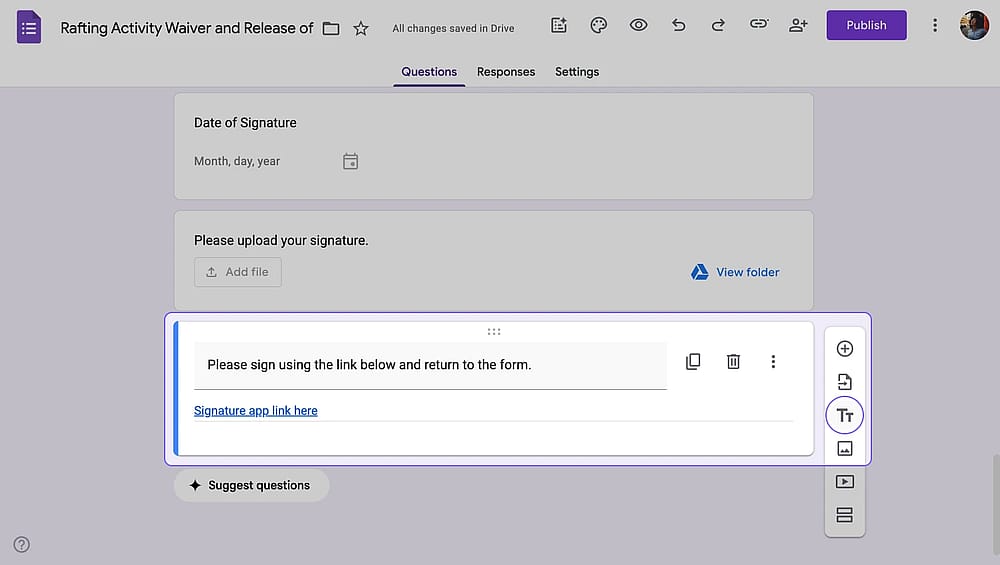
Adding external links for signatures on Google Forms
What are the drawbacks of linking to another page for signatures?
- No guarantee of completion: Users can submit the Google Form without ever clicking the signature link or completing the signature.
- Data in two separate systems: Your form data lives in Google Sheets, while signatures live in DocuSign/Adobe/etc. There's no connection between them.
- Costly: Professional e-signature tools typically cost $10-40/month per user, adding significant expense.
Is there a better way to collect signatures?
Several options are available for collecting signatures electronically, and which is best one for you will depend on your specific needs and preferences. Your best choice would be forms.app due to its easy-to-use interface and budget-friendly options, but there are also some options to consider :
- E-signature apps: Many e-signature apps allow you to collect signatures on various devices, including smartphones and tablets. These apps often offer a range of features, such as the ability to add a signature field to a document, customize the appearance of the signature, and track the signing process.
- Form builder tools: Form builder tools, such as forms.app, are also a convenient solution for collecting electronic signatures. Its easy-to-use interface allows you to add a signature field to your forms, making it simple to collect signatures from clients, customers, and employees. You can also make the signature part mandatory or leave it optional.
Here’s a detailed comparison table:
Feature/Tools | Google Forms | forms.app | Signature platforms |
Native signature field | |||
Form fields | 12 | 30+ | Limited |
Data and signature in one place | |||
Cost for signatures | Free (using file upload option) | Free unlimited signature collection | Typically cost $10-40/month per user |
Customization | Limited | Advanced | Limited |
How to get e-signatures with forms.app
Electronic signatures, or e-signatures, are a convenient and secure way to verify the identity and consent of individuals in online transactions or records. forms.app allows you to collect e-signatures through custom online forms easily. Let's walk you through the steps for getting e-signatures with forms.app.
1. First, go to the forms.app and create an account for free.

Creating a forms.app account
2. Once you have an account, you can create a new form by choosing one of the following options:
- AI form generator
- Form templates
- Form import options
- Start from scratch
For this step-by-step guide, we’ve chosen one of users’ favorites, the Electronic signature form template.
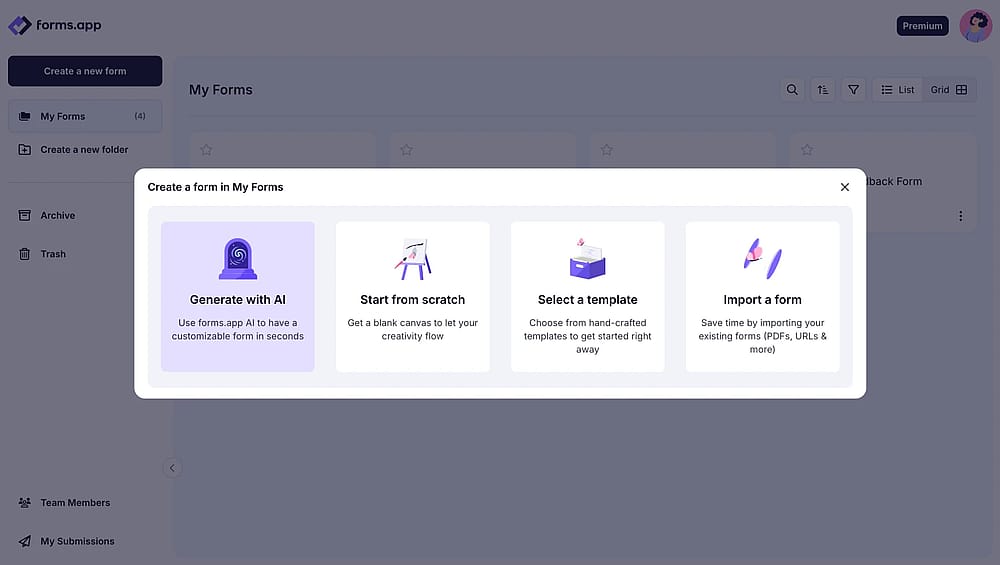
Creating a signature form on forms.app
3. In the drag-and-drop form editor, click on the "Signature" from the list of available fields or drag in onto the form. Your form will now include a digital signature field.
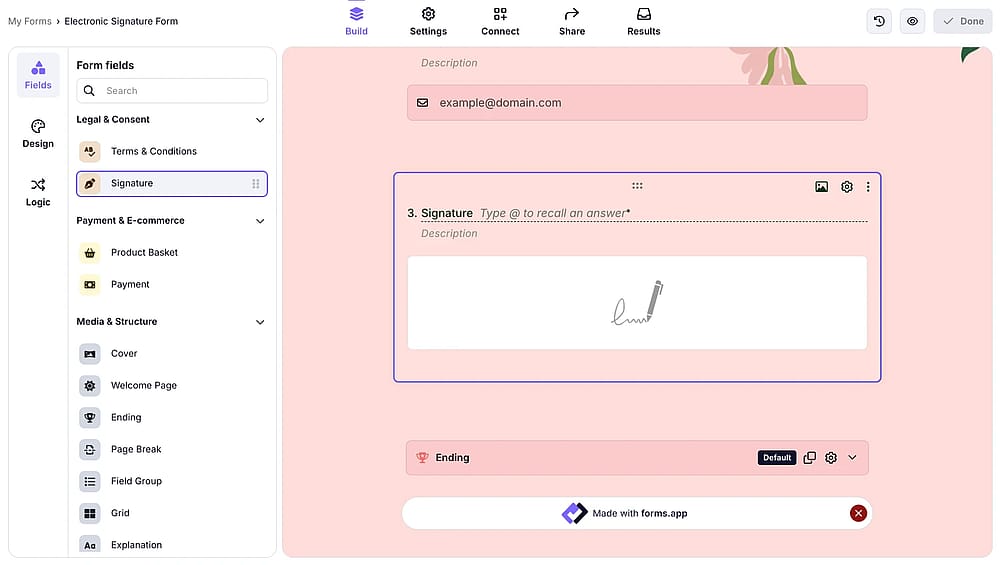
Adding a signature field to a form on forms.app
4. When you're through modifying your form and adding any more fields or components that you require, you can visit the design tab for customization and the settings tab for changing the basics of your form. Lastly, you can go to the share page to customize and copy your form URL, generate a QR code for it, or get the embed code for your website.
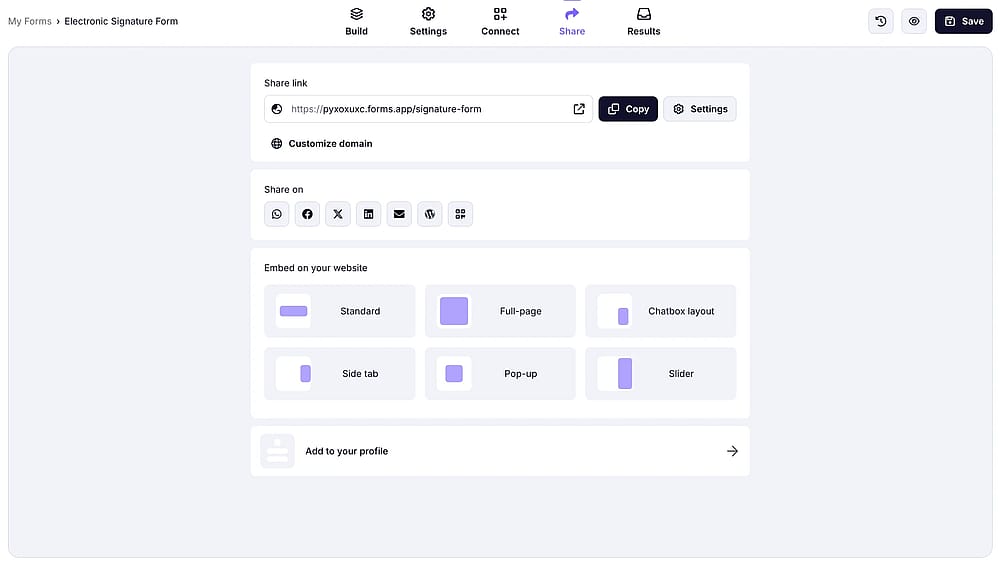
Sharing the signature form
5. Your clients or customers can sign the form electronically by clicking on the signature field and drawing their signature. Thanks to the other built-in form fields, they can also add any additional information or documents that may be required in their form submission.
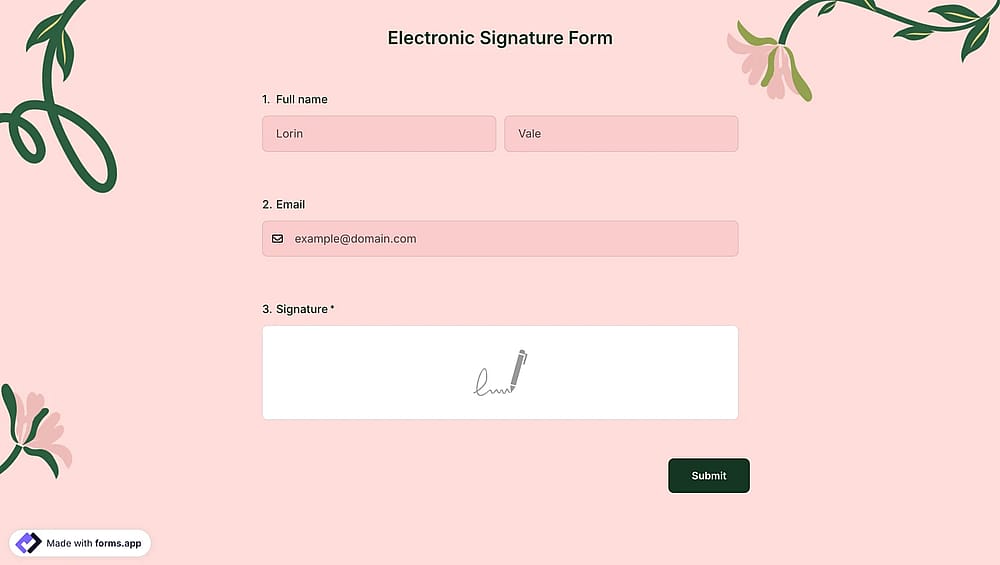
Previewing how the signature field looks on a form
What is a digital signature?
A digital signature is a method of verifying a document by using an electronic identity. This authentication depends on a trusted third party, usually referred to as a certification authority (CA). Digital signatures are used in applications requiring consent, such as collecting personal data. They provide authenticity, integrity, and trust.
Are electronic signatures legally binding?
The signed form becomes a legally binding and secure record. Electronic signatures are legally valid in several countries, provided specific conditions are met. Including a digital signature field in your forms allows you to collect legally binding signatures from your clients or customers. Using digital signatures can streamline your workflow by automating the signing process and eliminating the need for manual handling of physical documents.
Without a reliable e-signature solution, essential elements of the ESIGN and UETA may not be met, leaving room for people to potentially back out of contracts or claim they did not understand them. To ensure the legality and security of electronic signatures collected through Google Forms, it is vital to use a trusted plug-in within Google Workspace Marketplace.
When do you need a digital signature field in your forms?
If you want to create the following forms, you may need to add a signature field to your forms.
Legal Documents:
- Contracts and service agreements
- Non-disclosure agreements (NDAs)
- Employment contracts
- Settlement agreements
- Legal releases and waivers
Healthcare:
- Patient consent forms
- HIPAA authorization forms
- Treatment consent
- Medical release forms
- Telehealth consent
Financial:
- Loan applications
- Account opening documents
- Investment agreements
- Financial disclosures
- Tax forms
Real Estate:
- Purchase agreements
- Lease agreements
- Rental applications
- Property disclosures
- HOA documents
Human Resources:
- Offer letters
- Employment agreements
- Onboarding documents
- Policy acknowledgments
- Performance reviews
Education:
- Enrollment agreements
- Permission slips
- Student conduct agreements
- Financial aid documents
- Registration forms
Frequently asked questions about collecting signatures with Google Forms
forms.app is the best free alternative to Google Forms for collecting electronic signatures. Unlike Google Forms, forms.app includes:
- Native signature fields (no workarounds needed)
- Up to 100 responses/signatures on the free plan
- Mobile-optimized signature capture
- All data is stored in one place
- More customization options and features than Google Forms
There are several advantages to using digital signature areas in your forms. Digital signatures let your clients or customers electronically sign papers rather than printing, signing, and scanning the form. This saves time and minimizes the possibility of papers being lost or delayed. To secure the integrity of the signed document and prevent manipulation, digital signatures use encryption and other security measures.
No, signatures collected through Google Forms workarounds are not legally binding in most jurisdictions. Google Forms lacks the essential components required by the ESIGN Act and UETA, including:
- No identity verification
- No comprehensive audit trail (timestamp, IP address, device info)
- No intent to sign mechanism
- No tamper-proof storage
- No certificate of completion
No, you cannot add a true electronic signature field to Google Forms. Google Forms does not include native signature functionality.
The bottom line
Google Forms cannot collect electronic signatures in any practical or legally sound way. While workarounds exist (file uploads, third-party add-ons, external signature links) they all share critical flaws. They create terrible user experiences, fragment your data across multiple systems, lack proper legal compliance, and often cost money for severely limited functionality.
The add-ons that claim to enable signatures don't actually work within Google Forms at all; they redirect users to external platforms, defeating the entire purpose of using Google Forms in the first place.
If you need to collect electronic signatures for contracts, agreements, consent forms, waivers, or any other important documents, forms.app is the solution. It provides native signature fields that work seamlessly within your forms and a mobile-optimized experience that actually works. Create your free forms.app account and start collecting legally binding signatures in minutes.
Contributors
Researched & written by
forms.app, your free form builder
- Unlimited responses
- Unlimited questions
- Unlimited team members
Related articles
How to upload a file on Google Forms