Save up to 60% on yearly plans and enjoy our biggest offer of the year. Limited time only. 🍂
See pricing

How can I turn on 2-factor authentication for my account?
The 2-factor authentication (2FA), or 2-step verification, is a security measure that adds one or more layers of identification for signing into your account. On forms.app, you can turn on 2FA through email authentication or an authentication app. It’s also possible to set up both of the methods at the same time. Let’s see how.
How can I turn on email authentication?
Email authentication is one of the basic methods of identity authentication for digital accounts. Once set up, it requires you to enter a code from an email when you’re signing in to your account. Follow these steps to turn on email authentication:
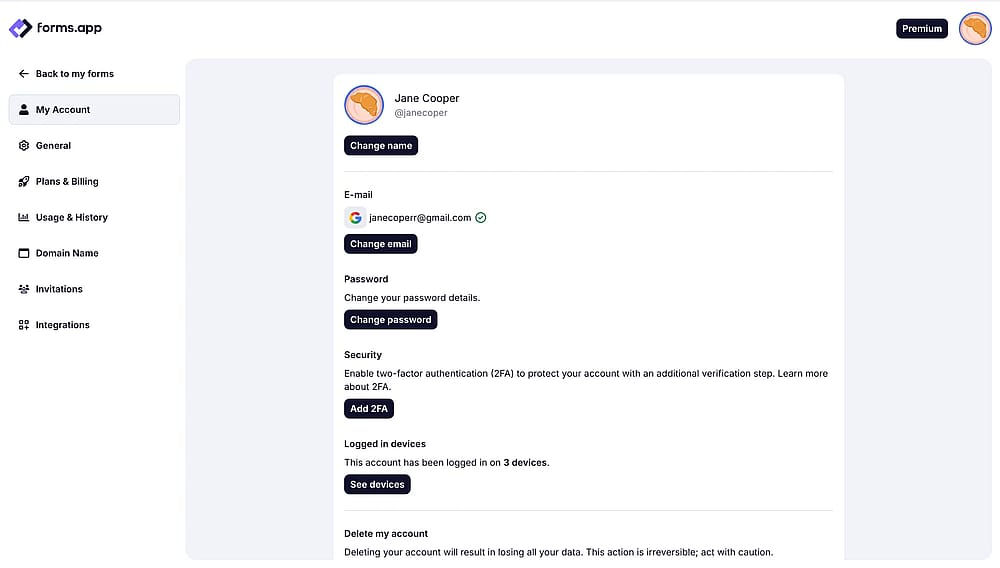
1. Log in to your account and go to account settings:
An image showing the “My Account” tab from account settings, which you need to access
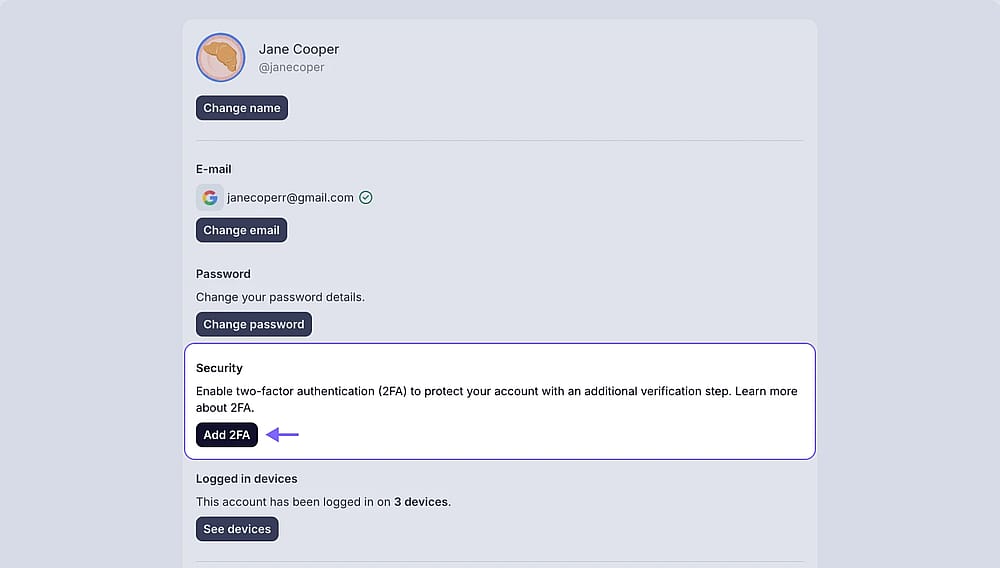
2. Find the Add 2FA button under the Security section and click it:
An image showing the “Security” area where you will find the “Add 2FA” button
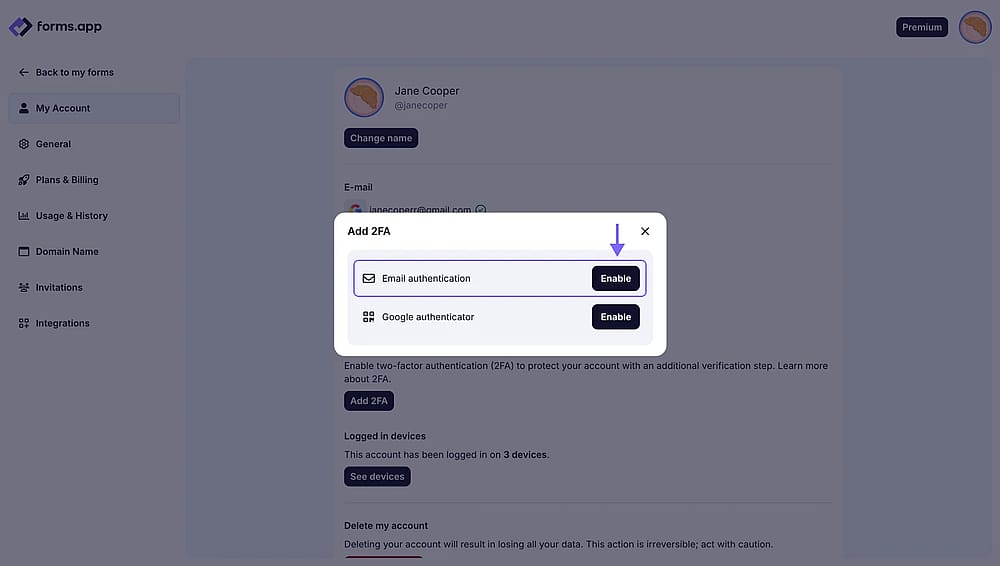
3. Choose Email authentication:
An image showing the pop-up appearing and the “Email authentication” option, which you need to select
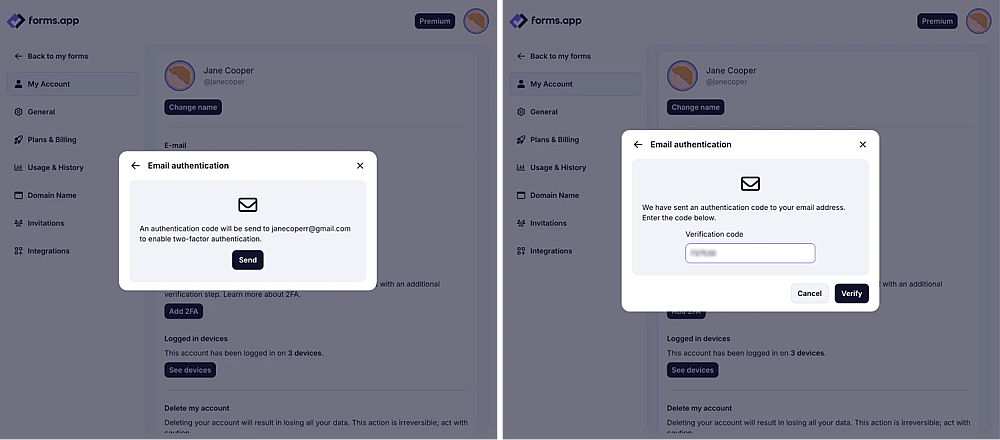
4. Click the Send button to receive an email and enter the code:
An image showing the pop-up which allows you to send the authentication code to your email from the left, and the pop-up where you need to enter the code received from the right
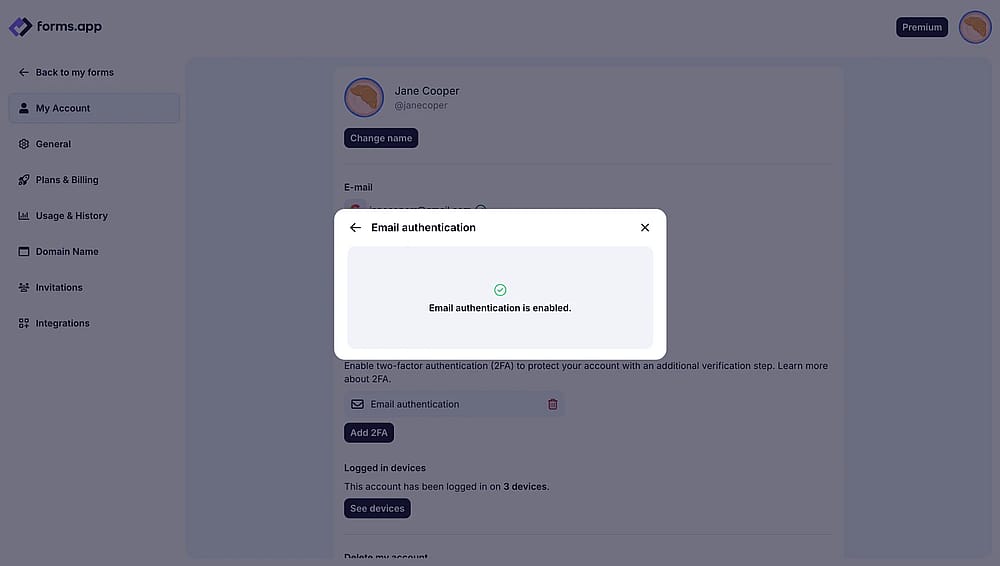
5. Once you enter the code, email authentication will be activated for your account:
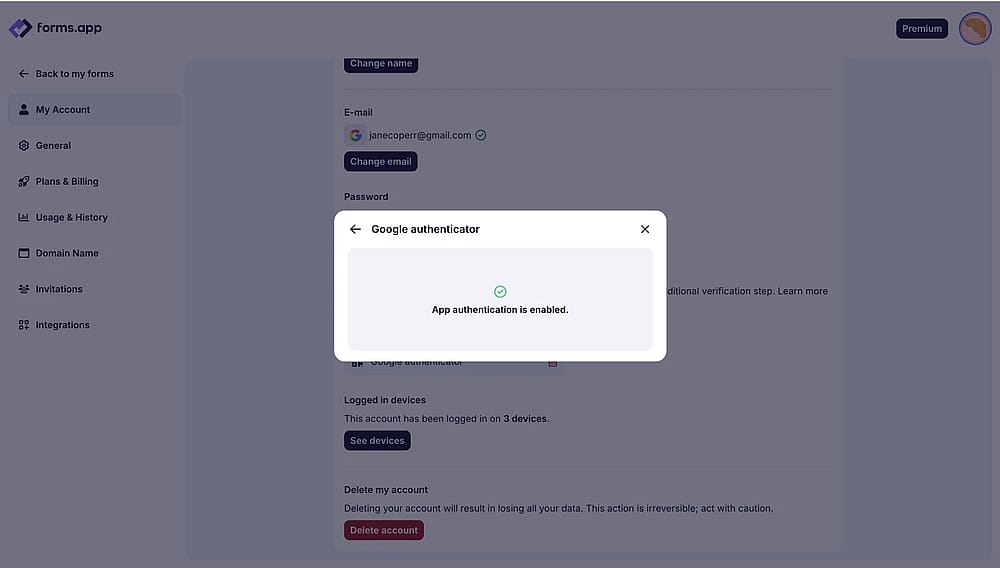
An image showing the pop-up with the successful 2FA set up and the Recovery Codes for you to copy
How do recovery codes work?
If you do not have access to your authentication method, we provide several recovery codes to help you log in to your account. Each code can be used only once. You should enter one of them instead of the authentication code you receive via email. We recommend saving these recovery codes in a secure place in case you need them.
How can I turn on 2FA through authentication apps?
Authentication apps constantly generate codes to ensure only you have access. Using an authentication app for 2FA is arguably safer. You can use any authentication app for your forms.app account, such as Google Authenticator and Microsoft Authenticator. We will use Google Authenticator as an example.
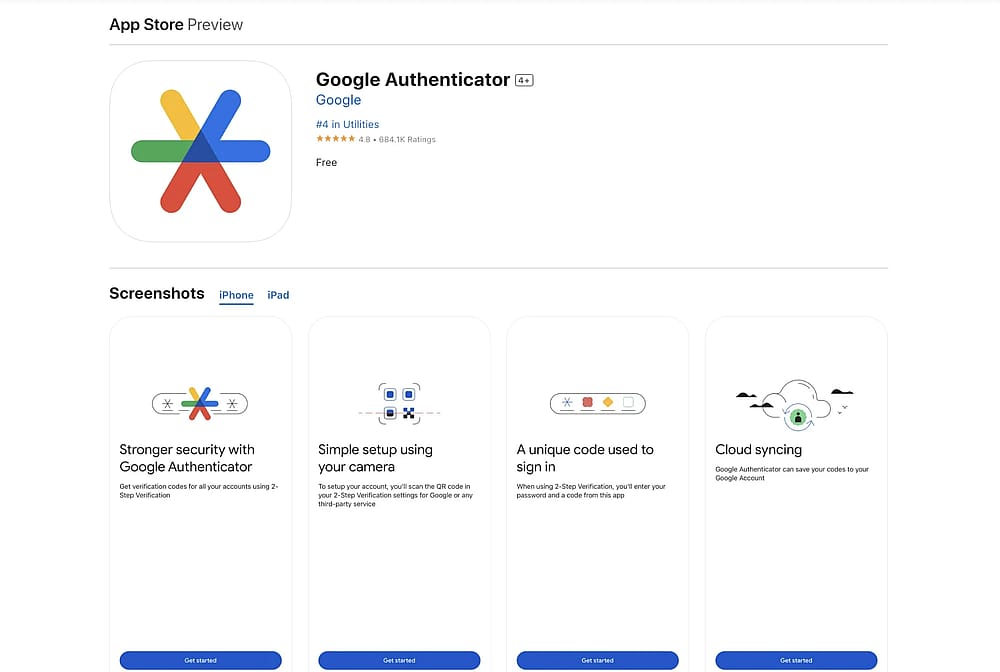
1. Download and install an authentication app on your device:
An image showing the “Google Authenticator” app from the App Store interface
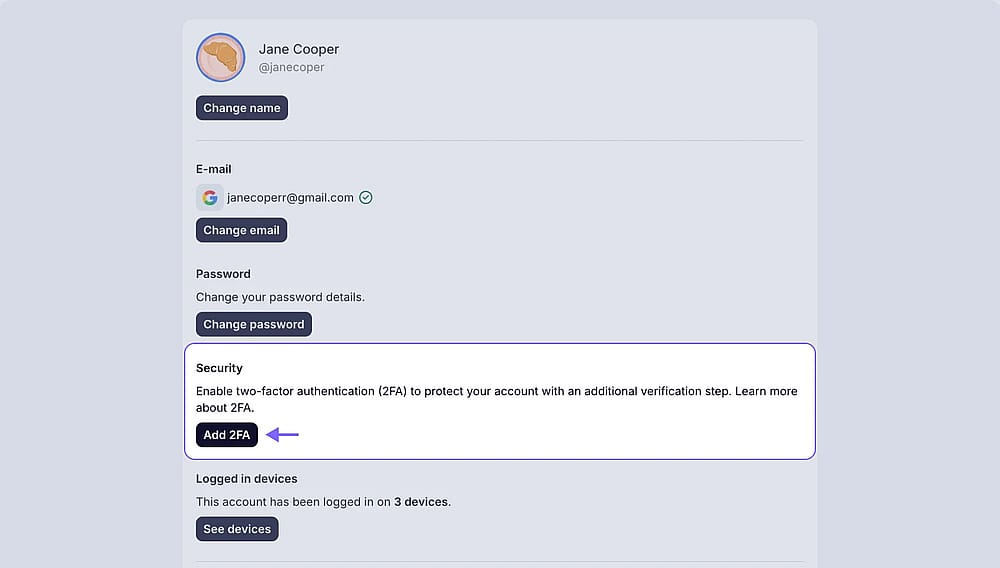
2. Find the Add 2FA button within your account settings and click it:
An image showing the “Security” area where you will find the “Add 2FA” button
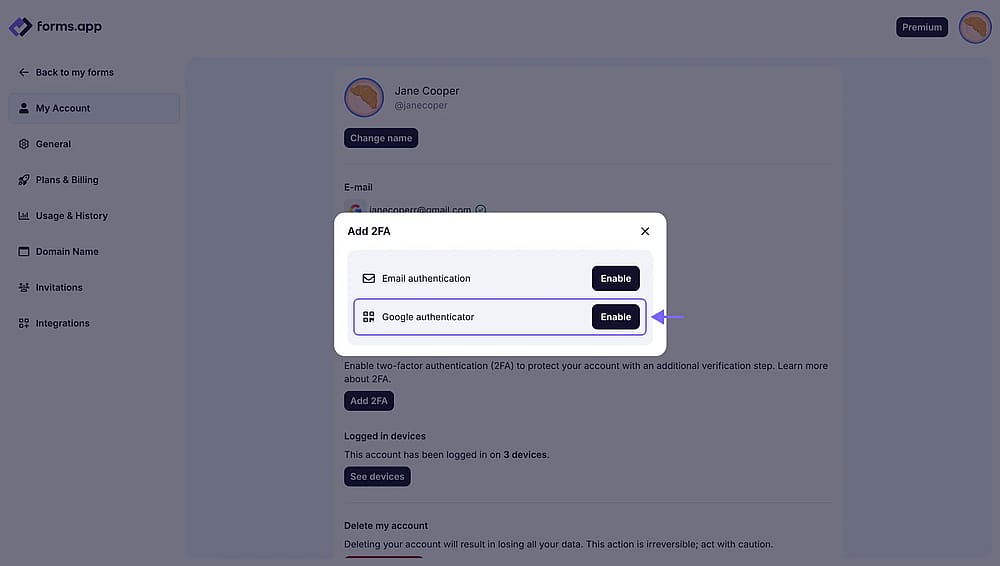
3. Choose the Google Authenticator option:
An image showing the pop-up appearing and the “Google Authenticator” option, which you need to select
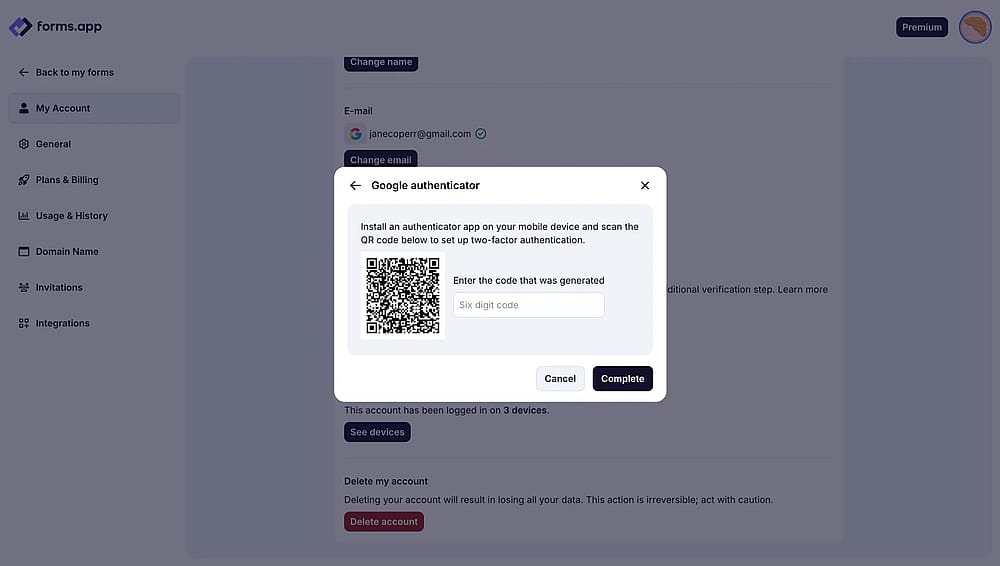
4. Scan the QR code through your app and enter the code:
An image showing the pop-up appearing with the QR code that you need to scan within your app and enter the code afterward
5. Now, your 2FA method is activated, and you need to enter the authentication code to sign in to your account:
An image showing the pop-up with the successful 2FA set up and the Recovery Codes for you to copy
By following these steps, you can easily enable one or both 2FA methods for your account. Make sure to save your recovery codes in case you need them, and enjoy impeccable account security.