Save up to 60% on yearly plans and enjoy our biggest offer of the year. Limited time only. 🍂
See pricing

Google Ads Integration
Google Ads is an advertising service where businesses can place their advertisements on search results, videos, or websites. You can also use it to track your forms on forms.app. It is a simple process, and we will take you through all the steps in this article.
How to find your tracking code on Google Ads
1. Sign in to your Google Ads account, click the Goals icon on the left menu, and press the Summary button:
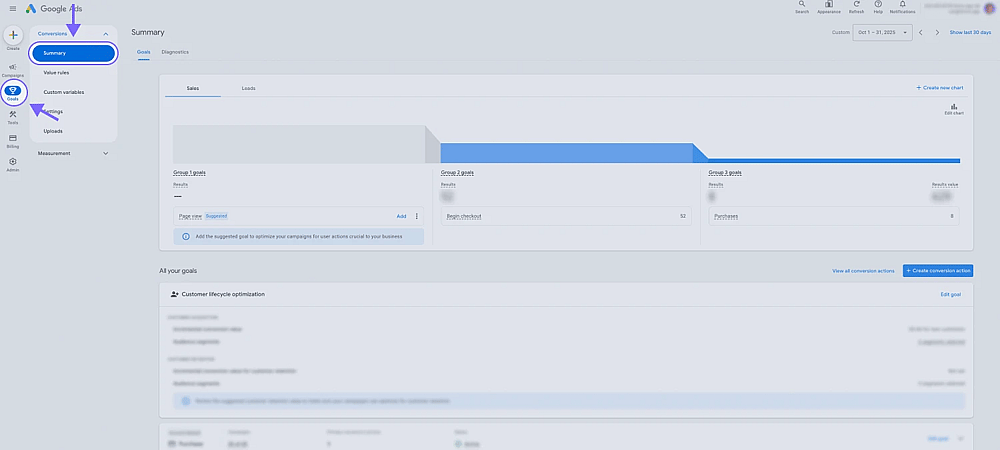
An image showing the Google Ads workspace where you will need to press the “Goals” tab from the left and access the “Summary” section
2. Once you are in the Summary section, click + Create conversion action:
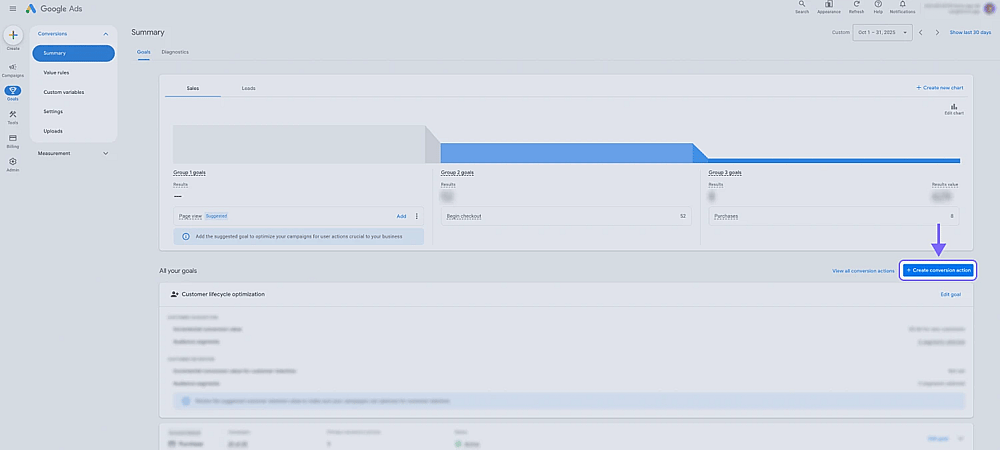
An image showing the “+ Create conversion action” which you need to press
3. Choose a category of what you are planning to track:
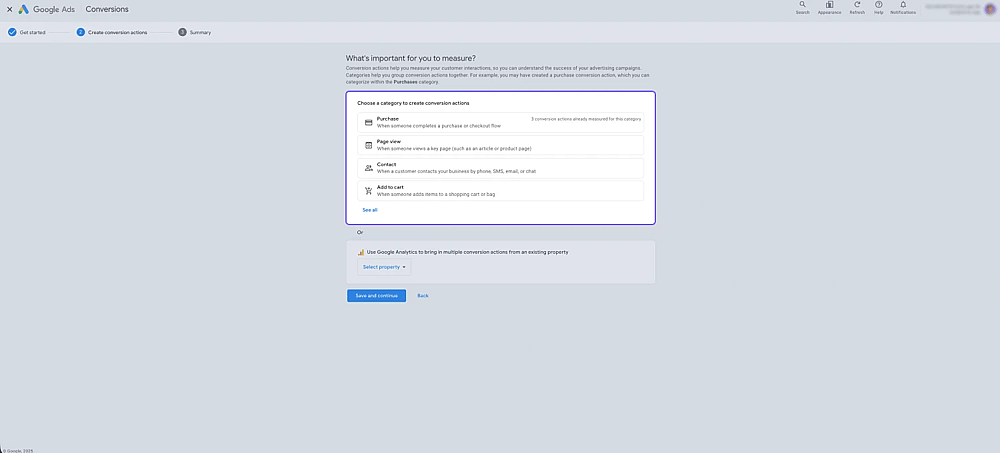
An image showing the page where you need to select a category to create conversion actions
4. Next, choose Sign-up or Submit lead form:
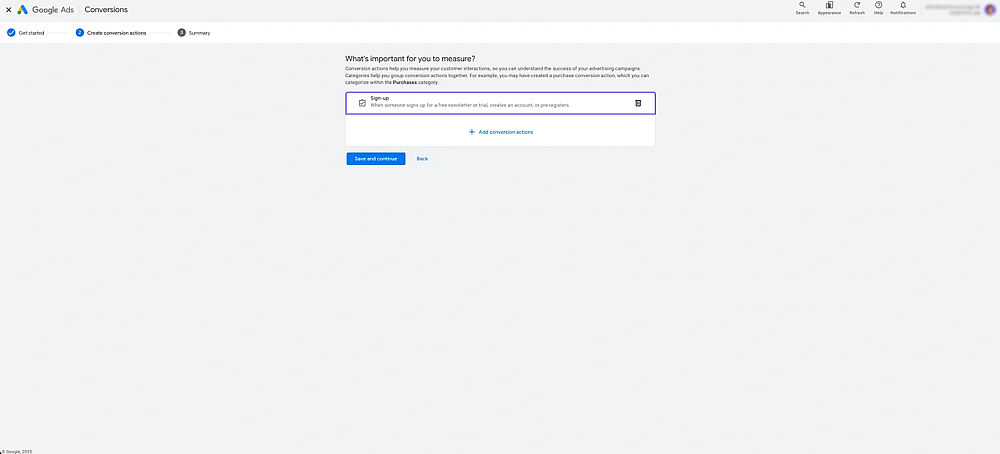
An image showing the “Sign-up” option, which needs to be selected
5. Then, click the +Add conversion actions button and select your website:
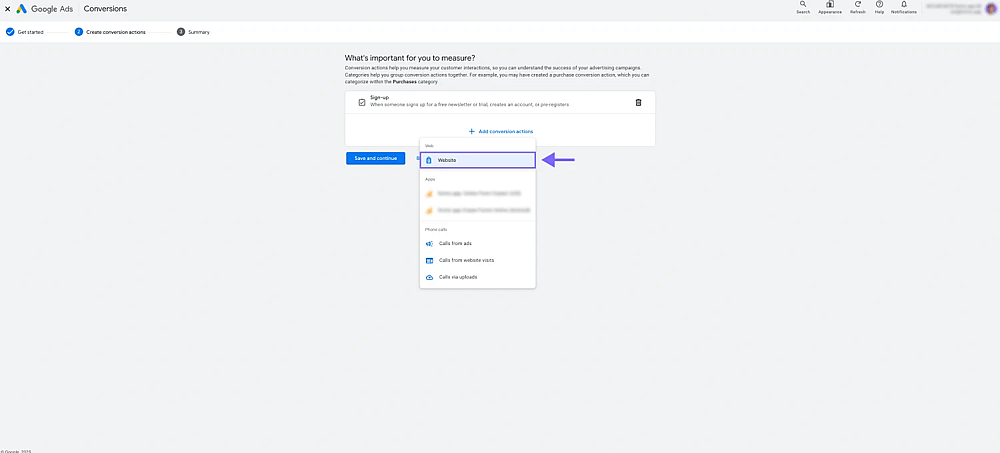
An image showing the “forms.app” option that appears in the dropdown menu
6. After that, choose Set up manually using code:
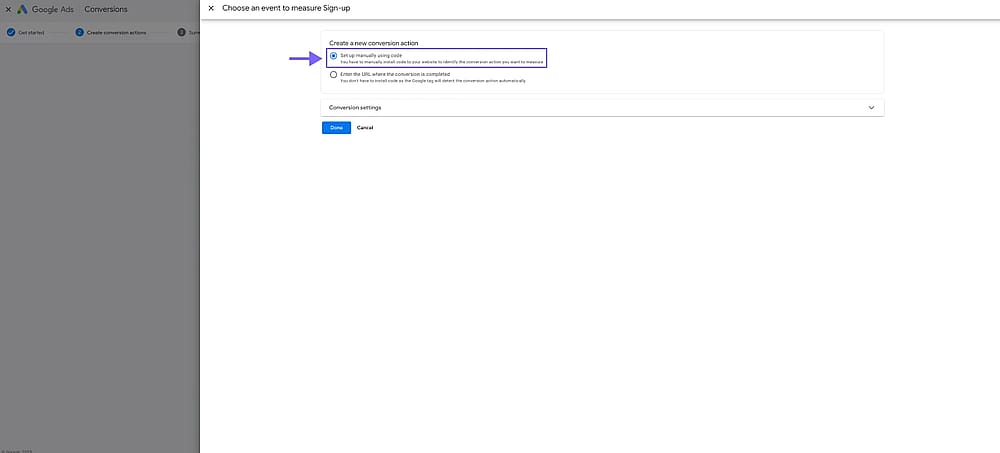
An image showing the “Set up manually using code” option that must be selected in the appeared menu
7. Once you’re done adding your new conversion action, click Save and continue to see the details:
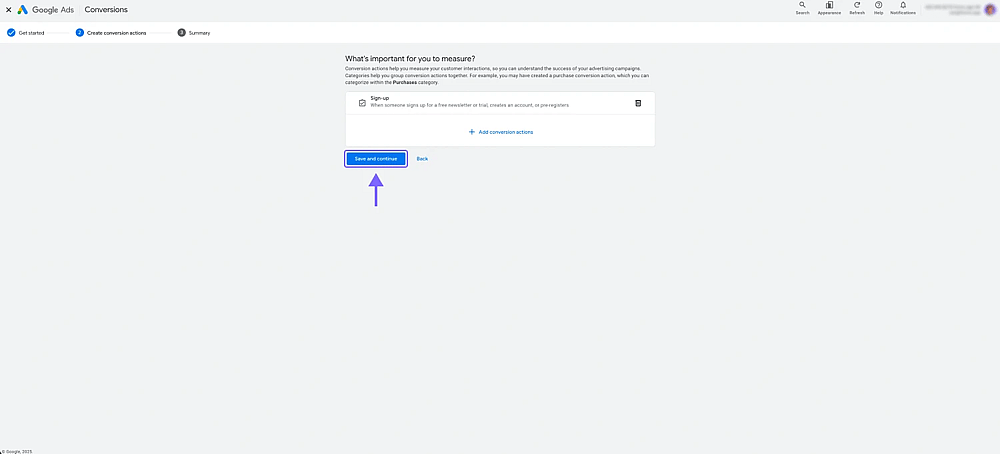
An image showing the “Save and continue” button, which you need to click to check the details of your new conversion
8. On the Summary stage, click on See event snippet:
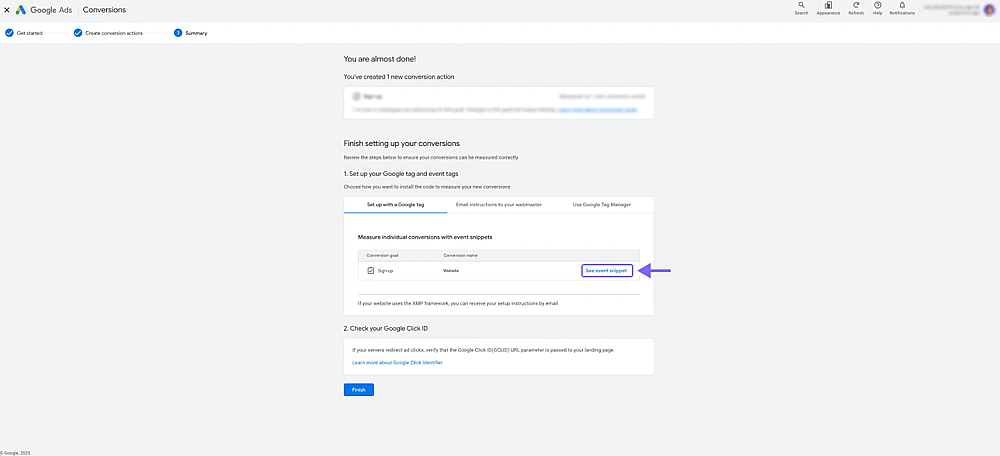
An image showing the “See event snippet” button, which is located in the “Summary” section
9. Within the snippet, you can find and copy your conversion ID next to “send to” (See highlighted area below):
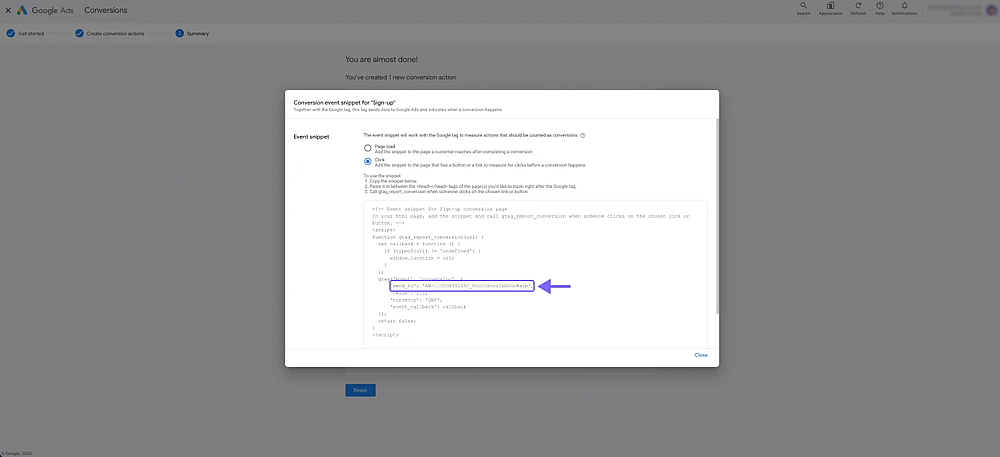
An image showing the place in the screen where you will be able to find and copy the “conversion ID”
10. Once you copy the conversion ID, finish saving up, and go to forms.app:
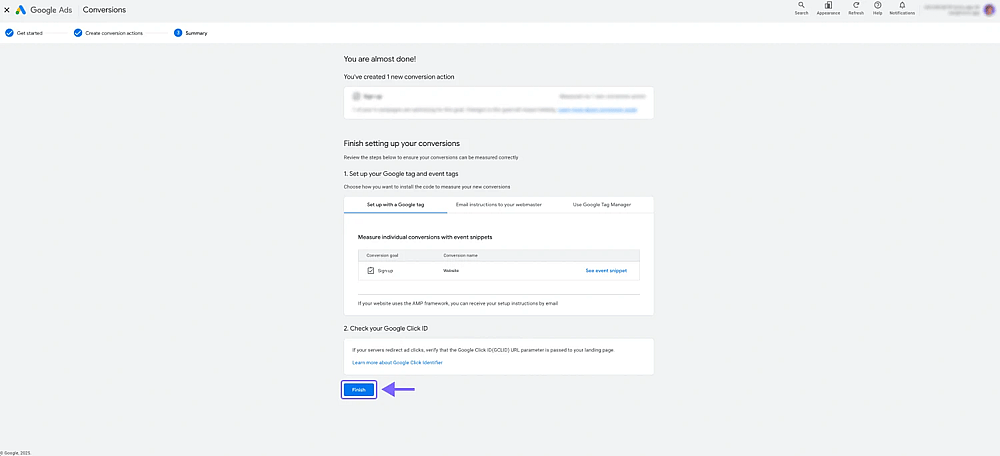
An image showing the “Finish” button, which allows you to save the process after you copied the conversion ID
How to integrate your form with Google Ads
Once you have managed tracking codes from the Google Ads side, it is time to connect your forms.app forms with Google Ads to start the integration. Check these steps below and finish the process:
1. Click the Connect tab and scroll down, and find the Google Ads option:
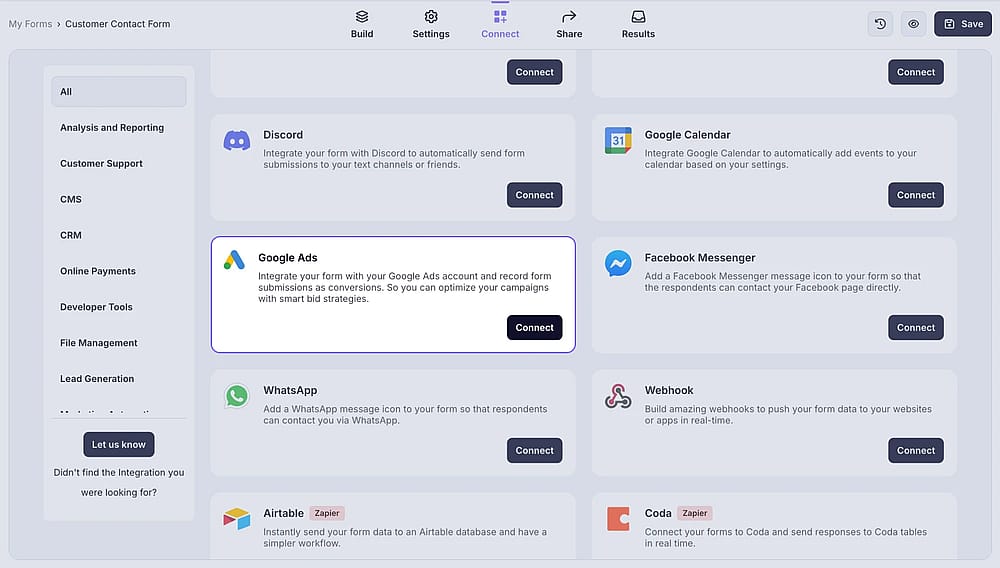
An image showing the “Google Ads integration” button, which you can easily find by accessing the “Connect” tab
2. Paste your conversion ID:
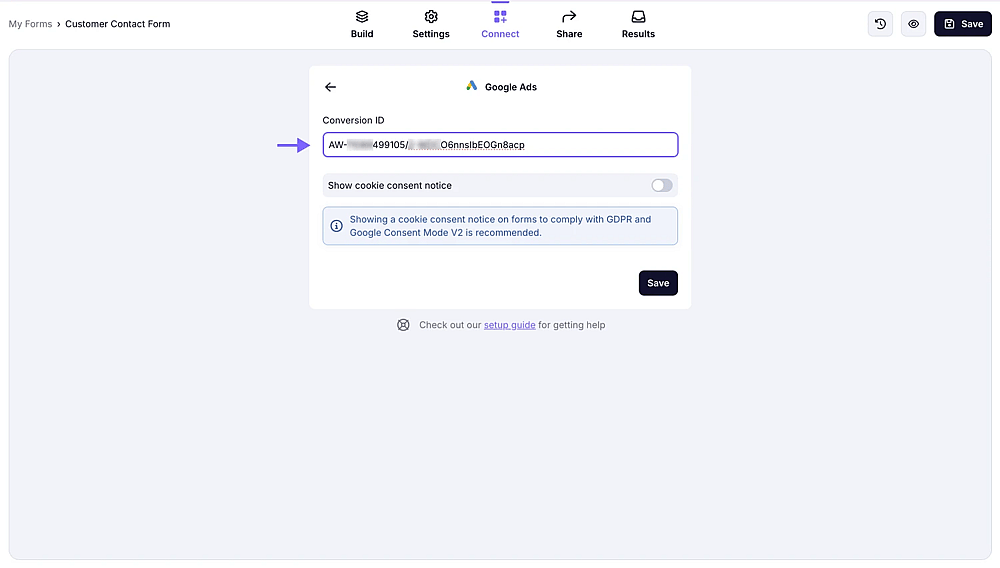
An image showing the area from the “Connect” section where you will be able to paste your conversion ID
3. You can check your conversions by going back to the Summary:
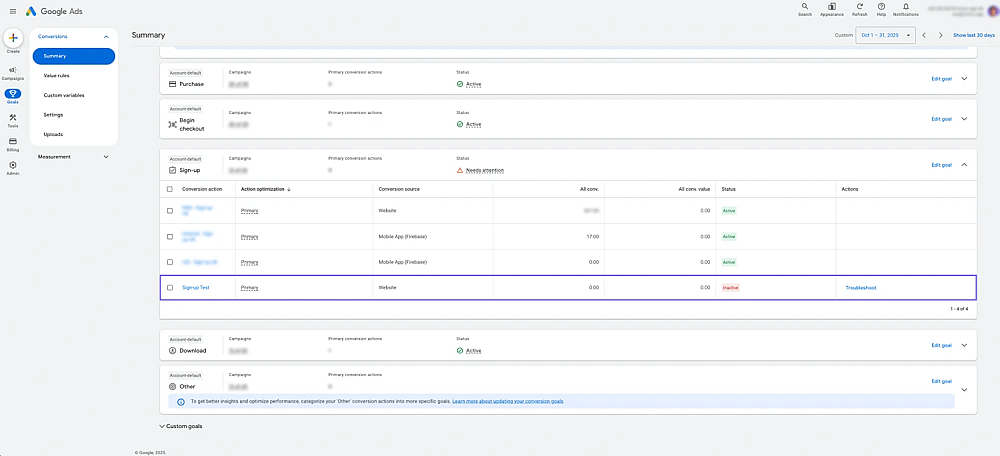
An image showing the “Google Ads” interface, where you will be able to check your conversions every time by accessing the “Summary” tab
To see a form submission as a conversion in Google Ads, the traffic source must be Google Ads. Submissions coming from direct, organic, or social channels won’t appear in Google Ads, because Google can only attribute conversions to clicks that originate from its own ads.
Google Ads integration is ideal when using your forms as a direct landing destination for your campaigns. For Google Ads to properly fire and attribute conversions, the conversion signal must be passed directly to Google. For embedded forms, the most reliable setup is to enable the “Redirect after submission” option and track a pageview or click on the redirected URL as your conversion event.
To ensure the Redirect action works correctly in embedded implementations, use the Script embed method.